

Neurowise is an adware that injects pop-up advertisements to your web browser without any warning
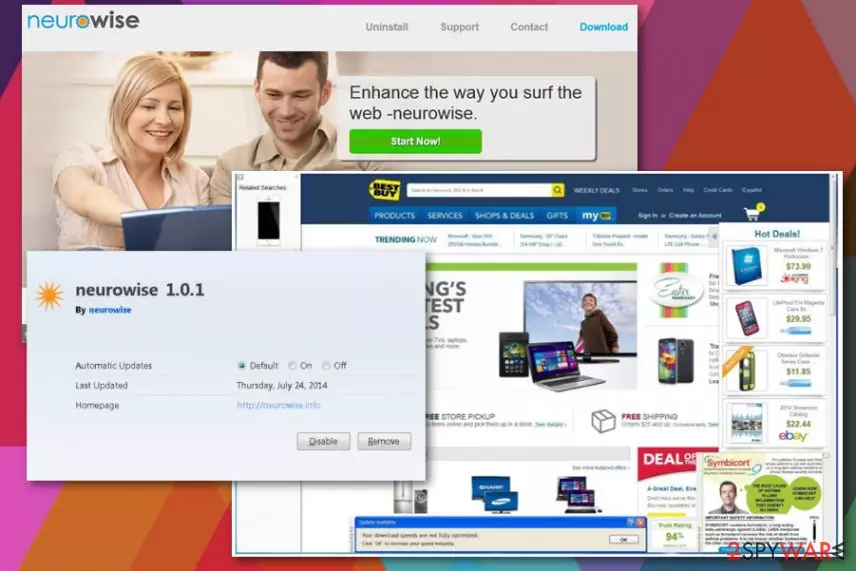
Neurowise is an adware program that causes ads indicating about the potentially unwanted intruder on your device. The application was developed by a notoriously known developer called Super Web LLC that has presented lots of similar programs causing problems to PC users. So do not get surprised if a similar program gets on your computer without any warning and starts causing numerous ads redirecting you to sites that you did not expect. The main activity of this adware[1] is to change the traffic of your searches and collect information about your other browsing activity. All this intrusive behavior affects your Internet Explorer, Google Chrome, Mozilla Firefox, and other web browsers.
| Name | Neurowise |
|---|---|
| developer | Super Web LLC |
| Category | Adware/Potentially unwanted program |
| web browsers Affected | Chrome, Explorer, Firefox and other browsers |
| main issues caused | Changes in web browsers without any approval, numerous ads added to search results, redirects to sponsored sites, data tracking |
| Distribution | Software bundles, deceptive ads |
| Removal | Use FortectIntego for Neurowise ads removal |
Don't be surprised if you start noticing Neurowise ads right after installing some freeware which seems useful on your computer. The most common way used for spreading PUPs like this is bundling. With its help, developers connect two different programs that can be noticed only if you monitor installation of the freeware and deselect check marks that allow their installation.
However, you can also install this dubious program yourself. This application is promoted as a useful tool capable of displaying coupons and helping users save some money in this way. Sadly, that is just another trick to transmit Neurowise adware because, once inside the system, it displays intrusive advertisements and interrupts every browsing session.[2]
Nevertheless, these ads are not the worst thing that could happen to you when having this PUP on board. According to the Privacy Policy of the company, the app initiates data tracking right after being let into the system. In addition, these terms also claim that there is a possibility that the collected information will be used by third-party advertisers. You should consider Neurowise ads removal immediately after you such claims.
Disclaimer about related third parties in the Privacy Policy reads as follows:
Unfortunately, no transmission of data over the Internet can ever be guaranteed to be completely secure. it may be possible for third parties not under our control to intercept or access transmissions or private communications unlawfully. We cannot ensure or warrant the security of any personal information transmitted to us. Any such transmission is done at your own risk. if you believe that your interaction with us is no longer secure, please notify us of the problem and uninstall the Software immediately.
As you can see, the main purpose of Neurowise is to display online advertisements in various forms and generate revenue from them. This profit goes to advertiser which is sponsoring the program and other PUPs. However, the most noticeable features of adware are these:
- Banners with advertisements fill up commonly-visited websites;
- Pop-up windows continuously display ads from the same provider;
- Text on web pages randomly turns into hyperlinks;
- A browser displays fake alerts offering updates;
- Additional tools, extensions appear on the browser from nowhere.
If you notice anything like this, remove Neurowise ads as soon as possible. Researchers[3] advise using anti-malware program like FortectIntego for the best results because this tool can eliminate damage caused by various malware from the device. This program can also indicate which software needs updating or is there any system vulnerabilities.

PUP developers have been spreading their products by using silent methods
Super Web LLC products are usually promoted as useful extensions for your browser on the official website. However, they can also end up on your computer right after installing an unfamiliar free program. This distribution method is called bundling. Therefore, if you do not want to be a victim of such a program, you need to choose what programs to download.
Always make sure whether you are installing a safe program. To avoid adware and similar potentially unwanted programs, you should read the terms of agreement section of the program that you want to install. You should also choose the Custom or Advanced installation option. This step allows you to unmark additional programs from the installation list.
Terminate Neurowise PUP from the device
To remove Neurowise ads from your computer, you should use anti-malware programs that are trustworthy. The list of the most trustworthy ones is presented down below. After installing such security tool, make sure you update it to its latest version. This ensures a full detection of all suspicious applications or their components on the system.
If you want to perform Neurowise removal manually, use the illustrated guide that we presented further. Steps that are given there require going to the Task Manager and uninstalling all apps that seems suspicious to you or that you can't remember installing. Then, reset the affected web browsers to maximize the security of your computer.
Uninstall from Windows
Uninstall from Windows 10/8:
- Type Control Panel into the Windows search box and open the result.
- Under Programs, select Uninstall a program.


Uninstall from Windows 7/XP:
- Click on Windows Start > Control Panel (Windows XP users should click on Add/Remove Programs).
- In Control Panel, select Programs > Uninstall a program.


Remove the unwanted program:
- In the Programs and Features window, look for any recently installed suspicious entries, select them, and click Uninstall.
- If User Account Control appears, click Yes to confirm, then complete the removal.


Reset Internet Explorer
Remove dangerous add-ons:
- Open Internet Explorer, click on the Gear icon (IE menu) on the top-right corner of the browser
- Pick Manage Add-ons.
- You will see a Manage Add-ons window. Here, look for suspicious plugins. Click on these entries and select Disable.


Change your homepage if it was altered:
- Open IE and click on the Gear icon.
- Select Internet Options.
- In the General tab, delete the Home page address and replace it by your preferred one (for example, Google.com).
- Click Apply and then select OK.


Delete temporary files:
- Press on the Gear icon and select Internet Options.
- Under Browsing history, click Delete...
- Select relevant fields and press Delete.


Reset Internet Explorer:
- Click on Gear icon > Internet options and select Advanced tab.
- Select Reset.
- In the new window, check Delete personal settings and select Reset.


Remove from Microsoft Edge
Delete unwanted extensions from MS Edge:
- Select Menu (three horizontal dots at the top-right of the browser window) and pick Extensions.
- From the list, pick the extension and click on the Gear icon.
- Click Remove.


Clear cookies and other browser data:
- Click on the Menu (three horizontal dots at the top-right of the browser window) and select Settings > Privacy, search, and services..
- Under Clear browsing data, pick Choose what to clear.
- Select Cookies and other site data and Cached images and files. (apart from passwords, although you might want to include Media licenses as well, if applicable) and click on Clear.


Restore new tab and homepage settings:
- Click the menu icon and choose Settings.
- Then find On startup section.
- Click Remove next to any suspicious startup page.
Reset MS Edge if the above steps did not work:
- Press on Ctrl + Shift + Esc to open Task Manager.
- Click on More details arrow at the bottom of the window.
- Select Details tab.
- Now scroll down and locate every entry with Microsoft Edge name in it. Right-click on each of them and select End Task to stop MS Edge from running.


Instructions for Chromium-based Edge
Delete extensions from MS Edge (Chromium):
- Open Edge and click select Settings > Extensions.
- Delete unwanted extensions by clicking Remove.


Clear cache and site data:
- Click on Menu and go to Settings.
- Select Privacy, search and services.
- Under Clear browsing data, pick Choose what to clear.
- Under Time range, pick All time.
- Select Clear now.


Reset Chromium-based MS Edge:
- Click on Menu and select Settings.
- On the left side, pick Reset settings.
- Select Restore settings to their default values.
- Confirm with Reset.
- This will disable extensions and reset startup pages but will not delete bookmarks, saved passwords, or browsing history.


Remove from Mozilla Firefox (FF)
Remove dangerous extensions:
- Open Mozilla Firefox browser and click on the Menu (three horizontal lines at the top-right of the window).
- Select Add-ons.
- In here, select the unwanted extension and click Remove.


Reset the homepage:
- Click three horizontal lines at the top right corner to open the menu.
- Choose Settings.
- Under Home, set your preferred homepage and new tab settings.
Clear cookies and site data:
- Click Menu and pick Settings.
- Go to Privacy & Security section.
- Scroll down to locate Cookies and Site Data.
- Click on Clear Data...
- Select Cookies and Site Data and Temporary cached files and pages, then click Clear.


Reset Mozilla Firefox
If clearing the browser as explained above did not help, reset Mozilla Firefox:
- Open Mozilla Firefox browser and click the Menu.
- Go to Help and then choose Troubleshooting Information.

- Under Give Firefox a tune up section, click on Refresh Firefox...
- Once the pop-up shows up, confirm the action by pressing on Refresh Firefox.



Remove from Google Chrome
Delete malicious extensions from Google Chrome:
- Open Google Chrome, click on the Menu (three vertical dots at the top-right corner) and select More tools > Extensions.
- In the newly opened window, you will see all the installed extensions. Uninstall all suspicious extensions related to the unwanted program by clicking Remove.


Clear cache and web data from Chrome:
- Click on Menu and pick Settings.
- Under Privacy and security, select Clear browsing data.
- Select Browsing history, Cookies and other site data, as well as Cached images and files.
- Click Clear data.


Change your homepage:
- Click menu and choose Settings.
- Look for a suspicious site in the On startup section.
- Click on Open a specific or set of pages and click on three dots to find the Remove option.
Reset Google Chrome:
If the previous methods did not help you, reset Google Chrome to eliminate all the unwanted components:
- Click on Menu and select Settings.
- In the Settings, scroll down and click Advanced.
- Scroll down and locate Reset and clean up section.
- Now click Restore settings to their original defaults.
- Confirm with Reset settings.


Delete from Safari
Remove dangerous extensions:
- Open Safari, click Safari in the menu at the top-left of the screen, and select Preferences.
- Go to the Extensions tab, look for any suspicious entries, and click Uninstall to remove them.


Clear history and website data:
- Click Safari in the menu and pick Clear History.
- Set Clear to all history and confirm with Clear History.


Reset Safari:
- Click Safari in the menu and select Preferences > Advanced.
- Enable Show Develop menu in menu bar.
- From the menu bar, click Develop and select Empty Caches.


Did this guide help?
Be the first to comment