

Mezaa is a questionable adware-type program that exposes users to dangerous contet
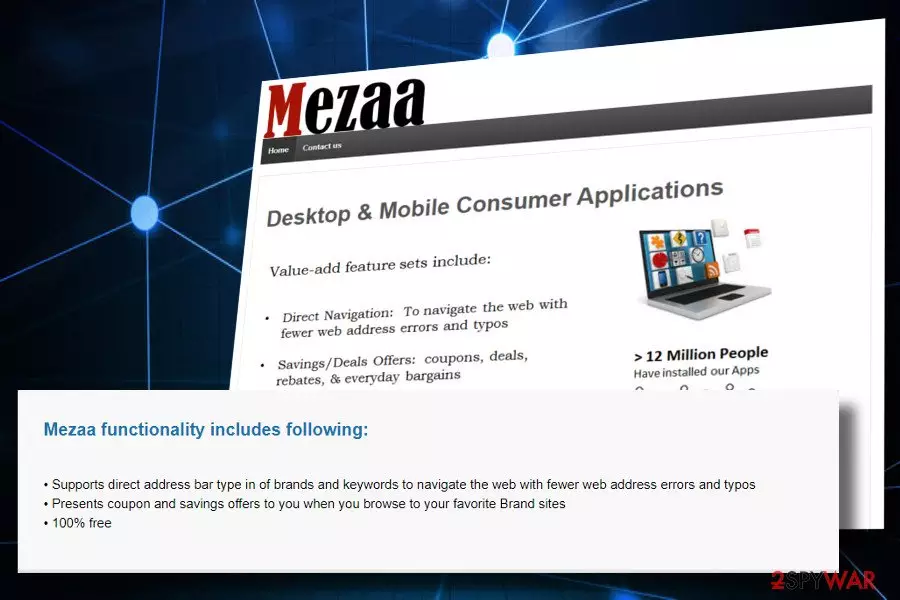
Mezaa is a potentially unwanted application that usually gets installed together with freeware and shareware, so users are unaware of its infiltration. The app is one of the most aggressive adware,[1] as it modifies registry entries and creates subkeys on the Windows operating system to perform its activities. Adware is known to deliver pop-up ads and in-text links into legitimate sites (such as Amazon) on Google Chrome and other browsers and also installing additional suspicious applications on the targeted computer without the user's consent. Due to such aggressive behavior, many AV vendors recognize the application as malicious under such names as Suspicious_GEN.F47V1109, Artemis!FB9ED40BCDC8, Adware.Mezaa, MSIL/Adware.Sendori.A, etc.
| Name | Mezaa virus |
|---|---|
| Classified as | Adware, PUA |
| AV detection | Suspicious_GEN.F47V1109, Artemis!FB9ED40BCDC8, Artemis, Mezaa, Adware.Mezaa, MSIL/Adware.Sendori.A |
| Related files | MZA.exe, MezaaSvc.exe, Mezaa.Service.exe |
| Danger level | Medium due to heavy Windows Registry modification |
| Symptoms | An excessive amount of commercial ads |
| Distribution | Freeware bundling |
| Elimination | You should rely on anti-malware tools and clean the machine fully. The guide below should also help when dealing with intruders like this |
| FortectIntego is a reliable security tool that can eliminate related apps and virus damage with one click. | |
Mezaa virus was active since late September 2014, and the application (that allegedly helps users with their shopping) was available on the rather poorly executed website. However, as of 2018, the official site has been removed and the only way users still obtain the adware is by installing it as an optional component bundled with other software.[2]
Once installed, Mezza changes the Windows startup system and starts running MZA.exe, MezaaSvc.exe, and Mezaa.Service.exe processes within Task Manager. They are responsible for the execution of the adware, as well as injection of a related extension to the default web browser, be it Chrome, Firefox, Edge, or Safari. The app then modifies Windows Registry, making the virus removal a much harder task than it would normally be, comparing it with regular adware apps.
First of all, the web browser's load time may be prolonged, so you may be forced to wait for the startup window to open for a minute or two. However, the most prominent sign of the virus presence is a continuous attack of ads. Pop-ups, banners, interstitial ads, in-text links, full-page auto-play ads, etc. may flood your screen and prevent you from viewing the content that matters for you.
Usually, intrusive ads contain various offers that are available on its partners' web stores. However, some of the pop-ups may be powered by suspicious third parties that may try to foist useless services or trick people into downloading malware. Therefore, if you see ads claiming that your system is infected with a virus or that you have been selected to win valuable prizes, do not fall for clicking on them. Such and similar ads may be a catch leading to phishing or scam[3] websites.
In addition to intrusive ads, Mezaa virus aims at collecting users' Search Data. It includes
- IP address
- Email address
- Search queries
- Most visited websites
- Bookmarks, and similar browsing-related information.
Even though it's not considered as personally identifiable (PI), its disclosure to third parties is not recommended. That's because the number of ads may grow even more. Besides, they may be improved according to your preferences, thus have more potential to be clicked on.

Anyway, we encourage you to remove Mezaa from the system. This way, you will clean the system from malware, as well as delete intrusive content from your web browser. The easiest way to get rid of unwanted programs is to run a full scan with a professional anti-virus. Nevertheless, you can perform the removal manually with the help of a guide given at the end of this article.
Finally, we recommend scanning your device with SpyHunterCombo Cleaner, MalwarebytesMalwarebytes, or a similar PC repair tool after the PUP removal. The mentioned software can remove Registry entries created by PUP and make sure that no “Ads by Mezaa” will show up on your browser again.
Adware can unravel its ads with the help of freeware
Not all, but many adware-type programs can be downloaded from official websites or sometimes from such reliable sources as Google Play Store. In some of the cases, like in this one, adware has an official website, which does not provide a download button. That's a clear sign that the app you are looking at is a PUP, which is being distributed along with freeware.
Such unwanted tools are usually hidden under Quick or Basic installation options and marked by default. Consequently, if the PC's owner selects one of these options, he or she unconsciously permits to the installation of the whole software package.
To prevent the unexpected appearance of such apps, be very careful when installing freeware and shareware on your PC. The easiest way to disclose the bundle and reveal additional downloads is to choose Custom or Advanced installation option. Do not click the Next button for trying to speed up installation because you may easily miss the check mark that allows installation of PUPs.

Mezaa virus removal guide
If you noticed that your Internet browsing is frequently interrupted by ads that are labeled “brought to you by Mezaa,” “Mezaa ads,” and similar slogans, there's no doubt that adware programs infiltrated your PC via freeware bundle.
Your web browser will remain contaminated by intrusive advertisements as long as you won't remove malware from the system. You can do that in two ways, i.e., by scanning the system with a professional anti-virus or performing the system's check manually.
Mezaa removal is not a difficult task. However, the utanvirus.se[4] team claims that the automatic elimination process could save your day. Such and similar malware can find helper objects, which, if left intact, can reinstall adware and rebuilt third-party advertising servers.
Uninstall from Windows
Uninstall from Windows 10/8:
- Type Control Panel into the Windows search box and open the result.
- Under Programs, select Uninstall a program.


Uninstall from Windows 7/XP:
- Click on Windows Start > Control Panel (Windows XP users should click on Add/Remove Programs).
- In Control Panel, select Programs > Uninstall a program.


Remove the unwanted program:
- In the Programs and Features window, look for any recently installed suspicious entries, select them, and click Uninstall.
- If User Account Control appears, click Yes to confirm, then complete the removal.


Delete from macOS
Remove the unwanted application:
- From the menu bar, select Go > Applications.
- In the Applications folder, look for any suspicious entries, then drag them to Trash (or right-click and pick Move to Trash).


Delete leftover files and folders:
- Select Go > Go to Folder.
- Enter /Library/Application Support and remove any suspicious folders related to the unwanted program.
- Repeat the same check in the /Library/LaunchAgents and /Library/LaunchDaemons folders, deleting any suspicious entries.

- Finally, empty the Trash to permanently remove the leftovers.

Remove from Microsoft Edge
Delete unwanted extensions from MS Edge:
- Select Menu (three horizontal dots at the top-right of the browser window) and pick Extensions.
- From the list, pick the extension and click on the Gear icon.
- Click Remove.


Clear cookies and other browser data:
- Click on the Menu (three horizontal dots at the top-right of the browser window) and select Settings > Privacy, search, and services..
- Under Clear browsing data, pick Choose what to clear.
- Select Cookies and other site data and Cached images and files. (apart from passwords, although you might want to include Media licenses as well, if applicable) and click on Clear.


Restore new tab and homepage settings:
- Click the menu icon and choose Settings.
- Then find On startup section.
- Click Remove next to any suspicious startup page.
Reset MS Edge if the above steps did not work:
- Press on Ctrl + Shift + Esc to open Task Manager.
- Click on More details arrow at the bottom of the window.
- Select Details tab.
- Now scroll down and locate every entry with Microsoft Edge name in it. Right-click on each of them and select End Task to stop MS Edge from running.


Instructions for Chromium-based Edge
Delete extensions from MS Edge (Chromium):
- Open Edge and click select Settings > Extensions.
- Delete unwanted extensions by clicking Remove.


Clear cache and site data:
- Click on Menu and go to Settings.
- Select Privacy, search and services.
- Under Clear browsing data, pick Choose what to clear.
- Under Time range, pick All time.
- Select Clear now.


Reset Chromium-based MS Edge:
- Click on Menu and select Settings.
- On the left side, pick Reset settings.
- Select Restore settings to their default values.
- Confirm with Reset.
- This will disable extensions and reset startup pages but will not delete bookmarks, saved passwords, or browsing history.


Remove from Mozilla Firefox (FF)
Remove dangerous extensions:
- Open Mozilla Firefox browser and click on the Menu (three horizontal lines at the top-right of the window).
- Select Add-ons.
- In here, select the unwanted extension and click Remove.


Reset the homepage:
- Click three horizontal lines at the top right corner to open the menu.
- Choose Settings.
- Under Home, set your preferred homepage and new tab settings.
Clear cookies and site data:
- Click Menu and pick Settings.
- Go to Privacy & Security section.
- Scroll down to locate Cookies and Site Data.
- Click on Clear Data...
- Select Cookies and Site Data and Temporary cached files and pages, then click Clear.


Reset Mozilla Firefox
If clearing the browser as explained above did not help, reset Mozilla Firefox:
- Open Mozilla Firefox browser and click the Menu.
- Go to Help and then choose Troubleshooting Information.

- Under Give Firefox a tune up section, click on Refresh Firefox...
- Once the pop-up shows up, confirm the action by pressing on Refresh Firefox.



Remove from Google Chrome
Delete malicious extensions from Google Chrome:
- Open Google Chrome, click on the Menu (three vertical dots at the top-right corner) and select More tools > Extensions.
- In the newly opened window, you will see all the installed extensions. Uninstall all suspicious extensions related to the unwanted program by clicking Remove.


Clear cache and web data from Chrome:
- Click on Menu and pick Settings.
- Under Privacy and security, select Clear browsing data.
- Select Browsing history, Cookies and other site data, as well as Cached images and files.
- Click Clear data.


Change your homepage:
- Click menu and choose Settings.
- Look for a suspicious site in the On startup section.
- Click on Open a specific or set of pages and click on three dots to find the Remove option.
Reset Google Chrome:
If the previous methods did not help you, reset Google Chrome to eliminate all the unwanted components:
- Click on Menu and select Settings.
- In the Settings, scroll down and click Advanced.
- Scroll down and locate Reset and clean up section.
- Now click Restore settings to their original defaults.
- Confirm with Reset settings.


Delete from Safari
Remove dangerous extensions:
- Open Safari, click Safari in the menu at the top-left of the screen, and select Preferences.
- Go to the Extensions tab, look for any suspicious entries, and click Uninstall to remove them.


Clear history and website data:
- Click Safari in the menu and pick Clear History.
- Set Clear to all history and confirm with Clear History.


Reset Safari:
- Click Safari in the menu and select Preferences > Advanced.
- Enable Show Develop menu in menu bar.
- From the menu bar, click Develop and select Empty Caches.


Did this guide help?
Be the first to comment