

What is Safe PC Cleaner?
Safe PC Cleaner is a program that has already initiated lots of discussions on the Internet. If you have been convinced that it was created for helping you avoid viruses and eliminating them from your computer before they affect it, you should think again.
In reality, it's a rogue anti-spyware that seeks to swindle your money. For that, it displays misleading notifications about miserable PC's situation and then offers to purchase an “upgrade” for fixing it. Of course, you should never pay for the “licensed,” “full” or whatever it's called Safe PC Cleaner virus version because it's fake.
In reality, this program has no virus database, so it is not capable of scanning the computer and detecting viruses. Also, it can easily initiate various modifications on your PC system that may lead your computer to the infiltration of additional viruses.
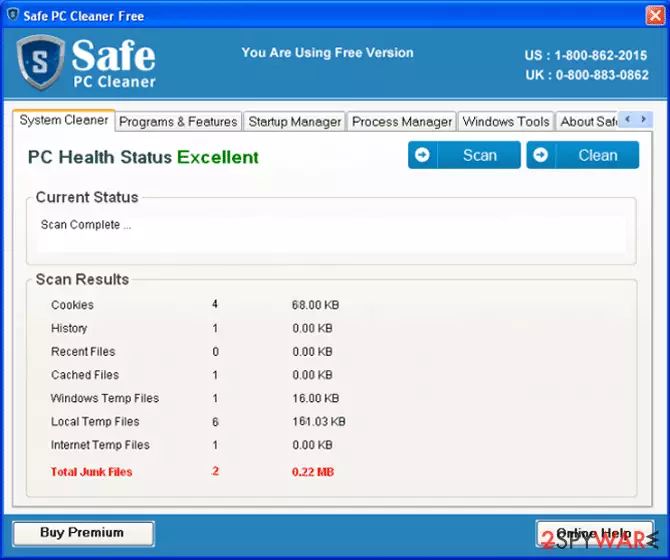
If you noticed fake alerts reporting about trojans, worms, adware and similar viruses, it means that it's infected. Ignore all alerts that are displayed by this program and scan your CP with reputable anti-spyware. It will help you remove Safe PC Cleaner virus from the system without leaving its leftover files and registry entries. Also, it will also help you avoid system's damage by eliminating wrong files from your computer.
Ways used by this PUP to spread around
The virus has mostly been spread using social engineering. This term means that it can easily infiltrate your PC unnoticed after downloading infected email's attachment, clicking on the infected ad or simply visiting a hacked website. At the time of writing, you should be especially careful with ads that offer you to download the free update for Java, Flash Player, and a similar program. If you click on such ad, you can easily end up with Safe PC Cleaner virus.
Also, ignore all alerts offering you to download a free system scanner for checking the computer and making sure that it's not infected. There is no such thing as “free scanner” or “online checker.” If this rogue enters the computer, it modifies the system and starts initiating constant system scans every time the victim starts or reboots the machine. In addition, it as soon as a scan is finished, this scareware announces about different kinds of viruses and creates a need for its licensed version automatically. Please, do NOT pay for any 'upgrade' or 'license' because you will lose your money. You should waste no time and remove Safe PC Cleaner from the system instead of that.
Safe PC Cleaner virus removal is highly recommended
If you noticed Safe PC Cleaner alerts on your computer, it's a sign that it's infected. Please, do NOT purchase its licensed version because it's just a method used for tricking people into giving their money away. If you have already been convinced to send your money to scammers, you should contact your credit card company and tell them about this payment. Maybe this will help you to return your money.
Also, run a full system scan with FortectIntego, SpyHunterCombo Cleaner or MalwarebytesMalwarebytes to remove Safe PC Cleaner from the system. Programs that are recommended by our experts are considered to be highly effective and capable of restoring damage caused by this malicious program.
ATTENTION! This virus may try to block installation and activity of legitimate security programs, including FortectIntego. If you can't download or launch any them, try these options:
Disable the virus with the help of System Restore
- Click Start -> All Programs -> Accessories -> System Tools -> System Restore.
- As soon as Restore system files and settings window shows up, select Next.
- Choose the restore point that you want and click Next .
- Click Finish to confirm and wait until your PC reboots.
- Now download FortectIntego and run a full system scan after updating it.
Reboot to Safe Mode with Networking and run a full scan
- Restart your computer
- As soon as your computer becomes active, start pressing the F8 key continuously until you see the Advanced Boot Options screen.
- Here, select Safe Mode with Networking (for that, use the arrow keys) and then hit Enter.
- Login as the same user as you were in normal Windows mode
- Now right click on IE or other browser's icon and select Run As or Run As administrator. Enter your Administrator account password (if needed).
- Download FortectIntego and run a full system scan.
Create a guest account and launch a scanner
If you have another user (guest) account, you can try to run a full system scan from it. You just need to log into it and download FortectIntego for a full system scan. You can activate your guest account with the help of these steps:
- Click Start -> Control Panel and select User Accounts and Family Safety.
- After a new window shows up, click on Add or Remove User Accounts -> Guest Account.
- Now click on Turn On button and restart your computer
- Wait until you see Windows logon screen and select the Guest account for downloading recommended anti-spyware.
Did this guide help?
1 comment
User
run cmd as admin:
takeown /f c:\config.msi
del c:\config.msi\r*