

CrossRider is the adware that installs potentially unwanted programs and can be detected as Adware.CrossRider
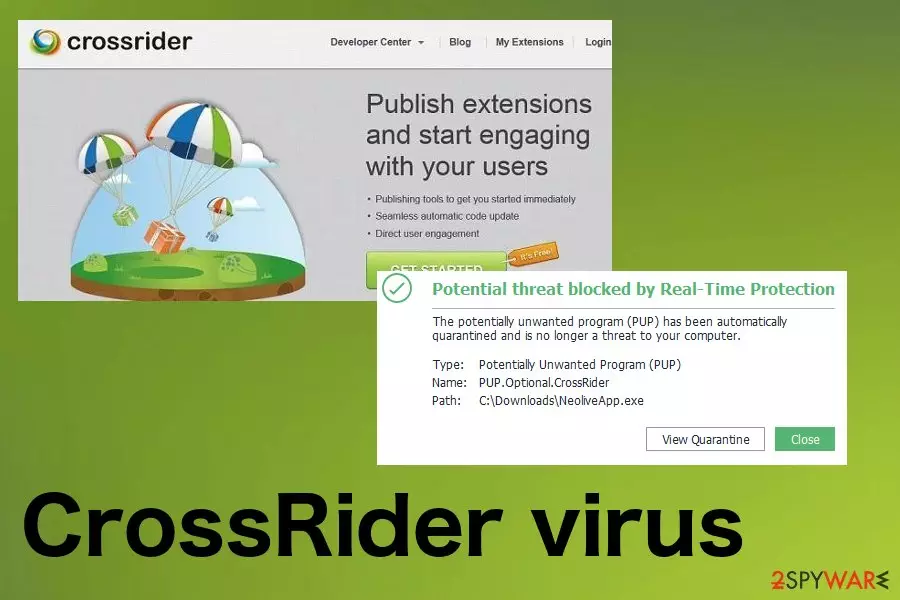
CrossRider virus is one of many potentially unwanted programs that can hook deep into the system and change settings to interfere with the general machine performance. This is an adware-type cyber threat that mainly acts in the background and causes tons of pop-ups, banners, redirects filled with commercial material. This threat can be detected with anti-malware tools, and since those programs have different databases, detection names vary:
- Adware.CrossRider;
- PUP.Optional.CrossRider;
- Adware.MAC.OSX.CrossRider;
- Gen:Variant.Adware.CrossRider.
77.
This is also a platform used by other PUP developers that helps to publish their products, push them as useful products. CrossRider gets used as a service by other adware or hijacking software as a tool, so this activity may be the reason why many users consider the platform malicious. However, this is not a virus even though it is annoying and intrusive.
| Name | CrossRider virus |
|---|---|
| Type | Adware |
| Symptoms | Shows banners, pop-ups, coupons, pop-unders, redirects with commercial content, installs other toolbars, extensions, tools |
| Affects | Mac and Windows OSs |
| Main danger | Gets access to users' data, installs shady tools without permission |
| Distribution | Freeware installations, bundling, deceptive ads |
| Elimination | Get anti-malware tool to remove CrossRider |
Common adware symptoms include content pushing other programs, but CrossRider is used as a legitimate platform for this, so don't be surprised if your screen gets filled with material pushing toolbars, extensions, optimization utilities. All that material may be marked with Ads by CrossRider or CrossRider Ads. That is the biggest tell-all that your device has adware intruder on the system.
CrossRider can also cause:
- altered browser settings;
- random in-text hyperlinks;
- altered search results;
- installed extensions; toolbars, bookmarks on the web browser;
- advertisements injected on sites you commonly visit.
CrossRider is an ad-supported program that affects all the web browser from Google Chrome, Internet Explorer, to Mozilla Firefox, and Safari. The content installed without your permission can have various features and cause frustration, damage and affect the speed of your machine, the browser itself.
Unfortunately, there might be more files and applications added on the machine to make sure Cross Rider virus is persistent. So when it comes to PUP removal, you need a professional anti-malware tool and a thorough check, so all of them get indicated and deleted completely.
CrossRider is a browser add-on that displays various ads and initiates constant redirects to questionable websites. No matter that this application may seem harmless and you may not feel annoyed by its presence on your computer, it is not recommended keeping it on the system as it may initiate dangerous activities behind your back.

Then intruder may modify certain system settings that enable commercial advertisements' appearance on computer. Consequently, you may notice constant pop-up ads, notifications, links, and other intrusive tools that may try to make you click them.
If you do so, you may be redirected to a suspicious-looking website, which may be used for spreading various questionable or even dangerous programs. That's why you should stay away from content marked with Ads by CrossRider.
If you have used or are using this program you should also know that this dubious application may install tracking cookies on your computer and may start accumulating various data, such as IP address, search queries, email addresses, top visited websites, ads clicked on and so on.[2]
That's why we strongly advise you to remove CrossRider virus from the system. Do not hesitate and scan your computer with a reputable anti-spyware like FortectIntego to eliminate this potentially unwanted application before it starts causing problems on your computer.
Potentially unwanted program stealthily distribution ways
Usually, various plug-ins, add-ons, extensions are presented as extremely useful tools that are capable of saving time and money. Unfortunately, no one mentions that a particular program is very annoying and that it may initiate problems to your browser's performance.
This immediately signals that the application is questionable and is distributed using suspicious techniques. It is known that this browser plug-in travels integrated into free software that is promoted in third-party download websites. Therefore, if you have recently downloaded any free program, you likely allowed the installation of the hijacker or adware as well.
Of course, you may avoid infiltration of this program if you do not install free software without getting familiar with it. It is advisable to read the end-user license agreement and try to find comments and reviews of the program. This may help to find out about additional attachments that it may carry and about side effects it may cause.
Moreover, avoid Quick/Basic/Recommended installation options. This way, you automatically permit to install all programs that were bundled with the program that you desire. Instead, opt for Advanced or Custom installation and reject propositions to change your homepage, search engine, add toolbar, install the extension, add-on, or plug-in.
Get rid of CrossRider virus now
You can remove CrossRider virus manually or automatically. However, if you decide to eliminate it without additional software, it can take too much time and not end up that positive. You still can rely on the guide given below.
However, programs like this CrossRider adware or a similar threat may install registry entries, after removing the program, it is recommended scanning your system with a reputable anti-spyware in order to remove related programs as well.
Also, CrossRider virus removal using anti-malware tools is the method that gets recommended by many experts[3] You should take into consideration that different programs different databases and all the detection names may not match. Trust your AV tool and clean the machine fully by following steps on that program.
Uninstall from Windows
Uninstall from Windows 10/8:
- Type Control Panel into the Windows search box and open the result.
- Under Programs, select Uninstall a program.


Uninstall from Windows 7/XP:
- Click on Windows Start > Control Panel (Windows XP users should click on Add/Remove Programs).
- In Control Panel, select Programs > Uninstall a program.


Remove the unwanted program:
- In the Programs and Features window, look for any recently installed suspicious entries, select them, and click Uninstall.
- If User Account Control appears, click Yes to confirm, then complete the removal.


Delete from macOS
Remove the unwanted application:
- From the menu bar, select Go > Applications.
- In the Applications folder, look for any suspicious entries, then drag them to Trash (or right-click and pick Move to Trash).


Delete leftover files and folders:
- Select Go > Go to Folder.
- Enter /Library/Application Support and remove any suspicious folders related to the unwanted program.
- Repeat the same check in the /Library/LaunchAgents and /Library/LaunchDaemons folders, deleting any suspicious entries.

- Finally, empty the Trash to permanently remove the leftovers.

Reset Internet Explorer
Remove dangerous add-ons:
- Open Internet Explorer, click on the Gear icon (IE menu) on the top-right corner of the browser
- Pick Manage Add-ons.
- You will see a Manage Add-ons window. Here, look for suspicious plugins. Click on these entries and select Disable.


Change your homepage if it was altered:
- Open IE and click on the Gear icon.
- Select Internet Options.
- In the General tab, delete the Home page address and replace it by your preferred one (for example, Google.com).
- Click Apply and then select OK.


Delete temporary files:
- Press on the Gear icon and select Internet Options.
- Under Browsing history, click Delete...
- Select relevant fields and press Delete.


Reset Internet Explorer:
- Click on Gear icon > Internet options and select Advanced tab.
- Select Reset.
- In the new window, check Delete personal settings and select Reset.


Remove from Mozilla Firefox (FF)
Remove dangerous extensions:
- Open Mozilla Firefox browser and click on the Menu (three horizontal lines at the top-right of the window).
- Select Add-ons.
- In here, select the unwanted extension and click Remove.


Reset the homepage:
- Click three horizontal lines at the top right corner to open the menu.
- Choose Settings.
- Under Home, set your preferred homepage and new tab settings.
Clear cookies and site data:
- Click Menu and pick Settings.
- Go to Privacy & Security section.
- Scroll down to locate Cookies and Site Data.
- Click on Clear Data...
- Select Cookies and Site Data and Temporary cached files and pages, then click Clear.


Reset Mozilla Firefox
If clearing the browser as explained above did not help, reset Mozilla Firefox:
- Open Mozilla Firefox browser and click the Menu.
- Go to Help and then choose Troubleshooting Information.

- Under Give Firefox a tune up section, click on Refresh Firefox...
- Once the pop-up shows up, confirm the action by pressing on Refresh Firefox.



Remove from Google Chrome
Delete malicious extensions from Google Chrome:
- Open Google Chrome, click on the Menu (three vertical dots at the top-right corner) and select More tools > Extensions.
- In the newly opened window, you will see all the installed extensions. Uninstall all suspicious extensions related to the unwanted program by clicking Remove.


Clear cache and web data from Chrome:
- Click on Menu and pick Settings.
- Under Privacy and security, select Clear browsing data.
- Select Browsing history, Cookies and other site data, as well as Cached images and files.
- Click Clear data.


Change your homepage:
- Click menu and choose Settings.
- Look for a suspicious site in the On startup section.
- Click on Open a specific or set of pages and click on three dots to find the Remove option.
Reset Google Chrome:
If the previous methods did not help you, reset Google Chrome to eliminate all the unwanted components:
- Click on Menu and select Settings.
- In the Settings, scroll down and click Advanced.
- Scroll down and locate Reset and clean up section.
- Now click Restore settings to their original defaults.
- Confirm with Reset settings.


Delete from Safari
Remove dangerous extensions:
- Open Safari, click Safari in the menu at the top-left of the screen, and select Preferences.
- Go to the Extensions tab, look for any suspicious entries, and click Uninstall to remove them.


Clear history and website data:
- Click Safari in the menu and pick Clear History.
- Set Clear to all history and confirm with Clear History.


Reset Safari:
- Click Safari in the menu and select Preferences > Advanced.
- Enable Show Develop menu in menu bar.
- From the menu bar, click Develop and select Empty Caches.


Did this guide help?
Be the first to comment