

CouponTime virus: annoying pop-ups you should disable
CouponTime is a browser add-on that is labeled as an adware and potentially unwanted program (PUP) due to its several negative features. Do not get tricked by this program even if it promises to provide you various coupons when visiting online stores. The program only bombards you with useless commercial offers and banners. Moreover, it may also secretly install additional adware-type programs. If you regard this behavior as unacceptable, make a haste to remove CouponTime virus.
One of the main goals of this adware is to promote sponsored websites. The adware displays various CouponTime ads, coupons and commercial offers which might direct to the websites of its partners. Since they provide support for the website, the owners of CouponTime grant the ability of advertising companies to display their ads. However, these commercial offers might be useless for users who prefer shopping online. These ads may act quite aggressively and replace the commercial offers of other companies. If you are looking for objective shopping information and want to find best offers with biggest discounts, Coupon Time will hinder you to do that.
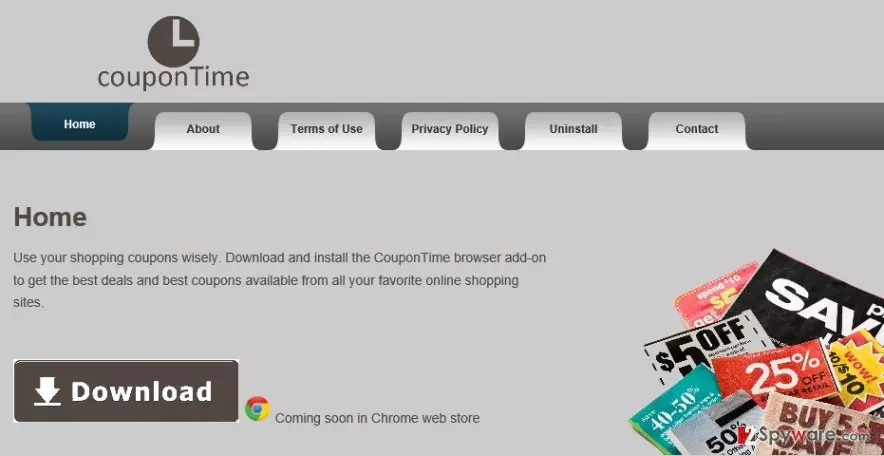
After a while, you may notice that these ads are somehow related to your recent searches. That’s because this adware monitors your online activities in order to provide appealing ads, attract your attention and trick you into clicking on them. That’s where CouponTime redirect occurs. Avoid clicking on the pop-ups because they might mislead to unknown websites which might be filled with malignant files. Therefore, it is high time you initiated CouponTime removal. FortectIntego is a trustworthy application which ensures proper elimination.
The transmission of the adware
It is very probable that this app might appear on your PC even if you haven’t downloaded it willingly. That’s because the adware is usually installed along with other free applications. It can get installed along with free download managers, music players, and video streaming software. If you often install free programs without paying much attention to its installation process and simply by clicking the “Next” button, there is a high probability that you may install a couple of adware-type programs as well. In order to prevent CouponTime hijack in the future, select “Custom” installation mode and then carefully watch out for any unnecessary programs.
How can I remove CouponTime?
CouponTime virus can be eliminated with a reputable anti-spyware, and that’s what we recommend doing. This program makes sure that the PUP is completely deleted without leaving any traces. Moreover, the malware removal tool also serves as invaluable protector of the operating system. If you take care of it and update it regularly, you can experience the full benefits. In addition, it is possible to complete CouponTime removal manually. You can either use the guidelines provided below or search for the alternative ones. It is of utmost importance to follow the instructions accurately to make sure that the adware is removed properly. Otherwise, the probability to get hijacked by any adware increases. After you delete Coupon Time, check if there aren’t additionally installed programs on the list of system applications. Finally, remember to download new programs only from their official websites and be attentive while installing new software.
Uninstall from Windows
Uninstall from Windows 10/8:
- Type Control Panel into the Windows search box and open the result.
- Under Programs, select Uninstall a program.


Uninstall from Windows 7/XP:
- Click on Windows Start > Control Panel (Windows XP users should click on Add/Remove Programs).
- In Control Panel, select Programs > Uninstall a program.


Remove the unwanted program:
- In the Programs and Features window, look for any recently installed suspicious entries, select them, and click Uninstall.
- If User Account Control appears, click Yes to confirm, then complete the removal.


Delete from macOS
Remove the unwanted application:
- From the menu bar, select Go > Applications.
- In the Applications folder, look for any suspicious entries, then drag them to Trash (or right-click and pick Move to Trash).


Delete leftover files and folders:
- Select Go > Go to Folder.
- Enter /Library/Application Support and remove any suspicious folders related to the unwanted program.
- Repeat the same check in the /Library/LaunchAgents and /Library/LaunchDaemons folders, deleting any suspicious entries.

- Finally, empty the Trash to permanently remove the leftovers.

Remove from Microsoft Edge
Delete unwanted extensions from MS Edge:
- Select Menu (three horizontal dots at the top-right of the browser window) and pick Extensions.
- From the list, pick the extension and click on the Gear icon.
- Click Remove.


Clear cookies and other browser data:
- Click on the Menu (three horizontal dots at the top-right of the browser window) and select Settings > Privacy, search, and services..
- Under Clear browsing data, pick Choose what to clear.
- Select Cookies and other site data and Cached images and files. (apart from passwords, although you might want to include Media licenses as well, if applicable) and click on Clear.


Restore new tab and homepage settings:
- Click the menu icon and choose Settings.
- Then find On startup section.
- Click Remove next to any suspicious startup page.
Reset MS Edge if the above steps did not work:
- Press on Ctrl + Shift + Esc to open Task Manager.
- Click on More details arrow at the bottom of the window.
- Select Details tab.
- Now scroll down and locate every entry with Microsoft Edge name in it. Right-click on each of them and select End Task to stop MS Edge from running.


Instructions for Chromium-based Edge
Delete extensions from MS Edge (Chromium):
- Open Edge and click select Settings > Extensions.
- Delete unwanted extensions by clicking Remove.


Clear cache and site data:
- Click on Menu and go to Settings.
- Select Privacy, search and services.
- Under Clear browsing data, pick Choose what to clear.
- Under Time range, pick All time.
- Select Clear now.


Reset Chromium-based MS Edge:
- Click on Menu and select Settings.
- On the left side, pick Reset settings.
- Select Restore settings to their default values.
- Confirm with Reset.
- This will disable extensions and reset startup pages but will not delete bookmarks, saved passwords, or browsing history.


Remove from Mozilla Firefox (FF)
Remove dangerous extensions:
- Open Mozilla Firefox browser and click on the Menu (three horizontal lines at the top-right of the window).
- Select Add-ons.
- In here, select the unwanted extension and click Remove.


Reset the homepage:
- Click three horizontal lines at the top right corner to open the menu.
- Choose Settings.
- Under Home, set your preferred homepage and new tab settings.
Clear cookies and site data:
- Click Menu and pick Settings.
- Go to Privacy & Security section.
- Scroll down to locate Cookies and Site Data.
- Click on Clear Data...
- Select Cookies and Site Data and Temporary cached files and pages, then click Clear.


Reset Mozilla Firefox
If clearing the browser as explained above did not help, reset Mozilla Firefox:
- Open Mozilla Firefox browser and click the Menu.
- Go to Help and then choose Troubleshooting Information.

- Under Give Firefox a tune up section, click on Refresh Firefox...
- Once the pop-up shows up, confirm the action by pressing on Refresh Firefox.



Remove from Google Chrome
Delete malicious extensions from Google Chrome:
- Open Google Chrome, click on the Menu (three vertical dots at the top-right corner) and select More tools > Extensions.
- In the newly opened window, you will see all the installed extensions. Uninstall all suspicious extensions related to the unwanted program by clicking Remove.


Clear cache and web data from Chrome:
- Click on Menu and pick Settings.
- Under Privacy and security, select Clear browsing data.
- Select Browsing history, Cookies and other site data, as well as Cached images and files.
- Click Clear data.


Change your homepage:
- Click menu and choose Settings.
- Look for a suspicious site in the On startup section.
- Click on Open a specific or set of pages and click on three dots to find the Remove option.
Reset Google Chrome:
If the previous methods did not help you, reset Google Chrome to eliminate all the unwanted components:
- Click on Menu and select Settings.
- In the Settings, scroll down and click Advanced.
- Scroll down and locate Reset and clean up section.
- Now click Restore settings to their original defaults.
- Confirm with Reset settings.


Delete from Safari
Remove dangerous extensions:
- Open Safari, click Safari in the menu at the top-left of the screen, and select Preferences.
- Go to the Extensions tab, look for any suspicious entries, and click Uninstall to remove them.


Clear history and website data:
- Click Safari in the menu and pick Clear History.
- Set Clear to all history and confirm with Clear History.


Reset Safari:
- Click Safari in the menu and select Preferences > Advanced.
- Enable Show Develop menu in menu bar.
- From the menu bar, click Develop and select Empty Caches.


Did this guide help?
2 comments
Jerry
Doe anyone use this adware in the first place?
Kim
Just go straight to the shopping web page, no need for additional programs.