

EliteUnzip Toolbar – is it a potentially unwanted program that should not be trusted
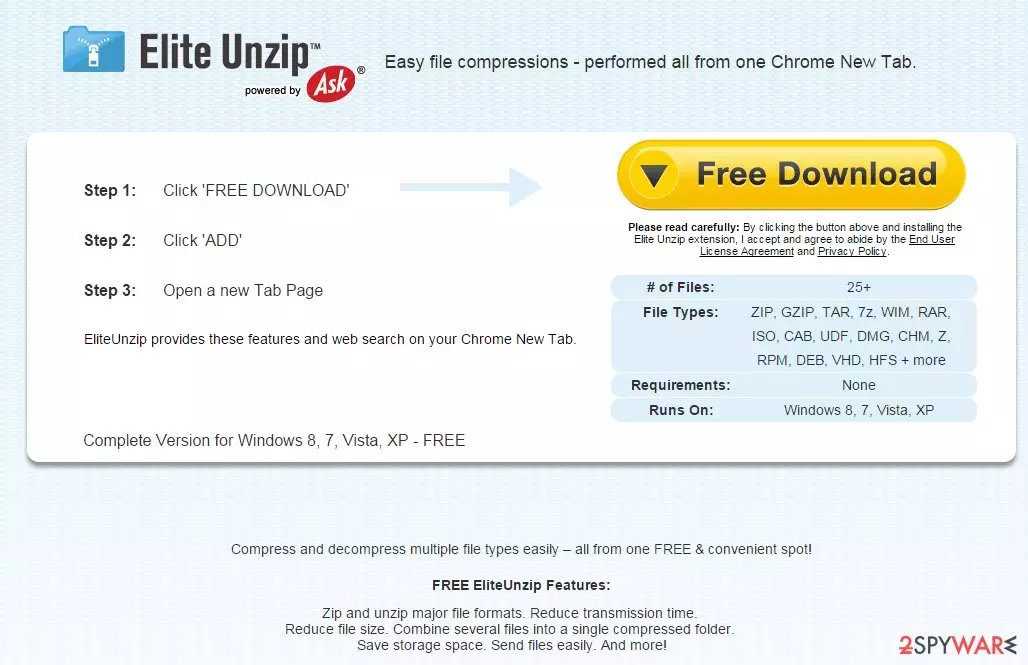
EliteUnzip Toolbar is a browser extension that supposedly is capable of compressing and decompressing multiple file types. Although a lot of Google Chrome's users have installed this toolbar willingly, the majority of them usually uninstall it only a few days after its installation because its service is suspicious. Besides, the app might also appear on the computer seemingly out of nowhere, as software bundling is commonly used for its distribution.
This questionable program can provide third-party links to you; according to our experience, we can say that sometimes third-party websites can be filled with questionable content. Our advice is to stay away from such sites. In fact, we do not recommend keeping EliteUnzip software on your computer.
After a careful investigation of EliteUnzip’s Terms of Use, we have realized that this program might be created only to promote affiliate marketing. The developers of this program provide such information about EliteUnzip:
[…] may provide access to search results or other links to Third Party Partner websites or resources. MS has no control over such sites and resources, in which you acknowledge and agree that MS is not responsible for the availability of such external sites or resources […]
MS Products are exposed to various security issues, and should be regarded as unsecure.
[…] you acknowledge and accept that the MS Products and any information you download […] may be exposed to unauthorized access, interception, corruption, damage or misuse, and should be regarded as insecure. You accept all responsibility for such security risks and any damage resulting therefrom.
There are more reliable search providers, and also, there are plenty, and well-known professional Unzip programs. In order to remove EliteUnzip Toolbar, follow the removal guidelines that are given below.
PUPs might show up on your device without asking for direct permission
As we have stated before, users can download EliteUnzip Toolbar willingly from its official website. However, you can get recommendations to install this program when you download and install other free programs as well.
The sad truth is that most PC users tend to rush through installation setup by clicking the ‘Next’ button continuously. To install any software in the right way, remember these rules:
- You must read software’s Terms of Use document. It is a very important document.
- You should never install programs using ‘Default’ or ‘Standard’ installation method.
- The proper installation modes are the ‘Custom’ and ‘Advanced’ ones.
- After you choose one of these options, deselect the suggestions to install any free programs that you have never heard about.
Remove EliteUnzip from your device quickly
EliteUnzip Toolbar is not a malicious program, so it should not be difficult to eliminate it manually. To remove it manually, follow these instructions:
- Uninstall programs that are related to EliteUnzip Toolbar from your computer:
- Click Start → Control Panel → Uninstall a Program.
- When in the Add/Remove Programs/Uninstall a Program, look for EliteUnzip Toolbar and other programs that are unknown to you.
- Click 'Uninstall' and then OK to save the changes.
- Reset your web browser:
Google Chrome:
- Open Google Chrome, click on the menu icon (top right corner) and select 'Tools' -> 'Extensions'.
- Here, select unfamiliar plugins (EliteUnzip Toolbar, MyWay, MyWebSearch, etc.) and select trash icon to delete these entries.
- In order to change your homepage, click on menu icon, choose 'Settings' -> 'On startup' section -> 'set pages'.
- Here, eliminate myway.com by clicking on the “X” and enter your preferred website.
- In order to change your default search engine, click on the menu icon -> 'Settings' -> 'Search' section.
- Click 'Manage Search Engines…' and add your preferred domain name.
Did this guide help?
Be the first to comment