

Smart Search virus is a browser hijacker which has mostly been targeting MacOS
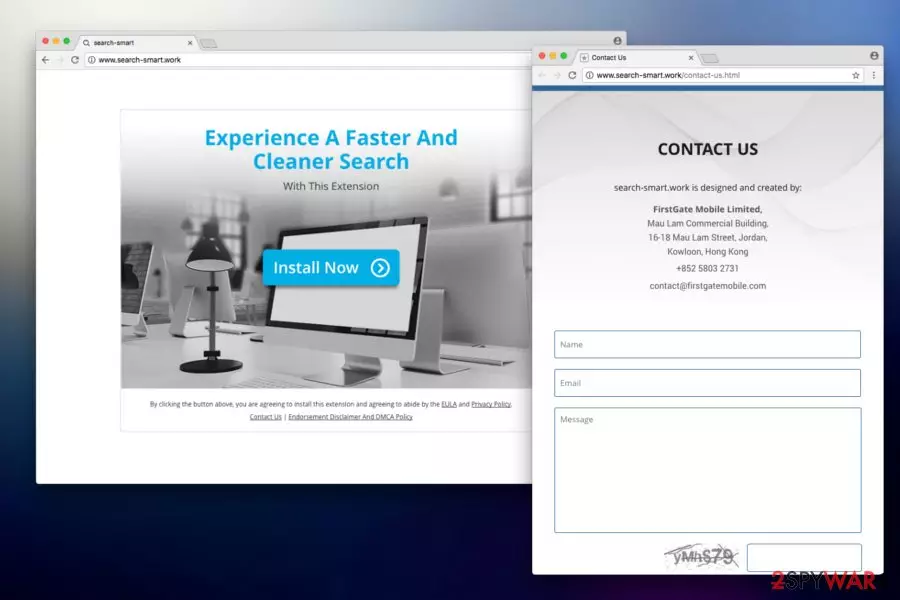
Smart Search virus is a browser hijacker designed to hijack MacOS by altering settings of the most popular browsers, including Safari, Google Chrome, Mozilla Firefox, etc. This questionable application spreads as a browser extension which immediately alters browser settings and redirects to search-smart.work or other sites.
In other terms, users are forced to browse through a fraudulent search engine which delivers modified query results. Additionally, people are actively searching for effective ways to remove Smart Search from Mac as this PUP can be exceptionally persistent. Thus, users are advised to be cautious and protect their systems from this browser hijacker[1].
| Name | The Smart Search |
|---|---|
| Type | Browser hijacker |
| Danger level | Medium. Performs browser modifications to persist on the system, redirects to sponsored websites, displays sponsored content |
| sites users are redirected to | search-smart.work, smartsearch.pw, thesmartsearch.net |
| Potential dangers |
|
| Distribution |
|
| Removal | As this browser hijacker may be persistent, we recommend getting FortectIntego to uninstall Smart Search |
Smart Search promises “A Faster And Cleaner Search.” Developers of this browser hijacker are trying to convince users that the app is useful. However, the only goal of authors is to gain monetary benefit at the expense of compromised victims’ browsers. Therefore, users should get rid of the extension from their computers as soon as they notice it.
The Smart Search typically sets the tab URL, search engine and homepage to search-smart.work which then reroutes users to yahoo.com. This is done so to track users’ browsing habits and then manipulate search results accordingly. This way, users are exposed to third-party content on every web browsing session.

This potentially unwanted program records a variety of non-personally identifiable information[2], including the following:
- Search queries;
- IP address;
- ISP used;
- Geo-location;
- Etc.
Continual spying is conducted to investigate victims' browsing habits further and possibly share this information with third-parties. Such data is valuable for marketing purposes as customized ads help increase traffic to the affiliate websites and generate pay-per-click[3] revenue for The Smart Search developers.

The most dangerous feature the virus is that it advertises or redirects users to malicious web pages. These domains might host malware and infect victims’ PCs with deadly viruses, such as ransomware. Keep in mind that the latest research showed that this browser hijacker actively targets Mac OS X users. Thus, we have attached detailed instructions helping to uninstall Smart Search from Mac. You can find them below.
If the activity by The Smart Search mentioned above is not enough, be aware that users might obtain a keylogger[4] which records every keystroke and might steal personal information, such as social media, bank, and other passwords. This activity is hazardous as you never know who will obtain your personal details. It can be used for a variety of illegal activities, such as identity theft.

Furthermore, Smart Search redirect is closely related to thesmartsearch.net. Previously it was used as a search engine for the extension. However, in its current state it merely instantaneously reroutes users to suspicious websites. We urge users to refrain from using this webpage or close down the browser if they get redirected to it.
All in all, this extension is not worth anybody’s time. It will not grant you “A Faster And Cleaner Search,” and it will not enhance your browsing experience. Since all the searches are redirected to yahoo.com, you might as well use the official search engine which does not reroute you to suspicious domains. Therefore, do not delay The Smart Search removal. You can uninstall the unwanted application using a robust security tool, such as FortectIntego.

Rogue browser extensions reside inside the installers of freeware
While many might wonder, how browser hijackers enter the system, the answer is more than simple — unreliable browser extensions are appended as optional components to third-party applications. Developers bundle them together and offer as one. Thus, many users fail to identify an attempt to infiltrate a potentially unwanted program on their computers.
If you want to avoid browser hijackers, the most important thing is to monitor the installation of the freeware by opting for Advanced or Custom installation option and declining installation of additional components. Otherwise, you can find questionable applications on your computer and have to take actions to get rid of them.
Experts explain two ways how to uninstall Smart Search virus
The majority of users did not install this potentially unwanted program by themselves. Since the infection might be persistent, people struggle with The Smart Search removal. Luckily, cybersecurity experts[5] have two ways how you can get rid of the browser hijacker easily.
The first method requires you to download a professional malware removal software and install in on your computer. Later, scan the system for potentially unwanted programs and let the antivirus to uninstall Smart Search virus safely. This elimination method merely takes several minutes before your PC is clean from browser hijackers.
Another way is to remove The Smart Search from Mac or Windows by yourself. However, some users might not be experienced enough to do it without any assistance. Therefore, we highly suggest following the manual elimination instructions which are presented at the end of this article.
Delete from macOS
Remove the unwanted application:
- From the menu bar, select Go > Applications.
- In the Applications folder, look for any suspicious entries, then drag them to Trash (or right-click and pick Move to Trash).


Delete leftover files and folders:
- Select Go > Go to Folder.
- Enter /Library/Application Support and remove any suspicious folders related to the unwanted program.
- Repeat the same check in the /Library/LaunchAgents and /Library/LaunchDaemons folders, deleting any suspicious entries.

- Finally, empty the Trash to permanently remove the leftovers.

Remove from Microsoft Edge
Delete unwanted extensions from MS Edge:
- Select Menu (three horizontal dots at the top-right of the browser window) and pick Extensions.
- From the list, pick the extension and click on the Gear icon.
- Click Remove.


Clear cookies and other browser data:
- Click on the Menu (three horizontal dots at the top-right of the browser window) and select Settings > Privacy, search, and services..
- Under Clear browsing data, pick Choose what to clear.
- Select Cookies and other site data and Cached images and files. (apart from passwords, although you might want to include Media licenses as well, if applicable) and click on Clear.


Restore new tab and homepage settings:
- Click the menu icon and choose Settings.
- Then find On startup section.
- Click Remove next to any suspicious startup page.
Reset MS Edge if the above steps did not work:
- Press on Ctrl + Shift + Esc to open Task Manager.
- Click on More details arrow at the bottom of the window.
- Select Details tab.
- Now scroll down and locate every entry with Microsoft Edge name in it. Right-click on each of them and select End Task to stop MS Edge from running.


Instructions for Chromium-based Edge
Delete extensions from MS Edge (Chromium):
- Open Edge and click select Settings > Extensions.
- Delete unwanted extensions by clicking Remove.


Clear cache and site data:
- Click on Menu and go to Settings.
- Select Privacy, search and services.
- Under Clear browsing data, pick Choose what to clear.
- Under Time range, pick All time.
- Select Clear now.


Reset Chromium-based MS Edge:
- Click on Menu and select Settings.
- On the left side, pick Reset settings.
- Select Restore settings to their default values.
- Confirm with Reset.
- This will disable extensions and reset startup pages but will not delete bookmarks, saved passwords, or browsing history.


Remove from Mozilla Firefox (FF)
Remove dangerous extensions:
- Open Mozilla Firefox browser and click on the Menu (three horizontal lines at the top-right of the window).
- Select Add-ons.
- In here, select the unwanted extension and click Remove.


Reset the homepage:
- Click three horizontal lines at the top right corner to open the menu.
- Choose Settings.
- Under Home, set your preferred homepage and new tab settings.
Clear cookies and site data:
- Click Menu and pick Settings.
- Go to Privacy & Security section.
- Scroll down to locate Cookies and Site Data.
- Click on Clear Data...
- Select Cookies and Site Data and Temporary cached files and pages, then click Clear.


Reset Mozilla Firefox
If clearing the browser as explained above did not help, reset Mozilla Firefox:
- Open Mozilla Firefox browser and click the Menu.
- Go to Help and then choose Troubleshooting Information.

- Under Give Firefox a tune up section, click on Refresh Firefox...
- Once the pop-up shows up, confirm the action by pressing on Refresh Firefox.



Remove from Google Chrome
Delete malicious extensions from Google Chrome:
- Open Google Chrome, click on the Menu (three vertical dots at the top-right corner) and select More tools > Extensions.
- In the newly opened window, you will see all the installed extensions. Uninstall all suspicious extensions related to the unwanted program by clicking Remove.


Clear cache and web data from Chrome:
- Click on Menu and pick Settings.
- Under Privacy and security, select Clear browsing data.
- Select Browsing history, Cookies and other site data, as well as Cached images and files.
- Click Clear data.


Change your homepage:
- Click menu and choose Settings.
- Look for a suspicious site in the On startup section.
- Click on Open a specific or set of pages and click on three dots to find the Remove option.
Reset Google Chrome:
If the previous methods did not help you, reset Google Chrome to eliminate all the unwanted components:
- Click on Menu and select Settings.
- In the Settings, scroll down and click Advanced.
- Scroll down and locate Reset and clean up section.
- Now click Restore settings to their original defaults.
- Confirm with Reset settings.


Delete from Safari
Remove dangerous extensions:
- Open Safari, click Safari in the menu at the top-left of the screen, and select Preferences.
- Go to the Extensions tab, look for any suspicious entries, and click Uninstall to remove them.


Clear history and website data:
- Click Safari in the menu and pick Clear History.
- Set Clear to all history and confirm with Clear History.


Reset Safari:
- Click Safari in the menu and select Preferences > Advanced.
- Enable Show Develop menu in menu bar.
- From the menu bar, click Develop and select Empty Caches.


Did this guide help?
Be the first to comment