

Search-quick.com – a PUP that injects ads into search results
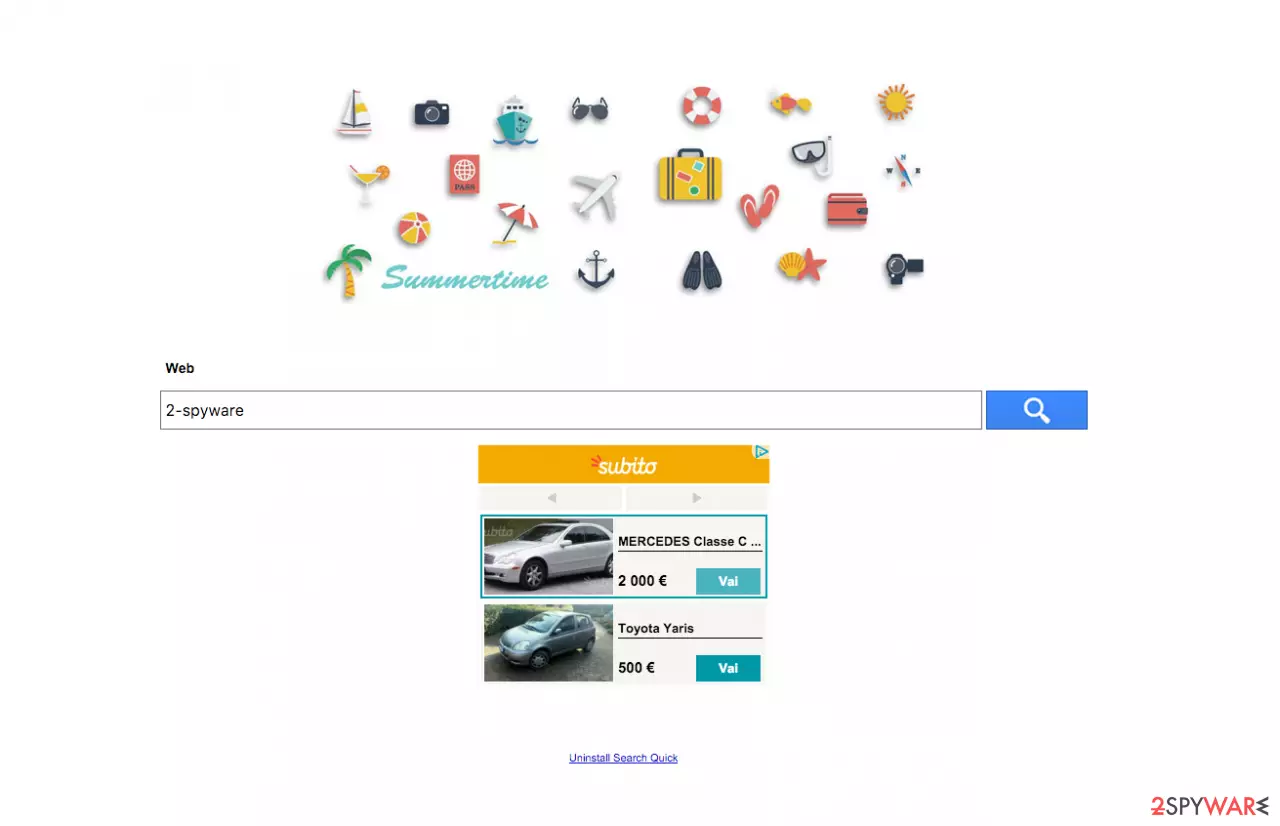
Search-quick.com virus operates as a browser hijacker. It means that it tends to modify your browser settings which result in tons of various advertisements cramming your screen. In addition, you may get annoyed by the redirect tendency. In other words, the ads may misguide you to other advertising domains which are not always secure.
Thus, it would be better to remove this browser hijacker right away. In most cases, people report about this PUP on Mac OS. The hijacker displays altered search results which are filled with in-text links, banner ads, and pop-up notifications.
If you have never heard what information is collected by adware-type programs, browser hijackers, and similar PUPs, you should know that they target the computer's IP address, geographical location, user's email address, search entries, etc. If the altered search results and inefficient browsing are bothering you, it is time to get rid of the hijacker.
| name | Search-quick.com virus |
|---|---|
| Type | Browser hijacker, potentially unwanted program |
| Symptoms | Search results are shown from a different provider and contain ads; altered browser settings; the infected device runs slower; diminished browsing speed |
| Distribution | Software bundles, fake Flash Player updates |
| Elimination | Anti-malware software should be used to get rid of this parasite, along with any other infections |
| System health | Take care of all system-related issues by performing system diagnostics with the FortectIntego PC repair tool |
For a while, you may not notice the negative effects of this hijacker. It may look like an ordinary browsing tool. However, if you compare its performance with the operation ways of legitimate search providers, you may notice that this hijacker provides you more search results that misguide you either to advertising domains or contain quite a number of in-text ads.
Since the PUP applies its certain “layer” on the browser, do not get surprised if redirect pop-up windows emerge. Keep in mind that they might contain malevolent elements. Therefore, search-quick.com redirect might become a troublesome issue. In addition, this hijacker spies on your browsing activities by collecting data about your visited websites.
It even records your keystrokes! Therefore, we encourage you to remove this browser-based infection right away. The easiest way to do that is to run a full system scan with SpyHunterCombo Cleaner, MalwarebytesMalwarebytes, or similar trustworthy anti-malware solutions. Manual removal is also possible.
Illustrated instructions for it are included at the bottom of this article. Thus feel free to use them if necessary. After the removal is successfully accomplished, a system tune-up is in order. User reviews state, that the FortectIntego PC repair tool is one of the most effective optimizers in the market.
When did I encounter the hijacker?
The main method used for distributing this search engine is called “bundling.” In fact, there are hundreds of browser plug-ins that are distributed as “optional downloads”, for example, Mysearchresults.com, delta-search.com, Dp-search.com, and Dregol.com, along with free programs.
To prevent the infiltration of similar PUPs, you should be very careful when going through the stages of the installation wizard. Specifically, you enabled search-quick.com to hijack when you were rushing through the installation stages. You should look for checkboxes asking you to set a new search engine or a download accelerator.
Moreover, opt for “Advanced” settings. It discloses all additional applications which are waiting for the opportunity to sneak into the device. If you have already installed the potentially unwanted program on your computer, follow the elimination guide.
How can I remove search-quick.com?
If you have discovered this search engine, do not delay its elimination. Despite it being a fairly harmless PUP, it may lead you to various issues. You can choose from manual or automatic Search-quick.com removal options. If you are looking for a fast option to deal with it, we offer you to shift to the latter method.
Install an anti-spyware application and let it deal with the hijacker. In addition, it serves as a reliable tool confronting more serious virtual threats, such as trojans and ransomware. In addition, you may disable its tasks in the Task Manager as well.
Speaking of the alternatives, it is possible to remove search-quick.com virus effectively using a manual guide as well. It is found below. For the future note, you should exercise more caution while choosing a new search engine. Reading other user reviews and privacy policies might provide you valuable tips helping you to choose the right search provider.
Delete from macOS
Remove the unwanted application:
- From the menu bar, select Go > Applications.
- In the Applications folder, look for any suspicious entries, then drag them to Trash (or right-click and pick Move to Trash).


Delete leftover files and folders:
- Select Go > Go to Folder.
- Enter /Library/Application Support and remove any suspicious folders related to the unwanted program.
- Repeat the same check in the /Library/LaunchAgents and /Library/LaunchDaemons folders, deleting any suspicious entries.

- Finally, empty the Trash to permanently remove the leftovers.

Remove from Microsoft Edge
Delete unwanted extensions from MS Edge:
- Select Menu (three horizontal dots at the top-right of the browser window) and pick Extensions.
- From the list, pick the extension and click on the Gear icon.
- Click Remove.


Clear cookies and other browser data:
- Click on the Menu (three horizontal dots at the top-right of the browser window) and select Settings > Privacy, search, and services..
- Under Clear browsing data, pick Choose what to clear.
- Select Cookies and other site data and Cached images and files. (apart from passwords, although you might want to include Media licenses as well, if applicable) and click on Clear.


Restore new tab and homepage settings:
- Click the menu icon and choose Settings.
- Then find On startup section.
- Click Remove next to any suspicious startup page.
Reset MS Edge if the above steps did not work:
- Press on Ctrl + Shift + Esc to open Task Manager.
- Click on More details arrow at the bottom of the window.
- Select Details tab.
- Now scroll down and locate every entry with Microsoft Edge name in it. Right-click on each of them and select End Task to stop MS Edge from running.


Instructions for Chromium-based Edge
Delete extensions from MS Edge (Chromium):
- Open Edge and click select Settings > Extensions.
- Delete unwanted extensions by clicking Remove.


Clear cache and site data:
- Click on Menu and go to Settings.
- Select Privacy, search and services.
- Under Clear browsing data, pick Choose what to clear.
- Under Time range, pick All time.
- Select Clear now.


Reset Chromium-based MS Edge:
- Click on Menu and select Settings.
- On the left side, pick Reset settings.
- Select Restore settings to their default values.
- Confirm with Reset.
- This will disable extensions and reset startup pages but will not delete bookmarks, saved passwords, or browsing history.


Remove from Mozilla Firefox (FF)
Remove dangerous extensions:
- Open Mozilla Firefox browser and click on the Menu (three horizontal lines at the top-right of the window).
- Select Add-ons.
- In here, select the unwanted extension and click Remove.


Reset the homepage:
- Click three horizontal lines at the top right corner to open the menu.
- Choose Settings.
- Under Home, set your preferred homepage and new tab settings.
Clear cookies and site data:
- Click Menu and pick Settings.
- Go to Privacy & Security section.
- Scroll down to locate Cookies and Site Data.
- Click on Clear Data...
- Select Cookies and Site Data and Temporary cached files and pages, then click Clear.


Reset Mozilla Firefox
If clearing the browser as explained above did not help, reset Mozilla Firefox:
- Open Mozilla Firefox browser and click the Menu.
- Go to Help and then choose Troubleshooting Information.

- Under Give Firefox a tune up section, click on Refresh Firefox...
- Once the pop-up shows up, confirm the action by pressing on Refresh Firefox.



Remove from Google Chrome
Delete malicious extensions from Google Chrome:
- Open Google Chrome, click on the Menu (three vertical dots at the top-right corner) and select More tools > Extensions.
- In the newly opened window, you will see all the installed extensions. Uninstall all suspicious extensions related to the unwanted program by clicking Remove.


Clear cache and web data from Chrome:
- Click on Menu and pick Settings.
- Under Privacy and security, select Clear browsing data.
- Select Browsing history, Cookies and other site data, as well as Cached images and files.
- Click Clear data.


Change your homepage:
- Click menu and choose Settings.
- Look for a suspicious site in the On startup section.
- Click on Open a specific or set of pages and click on three dots to find the Remove option.
Reset Google Chrome:
If the previous methods did not help you, reset Google Chrome to eliminate all the unwanted components:
- Click on Menu and select Settings.
- In the Settings, scroll down and click Advanced.
- Scroll down and locate Reset and clean up section.
- Now click Restore settings to their original defaults.
- Confirm with Reset settings.


Delete from Safari
Remove dangerous extensions:
- Open Safari, click Safari in the menu at the top-left of the screen, and select Preferences.
- Go to the Extensions tab, look for any suspicious entries, and click Uninstall to remove them.


Clear history and website data:
- Click Safari in the menu and pick Clear History.
- Set Clear to all history and confirm with Clear History.


Reset Safari:
- Click Safari in the menu and select Preferences > Advanced.
- Enable Show Develop menu in menu bar.
- From the menu bar, click Develop and select Empty Caches.


Did this guide help?
3 comments
NotYourBusiness
I want to warn each of PC users about this search site! It causes fake ads about missing updates! Do NOT click them if you dont want to end up with virus on your computer!
PCUser
If you are affected, use SpyHunter. This is the only anti-spyware that helps.
Goast
I need your help! This hijacker keeps appearing on my computer!