

Dynamic Link Libraries (DLLs) are essential components in the Windows operating system, allowing multiple programs to share the same functionality and code. However, DLLs can be exploited by malicious software, which can use them to perform harmful activities on your computer. Unregistering malicious DLLs is a crucial step in cleaning up an infected system and restoring its security. In this article, we will explain what DLLs are, how they can become malicious, and how you can unregister them to protect your computer.
Understanding DLLs
DLLs are files that contain code and data used by multiple programs at the same time. They allow programs to share resources, making your computer run more efficiently. For example, instead of having multiple copies of the same function in different programs, a single DLL file can be used by all of them. This saves space and memory.
How DLLs become malicious
Malicious DLLs are DLL files that have been modified or created by malware to perform harmful activities. These activities can include stealing personal information, giving remote access to your computer, or disrupting system functions.
Malicious DLLs can be installed on your computer through various means, such as downloading infected files, visiting malicious websites, or opening phishing emails.
Unregistering malicious DLLs
Unregistering a DLL means removing its registration from the Windows registry, which prevents programs from using it. This is an important step in neutralizing malicious DLLs. Here’s how you can do it:
- Identify the malicious DLL: Before you can unregister a malicious DLL, you need to know its name and location. You can use antivirus software to scan your computer and identify malicious files. Additionally, tools like Task Manager or Process Explorer can help you find suspicious DLLs loaded by running processes.
- Open Command Prompt: You need to use the Command Prompt to unregister DLLs. To open Command Prompt, press the Windows key, type “cmd” into the search box, and press Enter. Right-click on the Command Prompt icon and select “Run as administrator” to open it with administrative privileges.
- Unregister the DLL: In the Command Prompt window, type the following command to unregister the DLL:
regsvr32 /u “path\to\malicious.dll”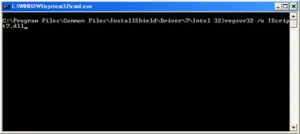
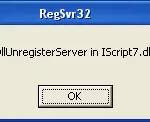
- Replace “path\to\malicious.dll” with the actual path and name of the malicious DLL. Press Enter to execute the command. If the DLL is successfully unregistered, you will see a message confirming this.
- Delete the DLL file: After unregistering the DLL, you should delete the file to prevent it from being re-registered or used again. Navigate to the location of the DLL file and delete it. You might need to use Safe Mode if the file is locked or in use by a running process.

Preventing future infections
Unregistering malicious DLLs is only part of the solution. To prevent future infections, consider the following tips:
- Keep your software updated: Regularly update your operating system, antivirus software, and other programs to protect against known vulnerabilities.
- Use antivirus software: Install reliable antivirus software and keep it updated. Perform regular scans to detect and remove malware.
- Be cautious with downloads: Only download files and software from trusted sources. Avoid opening email attachments or clicking on links from unknown or suspicious senders.
- Enable Firewall protection: Ensure that your computer’s firewall is enabled to block unauthorized access to your system.
By understanding what DLLs are and how they can be exploited, you can take proactive steps to protect your computer. Unregistering malicious DLLs is an important part of maintaining your system's security and ensuring that your personal information remains safe. Regular maintenance and cautious behavior will help keep your computer free from malicious software.
Be the first to comment