

Driver Navigator is the system tool that has a bad reputation for being intrusive and showing ads
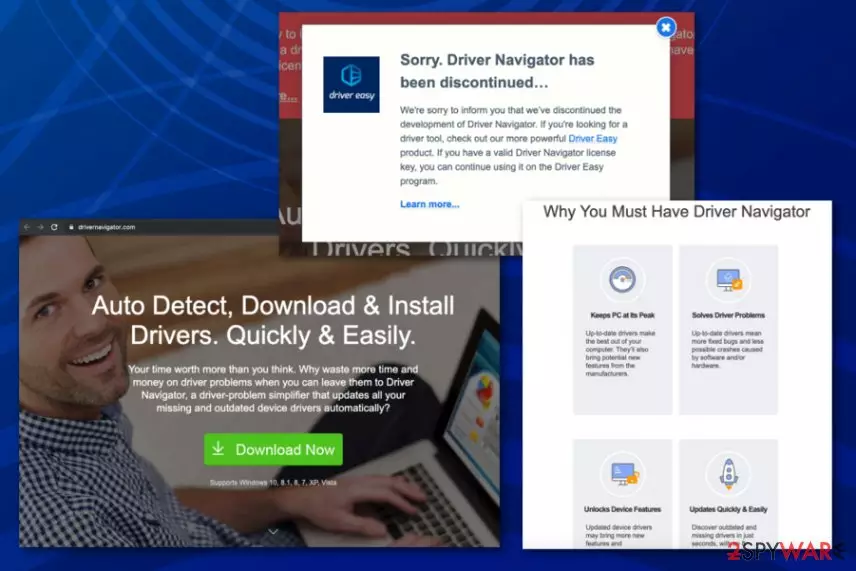
It has all the claims Driver Navigator virus previously had and supposedly is more than valuable for any Windows user. Un until 2017 users reported in various online forums that random pop-ups and shady installation were the main issues regarding the suspicious program. We can determine that neither of these tools can be worth your trust and especially money. There are many other tools that can claim about usefulness and value but deliver PUPs based on social engineering scams instead.[1]
| Name | Driver Navigator |
|---|---|
| Type | System Tool |
| Associated | Easeware software developer. Driver Easy – the program now mainly distributed instead of the DriverNavigator |
| Price of the full version | Promotions for Driver Easy claim that you can get it for just $29.95 per year |
| Main danger | Deceptive content exposes the user to shady material and can even redirect to malicious pages where malware gets directly installed on the machine. Anything this PUP delivers to your screen that involves advertisements can track and collect details about browsing preferences, most viewed sites or searched items and share this information with third-party companies |
| Distribution | Freeware installation setups, other programs and deceptive techniques like promotional content, software budling |
| Elimination | Anti-malware tools can help to remove Driver Navigator completely alongside other applications installed behind your back. You can also benefit from a scan with FortectIntego to ensure that virus damage is terminated |
Driver Navigator virus shows fake system alerts, claims to scan the machine and delivers altered results with a full list of issues because this content encourages users to contact the alleged technical support team or install the offered tool. In most cases, the scanning occurs out of nowhere but people still fall for the scam because the list contains names of outdates software or even crucial PC issues.
Driver Navigator by Easeware is an untrustworthy system tool that claims to be designed to detect problems in device drivers and fix them automatically. While this potentially unwanted program[2] cannot be called a virus, experts suggest keeping a distance from it. It is one of the system tools that are offered for helping people update their drivers. Unfortunately, you should still be careful with this application because it can trick you into spending your money on nothing.
The official site where Driver Navigator is distributed and promoted states that the tool is no longer developed, but developers there claim to offer another shady tool Driver Easy that is known for not good features.[3] This is yet another potentially unwanted program but with a different name.
If you know that this program appeared on your computer after downloading it from its official website, it's less dangerous because the tool itself is questionable, not the additional applications. However, there are hundreds of people who report about the unwanted appearance of the Driver Navigator virus on their computers.[4] This means that you cannot be sure that this PUP is the only app that landed on the machine.
In this case, you should know that drivernavigator.exe and similar files infiltrated your machine in a bundle with freeware. This is the main way used by the program's developers to spread the trial version on the Internet.

You don't have to remove Driver Navigator if you avoid its installation in the first place. For that, you just need to stay focused on the installation of free software. If you want to use a tool that can fix Windows issues efficiently, we recommend using FortectIntego.
The first sign indicating that this optimization tool might have got installed on your PC is a serious system slowdown and continuous redirects to drivernavigator.com during your browsing. In addition to that, this dubious application adds a Windows Task Scheduler, launches system scans, and supposedly looks for system errors and outdated drivers.
Of course, scan results inform about hundreds of issues. Unfortunately, you have to keep in mind that these results are typically filled with random files from your computer which removal or updating would hardly improve your PC's performance.
They are used to trick you into believing that Driver Navigator EaseWare is a reliable tool and that you need to buy its full license (for 39.95$) in order to fix drivers and other errors. DO NOT buy the license first of all because it is useless.
Besides, keep in mind that for buying it you will be asked to disclose your full name, credit card details, and other similar information. To prevent possible inconveniences you might have to deal with after interacting with the described virtual annoyance, you must think about Driver Navigator removal. We and security experts from DieViren.de[5] recommend using the proper software to clean your computer from unwanted programs.

Find out how PUP programs sneak into your computer
As we have already mentioned in the previous paragraph, fake system alerts and scans can start appearing as if out of nowhere. Be aware that the developer of this program has been actively using “bundling” as the main distribution method of the trial version of this app and other tools.
Of course, the main aim of such programs is to trick people into buying the licensed version of the software. If you want to prevent the infiltration of suspicious apps, you should start paying more attention to the installation process of free programs and the legitimacy of sources you download anything from.
No matter if you are about to install a well-known program or unfamiliar software, either way, you should select the Advanced or Custom installation option and carefully check the entire installation process. The most important thing is to check every checkbox and opt-out of 'optional downloads', such as various browser add-ons, plug-ins, toolbars, and extensions.
If you will do everything correctly, the chances that you will install a PUP or another similar program are very low. Research has shown that this dubious optimization tool is mainly prevalent in the United States, Canada, and Hungary. But PUPs can enter any device.
The answers you have been looking for
Question. I have been looking for a free Driver Navigator license key so that I could download and install the full software version on my computer. Is there a way to crack this program safely?
Answer: Unfortunately, we do not recommend you to attempt to install licensed software version for free. Nowadays, cybercriminals tend to use such software packs to inject spyware or malware type applications in them. Consequently, users looking for free licensed software versions can end up installing malware on their computers.
If you were looking for “Driver Navigator with a crack free download,” most likely you came across many suspicious-looking websites offering you to obtain the full version of the described software illegally.
We hope that you did not install anything from them on your computer. Otherwise, your security is at risk. In such a situation, we highly recommend testing your system with anti-malware software such as FortectIntego.
Question. Driver Navigator showed up this morning despite that I have never attempted to install it on my computer. Is there an explanation for this? Since when programs just appear on my computer without asking my permission?
Answer: You could install the Driver Navigator virus unknowingly. Typically, it travels in a bundle with freeware that you can download from various file-sharing networks and sites. Be careful when installing free software and do not forget to drop unwanted items before hitting the “Install” button.
In most cases, suggestions to add unwanted free additions hide behind Default/Standard installation settings. There is no secret that users tend to rely on these settings since they are offered by the setup. For some reason, Custom/Advanced settings scare many computer users, and that is why they miss the chance to drop unwanted extras.
Your question implies that you are looking for instructions on how to remove Driver Navigator. You can find a full-length removal guide right below the article.
Two simple ways to remove Driver Navigator
If the DriverNavigator virus has already started its fake scans, you should take needed actions to stop them from appearing. Please, make sure you ignore these warning messages and false result sheets because they have nothing to do with the optimization of your computer.
For manual Driver Navigator removal, you can follow the instructions provided right below the article. But all those steps involve changes in certain parts of the machine, settings oft he registry, startup and web browsers. If you don't have enough knowledge about these processes, you can damage the machine instead.
So we recommend running a full system scan with updated security software to make sure that your PC is free of viruses that might have been causing system slowdowns and other problems. Also, you will get a chance to ensure that you managed to remove Driver Navigator completely. For that, you can use one of the software variants listed down below.
Uninstall from Windows
Uninstall from Windows 10/8:
- Type Control Panel into the Windows search box and open the result.
- Under Programs, select Uninstall a program.


Uninstall from Windows 7/XP:
- Click on Windows Start > Control Panel (Windows XP users should click on Add/Remove Programs).
- In Control Panel, select Programs > Uninstall a program.


Remove the unwanted program:
- In the Programs and Features window, look for any recently installed suspicious entries, select them, and click Uninstall.
- If User Account Control appears, click Yes to confirm, then complete the removal.


Delete from macOS
Remove the unwanted application:
- From the menu bar, select Go > Applications.
- In the Applications folder, look for any suspicious entries, then drag them to Trash (or right-click and pick Move to Trash).


Delete leftover files and folders:
- Select Go > Go to Folder.
- Enter /Library/Application Support and remove any suspicious folders related to the unwanted program.
- Repeat the same check in the /Library/LaunchAgents and /Library/LaunchDaemons folders, deleting any suspicious entries.

- Finally, empty the Trash to permanently remove the leftovers.

Reset Internet Explorer
Remove dangerous add-ons:
- Open Internet Explorer, click on the Gear icon (IE menu) on the top-right corner of the browser
- Pick Manage Add-ons.
- You will see a Manage Add-ons window. Here, look for suspicious plugins. Click on these entries and select Disable.


Change your homepage if it was altered:
- Open IE and click on the Gear icon.
- Select Internet Options.
- In the General tab, delete the Home page address and replace it by your preferred one (for example, Google.com).
- Click Apply and then select OK.


Delete temporary files:
- Press on the Gear icon and select Internet Options.
- Under Browsing history, click Delete...
- Select relevant fields and press Delete.


Reset Internet Explorer:
- Click on Gear icon > Internet options and select Advanced tab.
- Select Reset.
- In the new window, check Delete personal settings and select Reset.


Remove from Microsoft Edge
Delete unwanted extensions from MS Edge:
- Select Menu (three horizontal dots at the top-right of the browser window) and pick Extensions.
- From the list, pick the extension and click on the Gear icon.
- Click Remove.


Clear cookies and other browser data:
- Click on the Menu (three horizontal dots at the top-right of the browser window) and select Settings > Privacy, search, and services..
- Under Clear browsing data, pick Choose what to clear.
- Select Cookies and other site data and Cached images and files. (apart from passwords, although you might want to include Media licenses as well, if applicable) and click on Clear.


Restore new tab and homepage settings:
- Click the menu icon and choose Settings.
- Then find On startup section.
- Click Remove next to any suspicious startup page.
Reset MS Edge if the above steps did not work:
- Press on Ctrl + Shift + Esc to open Task Manager.
- Click on More details arrow at the bottom of the window.
- Select Details tab.
- Now scroll down and locate every entry with Microsoft Edge name in it. Right-click on each of them and select End Task to stop MS Edge from running.


Instructions for Chromium-based Edge
Delete extensions from MS Edge (Chromium):
- Open Edge and click select Settings > Extensions.
- Delete unwanted extensions by clicking Remove.


Clear cache and site data:
- Click on Menu and go to Settings.
- Select Privacy, search and services.
- Under Clear browsing data, pick Choose what to clear.
- Under Time range, pick All time.
- Select Clear now.


Reset Chromium-based MS Edge:
- Click on Menu and select Settings.
- On the left side, pick Reset settings.
- Select Restore settings to their default values.
- Confirm with Reset.
- This will disable extensions and reset startup pages but will not delete bookmarks, saved passwords, or browsing history.


Remove from Mozilla Firefox (FF)
Remove dangerous extensions:
- Open Mozilla Firefox browser and click on the Menu (three horizontal lines at the top-right of the window).
- Select Add-ons.
- In here, select the unwanted extension and click Remove.


Reset the homepage:
- Click three horizontal lines at the top right corner to open the menu.
- Choose Settings.
- Under Home, set your preferred homepage and new tab settings.
Clear cookies and site data:
- Click Menu and pick Settings.
- Go to Privacy & Security section.
- Scroll down to locate Cookies and Site Data.
- Click on Clear Data...
- Select Cookies and Site Data and Temporary cached files and pages, then click Clear.


Reset Mozilla Firefox
If clearing the browser as explained above did not help, reset Mozilla Firefox:
- Open Mozilla Firefox browser and click the Menu.
- Go to Help and then choose Troubleshooting Information.

- Under Give Firefox a tune up section, click on Refresh Firefox...
- Once the pop-up shows up, confirm the action by pressing on Refresh Firefox.



Remove from Google Chrome
Delete malicious extensions from Google Chrome:
- Open Google Chrome, click on the Menu (three vertical dots at the top-right corner) and select More tools > Extensions.
- In the newly opened window, you will see all the installed extensions. Uninstall all suspicious extensions related to the unwanted program by clicking Remove.


Clear cache and web data from Chrome:
- Click on Menu and pick Settings.
- Under Privacy and security, select Clear browsing data.
- Select Browsing history, Cookies and other site data, as well as Cached images and files.
- Click Clear data.


Change your homepage:
- Click menu and choose Settings.
- Look for a suspicious site in the On startup section.
- Click on Open a specific or set of pages and click on three dots to find the Remove option.
Reset Google Chrome:
If the previous methods did not help you, reset Google Chrome to eliminate all the unwanted components:
- Click on Menu and select Settings.
- In the Settings, scroll down and click Advanced.
- Scroll down and locate Reset and clean up section.
- Now click Restore settings to their original defaults.
- Confirm with Reset settings.


Delete from Safari
Remove dangerous extensions:
- Open Safari, click Safari in the menu at the top-left of the screen, and select Preferences.
- Go to the Extensions tab, look for any suspicious entries, and click Uninstall to remove them.


Clear history and website data:
- Click Safari in the menu and pick Clear History.
- Set Clear to all history and confirm with Clear History.


Reset Safari:
- Click Safari in the menu and select Preferences > Advanced.
- Enable Show Develop menu in menu bar.
- From the menu bar, click Develop and select Empty Caches.


Did this guide help?
Be the first to comment