

Adware is responsible for Provider ads
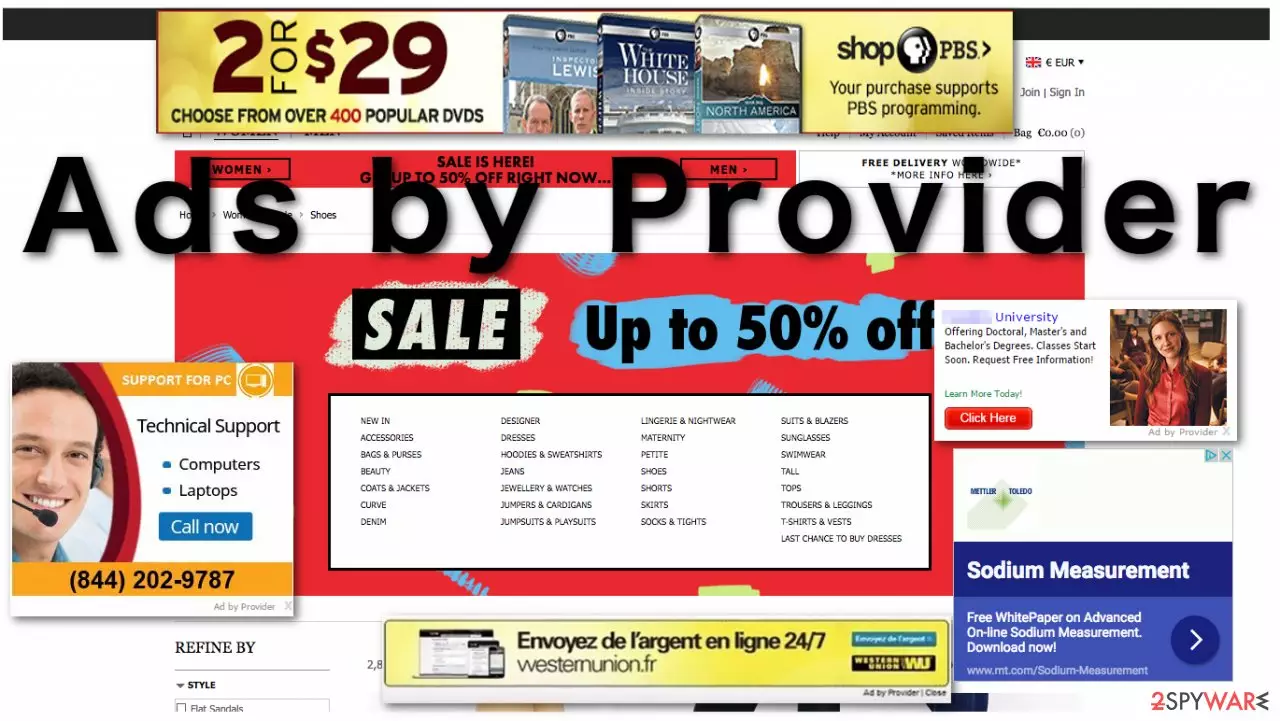
Provider Ads is a phenomenon that you might encounter when you open your browser – Google Chrome, Mozilla Firefox, MS Edge, or another one. While some ads are almost unavoidable, persistent and intrusive ads can be a sign of adware infection. This deceptive software is created to expose users to as much commercial content as possible and monetize on ad clicks. What makes matters worse is that it can harvest user data and inject ads by altering proxy settings on the infected computer.
| Name | Provider Ads / Best Web |
| Type | Adware |
| Family | Adware.Privox |
| Distribution | Third-party websites, bundled software |
| Operation | Alters Proxy settings to inject JavaScript into users' web browsing, resulting in ads being shown on every visited website |
| Removal | Uninstall PUPs by following our manual guide or run a scan with antivirus program |
| System fix | After the elimination of adware or malware, we highly recommend using FortectIntego repair software |
As with any other adware, once installed, it starts performing doubtful activities. First of all, it may inject its files into Windows startup, Control Panel, and registries. Having done that, it gets the chance to load once the system is booted. This adds additional strain to the system, making other programs on the computer more prone to malfunctioning or crashing completely.
However, parts that are likely to be affected by the Provider virus the most are the Internet browsers which may start crashing, freezing, and slowing down due to the ads and redirects this malware might trigger.
Unfortunately, the PUP redirects users to random web pages only because the adware has to deliver tons of sponsored advertisements (pop-up, pop-under, banner, interstitial ads, in-text links, etc.) linked to the websites its affiliates.
The main problem is related to the reliability of the promoted web pages. Security experts warn that this adware may be sponsored by doubtful parties, so some ads may expose you to doubtful or even dangerous websites. Therefore, do not even consider keeping this PUP on your computer. To remove adware, you can either follow the guide given at the end of this article or run a full system scan with SpyHunterCombo Cleaner.
In addition to what has already been said, we should also mention the concerning fact that the Provider virus may also employ cookies for spying on you and investigating your browsing habits and preferences. Additional software, like browser extensions, toolbars, or add-ons, may be installed for tracking purposes as well.
It is not difficult to guess why creators of an ad-focused program work so hard to acquire such information. If you haven’t got any idea, let us explain. Imagine you are looking for a new computer. The tracking software records your search queries and places them into a database.
Now, the next time you open your browser and surf the web, various computer deals may start appearing. Wouldn’t you be tempted to check them out? Apparently, adware creators believe you would, that is why such customer hooking strategies are applied.
We strongly recommend keeping from such ads as far as possible. If you have already clicked on one of them, we urge you to scan your computer without delay.
The unfair adware delivery practices
We have already mentioned that adware is typically distributed using “bundling.” This technique allows freeware developers to monetize their products, so it's not surprising that freeware developers and third-party download websites apply this technique every day. To check your PC system and protect it from unwanted/malicious apps, check freeware before installing them.
- You should try to find the official website of the freeware that you opt for installing and read its EULA/Privacy Policy.
- If you find nothing suspicious, you may start the installation but don't forget to select the “Advanced” or “Custom” installation option and opt-out the checkmarks that are marked alongside statements like: “I agree to install XXX,” “I agree with Terms and Conditions and accept to install XXX,” etc.
- If you select “Quick” or “Basic” installation, such offers may not be disclosed to you, which means that additional components might be installed by default.
Remove Provider advertisements efficiently
Many security programs would detect this program as Adware.Privox – this is mainly due to its unsolicited proxy modifications upon installation, which then injects ads into every website that you browse. The only way to eliminate unwanted advertisements is to remove the adware first and then reset web browser's settings.
You can remove Provider ads manually using the instructions given below. Nevertheless, if never-ending ads and redirects are your daily headache, we want to warn you that there is a possibility that other potentially unwanted programs are also hiding in a PC system.
Also, our recommendation would be to check the system with professional anti-malware. Naturally, such a program should successfully remove Provider as well, so you can use it unhesitatingly if you aim for a quick and thorough system clean-up.
Uninstall from Windows
Uninstall from Windows 10/8:
- Type Control Panel into the Windows search box and open the result.
- Under Programs, select Uninstall a program.


Uninstall from Windows 7/XP:
- Click on Windows Start > Control Panel (Windows XP users should click on Add/Remove Programs).
- In Control Panel, select Programs > Uninstall a program.


Remove the unwanted program:
- In the Programs and Features window, look for any recently installed suspicious entries, select them, and click Uninstall.
- If User Account Control appears, click Yes to confirm, then complete the removal.


Delete from macOS
Remove the unwanted application:
- From the menu bar, select Go > Applications.
- In the Applications folder, look for any suspicious entries, then drag them to Trash (or right-click and pick Move to Trash).


Delete leftover files and folders:
- Select Go > Go to Folder.
- Enter /Library/Application Support and remove any suspicious folders related to the unwanted program.
- Repeat the same check in the /Library/LaunchAgents and /Library/LaunchDaemons folders, deleting any suspicious entries.

- Finally, empty the Trash to permanently remove the leftovers.

Remove from Microsoft Edge
Delete unwanted extensions from MS Edge:
- Select Menu (three horizontal dots at the top-right of the browser window) and pick Extensions.
- From the list, pick the extension and click on the Gear icon.
- Click Remove.


Clear cookies and other browser data:
- Click on the Menu (three horizontal dots at the top-right of the browser window) and select Settings > Privacy, search, and services..
- Under Clear browsing data, pick Choose what to clear.
- Select Cookies and other site data and Cached images and files. (apart from passwords, although you might want to include Media licenses as well, if applicable) and click on Clear.


Restore new tab and homepage settings:
- Click the menu icon and choose Settings.
- Then find On startup section.
- Click Remove next to any suspicious startup page.
Reset MS Edge if the above steps did not work:
- Press on Ctrl + Shift + Esc to open Task Manager.
- Click on More details arrow at the bottom of the window.
- Select Details tab.
- Now scroll down and locate every entry with Microsoft Edge name in it. Right-click on each of them and select End Task to stop MS Edge from running.


Instructions for Chromium-based Edge
Delete extensions from MS Edge (Chromium):
- Open Edge and click select Settings > Extensions.
- Delete unwanted extensions by clicking Remove.


Clear cache and site data:
- Click on Menu and go to Settings.
- Select Privacy, search and services.
- Under Clear browsing data, pick Choose what to clear.
- Under Time range, pick All time.
- Select Clear now.


Reset Chromium-based MS Edge:
- Click on Menu and select Settings.
- On the left side, pick Reset settings.
- Select Restore settings to their default values.
- Confirm with Reset.
- This will disable extensions and reset startup pages but will not delete bookmarks, saved passwords, or browsing history.


Remove from Mozilla Firefox (FF)
Remove dangerous extensions:
- Open Mozilla Firefox browser and click on the Menu (three horizontal lines at the top-right of the window).
- Select Add-ons.
- In here, select the unwanted extension and click Remove.


Reset the homepage:
- Click three horizontal lines at the top right corner to open the menu.
- Choose Settings.
- Under Home, set your preferred homepage and new tab settings.
Clear cookies and site data:
- Click Menu and pick Settings.
- Go to Privacy & Security section.
- Scroll down to locate Cookies and Site Data.
- Click on Clear Data...
- Select Cookies and Site Data and Temporary cached files and pages, then click Clear.


Reset Mozilla Firefox
If clearing the browser as explained above did not help, reset Mozilla Firefox:
- Open Mozilla Firefox browser and click the Menu.
- Go to Help and then choose Troubleshooting Information.

- Under Give Firefox a tune up section, click on Refresh Firefox...
- Once the pop-up shows up, confirm the action by pressing on Refresh Firefox.



Remove from Google Chrome
Delete malicious extensions from Google Chrome:
- Open Google Chrome, click on the Menu (three vertical dots at the top-right corner) and select More tools > Extensions.
- In the newly opened window, you will see all the installed extensions. Uninstall all suspicious extensions related to the unwanted program by clicking Remove.


Clear cache and web data from Chrome:
- Click on Menu and pick Settings.
- Under Privacy and security, select Clear browsing data.
- Select Browsing history, Cookies and other site data, as well as Cached images and files.
- Click Clear data.


Change your homepage:
- Click menu and choose Settings.
- Look for a suspicious site in the On startup section.
- Click on Open a specific or set of pages and click on three dots to find the Remove option.
Reset Google Chrome:
If the previous methods did not help you, reset Google Chrome to eliminate all the unwanted components:
- Click on Menu and select Settings.
- In the Settings, scroll down and click Advanced.
- Scroll down and locate Reset and clean up section.
- Now click Restore settings to their original defaults.
- Confirm with Reset settings.


Delete from Safari
Remove dangerous extensions:
- Open Safari, click Safari in the menu at the top-left of the screen, and select Preferences.
- Go to the Extensions tab, look for any suspicious entries, and click Uninstall to remove them.


Clear history and website data:
- Click Safari in the menu and pick Clear History.
- Set Clear to all history and confirm with Clear History.


Reset Safari:
- Click Safari in the menu and select Preferences > Advanced.
- Enable Show Develop menu in menu bar.
- From the menu bar, click Develop and select Empty Caches.


Did this guide help?
3 comments
Antara Ghanta
Thanks for the guide! Removed Provider virus successfully
andrew
How did you remove it? I tried using manual instructions, but I was not allowed to terminate that app
Danny Jane
Provider malware ruined my web browsing experience! Im glad that I did not endure it for long. Used SpyHunter to get rid of it from my PC