

Alhea is a redirect virus that controls browser searches and injects related ads to expose users to unwanted material
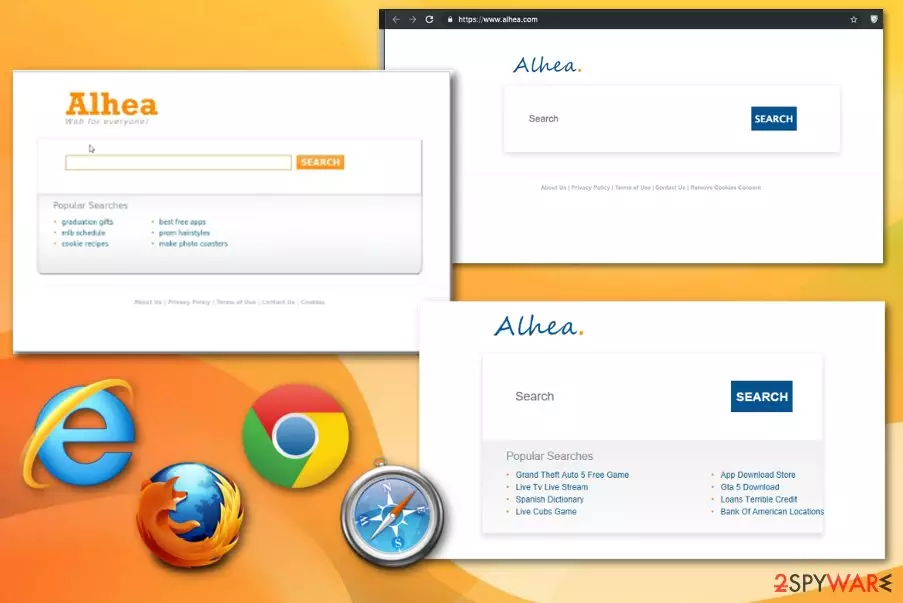
Alhea is the program that categorizes as potentially unwanted due to the activities on the machine and shady distribution technique. This browser hijacker takes over the homepage, new tab settings, and replaces the default search engine with Alhea.com on every browser that runs on the affected device. This PUP runs in the background, and the first symptoms people can notice are the changes in the web browser settings.
| Name | Alhea |
|---|---|
| Type | Browser hijacker |
| Developer | Ego Cognito |
| Main danger | As any other PUP, it tracks and collects information about the online browsing preferences and all the content delivered by this hijacker exposes the user to possibly dangerous content |
| Symptoms | Homepage, new tab, and search engine settings get altered. Various commercial content that shows up on the screen redirects to shady pages |
| Distribution | Freeware installations, other PUPs, deceptive websites |
| Elimination | Anti-malware tools are designed to remove Alhea and other PUPs |
| repair | Take care of the damaged pieces with tools like FortectIntego |
Once Alhea virus comes to the targeted machine, it starts ensuring persistence first by changing Windows Registry entries or adding new keys to the startup preferences. This application tries to make the fake search engine running each time the machine gets rebooted. Unfortunately, all these additional changes affect the whole elimination process and create more frustration
The site also redirects your online traffic by delivering various pop-up ads, banners, and other commercial content that leads to unwanted visits on advertising domains. This way, all views and page visits get generated, and later on, advertisers can create revenue by monetizing the traffic. This is the main goal of any potentially unwanted program because commercial content creators sponsor the distribution of such applications.
If you have already been forced to use Alhea.com instead of Google, Bing, Yahoo! or another reputable search site within Google Chrome, Mozilla Firefox, and Internet Explorer (Microsoft Edge), then you should better put some effort to reset the settings because by keeping this browser hijacker you may push yourself into further troubles. You can find a few tips for such manual changes below the article.
Because Alhea virus can display altered search results, you may be presented with the links to affiliated websites in priority. This way, third-party advertisers earn money by boosting traffic to the websites that are at the bottom of the page rank.
Unfortunately, these additional commercial redirects are more than annoying and disruptive. Each time you click on the link provided by this search, you risk exposing your computer to unsafe websites that are involved in the distribution of other PUPs. Moreover, security experts[1] have noticed the tendency of this hijacker to fill sites with commercial advertisements.
That's another marketing technique allowing advertisers to gain money via the pay-per-click (PPC) model[2], as well as help promoting various merchandise. Not to mention, it may also engage in tracking software and start analyzing your browsing habits.

Once a targeted system is affected, Alhea automatically installs cookies on all the browsers and starts collecting personally non-identifiable information (IP address, PC's location, email address, search terms, most visited websites, data entered in them, clicks, etc.) with an intention to send it to third-party advertisers who will analyze it and later provide the user with customized content.[3]
This issue regarding the PUP advertising tracking is disclosed on the Alhea website. In the Privacy Policy developers, Ego Cogito states about advertising cookies and other methods used to collect your data:
We do not collect your IP address and you do not have to register with Ego Cogito before we can collect this anonymous information. Ego Cogito websites do not require you to share personally identifiable information, such as your name or email address, for you to use Ego Cogito websites. Ego Cogito websites allocate an anonymous identification number to your requests and link the following information to that number: the date and time at which you visited the Ego Cogito website, the search terms, and the links which you clicked through.
If you are not keen on sharing information about you with third parties, as well as visiting doubtful websites on a daily basis, we highly recommend you to remove the PUP from the system. For that, our recommendation would be anti-malware tools, system cleaning utilities like SpyHunterCombo Cleaner, MalwarebytesMalwarebytes.
Focus on the proper virus removal and clean the system thoroughly with an anti-malware program, so all the virus damage can be fixed and additionally installed programs terminated. Rely on professional anti-malware tools and get rid of the intruder that tracks data about you.
Keep in mind that Alhea has been labeled as a browser hijacker due to its capabilities to corrupt web browser's settings and initiate doubtful activities during people's browsing. One of the most prominent features that will leave no doubts that your web browser has been hijacked is a modification of a search provider and a default start page.

Never skip through freeware installation steps to control the installs
Browser hijacker modifies web browser's settings without computer user's knowledge. That's because it is usually spread in a bundle with freeware. This is because people still tend to install freeware without checking Advanced settings.
To prevent this cyber infection from happening, you should be more careful when installing anything on the system. It's a mistake to consider that free software downloaded from file sharing websites are entirely safe. Actually, such websites spread software packages by far the most frequently.
So whenever you decide to install freeware from the internet, make sure that you check Advanced/Custom options and untick all add-ons and plug-ins that are set to get installed by default on the initial installation setup. Also, pay attention to sources you get applications from, read the EULA of the website that promotes tools or programs.
Remove the Alhea from the machine and fix browser issues yoruself
The virus removal is highly recommended to maintain your computer PUP-free, fast, stable, and secure. Potentially unwanted programs can affect the performance significantly with all those intrusive redirects and additionally installed programs and in-browser content.
The easiest way to remove Alhea is to check the system using a reputable anti-malware tool. This way, your device gets thoroughly checked, and all the possible issues can be detected and indicated. When the list of issues, possible intruders, and other files appear, you can clean the PC automatically.
Since Alhea virus is the potentially unwanted program, you should pay close attention to the process and eliminate all the programs and files. Also, your machine may have more useless programs than this one browser hijacker, so double-check and clean the computer entirely.
Uninstall from Windows
Uninstall from Windows 10/8:
- Type Control Panel into the Windows search box and open the result.
- Under Programs, select Uninstall a program.


Uninstall from Windows 7/XP:
- Click on Windows Start > Control Panel (Windows XP users should click on Add/Remove Programs).
- In Control Panel, select Programs > Uninstall a program.


Remove the unwanted program:
- In the Programs and Features window, look for any recently installed suspicious entries, select them, and click Uninstall.
- If User Account Control appears, click Yes to confirm, then complete the removal.


Delete from macOS
Remove the unwanted application:
- From the menu bar, select Go > Applications.
- In the Applications folder, look for any suspicious entries, then drag them to Trash (or right-click and pick Move to Trash).


Delete leftover files and folders:
- Select Go > Go to Folder.
- Enter /Library/Application Support and remove any suspicious folders related to the unwanted program.
- Repeat the same check in the /Library/LaunchAgents and /Library/LaunchDaemons folders, deleting any suspicious entries.

- Finally, empty the Trash to permanently remove the leftovers.

Remove from Microsoft Edge
Delete unwanted extensions from MS Edge:
- Select Menu (three horizontal dots at the top-right of the browser window) and pick Extensions.
- From the list, pick the extension and click on the Gear icon.
- Click Remove.


Clear cookies and other browser data:
- Click on the Menu (three horizontal dots at the top-right of the browser window) and select Settings > Privacy, search, and services..
- Under Clear browsing data, pick Choose what to clear.
- Select Cookies and other site data and Cached images and files. (apart from passwords, although you might want to include Media licenses as well, if applicable) and click on Clear.


Restore new tab and homepage settings:
- Click the menu icon and choose Settings.
- Then find On startup section.
- Click Remove next to any suspicious startup page.
Reset MS Edge if the above steps did not work:
- Press on Ctrl + Shift + Esc to open Task Manager.
- Click on More details arrow at the bottom of the window.
- Select Details tab.
- Now scroll down and locate every entry with Microsoft Edge name in it. Right-click on each of them and select End Task to stop MS Edge from running.


Instructions for Chromium-based Edge
Delete extensions from MS Edge (Chromium):
- Open Edge and click select Settings > Extensions.
- Delete unwanted extensions by clicking Remove.


Clear cache and site data:
- Click on Menu and go to Settings.
- Select Privacy, search and services.
- Under Clear browsing data, pick Choose what to clear.
- Under Time range, pick All time.
- Select Clear now.


Reset Chromium-based MS Edge:
- Click on Menu and select Settings.
- On the left side, pick Reset settings.
- Select Restore settings to their default values.
- Confirm with Reset.
- This will disable extensions and reset startup pages but will not delete bookmarks, saved passwords, or browsing history.


Remove from Mozilla Firefox (FF)
Remove dangerous extensions:
- Open Mozilla Firefox browser and click on the Menu (three horizontal lines at the top-right of the window).
- Select Add-ons.
- In here, select the unwanted extension and click Remove.


Reset the homepage:
- Click three horizontal lines at the top right corner to open the menu.
- Choose Settings.
- Under Home, set your preferred homepage and new tab settings.
Clear cookies and site data:
- Click Menu and pick Settings.
- Go to Privacy & Security section.
- Scroll down to locate Cookies and Site Data.
- Click on Clear Data...
- Select Cookies and Site Data and Temporary cached files and pages, then click Clear.


Reset Mozilla Firefox
If clearing the browser as explained above did not help, reset Mozilla Firefox:
- Open Mozilla Firefox browser and click the Menu.
- Go to Help and then choose Troubleshooting Information.

- Under Give Firefox a tune up section, click on Refresh Firefox...
- Once the pop-up shows up, confirm the action by pressing on Refresh Firefox.



Remove from Google Chrome
Delete malicious extensions from Google Chrome:
- Open Google Chrome, click on the Menu (three vertical dots at the top-right corner) and select More tools > Extensions.
- In the newly opened window, you will see all the installed extensions. Uninstall all suspicious extensions related to the unwanted program by clicking Remove.


Clear cache and web data from Chrome:
- Click on Menu and pick Settings.
- Under Privacy and security, select Clear browsing data.
- Select Browsing history, Cookies and other site data, as well as Cached images and files.
- Click Clear data.


Change your homepage:
- Click menu and choose Settings.
- Look for a suspicious site in the On startup section.
- Click on Open a specific or set of pages and click on three dots to find the Remove option.
Reset Google Chrome:
If the previous methods did not help you, reset Google Chrome to eliminate all the unwanted components:
- Click on Menu and select Settings.
- In the Settings, scroll down and click Advanced.
- Scroll down and locate Reset and clean up section.
- Now click Restore settings to their original defaults.
- Confirm with Reset settings.


Delete from Safari
Remove dangerous extensions:
- Open Safari, click Safari in the menu at the top-left of the screen, and select Preferences.
- Go to the Extensions tab, look for any suspicious entries, and click Uninstall to remove them.


Clear history and website data:
- Click Safari in the menu and pick Clear History.
- Set Clear to all history and confirm with Clear History.


Reset Safari:
- Click Safari in the menu and select Preferences > Advanced.
- Enable Show Develop menu in menu bar.
- From the menu bar, click Develop and select Empty Caches.


Did this guide help?
Be the first to comment