

Things to consider before using play-bar.net
Play-bar.net or play-bar.net/search is introduced as an alternative to such search engine giants as Google or Yahoo. We do not recommend using this search provider instead of your start page or the default search engine because it has been classified as a browser hijacker. Although this website looks attractive and provides such information as local time, temperature, and a grid of online games, it also suggests installing Playbar extension from Google Play Store. No matter that it is presented as a funny app designed for gaming, you should stay away from it. Also, if you have already downloaded this app to your computer, you should remove Play-bar.net from it. This article discusses key characteristics of this PUP. In case, you are already aware of the capabilities of browser hijackers and do not want to waste time, choose automatic Play Bar removal.
The key problem of this seemingly reliable search engine is that it collects your personal information[1], such as full name, home and email address, phone number, date of birth, etc. It does not only use it for answering your inquiries, but it openly admits sharing such data with third parties. Such hijackers as Play Bar, powered by Plus network, now have few legal restrictions to do so after the recent legislation issued by the Congress[2]. Furthermore, it tracks your browsing habits and keeps a record of daily visited domains and browsing frequency. Due to such activity, do not get surprised if your Inbox gets loaded with personalized emails received from shady users or companies. Especially, avoid opening any emails which contain “invoice” attachments[3] or attempt you deceive with fake lottery prizes[4].
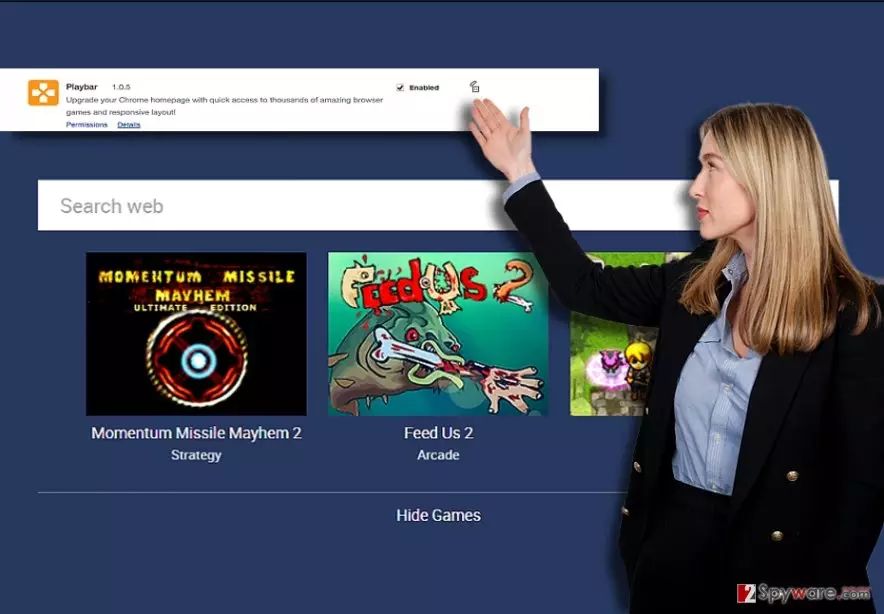
This application can also change your homepage to play-bar.net and start displaying various advertisements for you. You may receive them within your search results in a form of pop-up ads, in-text links, and similar commercial content. Soon, you will notice that the majority of links provided by this browser hijacker causes play-bar.net redirect problem on each of your web browsers. Though privacy online is becoming more fragile, you can still choose the websites and apps with least data leak risks[5]. According to PC security experts, tracking and redirect issue are the main reasons why should you avoid using this search engine. To protect yourself from visiting websites that are infectious, we recommend you to take care of Play-bar.net removal from your computer. The easiest way to do that is to install a reliable anti-spyware tool, for example, FortectIntego.
Why did it occupy my browser?
Play bar hijack might have occurred as a result of recklessly installing freeware. Usually, the developers of PUPs (including adware, browser hijackers, etc.) spread their products by bundling them to legitimate programs. Nonetheless, there is only one tip to avoid such optional installations – do not rush. Make sure you read every statement on the installation process window! Also, most important part is to choose safe installation settings. So instead of popular ”Default” and ”Standard” methods, opt for either ”Custom” or ”Advanced” mode. Either one or another choice gives you an opportunity to customize your installation, and you can reject the apps you do not wish to install. So, just untick the boxes that suggest unfamiliar content, and that’s it.
Pay-bar.net elimination steps
If you have decided that this playful search engine is an unnecessary tool for you, you should perform play-bar.net removal by using a reliable anti-spyware. Also, go back to a reputable search engine, such as Google or Bing, that returns safe search results for its users. You can also get rid of this browser hijacker manually by following a step-by-step guide below. However, keep in mind that it is not enough just to reset your homepage to get rid of it. You will need to uninstall virus and all of its components (including PlayBar extension). You can do it automatically with an anti-malware program listed below, or you can delete it manually. For that, we have provided instructions below this article.
Uninstall from Windows
Uninstall from Windows 10/8:
- Type Control Panel into the Windows search box and open the result.
- Under Programs, select Uninstall a program.


Uninstall from Windows 7/XP:
- Click on Windows Start > Control Panel (Windows XP users should click on Add/Remove Programs).
- In Control Panel, select Programs > Uninstall a program.


Remove the unwanted program:
- In the Programs and Features window, look for any recently installed suspicious entries, select them, and click Uninstall.
- If User Account Control appears, click Yes to confirm, then complete the removal.


Delete from macOS
Remove the unwanted application:
- From the menu bar, select Go > Applications.
- In the Applications folder, look for any suspicious entries, then drag them to Trash (or right-click and pick Move to Trash).


Delete leftover files and folders:
- Select Go > Go to Folder.
- Enter /Library/Application Support and remove any suspicious folders related to the unwanted program.
- Repeat the same check in the /Library/LaunchAgents and /Library/LaunchDaemons folders, deleting any suspicious entries.

- Finally, empty the Trash to permanently remove the leftovers.

Reset Internet Explorer
Remove dangerous add-ons:
- Open Internet Explorer, click on the Gear icon (IE menu) on the top-right corner of the browser
- Pick Manage Add-ons.
- You will see a Manage Add-ons window. Here, look for suspicious plugins. Click on these entries and select Disable.


Change your homepage if it was altered:
- Open IE and click on the Gear icon.
- Select Internet Options.
- In the General tab, delete the Home page address and replace it by your preferred one (for example, Google.com).
- Click Apply and then select OK.


Delete temporary files:
- Press on the Gear icon and select Internet Options.
- Under Browsing history, click Delete...
- Select relevant fields and press Delete.


Reset Internet Explorer:
- Click on Gear icon > Internet options and select Advanced tab.
- Select Reset.
- In the new window, check Delete personal settings and select Reset.


Remove from Mozilla Firefox (FF)
Remove dangerous extensions:
- Open Mozilla Firefox browser and click on the Menu (three horizontal lines at the top-right of the window).
- Select Add-ons.
- In here, select the unwanted extension and click Remove.


Reset the homepage:
- Click three horizontal lines at the top right corner to open the menu.
- Choose Settings.
- Under Home, set your preferred homepage and new tab settings.
Clear cookies and site data:
- Click Menu and pick Settings.
- Go to Privacy & Security section.
- Scroll down to locate Cookies and Site Data.
- Click on Clear Data...
- Select Cookies and Site Data and Temporary cached files and pages, then click Clear.


Reset Mozilla Firefox
If clearing the browser as explained above did not help, reset Mozilla Firefox:
- Open Mozilla Firefox browser and click the Menu.
- Go to Help and then choose Troubleshooting Information.

- Under Give Firefox a tune up section, click on Refresh Firefox...
- Once the pop-up shows up, confirm the action by pressing on Refresh Firefox.



Remove from Google Chrome
Delete malicious extensions from Google Chrome:
- Open Google Chrome, click on the Menu (three vertical dots at the top-right corner) and select More tools > Extensions.
- In the newly opened window, you will see all the installed extensions. Uninstall all suspicious extensions related to the unwanted program by clicking Remove.


Clear cache and web data from Chrome:
- Click on Menu and pick Settings.
- Under Privacy and security, select Clear browsing data.
- Select Browsing history, Cookies and other site data, as well as Cached images and files.
- Click Clear data.


Change your homepage:
- Click menu and choose Settings.
- Look for a suspicious site in the On startup section.
- Click on Open a specific or set of pages and click on three dots to find the Remove option.
Reset Google Chrome:
If the previous methods did not help you, reset Google Chrome to eliminate all the unwanted components:
- Click on Menu and select Settings.
- In the Settings, scroll down and click Advanced.
- Scroll down and locate Reset and clean up section.
- Now click Restore settings to their original defaults.
- Confirm with Reset settings.


Delete from Safari
Remove dangerous extensions:
- Open Safari, click Safari in the menu at the top-left of the screen, and select Preferences.
- Go to the Extensions tab, look for any suspicious entries, and click Uninstall to remove them.


Clear history and website data:
- Click Safari in the menu and pick Clear History.
- Set Clear to all history and confirm with Clear History.


Reset Safari:
- Click Safari in the menu and select Preferences > Advanced.
- Enable Show Develop menu in menu bar.
- From the menu bar, click Develop and select Empty Caches.


Did this guide help?
Be the first to comment