

DailyWiki ads might redirect to high-risk websites
DailyWiki is a potentially unwanted program (PUP) which is categorized as an adware.[1] However, this ad-supported program is presented as a browser extension for Internet Explorer, Google Chrome, Mozilla Firefox, and Safari web browsers. This application is mostly distributed in software bundles and enters the system unnoticed. After DailyWiki hijack, the program starts collecting information about user’s browsing habits and based on this knowledge it starts generating an intrusive amount of online ads. This program is used for affiliate marketing. Thus, the main purpose of it is to inject user’s web browsers with third-party advertisements and collect as many clicks as possible. This way, it generates income via the pay-per-click[2] system, boosts traffic to affiliate websites, promotes certain items, services, and so on. Online marketing is unavoidable these days; however, the core difference is between safe and unsafe advertising. Security experts warn that commercial content delivered by a suspicious adware program is potentially dangerous. Thus, once you noticed an increased amount of ads popping up when browsing the web, you should check computer’s security and scan device with a reputable anti-malware program, such as FortectIntego. It helps to remove DailyWiki entirely and avoid possible cyber threats.
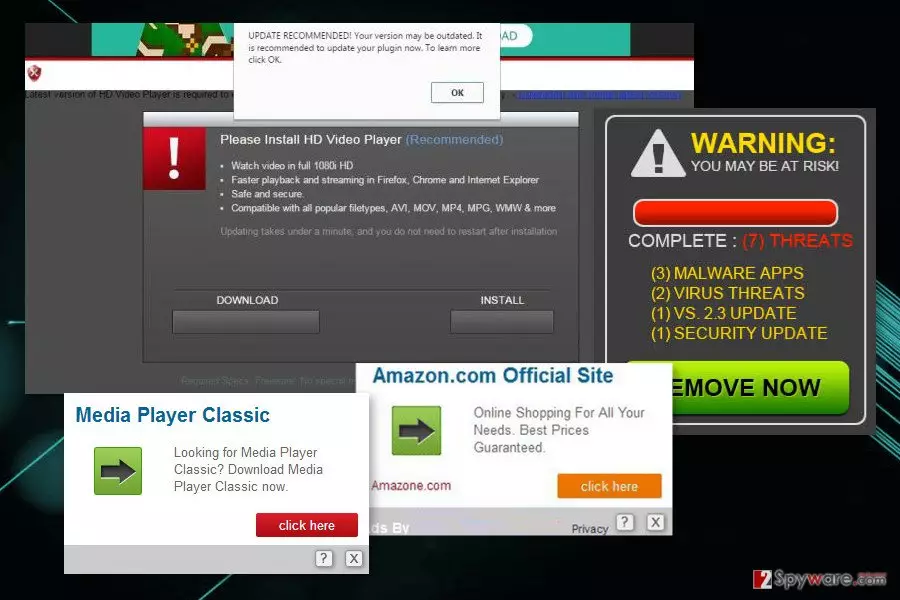
Once DailyWiki adware is installed on a PC, it creates a scheduled task in Windows startup and launches as soon as the user opens a web browser. Consequently, he or she may start seeing pop-up and banner ads. They may exhibit price comparisons, inform about recent discounts, coupons, software updates, and so on. However, none of these ads are checked, what means that clicking on them is not safe. In the worst case scenario, you may be rerouted to third-party websites that spread other PUPs, illegal domains,[3] including casino, suspicious surveys, adult content[4] domains, and so on. Although these examples are extreme, you should not ignore a possibility to land on such domains. Thus, you should not only resist to all great offers popping up on the screen but hurry up with DailyWiki removal as well. It’s the only way to get rid of unwanted and bothersome activities on your browser.
Apart from suspicious DailyWiki redirect tendencies, this ad-supported program has another negative feature that is related to your online privacy. As we already mentioned, the purpose of the adware is to deliver an excessive amount of online ads and generate pay-per-click revenue. In order to profit from this aggressive online marketing strategy, the PUP is designed to be capable of tracking information about users. DailyWiki might be collecting browsing related data, such as search queries, pages viewed, clicks, the data type in the websites, IP address, PC’s location, etc. Gathered details are transmitted to the third-party advertisers and advertising networks on a daily basis. Based on this information you are provided personalized shopping offers[5] that are supposed to encourage you to click them.

Distribution of ad-supported program is based on bundling technique
Developers of DailyWiki use an unfair software distribution tactic known as “bundling.” In other words, this add-on can be bundled with other free software. For this reason, it’s important to choose the right way to install freeware and shareware. At the beginning of installation of the new program, you are always asked to choose between Advanced/Custom and Quick/Recommended modes. In order to avoid so-called DailyWiki virus and installation of other PUPs, you should opt for the first option. Advanced/Custom settings allow seeing the list of third-party software and reject their installation. Meanwhile, Quick/Recommended setup does not inform about them and installs all additional apps by default.
Elimination of the DailyWiki
In order to remove DailyWiki, you need to uninstall the add-on and all its counterparts. This application does not belong to the group of hazardous cyber infections, so you should be able to get rid of it manually (the guide is given below the article). However, out strongest recommendation is to remove this add-on using an automated tool because it may be not the only PUP hiding in your PC’s system. Your task is to eliminate all the programs that entered the computer via software package, and it might be hard to do it manually. Automatic DailyWiki removal is performed using a reputable anti-malware program. All you need to do is to run a full system scan with an updated security software.
Uninstall from Windows
Uninstall from Windows 10/8:
- Type Control Panel into the Windows search box and open the result.
- Under Programs, select Uninstall a program.


Uninstall from Windows 7/XP:
- Click on Windows Start > Control Panel (Windows XP users should click on Add/Remove Programs).
- In Control Panel, select Programs > Uninstall a program.


Remove the unwanted program:
- In the Programs and Features window, look for any recently installed suspicious entries, select them, and click Uninstall.
- If User Account Control appears, click Yes to confirm, then complete the removal.


Delete from macOS
Remove the unwanted application:
- From the menu bar, select Go > Applications.
- In the Applications folder, look for any suspicious entries, then drag them to Trash (or right-click and pick Move to Trash).


Delete leftover files and folders:
- Select Go > Go to Folder.
- Enter /Library/Application Support and remove any suspicious folders related to the unwanted program.
- Repeat the same check in the /Library/LaunchAgents and /Library/LaunchDaemons folders, deleting any suspicious entries.

- Finally, empty the Trash to permanently remove the leftovers.

Reset Internet Explorer
Remove dangerous add-ons:
- Open Internet Explorer, click on the Gear icon (IE menu) on the top-right corner of the browser
- Pick Manage Add-ons.
- You will see a Manage Add-ons window. Here, look for suspicious plugins. Click on these entries and select Disable.


Change your homepage if it was altered:
- Open IE and click on the Gear icon.
- Select Internet Options.
- In the General tab, delete the Home page address and replace it by your preferred one (for example, Google.com).
- Click Apply and then select OK.


Delete temporary files:
- Press on the Gear icon and select Internet Options.
- Under Browsing history, click Delete...
- Select relevant fields and press Delete.


Reset Internet Explorer:
- Click on Gear icon > Internet options and select Advanced tab.
- Select Reset.
- In the new window, check Delete personal settings and select Reset.


Remove from Microsoft Edge
Delete unwanted extensions from MS Edge:
- Select Menu (three horizontal dots at the top-right of the browser window) and pick Extensions.
- From the list, pick the extension and click on the Gear icon.
- Click Remove.


Clear cookies and other browser data:
- Click on the Menu (three horizontal dots at the top-right of the browser window) and select Settings > Privacy, search, and services..
- Under Clear browsing data, pick Choose what to clear.
- Select Cookies and other site data and Cached images and files. (apart from passwords, although you might want to include Media licenses as well, if applicable) and click on Clear.


Restore new tab and homepage settings:
- Click the menu icon and choose Settings.
- Then find On startup section.
- Click Remove next to any suspicious startup page.
Reset MS Edge if the above steps did not work:
- Press on Ctrl + Shift + Esc to open Task Manager.
- Click on More details arrow at the bottom of the window.
- Select Details tab.
- Now scroll down and locate every entry with Microsoft Edge name in it. Right-click on each of them and select End Task to stop MS Edge from running.


Instructions for Chromium-based Edge
Delete extensions from MS Edge (Chromium):
- Open Edge and click select Settings > Extensions.
- Delete unwanted extensions by clicking Remove.


Clear cache and site data:
- Click on Menu and go to Settings.
- Select Privacy, search and services.
- Under Clear browsing data, pick Choose what to clear.
- Under Time range, pick All time.
- Select Clear now.


Reset Chromium-based MS Edge:
- Click on Menu and select Settings.
- On the left side, pick Reset settings.
- Select Restore settings to their default values.
- Confirm with Reset.
- This will disable extensions and reset startup pages but will not delete bookmarks, saved passwords, or browsing history.


Remove from Mozilla Firefox (FF)
Remove dangerous extensions:
- Open Mozilla Firefox browser and click on the Menu (three horizontal lines at the top-right of the window).
- Select Add-ons.
- In here, select the unwanted extension and click Remove.


Reset the homepage:
- Click three horizontal lines at the top right corner to open the menu.
- Choose Settings.
- Under Home, set your preferred homepage and new tab settings.
Clear cookies and site data:
- Click Menu and pick Settings.
- Go to Privacy & Security section.
- Scroll down to locate Cookies and Site Data.
- Click on Clear Data...
- Select Cookies and Site Data and Temporary cached files and pages, then click Clear.


Reset Mozilla Firefox
If clearing the browser as explained above did not help, reset Mozilla Firefox:
- Open Mozilla Firefox browser and click the Menu.
- Go to Help and then choose Troubleshooting Information.

- Under Give Firefox a tune up section, click on Refresh Firefox...
- Once the pop-up shows up, confirm the action by pressing on Refresh Firefox.



Remove from Google Chrome
Delete malicious extensions from Google Chrome:
- Open Google Chrome, click on the Menu (three vertical dots at the top-right corner) and select More tools > Extensions.
- In the newly opened window, you will see all the installed extensions. Uninstall all suspicious extensions related to the unwanted program by clicking Remove.


Clear cache and web data from Chrome:
- Click on Menu and pick Settings.
- Under Privacy and security, select Clear browsing data.
- Select Browsing history, Cookies and other site data, as well as Cached images and files.
- Click Clear data.


Change your homepage:
- Click menu and choose Settings.
- Look for a suspicious site in the On startup section.
- Click on Open a specific or set of pages and click on three dots to find the Remove option.
Reset Google Chrome:
If the previous methods did not help you, reset Google Chrome to eliminate all the unwanted components:
- Click on Menu and select Settings.
- In the Settings, scroll down and click Advanced.
- Scroll down and locate Reset and clean up section.
- Now click Restore settings to their original defaults.
- Confirm with Reset settings.


Delete from Safari
Remove dangerous extensions:
- Open Safari, click Safari in the menu at the top-left of the screen, and select Preferences.
- Go to the Extensions tab, look for any suspicious entries, and click Uninstall to remove them.


Clear history and website data:
- Click Safari in the menu and pick Clear History.
- Set Clear to all history and confirm with Clear History.


Reset Safari:
- Click Safari in the menu and select Preferences > Advanced.
- Enable Show Develop menu in menu bar.
- From the menu bar, click Develop and select Empty Caches.


Did this guide help?
4 comments
Simon
DailyWiki ads are unbearable!! Stay away from this app unless you want to fight against a flow of pop-ups every day.
CarolAguiar
Dont believe its going to save you money! DailyWiki is a virus and the only thing that it seeks is to make you visit third party websites.
Megan789
Hello, Im one of those silly users that have believed that DailyWiki adware will help me to do shopping online. Of course that it didnt! Obviously this app is not collaborating with Amazon, Walmart, eBay or other well-known shopping websites because it kept displaying ads from Asian-oriented web browsers that certainly did not appear reliable. Glad I got rid of it!
Jerad9
I havent noticed how and when it entered my computer. Ive never dealt with adware or another PUP before, so Ive been prone to installing freewares by clicking next..next..next and thats it. However, next time I will be more careful. As regards DailyWiki removal, I have entrusted this task to a reputable anti-spyware, namely Malwarebytes.