

Don’t get confused! Newpoptab.com is NOT a browser hijacker. It’s a pop-up that may show up on Chrome, Firefox, IE, and Firefox web browsers. As we’ve already noted, Newpoptab.com domain is usually disclosed in a form of a pop-up. However, in some of the cases, it may be delivered in a new tab window. No matter what form you have seen, if you did, then you have to beware of an adware-type infection. Newpoptab.com pop-up virus is caused by an adware that is misused by cyber criminals who seek to spread other potentially unwanted programs, like, for instance, other adware or browser hijackers. Thus, if you’ve noticed any signs of Newpoptab.com virus, we highly recommend you to check the system with FortectIntego or another trustworthy anti-spyware.
Why are Newpoptab.com pop-ups are dangerous?
Newpoptab.com domain does not show up on its own. It’s emergence is related directly to an adware-type program. As you probably already know, adware-type infections are not malicious. However, they collaborate with various (both suspicious and reliable) third-parties, what means that they can be set to display unsafe third-party content. The adware that causes Newpoptab.com pop-up ads seems to be very suspicious because it obviously seeks to trick its users. How? It may offer bogus services or software.
- Newpoptab.com pop-ups prompt users to update software. Fake software updates, for instance, Java, Flash Player, Media Player, Download Manager, etc. is by far the most frequently used technique to spread other potentially unwanted program (PUP). When you browse the net, you may receive a professional-looking notification saying:
Media Player Update
This Content required Media Player
12.7. Would you like to install it now.
Such and similar notifications are bogus, so keep in mind this and do install neither Media Player not Java because Newpoptab.com pop-ups can make you install adwares like, for instance, Huge Rebates, WebChefPlus, FixMyPC or any other.
- Fake remote support services. In addition to that, Newpoptab.com popups may inform about various errors on your computer and offer to call for remote technical support. It may urge you to do that ASAP because supposedly you may be scammed. No matter how convincing Newpoptab.com ads appear, keep in mind that calling for remote support service pose a risk of loosing a considerable amount of money.
- Survey requests. In addition to that, Newpoptab.com redirects can expose you to various online surveys. You may be asked to submit your email, name, telephone number or another personally identifiable information. DO NOT disclose any information about you because it may be used for suspicious purposes, including email spamming or automatic subscription of some service that you certainly do not want using.
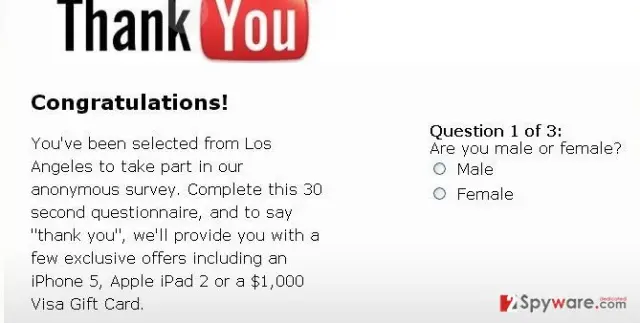
- Newpoptab.com pop-ups with prize giveaways. You may also receive pop-up messages claiming that you are a ‘lucky visitor’ and have a chance to win iPad, iPhone, Mac or another considerable prize. However, keep in mind that it’s just another trick to make people disclose personally personally identifiable information, such as name, telephone number, and so on. Therefore, if you have already received pop-ups from Newpoptab.com domain, we highly recommend you to run a full system scan.

How can I remove Newpoptab.com virus and how does it spread?
Newpoptab.com virus is directly related to adware-type programs. Such applications are usually spread bundled with various freewares/shares. In other words, adwares are promoted via software packages. Therefore, if you want to protect your computer from unwanted programs, you have to check what ‘optional downloads’ the freeware that you have chosen carries alongside. For that, you have to opt for advanced/custom installation option and carefully check each check box. Of course, your selected freeware may not have attachments, but make sure that you check that all the time.
Newpoptab.com-related adware can be removed both manually and automatically. If you need a detailed guide that would explain all removal peculiarities, you can find the one submitted by our security experts down below.
Uninstall from Windows
Uninstall from Windows 10/8:
- Type Control Panel into the Windows search box and open the result.
- Under Programs, select Uninstall a program.


Uninstall from Windows 7/XP:
- Click on Windows Start > Control Panel (Windows XP users should click on Add/Remove Programs).
- In Control Panel, select Programs > Uninstall a program.


Remove the unwanted program:
- In the Programs and Features window, look for any recently installed suspicious entries, select them, and click Uninstall.
- If User Account Control appears, click Yes to confirm, then complete the removal.


Delete from macOS
Remove the unwanted application:
- From the menu bar, select Go > Applications.
- In the Applications folder, look for any suspicious entries, then drag them to Trash (or right-click and pick Move to Trash).


Delete leftover files and folders:
- Select Go > Go to Folder.
- Enter /Library/Application Support and remove any suspicious folders related to the unwanted program.
- Repeat the same check in the /Library/LaunchAgents and /Library/LaunchDaemons folders, deleting any suspicious entries.

- Finally, empty the Trash to permanently remove the leftovers.

Remove from Microsoft Edge
Delete unwanted extensions from MS Edge:
- Select Menu (three horizontal dots at the top-right of the browser window) and pick Extensions.
- From the list, pick the extension and click on the Gear icon.
- Click Remove.


Clear cookies and other browser data:
- Click on the Menu (three horizontal dots at the top-right of the browser window) and select Settings > Privacy, search, and services..
- Under Clear browsing data, pick Choose what to clear.
- Select Cookies and other site data and Cached images and files. (apart from passwords, although you might want to include Media licenses as well, if applicable) and click on Clear.


Restore new tab and homepage settings:
- Click the menu icon and choose Settings.
- Then find On startup section.
- Click Remove next to any suspicious startup page.
Reset MS Edge if the above steps did not work:
- Press on Ctrl + Shift + Esc to open Task Manager.
- Click on More details arrow at the bottom of the window.
- Select Details tab.
- Now scroll down and locate every entry with Microsoft Edge name in it. Right-click on each of them and select End Task to stop MS Edge from running.


Instructions for Chromium-based Edge
Delete extensions from MS Edge (Chromium):
- Open Edge and click select Settings > Extensions.
- Delete unwanted extensions by clicking Remove.


Clear cache and site data:
- Click on Menu and go to Settings.
- Select Privacy, search and services.
- Under Clear browsing data, pick Choose what to clear.
- Under Time range, pick All time.
- Select Clear now.


Reset Chromium-based MS Edge:
- Click on Menu and select Settings.
- On the left side, pick Reset settings.
- Select Restore settings to their default values.
- Confirm with Reset.
- This will disable extensions and reset startup pages but will not delete bookmarks, saved passwords, or browsing history.


Remove from Mozilla Firefox (FF)
Remove dangerous extensions:
- Open Mozilla Firefox browser and click on the Menu (three horizontal lines at the top-right of the window).
- Select Add-ons.
- In here, select the unwanted extension and click Remove.


Reset the homepage:
- Click three horizontal lines at the top right corner to open the menu.
- Choose Settings.
- Under Home, set your preferred homepage and new tab settings.
Clear cookies and site data:
- Click Menu and pick Settings.
- Go to Privacy & Security section.
- Scroll down to locate Cookies and Site Data.
- Click on Clear Data...
- Select Cookies and Site Data and Temporary cached files and pages, then click Clear.


Reset Mozilla Firefox
If clearing the browser as explained above did not help, reset Mozilla Firefox:
- Open Mozilla Firefox browser and click the Menu.
- Go to Help and then choose Troubleshooting Information.

- Under Give Firefox a tune up section, click on Refresh Firefox...
- Once the pop-up shows up, confirm the action by pressing on Refresh Firefox.



Remove from Google Chrome
Delete malicious extensions from Google Chrome:
- Open Google Chrome, click on the Menu (three vertical dots at the top-right corner) and select More tools > Extensions.
- In the newly opened window, you will see all the installed extensions. Uninstall all suspicious extensions related to the unwanted program by clicking Remove.


Clear cache and web data from Chrome:
- Click on Menu and pick Settings.
- Under Privacy and security, select Clear browsing data.
- Select Browsing history, Cookies and other site data, as well as Cached images and files.
- Click Clear data.


Change your homepage:
- Click menu and choose Settings.
- Look for a suspicious site in the On startup section.
- Click on Open a specific or set of pages and click on three dots to find the Remove option.
Reset Google Chrome:
If the previous methods did not help you, reset Google Chrome to eliminate all the unwanted components:
- Click on Menu and select Settings.
- In the Settings, scroll down and click Advanced.
- Scroll down and locate Reset and clean up section.
- Now click Restore settings to their original defaults.
- Confirm with Reset settings.


Delete from Safari
Remove dangerous extensions:
- Open Safari, click Safari in the menu at the top-left of the screen, and select Preferences.
- Go to the Extensions tab, look for any suspicious entries, and click Uninstall to remove them.


Clear history and website data:
- Click Safari in the menu and pick Clear History.
- Set Clear to all history and confirm with Clear History.


Reset Safari:
- Click Safari in the menu and select Preferences > Advanced.
- Enable Show Develop menu in menu bar.
- From the menu bar, click Develop and select Empty Caches.


Did this guide help?
4 comments
Mathilda
Newpoptab.com popups are the most misleading popups that Ive ever seen. They look so convincing!! I have received the alerts from this domain for some time and believing that they are brought by the websites that Im visiting, Ive clicked on the Java update. Most likely I should scan my computer with anti-spyware.
Simone
So did I. Ive downloaded Java that has been offered on Newpoptab.com pop-up ads. I think that Java has been updated, but I also believe that my PC has also been further infected since my web browser has started displaying even more pop-ups. Which anti-spyware would you recommend?
Thomas11
Me personally have got rid of Newpoptab.com pop-up with SpyHunter, but I believe that Malwarebytes and STOPzilla should also deal with this virus easily.
Bytheway
By the way, have you guys noticed that Newpoptab.com pop-up virus offers to call for remote support service. Dont fall for calling it because its highly charged!