

Srch.bar is a potentially unwanted program that can show altered search results and annoying ads
Srch.bar virus is a browser hijacker that designed to show advertisements and redirect users to sponsored websites. Like the majority of third-party search providers, this one pretends to be legitimate. Despite the fact that it's not malicious, it has some negative traits due to which no one is recommended to use it.
From the first inspection, it seems to be a simple search that features a search box on its start page and some of the quick links, and a widget that displays the current weather forecast. It is compatible with all web browsers starting but not limiting to Google Chrome, Internet Explorer, Mozilla Firefox, Safari, and Opera.
However, there is no explicit information provided that would let users known about some additional traits of Srch.bar virus. Here are the most important facts you may not have known:
- It is deemed as a browser hijacker and PUP (potentially unwanted program) due to stealthy distribution technology and unauthorized modification of web browser's settings;
- Srch.bar redirects to yahoo.com. Although it is a legal search provider, its version sponsored by this hijacker can show altered search results embedded with links to misleading third-party websites.
- The search uses tracking cookies and web beacons with an intention to collect browsing-related information (pages viewed, data entered in certain pages, language preferred, search queries, links, and pop-ups clicked on, etc.) that would allow discovering user's web browsing habits.
- Srch.bar malware usually installs a browser helper object to protect itself from being removed.
Thus, although from the surface the usage of Srch.bar virus may seem a good idea, we don't think so after a close investigation of this tool. We DO NOT recommend trusting the links and pop-ups that may be visible while browsing with this search because the vast majority of them are brought by unknown parties, which means that they are managed by a different Privacy Policy and Terms than Yahoo or Srch.bar.
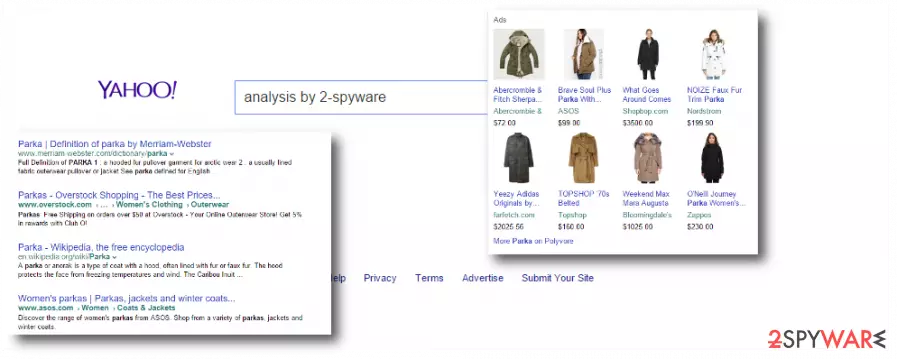
If you are not willing to visit unsafe web domains, bypass all content brought by this search engine. Lastly, delete Srch.bar virus immediately and protect your computer from further damage. The easiest way to do so is to check the system with SpyHunterCombo Cleaner, MalwarebytesMalwarebytes, or another reliable removal tool.
After Srch.bar virus removal, modified or possibly damaged system files should also be repaired. You can easily do this with FortectIntego or any other repair tool.
Users easily install potentially unwanted programs without even noticing it
If your web browser's homepage and search engine all of a sudden has been replaced by Srch.bar homepage, the only explanation for that is the inadvertent installation of the software package. The above mentioned fake search is circulating the web bundled with free software (numerous download managers, PDF creators, media players, games, etc.).
Therefore, the only way to avoid browser hijacker is a careful and deliberate installation of free programs. It means that you should avoid quick, express, or basic installation options.
Instead of these options, a deliberate selection would be advanced or custom installation mode. It is not less important to read all the terms and conditions provided on the installation wizard, as well as untick checkmarks saying that you agree with the installation of additional tools.
Follow our tips to remove Srch.bar virus
Srch.bar redirects to Yahoo and other pages should be stopped immediately if you do not want to end up on a malicious web page and install another malware on your computer. Since you are reading this post, we can guess that your PC's start page and search engine have already been jeopardized and you want to fix that ASAP.
You can remove Srch.bar manually. Our security experts have submitted a guide that will help you to do that.
However, even if you manage to delete Srch.bar virus by yourself, scan your computer with a trustworthy anti-malware to check your computer completely. Also, be sure to use a custom/advanced installation in the future to avoid potentially unwanted applications.
Uninstall from Windows
Uninstall from Windows 10/8:
- Type Control Panel into the Windows search box and open the result.
- Under Programs, select Uninstall a program.


Uninstall from Windows 7/XP:
- Click on Windows Start > Control Panel (Windows XP users should click on Add/Remove Programs).
- In Control Panel, select Programs > Uninstall a program.


Remove the unwanted program:
- In the Programs and Features window, look for any recently installed suspicious entries, select them, and click Uninstall.
- If User Account Control appears, click Yes to confirm, then complete the removal.


Delete from macOS
Remove the unwanted application:
- From the menu bar, select Go > Applications.
- In the Applications folder, look for any suspicious entries, then drag them to Trash (or right-click and pick Move to Trash).


Delete leftover files and folders:
- Select Go > Go to Folder.
- Enter /Library/Application Support and remove any suspicious folders related to the unwanted program.
- Repeat the same check in the /Library/LaunchAgents and /Library/LaunchDaemons folders, deleting any suspicious entries.

- Finally, empty the Trash to permanently remove the leftovers.

Reset Internet Explorer
Remove dangerous add-ons:
- Open Internet Explorer, click on the Gear icon (IE menu) on the top-right corner of the browser
- Pick Manage Add-ons.
- You will see a Manage Add-ons window. Here, look for suspicious plugins. Click on these entries and select Disable.


Change your homepage if it was altered:
- Open IE and click on the Gear icon.
- Select Internet Options.
- In the General tab, delete the Home page address and replace it by your preferred one (for example, Google.com).
- Click Apply and then select OK.


Delete temporary files:
- Press on the Gear icon and select Internet Options.
- Under Browsing history, click Delete...
- Select relevant fields and press Delete.


Reset Internet Explorer:
- Click on Gear icon > Internet options and select Advanced tab.
- Select Reset.
- In the new window, check Delete personal settings and select Reset.


Remove from Microsoft Edge
Delete unwanted extensions from MS Edge:
- Select Menu (three horizontal dots at the top-right of the browser window) and pick Extensions.
- From the list, pick the extension and click on the Gear icon.
- Click Remove.


Clear cookies and other browser data:
- Click on the Menu (three horizontal dots at the top-right of the browser window) and select Settings > Privacy, search, and services..
- Under Clear browsing data, pick Choose what to clear.
- Select Cookies and other site data and Cached images and files. (apart from passwords, although you might want to include Media licenses as well, if applicable) and click on Clear.


Restore new tab and homepage settings:
- Click the menu icon and choose Settings.
- Then find On startup section.
- Click Remove next to any suspicious startup page.
Reset MS Edge if the above steps did not work:
- Press on Ctrl + Shift + Esc to open Task Manager.
- Click on More details arrow at the bottom of the window.
- Select Details tab.
- Now scroll down and locate every entry with Microsoft Edge name in it. Right-click on each of them and select End Task to stop MS Edge from running.


Instructions for Chromium-based Edge
Delete extensions from MS Edge (Chromium):
- Open Edge and click select Settings > Extensions.
- Delete unwanted extensions by clicking Remove.


Clear cache and site data:
- Click on Menu and go to Settings.
- Select Privacy, search and services.
- Under Clear browsing data, pick Choose what to clear.
- Under Time range, pick All time.
- Select Clear now.


Reset Chromium-based MS Edge:
- Click on Menu and select Settings.
- On the left side, pick Reset settings.
- Select Restore settings to their default values.
- Confirm with Reset.
- This will disable extensions and reset startup pages but will not delete bookmarks, saved passwords, or browsing history.


Remove from Mozilla Firefox (FF)
Remove dangerous extensions:
- Open Mozilla Firefox browser and click on the Menu (three horizontal lines at the top-right of the window).
- Select Add-ons.
- In here, select the unwanted extension and click Remove.


Reset the homepage:
- Click three horizontal lines at the top right corner to open the menu.
- Choose Settings.
- Under Home, set your preferred homepage and new tab settings.
Clear cookies and site data:
- Click Menu and pick Settings.
- Go to Privacy & Security section.
- Scroll down to locate Cookies and Site Data.
- Click on Clear Data...
- Select Cookies and Site Data and Temporary cached files and pages, then click Clear.


Reset Mozilla Firefox
If clearing the browser as explained above did not help, reset Mozilla Firefox:
- Open Mozilla Firefox browser and click the Menu.
- Go to Help and then choose Troubleshooting Information.

- Under Give Firefox a tune up section, click on Refresh Firefox...
- Once the pop-up shows up, confirm the action by pressing on Refresh Firefox.



Remove from Google Chrome
Delete malicious extensions from Google Chrome:
- Open Google Chrome, click on the Menu (three vertical dots at the top-right corner) and select More tools > Extensions.
- In the newly opened window, you will see all the installed extensions. Uninstall all suspicious extensions related to the unwanted program by clicking Remove.


Clear cache and web data from Chrome:
- Click on Menu and pick Settings.
- Under Privacy and security, select Clear browsing data.
- Select Browsing history, Cookies and other site data, as well as Cached images and files.
- Click Clear data.


Change your homepage:
- Click menu and choose Settings.
- Look for a suspicious site in the On startup section.
- Click on Open a specific or set of pages and click on three dots to find the Remove option.
Reset Google Chrome:
If the previous methods did not help you, reset Google Chrome to eliminate all the unwanted components:
- Click on Menu and select Settings.
- In the Settings, scroll down and click Advanced.
- Scroll down and locate Reset and clean up section.
- Now click Restore settings to their original defaults.
- Confirm with Reset settings.


Delete from Safari
Remove dangerous extensions:
- Open Safari, click Safari in the menu at the top-left of the screen, and select Preferences.
- Go to the Extensions tab, look for any suspicious entries, and click Uninstall to remove them.


Clear history and website data:
- Click Safari in the menu and pick Clear History.
- Set Clear to all history and confirm with Clear History.


Reset Safari:
- Click Safari in the menu and select Preferences > Advanced.
- Enable Show Develop menu in menu bar.
- From the menu bar, click Develop and select Empty Caches.


Did this guide help?
4 comments
Natasha11
Srch.bar virus displays links to unsafe pages. I have a great lesson from now on, so Im gonna keep SpyHunter installed and updated all the time. So should you, guys.
Samuel Liao
I agree that Srch.bar redirects to Yahoo, but interestingly I did not notice any malicious links. So, it means that Im a lucky PC user? :))
stampyj28
Srch.bar virus is a malicious piece of software. DO NOT use it under any mean!
Misty Blue
I tried to remove Srch.bar virus manually three times, but nothing. Sits stubborn in its place. I cant figure out what am I doing wrong..