

What should I know about Allo-search.com virus?
Allo-search.com virus is an Indian search site known to be associated to potentially unwanted programs (PUPs) and browser hijackers.[1] If this program enters the computer system, it drops its files into Windows Registry and installs related extensions on your web browsers. Be careful with this browser hijacker because its changes can lead you to Allo-search.com redirect problem. Also, some of its activities that are initiated behind your back can not only irritate you but can also expose your system to various risks. For example, once this intruder changes your default search provider and the homepage, it starts tracking you. It does that with the help of Browser Helper Objects (BHOs)[2] and similar techniques. Next, Allo-search.com starts interrupting you with fake pop-up ads and corrupted search results that are typically filled with questionable links. Although this search engine looks completely normal and safe to use, do not fall for its innocent look! We highly recommend you to remove Allo-search.com from your computer before it start delivering you altered search results filled with dangerous hyperlinks and similar content.
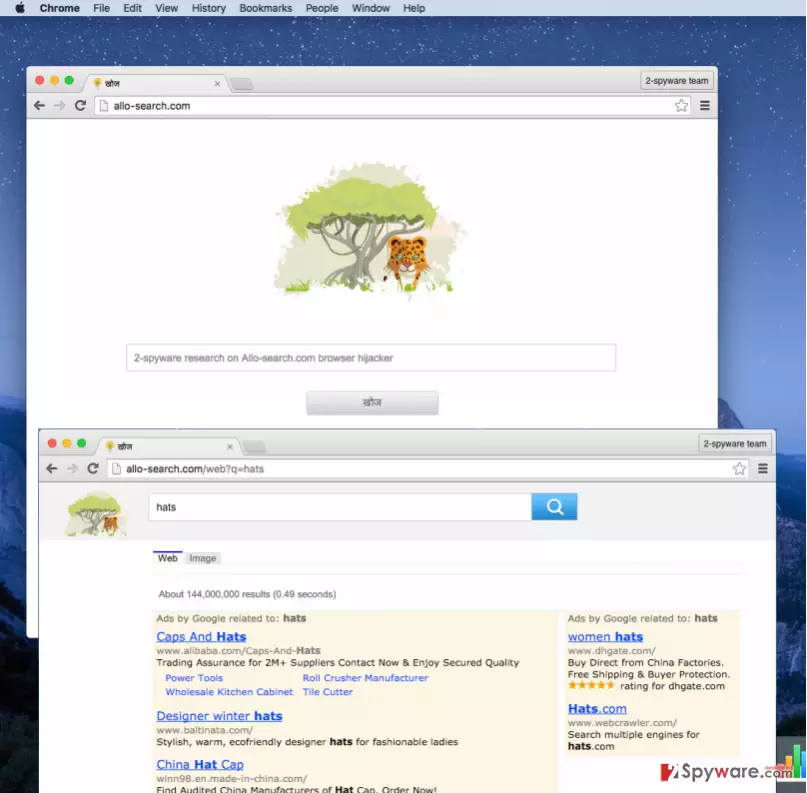
It has also been revealed that such browser hijackers are usually sponsored by third parties to gain more traffic and sales. That is why they show corrupted search results and cause suspicious redirects. Beware that such activity is considered to be the fraud.[3] Besides, such redirects can end up either on secure websites or on dangerous web sources used to advertise questionable applications or fake software updates.[4] You should NEVER agree to install anything from such unsafe websites! Otherwise, you might infect your computer with a serious PC threat, like ransomware or other. The 2-spyware research team recommends installing a spyware fighting application, called FortectIntego and initiate Allo-search.com removal on the system. This software will scan your computer system thoroughly and will inform you about every computer parasite, threat, and virus.
How can I let this PUP hijack my system without my permission?
The surprising fact about Allo-search.com hijack is that, in most cases, it initiates such infiltration WITH users’ awareness. In most of the cases, this browser hijacker sneaks into the system as an optional component of the freeware, so you can easily miss the sentence informing you about that. In fact, there are hundreds of different programs that come into the target PC system via software bundling method. Such software pack looks like one program without any attachments, including a serious junk.[5] However, in reality it is filled with optional attachments. To prevent their infiltration, forget about selecting Default, Basic, or Express installation settings. You should never opt for these installation modes. Instead, we recommend choosing Advanced or Custom mode – these options allow you to opt-out the optional software components.
How to remove Allo-search.com browser hijacker?
Although this program pretends to be a useful search tool, you should not keep it on the system any longer. There are two options to get rid of this dubious app and you should definitely choose one of them:
- The manual removal method;
- The automatic removal method.
If you are thinking about any of these removal methods, we strongly advise you to choose the second removal option because manual Allo-search.com removal process can be a challenging task, in particular if you are an inexperienced PC user. Besides, automatic removal option guarantees smooth functionality of your computer in the future. If you still think that you can remove Allo-search.com with the help of manual removal guide, the steps that you should follow are provided below.
Uninstall from Windows
Uninstall from Windows 10/8:
- Type Control Panel into the Windows search box and open the result.
- Under Programs, select Uninstall a program.


Uninstall from Windows 7/XP:
- Click on Windows Start > Control Panel (Windows XP users should click on Add/Remove Programs).
- In Control Panel, select Programs > Uninstall a program.


Remove the unwanted program:
- In the Programs and Features window, look for any recently installed suspicious entries, select them, and click Uninstall.
- If User Account Control appears, click Yes to confirm, then complete the removal.


Delete from macOS
Remove the unwanted application:
- From the menu bar, select Go > Applications.
- In the Applications folder, look for any suspicious entries, then drag them to Trash (or right-click and pick Move to Trash).


Delete leftover files and folders:
- Select Go > Go to Folder.
- Enter /Library/Application Support and remove any suspicious folders related to the unwanted program.
- Repeat the same check in the /Library/LaunchAgents and /Library/LaunchDaemons folders, deleting any suspicious entries.

- Finally, empty the Trash to permanently remove the leftovers.

Reset Internet Explorer
Remove dangerous add-ons:
- Open Internet Explorer, click on the Gear icon (IE menu) on the top-right corner of the browser
- Pick Manage Add-ons.
- You will see a Manage Add-ons window. Here, look for suspicious plugins. Click on these entries and select Disable.


Change your homepage if it was altered:
- Open IE and click on the Gear icon.
- Select Internet Options.
- In the General tab, delete the Home page address and replace it by your preferred one (for example, Google.com).
- Click Apply and then select OK.


Delete temporary files:
- Press on the Gear icon and select Internet Options.
- Under Browsing history, click Delete...
- Select relevant fields and press Delete.


Reset Internet Explorer:
- Click on Gear icon > Internet options and select Advanced tab.
- Select Reset.
- In the new window, check Delete personal settings and select Reset.


Remove from Microsoft Edge
Delete unwanted extensions from MS Edge:
- Select Menu (three horizontal dots at the top-right of the browser window) and pick Extensions.
- From the list, pick the extension and click on the Gear icon.
- Click Remove.


Clear cookies and other browser data:
- Click on the Menu (three horizontal dots at the top-right of the browser window) and select Settings > Privacy, search, and services..
- Under Clear browsing data, pick Choose what to clear.
- Select Cookies and other site data and Cached images and files. (apart from passwords, although you might want to include Media licenses as well, if applicable) and click on Clear.


Restore new tab and homepage settings:
- Click the menu icon and choose Settings.
- Then find On startup section.
- Click Remove next to any suspicious startup page.
Reset MS Edge if the above steps did not work:
- Press on Ctrl + Shift + Esc to open Task Manager.
- Click on More details arrow at the bottom of the window.
- Select Details tab.
- Now scroll down and locate every entry with Microsoft Edge name in it. Right-click on each of them and select End Task to stop MS Edge from running.


Instructions for Chromium-based Edge
Delete extensions from MS Edge (Chromium):
- Open Edge and click select Settings > Extensions.
- Delete unwanted extensions by clicking Remove.


Clear cache and site data:
- Click on Menu and go to Settings.
- Select Privacy, search and services.
- Under Clear browsing data, pick Choose what to clear.
- Under Time range, pick All time.
- Select Clear now.


Reset Chromium-based MS Edge:
- Click on Menu and select Settings.
- On the left side, pick Reset settings.
- Select Restore settings to their default values.
- Confirm with Reset.
- This will disable extensions and reset startup pages but will not delete bookmarks, saved passwords, or browsing history.


Remove from Mozilla Firefox (FF)
Remove dangerous extensions:
- Open Mozilla Firefox browser and click on the Menu (three horizontal lines at the top-right of the window).
- Select Add-ons.
- In here, select the unwanted extension and click Remove.


Reset the homepage:
- Click three horizontal lines at the top right corner to open the menu.
- Choose Settings.
- Under Home, set your preferred homepage and new tab settings.
Clear cookies and site data:
- Click Menu and pick Settings.
- Go to Privacy & Security section.
- Scroll down to locate Cookies and Site Data.
- Click on Clear Data...
- Select Cookies and Site Data and Temporary cached files and pages, then click Clear.


Reset Mozilla Firefox
If clearing the browser as explained above did not help, reset Mozilla Firefox:
- Open Mozilla Firefox browser and click the Menu.
- Go to Help and then choose Troubleshooting Information.

- Under Give Firefox a tune up section, click on Refresh Firefox...
- Once the pop-up shows up, confirm the action by pressing on Refresh Firefox.



Remove from Google Chrome
Delete malicious extensions from Google Chrome:
- Open Google Chrome, click on the Menu (three vertical dots at the top-right corner) and select More tools > Extensions.
- In the newly opened window, you will see all the installed extensions. Uninstall all suspicious extensions related to the unwanted program by clicking Remove.


Clear cache and web data from Chrome:
- Click on Menu and pick Settings.
- Under Privacy and security, select Clear browsing data.
- Select Browsing history, Cookies and other site data, as well as Cached images and files.
- Click Clear data.


Change your homepage:
- Click menu and choose Settings.
- Look for a suspicious site in the On startup section.
- Click on Open a specific or set of pages and click on three dots to find the Remove option.
Reset Google Chrome:
If the previous methods did not help you, reset Google Chrome to eliminate all the unwanted components:
- Click on Menu and select Settings.
- In the Settings, scroll down and click Advanced.
- Scroll down and locate Reset and clean up section.
- Now click Restore settings to their original defaults.
- Confirm with Reset settings.


Delete from Safari
Remove dangerous extensions:
- Open Safari, click Safari in the menu at the top-left of the screen, and select Preferences.
- Go to the Extensions tab, look for any suspicious entries, and click Uninstall to remove them.


Clear history and website data:
- Click Safari in the menu and pick Clear History.
- Set Clear to all history and confirm with Clear History.


Reset Safari:
- Click Safari in the menu and select Preferences > Advanced.
- Enable Show Develop menu in menu bar.
- From the menu bar, click Develop and select Empty Caches.


Did this guide help?
8 comments
lepico
freaking browser virus! i ended up on a stupid casino page and installed a free casino program, which now delivers me millions of ads!!
Joer93
Fake search, i do not recommend to use it! very bad
Rosita56
This search engine shows nonsense results! I could not search normally... Does anybody know if SpyHunter is a good software? I want to install a security program to keep y computer secured. I do not rely articles 100%, I want to hear personal opinions. let me know, Ill check back later!
josh
malware search. you use it- you search for viruses. definitely do not recommend it.
havana976
This is awful and I cannot remove it!!! can anybody help me! terrible!!!!
Kingston
Did you follow the installation steps?
Everything is stated on this page, it should be easy to remove it. weird.
i guess send a question to the support team that works on this website?
I bet they can help you out
hdolscsa
can anyone tell me why anti-virus does not catch these viruses!!!!!
izidy
This search parasite is SPYWARE, and viruses are Malware. that is all i know. maybe thats why your antivirus does not find this browser hijacker