

About NTSRV application:
NTSRV seems like a misleading abbreviation, isn’t it? If you have noticed such composition of letters within your Task Manager, web browser or any other place on the Windows platform, don’t ignore it. NTSRV is closely related to fake Visual C++ 2013 (specifically Visual C++ 2013 x86 Redistributable 3.0.4) software, which has recently been classified as ‘adware’ and is also known as ‘potentially unwanted program’ (PUP) due to misleading distribution strategy.
According to security experts, NTSRV uses a code that disables advertisements brought by commercial web pages like Amazon, eBay, Walmart, and so on. Instead of them, it delivers predetermined advertisements (pop-up, pop-under, banner ads, textual links, interstitial ads, etc.) injected by affiliate parties. Unfortunately, but NTSRV ads may not be safe to encounter. As we have mentioned, they are prepared by third parties (not necessarily trustworthy). It means that the part of the “Ads by NTSRV” may be related to coupons, deals, and discounts while the other part may reveal misleading content, like installers of other adware, browser hijacker or even malware.
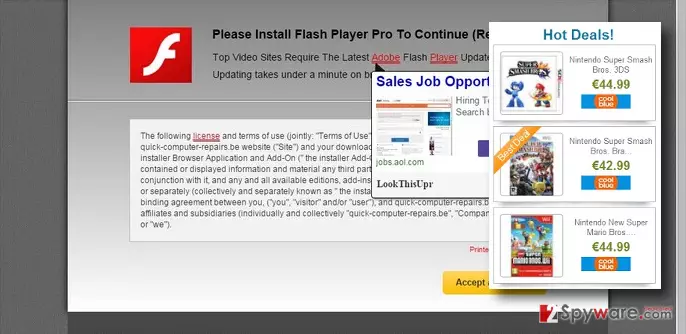
The 2-spyware research team also warn that NTSRV malware can display very catchy advertisements. In other words, if you are interested in cosmetics, fashion, smart phones or any other stuff, this misleading extension may provide very personalized ads. This marketing trick is initiated with the help of tracking cookies and web beacons that allow collection/spread of browsing-related information (IP address, location, email address, search queries, pages viewed, clicks, etc.). In a nutshell, if you are not willing to land on contaminated web pages after clicking on the NTSRV pop-up ads accidentally or disclosing some pieces of sensitive data without even being aware of that, remove this fake Visual C++ 2013 x86 Redistributable 3.0.4 hiding under the name NTSRV. For this purpose, you can use FortectIntego or another professional anti-malware. Besides, removal of this app may be executed using a guide given in the Page2.
How can NTSRV hijack Chrome, Firefox, IE, and other web browsers?
Reputable security vendors warn that NTSRV (a.k.a. Visual C++ 2013 x86 Redistributable 3.0.4) typically travels via software packages. Its extension is typically hidden under quick, basic or express installation setup of various third-party download managers, PDF creators, torrent files, and so on. That’s why most of the victims who have experienced NTSRV redirects to affiliate web pages claim that they haven’t installed such a program at all. Once the extension is executed, it drops corrupted files, including BHO, CRX, BAT or XPI that help the extension to root deeply into a web browser and prevent easy detection/removal. Right after that, NTSRV virus starts tracking non-personal information, displaying advertisements, and causing browsing-related issues. Thus, if you want to protect your PC from malware infection or other issues, our recommendation is to perform NTSRV removal ASAP. The guide explaining how to do that is given in the next page.
How to uninstall this bogus application?
Before you start reading information related to NTSRV removal, you should put several useful tips into your mind that will help you to prevent unwanted installers in the future. Potentially unwanted programs (adware, browser hijacker) are spreading bundled with freewares/sharewares. Therefore, if you want to keep your PC virus/malware/PUP free, you should:
- Select freewares carefully;
- Choose download source attentively;
- Avoid quick/basic/express installation;
- Check advanced/custom settings cautiously;
- Untick toolbars, extensions, add-ons, plug-ins that are set by default.
If you have already installed NTSRV virus on your PC’s system, our recommendation would be to let a professional anti-spyware check you Windows platform and detect all issues residing on it. If you are not keen on using additional software, then you should remove NTSRV PUP manually, i.e. perform the steps that are given below.
Uninstall from Windows
Uninstall from Windows 10/8:
- Type Control Panel into the Windows search box and open the result.
- Under Programs, select Uninstall a program.


Uninstall from Windows 7/XP:
- Click on Windows Start > Control Panel (Windows XP users should click on Add/Remove Programs).
- In Control Panel, select Programs > Uninstall a program.


Remove the unwanted program:
- In the Programs and Features window, look for any recently installed suspicious entries, select them, and click Uninstall.
- If User Account Control appears, click Yes to confirm, then complete the removal.


Delete from macOS
Remove the unwanted application:
- From the menu bar, select Go > Applications.
- In the Applications folder, look for any suspicious entries, then drag them to Trash (or right-click and pick Move to Trash).


Delete leftover files and folders:
- Select Go > Go to Folder.
- Enter /Library/Application Support and remove any suspicious folders related to the unwanted program.
- Repeat the same check in the /Library/LaunchAgents and /Library/LaunchDaemons folders, deleting any suspicious entries.

- Finally, empty the Trash to permanently remove the leftovers.

Remove from Microsoft Edge
Delete unwanted extensions from MS Edge:
- Select Menu (three horizontal dots at the top-right of the browser window) and pick Extensions.
- From the list, pick the extension and click on the Gear icon.
- Click Remove.


Clear cookies and other browser data:
- Click on the Menu (three horizontal dots at the top-right of the browser window) and select Settings > Privacy, search, and services..
- Under Clear browsing data, pick Choose what to clear.
- Select Cookies and other site data and Cached images and files. (apart from passwords, although you might want to include Media licenses as well, if applicable) and click on Clear.


Restore new tab and homepage settings:
- Click the menu icon and choose Settings.
- Then find On startup section.
- Click Remove next to any suspicious startup page.
Reset MS Edge if the above steps did not work:
- Press on Ctrl + Shift + Esc to open Task Manager.
- Click on More details arrow at the bottom of the window.
- Select Details tab.
- Now scroll down and locate every entry with Microsoft Edge name in it. Right-click on each of them and select End Task to stop MS Edge from running.


Instructions for Chromium-based Edge
Delete extensions from MS Edge (Chromium):
- Open Edge and click select Settings > Extensions.
- Delete unwanted extensions by clicking Remove.


Clear cache and site data:
- Click on Menu and go to Settings.
- Select Privacy, search and services.
- Under Clear browsing data, pick Choose what to clear.
- Under Time range, pick All time.
- Select Clear now.


Reset Chromium-based MS Edge:
- Click on Menu and select Settings.
- On the left side, pick Reset settings.
- Select Restore settings to their default values.
- Confirm with Reset.
- This will disable extensions and reset startup pages but will not delete bookmarks, saved passwords, or browsing history.


Remove from Mozilla Firefox (FF)
Remove dangerous extensions:
- Open Mozilla Firefox browser and click on the Menu (three horizontal lines at the top-right of the window).
- Select Add-ons.
- In here, select the unwanted extension and click Remove.


Reset the homepage:
- Click three horizontal lines at the top right corner to open the menu.
- Choose Settings.
- Under Home, set your preferred homepage and new tab settings.
Clear cookies and site data:
- Click Menu and pick Settings.
- Go to Privacy & Security section.
- Scroll down to locate Cookies and Site Data.
- Click on Clear Data...
- Select Cookies and Site Data and Temporary cached files and pages, then click Clear.


Reset Mozilla Firefox
If clearing the browser as explained above did not help, reset Mozilla Firefox:
- Open Mozilla Firefox browser and click the Menu.
- Go to Help and then choose Troubleshooting Information.

- Under Give Firefox a tune up section, click on Refresh Firefox...
- Once the pop-up shows up, confirm the action by pressing on Refresh Firefox.



Remove from Google Chrome
Delete malicious extensions from Google Chrome:
- Open Google Chrome, click on the Menu (three vertical dots at the top-right corner) and select More tools > Extensions.
- In the newly opened window, you will see all the installed extensions. Uninstall all suspicious extensions related to the unwanted program by clicking Remove.


Clear cache and web data from Chrome:
- Click on Menu and pick Settings.
- Under Privacy and security, select Clear browsing data.
- Select Browsing history, Cookies and other site data, as well as Cached images and files.
- Click Clear data.


Change your homepage:
- Click menu and choose Settings.
- Look for a suspicious site in the On startup section.
- Click on Open a specific or set of pages and click on three dots to find the Remove option.
Reset Google Chrome:
If the previous methods did not help you, reset Google Chrome to eliminate all the unwanted components:
- Click on Menu and select Settings.
- In the Settings, scroll down and click Advanced.
- Scroll down and locate Reset and clean up section.
- Now click Restore settings to their original defaults.
- Confirm with Reset settings.


Delete from Safari
Remove dangerous extensions:
- Open Safari, click Safari in the menu at the top-left of the screen, and select Preferences.
- Go to the Extensions tab, look for any suspicious entries, and click Uninstall to remove them.


Clear history and website data:
- Click Safari in the menu and pick Clear History.
- Set Clear to all history and confirm with Clear History.


Reset Safari:
- Click Safari in the menu and select Preferences > Advanced.
- Enable Show Develop menu in menu bar.
- From the menu bar, click Develop and select Empty Caches.


Did this guide help?
4 comments
Alexa2
Just an annoying piece of software that displays tons of NTSRV ads when I browse. Thanks 2-spyware for the removal guide
David Shaheen
Its a very stupid app. Its not even possible to understand what NTSRV is going to do as it is presented in a bogus manner. I dont know why I agreed to install it.
Ms. Snicker
it is a USELESS app that promises to display deals, but instead displays sponsored ads to unfamiliar pages. I believe that this app has already lost its popularity.
AJ Forrester
DO NOT purchase anything promoted on the pages to which "Ads by NTSRV" redirect as the prices on those pages are higher than everywhere else. Besides, it might be that those pages are powered by cyber crooks, so be careful