

Internet Speed Tracker – a browser hijacker that offers to check the Internet speed in exchange for setting the default search provider to MyWay.com
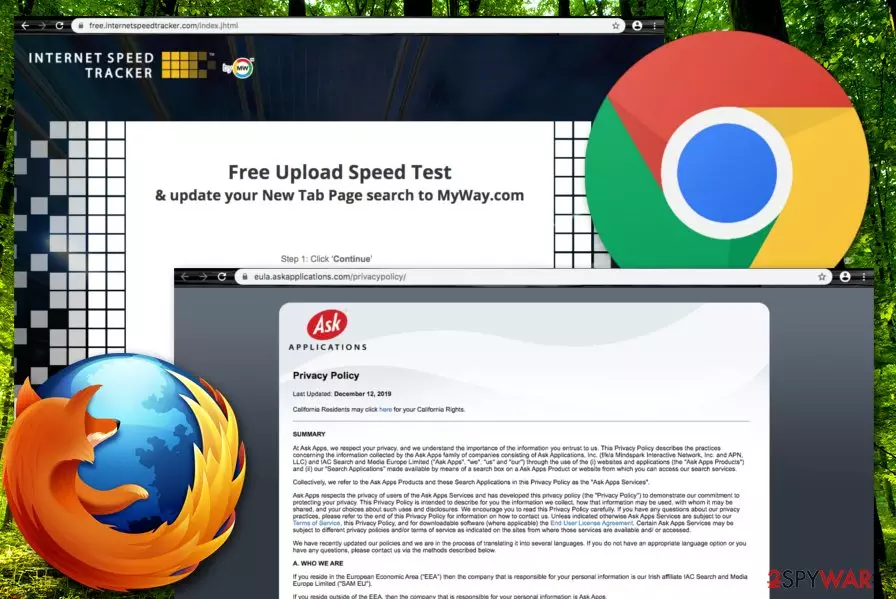
Internet Speed Tracker is a browser hijacker that offers to check upload and download speed but truly seeks to hijack your browser's new tab URL bar, homepage, and search engine. In fact, it has no use as there are other free apps that allow checking the Internet speed without modifying your web browser's settings. If you visit free.internetspeedtracker.com you will be offered to download the extension to Google Chrome. You should not rely on such services even though they promise to reveal useful tips on how to increase the Internet speed. Internet Speed Tracker Chrome extension should be removed once discovered on the web browser app as the PUP can initiate other unwanted activities such as advertising and redirecting.
Besides infecting Google Chrome, Internet Speed Tracker, developed by Mindspark Interactive Network Inc.,[1] can appear also on other web browser applications such as Mozilla Firefox, Internet Explorer, Microsoft Edge, and Safari due to a deceptive distribution technique known as bundling.[2] Afterward, the browser hijacker will not only modify your web browser settings but also might fill these apps with unwanted components such as rogue browser extensions, plug-ins, and cookies.
| Name | Internet Speed Tracker |
|---|---|
| Developer | Mindspark Interactive Network Inc. |
| Type/sub-type | Browser hijacker/potentially unwanted program |
| Target(s) | The suspicious application can appear on web browser applications such as Google Chrome, Mozilla Firefox, Internet Explorer, Microsoft Edge, and Safari |
| Changes | The browser hijacker sets the default search engine, homepage, and new tab URL as MyWay.com |
| Activities | Besides modifying the browser's settings, the suspicious application can display intrusive advertising notifications, redirect the user to affiliate sources, record information that is related to the user's browsing activities and history |
| Distribution | Software bundling is the most common technique used by PUP developers to spread browser hijackers. Additionally, these threats can appear through fake software updates |
| Elimination | You can get rid of the browser hijacker with the help of automatical software or by using the manual step-by-step guidelines that have been added to the end of this article |
| Fix tool | Try employing FortectIntego for fixing any corruption or compromisation found |
Internet Speed Tracker virus manages to enter the computer system seamlessly and modifies the user’s browser settings in the way this program wants. So basically it attaches to your Internet browser (Google Chrome or another one), and then it changes your homepage to Internet Speed Tracker search engine by myWay and it also installs Internet Speed Tracker Toolbar by myWay.
You should know that the logo “myWay” indicates that the program was developed by an infamous company that develops potentially unwanted software. This company is named “Mindspark Interactive Network.” You should not trust ANY application that is created by this company! It aims to generate pay-per-click revenue. Let us explain how Internet Speed Tracker app works and how it generates money for Mindspark.

Internet Speed Tracker provides an untrustworthy search engine, which, at first glance, delivers normally-looking search results; however, Mindspark aims to generate web traffic to its sponsors’ websites. This is why it replaces your previously-set homepage with its own search engine and sets it as your New Tab page as well.
You should never use this search engine because it delivers altered search results and you will not receive the information that you were expecting for. That means that Internet Speed Tracker supplements them with deceptive hyperlinks, which do not lead to accurate websites, but they cause redirects to third-party websites that pay Mindspark for promotion.
Keep in mind that some of the websites you might end up can be infectious, and that is the final reason why you should remove Internet Speed Tracker with no delay. You can do that using anti-malware software, which detects and deletes computer threats automatically. Additionally, if you have discovered any system corruption, try using software such as FortectIntego for fixing it.
Another reason to perform Internet Speed Tracker removal on your computer and web browsers is the possibility that this browser hijacker might record data that is related to your browsing activities. This means that all of your search queries, recently visited websites, hyperlinks and adverts clicked, saved bookmarks, and IP address will get tracked by the developers who employ cookies, beacons,[3] or pixels for such purpose:
We may collect information from you in a variety of different ways. This is information that may identify you, and anonymous information, such as the number of your page views, link clicks, and login times. Your information may be kept in an identifiable format, or in an aggregate format which means that you cannot reasonably be identified from it.
Nevertheless, Internet Speed Tracker might bring other potentially unwanted programs to the computer system. Often, browser hijackers come with additional threats such as adware, other browser-hijacking apps, scareware, technical support scams, etc. Be aware that some developers might even use potentially unwanted programs for the delivery of malware.
As you have read almost all of the reasons why you should uninstall Internet Speed Tracker from your machine, we want to add another one. If you keep this product on your computer system for a long time, its activities such as advertising and redirecting will likely get very intense and start eating your system's resources such as the CPU and GPU power. This might result in struggling applications (including browsers), constant computer crashes, freezes, slowdowns, and other symptoms.

PUPs use deceptive techniques to enter the computer system
Typically, the potentially unwanted software finds its way to the victim’s computer seamlessly and silently. Keep in mind that you can install such a program together with another free program that you wanted to have. This type of technique is known as software bundling. However, no one is going to tell you that your selected program promotes “third-party apps” unless you research it on your own.
According to experts from LesVirus.fr[4], you do not need to read all Internet forums searching for information about whether your desired program promotes dangerous software or not; you can simply find that out when you install a new program. All you need to do is to read the software’s Terms of Use (or End User License Agreement) document. You should find whether the program promotes sponsored freeware or not.
Moreover, you should set particular installation settings to avoid being infected with a browser-hijacking app without your consent. For that, set Advanced or Custom installation mode and then deselect the suggestions to install optional freeware. You should avoid configuration that is marked as Recommended or Quick as these modes allow the installation of all additional content together with the regular program.
To continue, other browser hijacker distribution sources can be found as fake software updates that are promoted by third-parties with the goal to push PUPs to random computer systems. If you are browsing the Internet sphere and accidentally encounter an update request, better visit the program's official website and see if there were any updates truly released recently or is it just a scam.
Removing Internet Speed Tracker
Typically, potentially unwanted apps can be deleted manually. If you are an experienced PC user, it will be a piece of cake for you. Regarding this fact, we have provided a manual removal guide below the text. There you will see instructing steps that show users how to remove Internet Speed Tracker from both the affected operating system and modified web browser apps such as Google Chrome, Mozilla Firefox, Internet Explorer, Microsoft Edge, and Safari.
However, if you are a less advanced computer user or have been running into a lack of time lately, the manual Internet Speed Tracker removal might not be the right option for you. In this case, you should try downloading and installing reliable antimalware software and eliminating the potentially unwanted program with the tool. Such products are capable of detecting the infection source in a few minutes of time and removing the cause safely and effectively.
Uninstall from Windows
Uninstall from Windows 10/8:
- Type Control Panel into the Windows search box and open the result.
- Under Programs, select Uninstall a program.


Uninstall from Windows 7/XP:
- Click on Windows Start > Control Panel (Windows XP users should click on Add/Remove Programs).
- In Control Panel, select Programs > Uninstall a program.


Remove the unwanted program:
- In the Programs and Features window, look for any recently installed suspicious entries, select them, and click Uninstall.
- If User Account Control appears, click Yes to confirm, then complete the removal.


Delete from macOS
Remove the unwanted application:
- From the menu bar, select Go > Applications.
- In the Applications folder, look for any suspicious entries, then drag them to Trash (or right-click and pick Move to Trash).


Delete leftover files and folders:
- Select Go > Go to Folder.
- Enter /Library/Application Support and remove any suspicious folders related to the unwanted program.
- Repeat the same check in the /Library/LaunchAgents and /Library/LaunchDaemons folders, deleting any suspicious entries.

- Finally, empty the Trash to permanently remove the leftovers.

Reset Internet Explorer
Remove dangerous add-ons:
- Open Internet Explorer, click on the Gear icon (IE menu) on the top-right corner of the browser
- Pick Manage Add-ons.
- You will see a Manage Add-ons window. Here, look for suspicious plugins. Click on these entries and select Disable.


Change your homepage if it was altered:
- Open IE and click on the Gear icon.
- Select Internet Options.
- In the General tab, delete the Home page address and replace it by your preferred one (for example, Google.com).
- Click Apply and then select OK.


Delete temporary files:
- Press on the Gear icon and select Internet Options.
- Under Browsing history, click Delete...
- Select relevant fields and press Delete.


Reset Internet Explorer:
- Click on Gear icon > Internet options and select Advanced tab.
- Select Reset.
- In the new window, check Delete personal settings and select Reset.


Remove from Microsoft Edge
Delete unwanted extensions from MS Edge:
- Select Menu (three horizontal dots at the top-right of the browser window) and pick Extensions.
- From the list, pick the extension and click on the Gear icon.
- Click Remove.


Clear cookies and other browser data:
- Click on the Menu (three horizontal dots at the top-right of the browser window) and select Settings > Privacy, search, and services..
- Under Clear browsing data, pick Choose what to clear.
- Select Cookies and other site data and Cached images and files. (apart from passwords, although you might want to include Media licenses as well, if applicable) and click on Clear.


Restore new tab and homepage settings:
- Click the menu icon and choose Settings.
- Then find On startup section.
- Click Remove next to any suspicious startup page.
Reset MS Edge if the above steps did not work:
- Press on Ctrl + Shift + Esc to open Task Manager.
- Click on More details arrow at the bottom of the window.
- Select Details tab.
- Now scroll down and locate every entry with Microsoft Edge name in it. Right-click on each of them and select End Task to stop MS Edge from running.


Instructions for Chromium-based Edge
Delete extensions from MS Edge (Chromium):
- Open Edge and click select Settings > Extensions.
- Delete unwanted extensions by clicking Remove.


Clear cache and site data:
- Click on Menu and go to Settings.
- Select Privacy, search and services.
- Under Clear browsing data, pick Choose what to clear.
- Under Time range, pick All time.
- Select Clear now.


Reset Chromium-based MS Edge:
- Click on Menu and select Settings.
- On the left side, pick Reset settings.
- Select Restore settings to their default values.
- Confirm with Reset.
- This will disable extensions and reset startup pages but will not delete bookmarks, saved passwords, or browsing history.


Remove from Mozilla Firefox (FF)
Remove dangerous extensions:
- Open Mozilla Firefox browser and click on the Menu (three horizontal lines at the top-right of the window).
- Select Add-ons.
- In here, select the unwanted extension and click Remove.


Reset the homepage:
- Click three horizontal lines at the top right corner to open the menu.
- Choose Settings.
- Under Home, set your preferred homepage and new tab settings.
Clear cookies and site data:
- Click Menu and pick Settings.
- Go to Privacy & Security section.
- Scroll down to locate Cookies and Site Data.
- Click on Clear Data...
- Select Cookies and Site Data and Temporary cached files and pages, then click Clear.


Reset Mozilla Firefox
If clearing the browser as explained above did not help, reset Mozilla Firefox:
- Open Mozilla Firefox browser and click the Menu.
- Go to Help and then choose Troubleshooting Information.

- Under Give Firefox a tune up section, click on Refresh Firefox...
- Once the pop-up shows up, confirm the action by pressing on Refresh Firefox.



Remove from Google Chrome
Delete malicious extensions from Google Chrome:
- Open Google Chrome, click on the Menu (three vertical dots at the top-right corner) and select More tools > Extensions.
- In the newly opened window, you will see all the installed extensions. Uninstall all suspicious extensions related to the unwanted program by clicking Remove.


Clear cache and web data from Chrome:
- Click on Menu and pick Settings.
- Under Privacy and security, select Clear browsing data.
- Select Browsing history, Cookies and other site data, as well as Cached images and files.
- Click Clear data.


Change your homepage:
- Click menu and choose Settings.
- Look for a suspicious site in the On startup section.
- Click on Open a specific or set of pages and click on three dots to find the Remove option.
Reset Google Chrome:
If the previous methods did not help you, reset Google Chrome to eliminate all the unwanted components:
- Click on Menu and select Settings.
- In the Settings, scroll down and click Advanced.
- Scroll down and locate Reset and clean up section.
- Now click Restore settings to their original defaults.
- Confirm with Reset settings.


Delete from Safari
Remove dangerous extensions:
- Open Safari, click Safari in the menu at the top-left of the screen, and select Preferences.
- Go to the Extensions tab, look for any suspicious entries, and click Uninstall to remove them.


Clear history and website data:
- Click Safari in the menu and pick Clear History.
- Set Clear to all history and confirm with Clear History.


Reset Safari:
- Click Safari in the menu and select Preferences > Advanced.
- Enable Show Develop menu in menu bar.
- From the menu bar, click Develop and select Empty Caches.


Did this guide help?
3 comments
Marina
filthy hijacker, not a good program! the name it uses looks safe but keep in mind that it is a bad program, which changes your homepage without even asking if you want that... that search redirected me to stupid gambling websites several times, and then i understood that it is not a good search engine. i have just deleted it manually
Erwinzz
I have no time for spyware research and lessons how to remove it manually, so just got SpyHunter. Voila, the virus is gone!
Deletingthis
does not track internet speed at all. impossible to use it