

Is Browseextended virus a dangerous program?
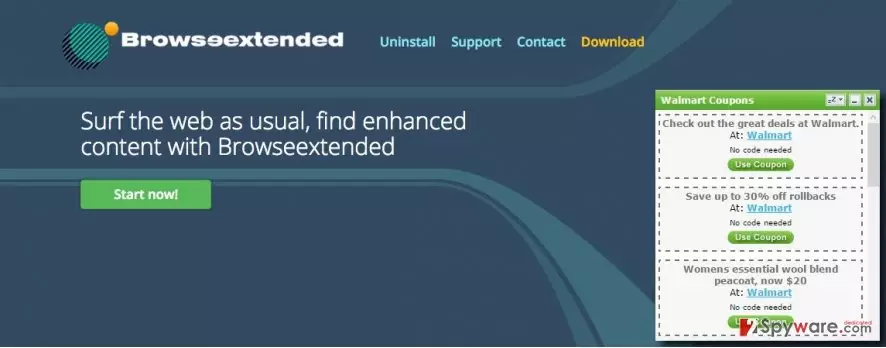
If you encounter numerous ads popping up in your browser and experience redirects to shady websites after clicking on them, it may signify that you have been a victim of Browseextended virus hijack. Adware programs like these tend to promote questionable third-party websites. Therefore, we strongly recommend you to avoid clicking on any of the ads by Browseextended because you can never know what could be hiding behind them. We also highly advise you to remove Browseextended from your system as soon as possible. In this article we present several concerning factors why you should do so.
“We’re passionate about improving the web by providing the best tools to enhance the browsing experience, from searching the web to comparing online deals to find the best prices. We’ve combined all of our great ideas into the Browseextended product suite, a FREE set of tools that work to make your browsing experience… better!”
Similar promotional claims can be encountered in most of the adware-type programs and other PUPs. However, do not fall into their trap and be aware that this PUP will only stuff your browser with countless ads featuring commercial offers and other similar, supposedly useful deals. Also, you may get easily irritated since those ads are probably going to conceal your online content. Moreover, you may also encounter Browseextended redirect issue. It means that you might be unwillingly directed to potentially malicious websites, which might be filled with broad scale of viruses. You should not visit those websites unless you want to experience the joys of the wrecked operating system.
Moreover, this adware can also be dangerous in a sense that it might employ tracking technologies, such as cookies and other vicious elements. They are used to collect data about people’s browsing habits, search queries, operating system, etc. The gathered information can then be transferred to some online scammers who may misuse it for marketing and other business purposes. They receive relatively high income for such activity, while you get only tons of advertisements and higher chances of getting infected with vicious malware. Lastly, once the adware gets into your computer, it may install other potentially malicious programs without your consent. Having all the mentioned issues in mind, you should not delay the Browseextended removal any longer. We recommend FortectIntego to help you get rid of this adware.
How did this virus appear on my computer?
Browseextended can be accessed online on its official website, however, most commonly, this virus is distributed via a deceptive marketing strategy called “bundling”. In other words, potentially unwanted programs are spread in packages with other freeware and shareware programs. Once downloaded, PUPs install simultaneously with the initial program. These optional components can only be spotted when using the “Custom” or “Advanced” installation settings. However, few users notice the attachments since the great majority opts for the “Basic” installation option and do not check the possible attachments. As a result, PUPs are granted access to the users’ computers. If you want to avoid stealth infiltration of adware in the future, always select the already mentioned “Custom” or “Advanced” installation modes.
Browseextended removal tips
There are two main ways to remove Browseextended ads from your computer. You might try manual removal; however, we should warn you that eliminating the adware manually may be a time-consuming and rather difficult task. Also, there is always a probability that you will overlook some important files that belong to Browseextended virus. If you want to avoid that, we recommend another option. It would wiser to install anti-malware program which quickly and efficiently will take care of the Browseextended removal for you. Remember to keep your antivirus tool updated for the best performace. Manual adware removal instructions are also provided below, in case you decide to take care of the virus yourself.
Uninstall from Windows
Uninstall from Windows 10/8:
- Type Control Panel into the Windows search box and open the result.
- Under Programs, select Uninstall a program.


Uninstall from Windows 7/XP:
- Click on Windows Start > Control Panel (Windows XP users should click on Add/Remove Programs).
- In Control Panel, select Programs > Uninstall a program.


Remove the unwanted program:
- In the Programs and Features window, look for any recently installed suspicious entries, select them, and click Uninstall.
- If User Account Control appears, click Yes to confirm, then complete the removal.


Delete from macOS
Remove the unwanted application:
- From the menu bar, select Go > Applications.
- In the Applications folder, look for any suspicious entries, then drag them to Trash (or right-click and pick Move to Trash).


Delete leftover files and folders:
- Select Go > Go to Folder.
- Enter /Library/Application Support and remove any suspicious folders related to the unwanted program.
- Repeat the same check in the /Library/LaunchAgents and /Library/LaunchDaemons folders, deleting any suspicious entries.

- Finally, empty the Trash to permanently remove the leftovers.

Remove from Microsoft Edge
Delete unwanted extensions from MS Edge:
- Select Menu (three horizontal dots at the top-right of the browser window) and pick Extensions.
- From the list, pick the extension and click on the Gear icon.
- Click Remove.


Clear cookies and other browser data:
- Click on the Menu (three horizontal dots at the top-right of the browser window) and select Settings > Privacy, search, and services..
- Under Clear browsing data, pick Choose what to clear.
- Select Cookies and other site data and Cached images and files. (apart from passwords, although you might want to include Media licenses as well, if applicable) and click on Clear.


Restore new tab and homepage settings:
- Click the menu icon and choose Settings.
- Then find On startup section.
- Click Remove next to any suspicious startup page.
Reset MS Edge if the above steps did not work:
- Press on Ctrl + Shift + Esc to open Task Manager.
- Click on More details arrow at the bottom of the window.
- Select Details tab.
- Now scroll down and locate every entry with Microsoft Edge name in it. Right-click on each of them and select End Task to stop MS Edge from running.


Instructions for Chromium-based Edge
Delete extensions from MS Edge (Chromium):
- Open Edge and click select Settings > Extensions.
- Delete unwanted extensions by clicking Remove.


Clear cache and site data:
- Click on Menu and go to Settings.
- Select Privacy, search and services.
- Under Clear browsing data, pick Choose what to clear.
- Under Time range, pick All time.
- Select Clear now.


Reset Chromium-based MS Edge:
- Click on Menu and select Settings.
- On the left side, pick Reset settings.
- Select Restore settings to their default values.
- Confirm with Reset.
- This will disable extensions and reset startup pages but will not delete bookmarks, saved passwords, or browsing history.


Remove from Mozilla Firefox (FF)
Remove dangerous extensions:
- Open Mozilla Firefox browser and click on the Menu (three horizontal lines at the top-right of the window).
- Select Add-ons.
- In here, select the unwanted extension and click Remove.


Reset the homepage:
- Click three horizontal lines at the top right corner to open the menu.
- Choose Settings.
- Under Home, set your preferred homepage and new tab settings.
Clear cookies and site data:
- Click Menu and pick Settings.
- Go to Privacy & Security section.
- Scroll down to locate Cookies and Site Data.
- Click on Clear Data...
- Select Cookies and Site Data and Temporary cached files and pages, then click Clear.


Reset Mozilla Firefox
If clearing the browser as explained above did not help, reset Mozilla Firefox:
- Open Mozilla Firefox browser and click the Menu.
- Go to Help and then choose Troubleshooting Information.

- Under Give Firefox a tune up section, click on Refresh Firefox...
- Once the pop-up shows up, confirm the action by pressing on Refresh Firefox.



Remove from Google Chrome
Delete malicious extensions from Google Chrome:
- Open Google Chrome, click on the Menu (three vertical dots at the top-right corner) and select More tools > Extensions.
- In the newly opened window, you will see all the installed extensions. Uninstall all suspicious extensions related to the unwanted program by clicking Remove.


Clear cache and web data from Chrome:
- Click on Menu and pick Settings.
- Under Privacy and security, select Clear browsing data.
- Select Browsing history, Cookies and other site data, as well as Cached images and files.
- Click Clear data.


Change your homepage:
- Click menu and choose Settings.
- Look for a suspicious site in the On startup section.
- Click on Open a specific or set of pages and click on three dots to find the Remove option.
Reset Google Chrome:
If the previous methods did not help you, reset Google Chrome to eliminate all the unwanted components:
- Click on Menu and select Settings.
- In the Settings, scroll down and click Advanced.
- Scroll down and locate Reset and clean up section.
- Now click Restore settings to their original defaults.
- Confirm with Reset settings.


Delete from Safari
Remove dangerous extensions:
- Open Safari, click Safari in the menu at the top-left of the screen, and select Preferences.
- Go to the Extensions tab, look for any suspicious entries, and click Uninstall to remove them.


Clear history and website data:
- Click Safari in the menu and pick Clear History.
- Set Clear to all history and confirm with Clear History.


Reset Safari:
- Click Safari in the menu and select Preferences > Advanced.
- Enable Show Develop menu in menu bar.
- From the menu bar, click Develop and select Empty Caches.


Did this guide help?
3 comments
Adnan
These guys will do anything to trick you into downloading their malicious apps!
Danyal20
I found these removal instructions quite helpful. Thanks!
133SAMI
Not ANOTHER adware again