

Terraclicks.com virus: why its ads are dangerous?
If Terraclicks.com virus infiltrates your computer, it is likely that you will start seeing multiple ads and links while you browse the Internet. Such intrusive behavior is because this virus belongs to the branch of adware viruses, which is focused on injecting numerous ads and sponsored links, leading to affiliate websites and generating profit in this way. Therefore, to extort as much profit as possible, the Terraclicks.com ads tend to be very numerous and even deceptive. What is more, meanwhile this adware resides on the infected PC, it may track the user’s browsing information and use it to generate even more catchy advertisements targeted to the specific interests of the user. If such means of marketing sound shady to you, and you do not want to continue taking part in them, you should remove Terraclicks.com virus from your computer immediately. You can easily achieve that by employing professional antivirus tools, for instance, FortectIntego.
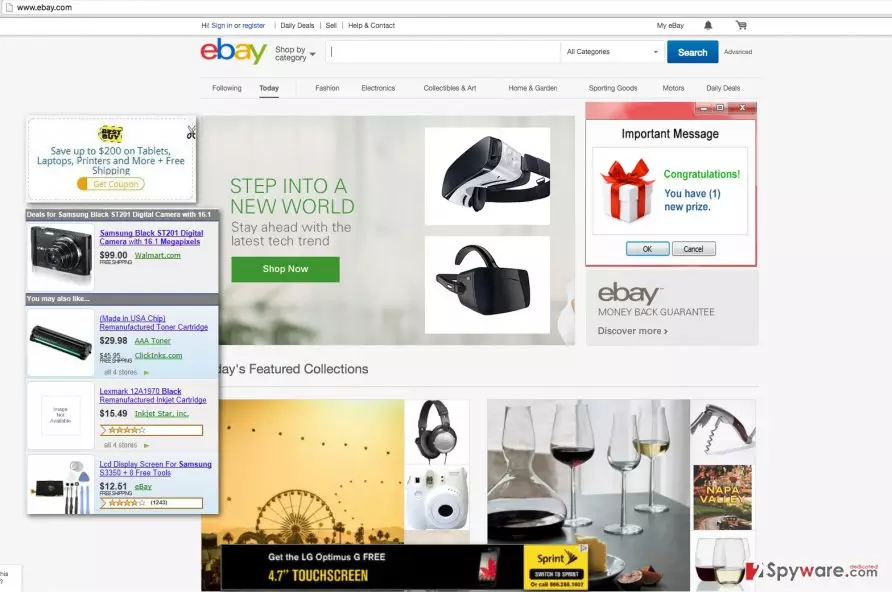
What is also concerning about this program is that Terraclicks.com hijack occurs stealthily. The users usually have no way of knowing that an adware program has infiltrated their computers. The good news is that you do not have to be overly attentive to notice the influx of ads on your browser, which is a tell-tale sign that you need to scan your computer for some ad-based virus. “Ads by Terraclicks.com” or “Powered by Terraclicks.com” are the typical slogans, attached to the ads of this adware. So, if you see one of those or similar ones injected on your browser, you should avoid clicking on them by all means. Such precautions should be taken mainly because of the uncommon reports on the Terraclicks.com redirect issue. We already mentioned that the ads generated by the adware can be deceptive, i.e. clicking on the ads can easily redirect you to the websites unrelated to the ad’s content. In other words, an ad featuring a good laptop bargain can lead you to some gambling or unsafe download sites. Visiting such sites can result in your computer being infiltrated by malware and other malicious programs. Therefore, taking care of the Terraclicks.com removal is important to ensure the stability of your system and safety of your information.
How can you avoid adware infection?
It is not difficult to stop the adware programs flooding to your computer. All you have to do is to obtain a reputable antivirus software and run system scans regularly. Also, you should pay attention to your browsing habits as well. If you download your software from some obscure and unreliable websites, it is much more likely that you will be infected with adware. The creators of these potentially unwanted programs spread malware like Terraclicks.com in software bundles with other, usually, popular programs. This way, the PUP can install without a direct user’s permission and carry out its activities on the computer unnoticed. To avoid such stealthy infiltration, it is necessary to install newly downloaded programs in “Custom” or “Advanced” modes. This will allow you to manage the optional installs and stop unwanted programs from entering your PC.
Recommendations on Terraclicks.com ads removal:
Having an adware-type program running its processes on the computer not only obstructs your browsing with ads but can cause it to experience different system malfunctions too. Thus, there is no reason to keep it installed on the computer. You can remove Terraclicks.com ads from your computer manually or automatically. For the automatic removal, we recommend using sophisticated antivirus tools, which will take care of the malware elimination and provide you with system protection in the future. If you desire to delete the virus manually, you can do that by following the manual Terraclicks.com removal instructions presented below.
Uninstall from Windows
Uninstall from Windows 10/8:
- Type Control Panel into the Windows search box and open the result.
- Under Programs, select Uninstall a program.


Uninstall from Windows 7/XP:
- Click on Windows Start > Control Panel (Windows XP users should click on Add/Remove Programs).
- In Control Panel, select Programs > Uninstall a program.


Remove the unwanted program:
- In the Programs and Features window, look for any recently installed suspicious entries, select them, and click Uninstall.
- If User Account Control appears, click Yes to confirm, then complete the removal.


Delete from macOS
Remove the unwanted application:
- From the menu bar, select Go > Applications.
- In the Applications folder, look for any suspicious entries, then drag them to Trash (or right-click and pick Move to Trash).


Delete leftover files and folders:
- Select Go > Go to Folder.
- Enter /Library/Application Support and remove any suspicious folders related to the unwanted program.
- Repeat the same check in the /Library/LaunchAgents and /Library/LaunchDaemons folders, deleting any suspicious entries.

- Finally, empty the Trash to permanently remove the leftovers.

Remove from Microsoft Edge
Delete unwanted extensions from MS Edge:
- Select Menu (three horizontal dots at the top-right of the browser window) and pick Extensions.
- From the list, pick the extension and click on the Gear icon.
- Click Remove.


Clear cookies and other browser data:
- Click on the Menu (three horizontal dots at the top-right of the browser window) and select Settings > Privacy, search, and services..
- Under Clear browsing data, pick Choose what to clear.
- Select Cookies and other site data and Cached images and files. (apart from passwords, although you might want to include Media licenses as well, if applicable) and click on Clear.


Restore new tab and homepage settings:
- Click the menu icon and choose Settings.
- Then find On startup section.
- Click Remove next to any suspicious startup page.
Reset MS Edge if the above steps did not work:
- Press on Ctrl + Shift + Esc to open Task Manager.
- Click on More details arrow at the bottom of the window.
- Select Details tab.
- Now scroll down and locate every entry with Microsoft Edge name in it. Right-click on each of them and select End Task to stop MS Edge from running.


Instructions for Chromium-based Edge
Delete extensions from MS Edge (Chromium):
- Open Edge and click select Settings > Extensions.
- Delete unwanted extensions by clicking Remove.


Clear cache and site data:
- Click on Menu and go to Settings.
- Select Privacy, search and services.
- Under Clear browsing data, pick Choose what to clear.
- Under Time range, pick All time.
- Select Clear now.


Reset Chromium-based MS Edge:
- Click on Menu and select Settings.
- On the left side, pick Reset settings.
- Select Restore settings to their default values.
- Confirm with Reset.
- This will disable extensions and reset startup pages but will not delete bookmarks, saved passwords, or browsing history.


Remove from Mozilla Firefox (FF)
Remove dangerous extensions:
- Open Mozilla Firefox browser and click on the Menu (three horizontal lines at the top-right of the window).
- Select Add-ons.
- In here, select the unwanted extension and click Remove.


Reset the homepage:
- Click three horizontal lines at the top right corner to open the menu.
- Choose Settings.
- Under Home, set your preferred homepage and new tab settings.
Clear cookies and site data:
- Click Menu and pick Settings.
- Go to Privacy & Security section.
- Scroll down to locate Cookies and Site Data.
- Click on Clear Data...
- Select Cookies and Site Data and Temporary cached files and pages, then click Clear.


Reset Mozilla Firefox
If clearing the browser as explained above did not help, reset Mozilla Firefox:
- Open Mozilla Firefox browser and click the Menu.
- Go to Help and then choose Troubleshooting Information.

- Under Give Firefox a tune up section, click on Refresh Firefox...
- Once the pop-up shows up, confirm the action by pressing on Refresh Firefox.



Remove from Google Chrome
Delete malicious extensions from Google Chrome:
- Open Google Chrome, click on the Menu (three vertical dots at the top-right corner) and select More tools > Extensions.
- In the newly opened window, you will see all the installed extensions. Uninstall all suspicious extensions related to the unwanted program by clicking Remove.


Clear cache and web data from Chrome:
- Click on Menu and pick Settings.
- Under Privacy and security, select Clear browsing data.
- Select Browsing history, Cookies and other site data, as well as Cached images and files.
- Click Clear data.


Change your homepage:
- Click menu and choose Settings.
- Look for a suspicious site in the On startup section.
- Click on Open a specific or set of pages and click on three dots to find the Remove option.
Reset Google Chrome:
If the previous methods did not help you, reset Google Chrome to eliminate all the unwanted components:
- Click on Menu and select Settings.
- In the Settings, scroll down and click Advanced.
- Scroll down and locate Reset and clean up section.
- Now click Restore settings to their original defaults.
- Confirm with Reset settings.


Delete from Safari
Remove dangerous extensions:
- Open Safari, click Safari in the menu at the top-left of the screen, and select Preferences.
- Go to the Extensions tab, look for any suspicious entries, and click Uninstall to remove them.


Clear history and website data:
- Click Safari in the menu and pick Clear History.
- Set Clear to all history and confirm with Clear History.


Reset Safari:
- Click Safari in the menu and select Preferences > Advanced.
- Enable Show Develop menu in menu bar.
- From the menu bar, click Develop and select Empty Caches.


Did this guide help?
4 comments
L.Deli
Ok its getting really annoying. No matter what i do these ads just wont leave me ALONE. Is it possible my PC is infected with TWO adware programs? Im sure I followed the installation steps correctly...
NaniHobbins
What is up with all these adware? Are these hackers bored out of their minds or what
JulienneGreyJoy
A SECOND adware this month. My antivirus is doing a really lazy job protecting me from such viruses... Im already starting to consider some other software
Astrid5670
You should try SpyHunter! Havent had any trouble since I downloaded it. Besides, it is suggested as an option in this post too