

PC Accelerate Pro is malicious app that can disguise itself by using SilverSpeedUp or NoblePCAP process names
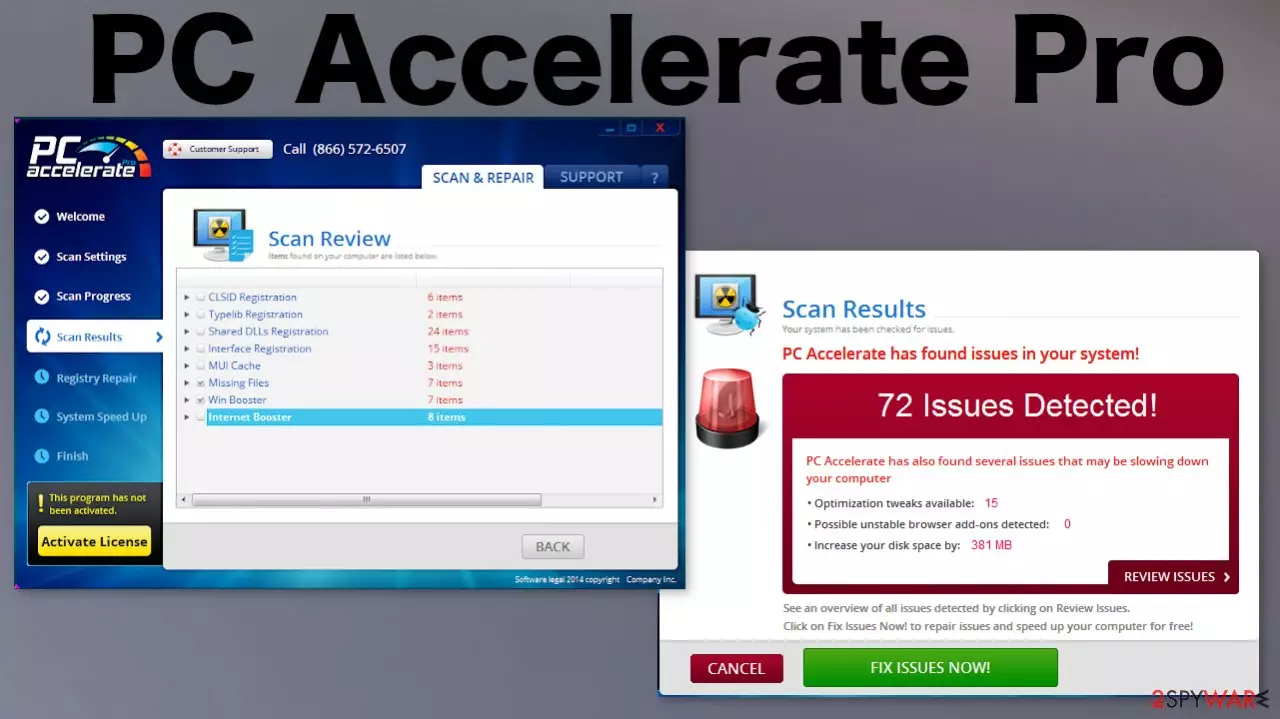
PC Accelerate Pro is a potentially unwanted application that could have gained access to your PC without permission – you either downloaded it with other free software from the internet or got tricked by fake updates. The app operates as an alleged system optimizer that can find unwanted files, clean the registry, and boost the speed of a Windows computer, as well as the internet connection speed. However, it could not be further from the truth.
It is a rogue program that uses several malicious techniques in order to make users purchase its full license. To be precise, it shows fake scan results and uses attributes within them to make users worried about their computer health – red colors, exaggerated problems, etc. Additionally, it might also engage in obfuscation techniques by using fake process names to prevent an easy PC Accelerate Pro uninstall. In any case, this program will not improve your computer or internet speed and instead might damage vital Windows files by deleting legitimate registry keys.[1]
| Name | PC Accelerate Pro |
|---|---|
| Type | Rogue system tool/ Fake optimizer/ Potentially unwanted application |
| Issues | The tool shows false-positive results, so people fall for the trick and install the promoted application or pay for the licensed version. The program triggers the delivery of pop-ups, advertisements, redirects to commercial sites and scammy pages |
| Purpose | This is the promotional campaign that tricks users into paying for the useless license of the program |
| Elimination | Removal should be taken seriously, so you consider the program malicious and rely on anti-malware tools even though this is not a virus. This way you can clear anything off of the system properly |
| Repair | The system can suffer from the direct damage caused by alterations in system folders and directories, so you need to fix the damage using tools like FortectIntego |
PC Accelerate Pro is advertised as a useful computer optimization software. However, if you are looking for a tool that can clean junk files from your computer and speed up its performance, we warn you that this PC optimizer might not solve these problems for you, but create additional ones instead.
Rather than providing useful service, this shady application is going to worsen your computer's performance, decrease its speed and overall functionality. You might also notice that this application blocks access to certain computer security-related websites, too.
The reason why this optimizer functions like that is that it wants to make the user believe that there are serious problems that need to be fixed, and then the app starts to display alerts and pop-up notifications to fulfill the entire image of a messed-up computer. This rogue application imitates fake system scans and tells the user that he needs to fix all issues immediately.
Please, do not fall for such claims, because this system tool wants nothing more than to convince you to spend your money on its full version, which is unlikely to be powerful enough to do anything useful to your computer system. Therefore, you should remove the app without a doubt and look for a more reliable program that can fix your PC.

We suggest installing a better alternative – anti-malware tool that can remove malicious programs from it. As for the optimization purposes of the application, you should rely on FortectIntego that could help you with potentially damaged system files after Accelerate Pro removal.
Though the virus is not considered to be highly malicious or damaging, it performs its function of scareware quite well. IT professionals have detected that this particular feature is distributed along with freeware bundles and on deceptive pages, tech support scam sites.[2]
Once you call the number or contact those scammers from misleading sites, the person you are connected with might persuade you into purchasing another security program that malfunctions on its behalf. Additionally, after such a pleasant conversation with the supposed tech support professional, the next bill of telecommunication services might leave you in awe. Stay away from the free and paid version of the app.
Unwanted programs slip into the system unnoticed
A download link to download this vague program can be found on its official website. Alternatively, you might encounter it promoting its services via various advertisements on Internet sites, but surprisingly, you can start receiving its alerts on your computer without downloading it to your computer by yourself.
Therefore, it becomes clear that this program can slither into your PC silently. When did it happen? You might recall installing a new program recently. Thus, due to recklessness, you probably have hit the “Install” button without noticing that the program included several additional applications.

As a result, a shady tool got installed as well. If you are interested in how you can avoid installing potentially fraudulent programs, then take note of this advice. First of all, you should choose either “Advanced” or “Custom” settings when installing new programs. Afterward, carefully look for any suspicious and irrelevant attachments. If you find any, remove ticks from checkboxes next to them. These are the steps that experts[3] tend to warn about.
Make sure to properly remove PC Accelerate Pro virus
It might be a troublesome activity to exterminate the program. You might try to do it manually – you need to access the Control Panel and uninstall the app, as explained below. However, keep in mind that two more processes might be running in the background and prevent PUP removal.
If, after removing it from the list of system applications, you still keep seeing fake system error notifications, it is likely that associated files have been left. Hence, you should perform additional steps if you want to remove application for good:
- Open the Task Manager by pressing Ctrl + Shift + Esc
- Click on Mode Details
- Within the list, look for the following entries: MBSilverSpeedUp, PC Accelerate Pro, or NoblePCAP
- Right-click on each of them and select End Task
- Now open File Explorer by pressing Win + E
- Check Program Files and Program Files (x86) folders for the entries mentioned above – delete them if found.
- Clean your web browsers – clear cache/data, delete suspicious extensions, etc. (check the guide below if you don't know how to do it).

Nonetheless, even after you do all this, the leftovers might remain. That is why we recommend installing a reputable anti-malware program that efficiently performs the PC Accelerate Pro uninstallation process. If you believe that your system was damaged by the unwanted app, we recommend you attempt to fix this damage automatically with a repair software.
Uninstall from Windows
Uninstall from Windows 10/8:
- Type Control Panel into the Windows search box and open the result.
- Under Programs, select Uninstall a program.


Uninstall from Windows 7/XP:
- Click on Windows Start > Control Panel (Windows XP users should click on Add/Remove Programs).
- In Control Panel, select Programs > Uninstall a program.


Remove the unwanted program:
- In the Programs and Features window, look for any recently installed suspicious entries, select them, and click Uninstall.
- If User Account Control appears, click Yes to confirm, then complete the removal.


Remove from Microsoft Edge
Delete unwanted extensions from MS Edge:
- Select Menu (three horizontal dots at the top-right of the browser window) and pick Extensions.
- From the list, pick the extension and click on the Gear icon.
- Click Remove.


Clear cookies and other browser data:
- Click on the Menu (three horizontal dots at the top-right of the browser window) and select Settings > Privacy, search, and services..
- Under Clear browsing data, pick Choose what to clear.
- Select Cookies and other site data and Cached images and files. (apart from passwords, although you might want to include Media licenses as well, if applicable) and click on Clear.


Restore new tab and homepage settings:
- Click the menu icon and choose Settings.
- Then find On startup section.
- Click Remove next to any suspicious startup page.
Reset MS Edge if the above steps did not work:
- Press on Ctrl + Shift + Esc to open Task Manager.
- Click on More details arrow at the bottom of the window.
- Select Details tab.
- Now scroll down and locate every entry with Microsoft Edge name in it. Right-click on each of them and select End Task to stop MS Edge from running.


Instructions for Chromium-based Edge
Delete extensions from MS Edge (Chromium):
- Open Edge and click select Settings > Extensions.
- Delete unwanted extensions by clicking Remove.


Clear cache and site data:
- Click on Menu and go to Settings.
- Select Privacy, search and services.
- Under Clear browsing data, pick Choose what to clear.
- Under Time range, pick All time.
- Select Clear now.


Reset Chromium-based MS Edge:
- Click on Menu and select Settings.
- On the left side, pick Reset settings.
- Select Restore settings to their default values.
- Confirm with Reset.
- This will disable extensions and reset startup pages but will not delete bookmarks, saved passwords, or browsing history.


Remove from Mozilla Firefox (FF)
Remove dangerous extensions:
- Open Mozilla Firefox browser and click on the Menu (three horizontal lines at the top-right of the window).
- Select Add-ons.
- In here, select the unwanted extension and click Remove.


Reset the homepage:
- Click three horizontal lines at the top right corner to open the menu.
- Choose Settings.
- Under Home, set your preferred homepage and new tab settings.
Clear cookies and site data:
- Click Menu and pick Settings.
- Go to Privacy & Security section.
- Scroll down to locate Cookies and Site Data.
- Click on Clear Data...
- Select Cookies and Site Data and Temporary cached files and pages, then click Clear.


Reset Mozilla Firefox
If clearing the browser as explained above did not help, reset Mozilla Firefox:
- Open Mozilla Firefox browser and click the Menu.
- Go to Help and then choose Troubleshooting Information.

- Under Give Firefox a tune up section, click on Refresh Firefox...
- Once the pop-up shows up, confirm the action by pressing on Refresh Firefox.



Remove from Google Chrome
Delete malicious extensions from Google Chrome:
- Open Google Chrome, click on the Menu (three vertical dots at the top-right corner) and select More tools > Extensions.
- In the newly opened window, you will see all the installed extensions. Uninstall all suspicious extensions related to the unwanted program by clicking Remove.


Clear cache and web data from Chrome:
- Click on Menu and pick Settings.
- Under Privacy and security, select Clear browsing data.
- Select Browsing history, Cookies and other site data, as well as Cached images and files.
- Click Clear data.


Change your homepage:
- Click menu and choose Settings.
- Look for a suspicious site in the On startup section.
- Click on Open a specific or set of pages and click on three dots to find the Remove option.
Reset Google Chrome:
If the previous methods did not help you, reset Google Chrome to eliminate all the unwanted components:
- Click on Menu and select Settings.
- In the Settings, scroll down and click Advanced.
- Scroll down and locate Reset and clean up section.
- Now click Restore settings to their original defaults.
- Confirm with Reset settings.


Delete from Safari
Remove dangerous extensions:
- Open Safari, click Safari in the menu at the top-left of the screen, and select Preferences.
- Go to the Extensions tab, look for any suspicious entries, and click Uninstall to remove them.


Clear history and website data:
- Click Safari in the menu and pick Clear History.
- Set Clear to all history and confirm with Clear History.


Reset Safari:
- Click Safari in the menu and select Preferences > Advanced.
- Enable Show Develop menu in menu bar.
- From the menu bar, click Develop and select Empty Caches.


Did this guide help?
4 comments
Eugene
Im not tired of yelling at my PC, I;m tired of removing these fake security programs.
Vicky
Is is possible to tell a difference whether the program is legitimate before installing it?
Renee
Thanks for providing this easy tutorial! Ill check out Reimage :)
Cestlavie
Try searching for information about in on web forums, i guess. The application either has a good reputation or it does not, simple as that.