

Search.searchsmg.com virus: again annoying browser hijacker?
Trustful users might get easily deceived by the benefits offered by search.searchsmg.com virus. At first glance, it seems like a convenient search engine providing instant access to online games. If you tend to relax by playing this sort of games, you might instantly set this browsing tool unaware of what you have actually installed. This potentially unwanted application is a browser hijacker. Besides displaying an excessive amount of advertisements and redirecting to potentially dangerous domains, this website compiles both, your personal and non-personal information. The problem is that the hijacker might violate it by leaking to third-parties. If you are concerned with the confidentially of private data, then make a rush to remove search.searchsmg.com virus from the device.
This PUP is a property of Super Mega Gaming Ltd. Thus, you shouldn’t expect Search.searchsmg.com browser hijacker to be a legitimate and a trustworthy search provider. In the Privacy Policy, the developers emphasize that they track your usage of their services by employing cookies. Moreover, all gathered data about your search entries, browsing history, IP address and other NPII (non-personally identifiable information) might be shared with third-parties. What is more, your personal information also becomes unsafe while Searchsmg inhabits your computer. This information may also fall into the content which is shared with anonymous companies. As a result, you might start noticing a load of advertising messages in your email inbox. You should not ignore this aspect because cyber criminals might get a hold of your data eventually.
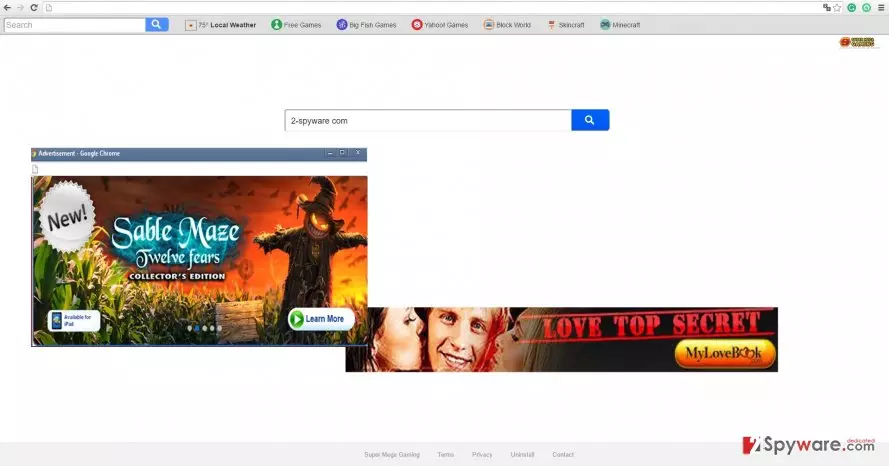
Therefore, this browser hijacker is despised for its search.searchsmg.com redirect tendency as well. Since the developers of this PUP cooperate with third-parties, it is likely that you might not access your wanted websites from the first try. In other words, you might be forcefully lead to other gaming or advertising domains. Bear in mind that those websites might be filled with highly dangerous and malignant files. After each visit to the redirects, your OS might be attacked with various malware. Consequently, it is crucial to have a proper security program. One of them is FortectIntego. To sum up, do not delay Search.searchsmg.com removal.
The distribution methods of this browser hijacker
Usually, the PUP travels along with freeware. It is pinned down to a free pdf viewer or Flash player update. As a result of users’ unwillingness to read the installation instructions and “Terms of Use,” Search.searchsmg.com hijack occurs. Thus, if you are interested in how you can escape this irritating search engine or other unwanted apps, take note of these tips. Instead of frequently chosen “Basic” settings, opt for “Advanced”. Later on, watch for any add-ons which seem unnecessary. Only when all unwanted attachments are unmarked, finish the installation wizard.
Search.searchsmg.com removal steps
Luckily, it is not difficult to get rid of Search.searchsmg.com virus. You can do it manually and automatically. We highly recommend you to opt for the latter option, because malware removal software is apt in dealing with similar browser hijackers. You can be sure that it will remove Search.searchsmg.com within a blink of an eye without leaving any potentially malignant files. If you prefer doing things in your own way, then take a look at the manual elimination guidelines provided below. Follow them with utmost precision to completely delete the hijacker.
Uninstall from Windows
Uninstall from Windows 10/8:
- Type Control Panel into the Windows search box and open the result.
- Under Programs, select Uninstall a program.


Uninstall from Windows 7/XP:
- Click on Windows Start > Control Panel (Windows XP users should click on Add/Remove Programs).
- In Control Panel, select Programs > Uninstall a program.


Remove the unwanted program:
- In the Programs and Features window, look for any recently installed suspicious entries, select them, and click Uninstall.
- If User Account Control appears, click Yes to confirm, then complete the removal.


Delete from macOS
Remove the unwanted application:
- From the menu bar, select Go > Applications.
- In the Applications folder, look for any suspicious entries, then drag them to Trash (or right-click and pick Move to Trash).


Delete leftover files and folders:
- Select Go > Go to Folder.
- Enter /Library/Application Support and remove any suspicious folders related to the unwanted program.
- Repeat the same check in the /Library/LaunchAgents and /Library/LaunchDaemons folders, deleting any suspicious entries.

- Finally, empty the Trash to permanently remove the leftovers.

Remove from Microsoft Edge
Delete unwanted extensions from MS Edge:
- Select Menu (three horizontal dots at the top-right of the browser window) and pick Extensions.
- From the list, pick the extension and click on the Gear icon.
- Click Remove.


Clear cookies and other browser data:
- Click on the Menu (three horizontal dots at the top-right of the browser window) and select Settings > Privacy, search, and services..
- Under Clear browsing data, pick Choose what to clear.
- Select Cookies and other site data and Cached images and files. (apart from passwords, although you might want to include Media licenses as well, if applicable) and click on Clear.


Restore new tab and homepage settings:
- Click the menu icon and choose Settings.
- Then find On startup section.
- Click Remove next to any suspicious startup page.
Reset MS Edge if the above steps did not work:
- Press on Ctrl + Shift + Esc to open Task Manager.
- Click on More details arrow at the bottom of the window.
- Select Details tab.
- Now scroll down and locate every entry with Microsoft Edge name in it. Right-click on each of them and select End Task to stop MS Edge from running.


Instructions for Chromium-based Edge
Delete extensions from MS Edge (Chromium):
- Open Edge and click select Settings > Extensions.
- Delete unwanted extensions by clicking Remove.


Clear cache and site data:
- Click on Menu and go to Settings.
- Select Privacy, search and services.
- Under Clear browsing data, pick Choose what to clear.
- Under Time range, pick All time.
- Select Clear now.


Reset Chromium-based MS Edge:
- Click on Menu and select Settings.
- On the left side, pick Reset settings.
- Select Restore settings to their default values.
- Confirm with Reset.
- This will disable extensions and reset startup pages but will not delete bookmarks, saved passwords, or browsing history.


Remove from Mozilla Firefox (FF)
Remove dangerous extensions:
- Open Mozilla Firefox browser and click on the Menu (three horizontal lines at the top-right of the window).
- Select Add-ons.
- In here, select the unwanted extension and click Remove.


Reset the homepage:
- Click three horizontal lines at the top right corner to open the menu.
- Choose Settings.
- Under Home, set your preferred homepage and new tab settings.
Clear cookies and site data:
- Click Menu and pick Settings.
- Go to Privacy & Security section.
- Scroll down to locate Cookies and Site Data.
- Click on Clear Data...
- Select Cookies and Site Data and Temporary cached files and pages, then click Clear.


Reset Mozilla Firefox
If clearing the browser as explained above did not help, reset Mozilla Firefox:
- Open Mozilla Firefox browser and click the Menu.
- Go to Help and then choose Troubleshooting Information.

- Under Give Firefox a tune up section, click on Refresh Firefox...
- Once the pop-up shows up, confirm the action by pressing on Refresh Firefox.



Remove from Google Chrome
Delete malicious extensions from Google Chrome:
- Open Google Chrome, click on the Menu (three vertical dots at the top-right corner) and select More tools > Extensions.
- In the newly opened window, you will see all the installed extensions. Uninstall all suspicious extensions related to the unwanted program by clicking Remove.


Clear cache and web data from Chrome:
- Click on Menu and pick Settings.
- Under Privacy and security, select Clear browsing data.
- Select Browsing history, Cookies and other site data, as well as Cached images and files.
- Click Clear data.


Change your homepage:
- Click menu and choose Settings.
- Look for a suspicious site in the On startup section.
- Click on Open a specific or set of pages and click on three dots to find the Remove option.
Reset Google Chrome:
If the previous methods did not help you, reset Google Chrome to eliminate all the unwanted components:
- Click on Menu and select Settings.
- In the Settings, scroll down and click Advanced.
- Scroll down and locate Reset and clean up section.
- Now click Restore settings to their original defaults.
- Confirm with Reset settings.


Delete from Safari
Remove dangerous extensions:
- Open Safari, click Safari in the menu at the top-left of the screen, and select Preferences.
- Go to the Extensions tab, look for any suspicious entries, and click Uninstall to remove them.


Clear history and website data:
- Click Safari in the menu and pick Clear History.
- Set Clear to all history and confirm with Clear History.


Reset Safari:
- Click Safari in the menu and select Preferences > Advanced.
- Enable Show Develop menu in menu bar.
- From the menu bar, click Develop and select Empty Caches.


Did this guide help?
2 comments
Jeremy
Browser hijacker which offers games? Interesting...
Oliver
Quite intriguing facts you might find in privacy policies.