

How dangerous is ADSRV virus?
Designed specifically for money making purposes, the ADSRV virus gets into the users’ computers without prior notice and then carries out unauthorized activities on it. The working principle of this program is similar to the Global-adsrv.com or the Cdn.adsrvmedia.net pop-up virus. It involves generating ads and redirecting the users to some predetermined sites. This virus may infect every browser on the computer, so the Internet Explorer, Mozilla Firefox and Google Chrome and equally vulnerable to this cyber threat. Once the ADSRV hijack takes place, your browser will immediately start displaying a wide range of advertisements, such as pop-ups, pop-under ads, banners, in-text links and other. The worst thing is that you may not be able to close these ads at your own will, and they may keep appearing on your browser no matter what. If you are not interested in commercial offers, such intrusive advertisement may be very annoying. Luckily, you can remove ADSRV from your computer without major effort. You simply have to download an antivirus software, such as FortectIntego, scan your computer and get rid of the virus automatically.
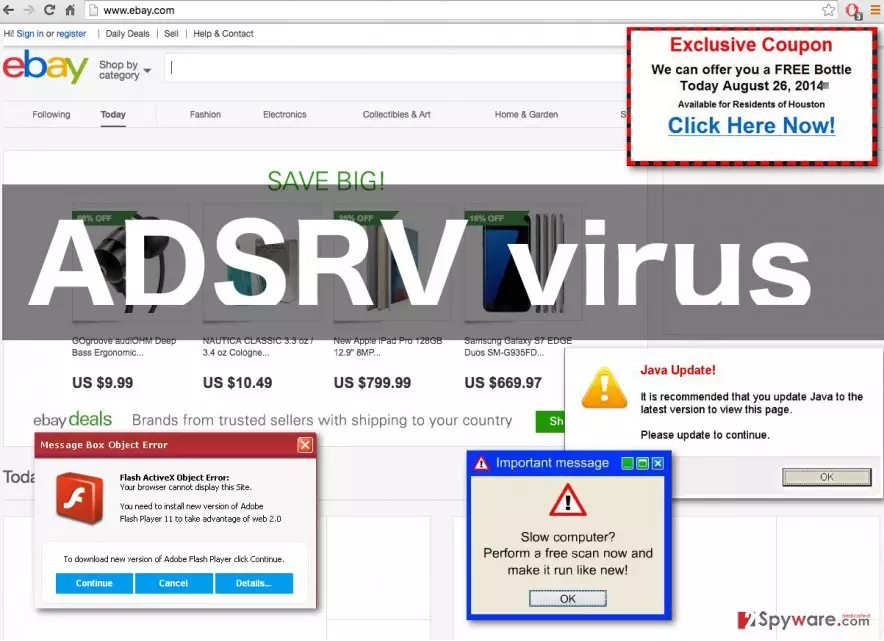
If you think that a few ads are something you can take, you have not heard about the ADSRV redirect issue yet. In fact, it is not the ads themselves that are causing the most concern for the security experts, who have already classified this application as a potentially unwanted. It is all about the sites to which the users are redirected to if they decide to interact with these ADSRV ads. It was found that these sites are usually very suspicious and may even contain some infectious content, such as other adware, browser hijackers or worms. If you are still thinking, whether ADSRV is worth your time, you should also keep in mind that this adware-type program gathers information about your browsing habits to create more appealing ads or even sell the collected data to some third parties which may further exploit it for their own purposes. Therefore, you should carefully consider all the risks and take the best decision.
How can this program infect my computer?
If you are familiar with potentially unwanted programs, you should know that adware usually spread through software packages, attached to other freeware or shareware applications. So when you decide to download some new PDF converter, video or music player on your PC, make sure that you are not installing additional, unnecessary components along with it. Quick or recommended settings do not disclose the full information about the contents of the software packages, therefore, choosing advanced installation settings is necessary for seeing the full picture of what you are about to install on your PC. So, if you do not wish to see the annoying ads by ADSRV on your browser, spare some time to inspect the downloaded software instead of recklessly installing them on your PC.
ADSRV removal suggestions:
If you decide that it is finally time to get rid of the ADSRV virus, you should first check if your gear is ready to handle it. Make sure that your antivirus is updated to its latest version. This will allow your virus fighting utility to recognize and remove ADSRV from your computer more effectively. Also, do not forget to update your system to ensure it fits all the security requirements. When you make sure everything is in order, run a scan of your system with an antivirus scanner. You can also carry out ADSRV removal manually if you find that more convenient. For that, we have prepared instructions, which you will find presented below.
Uninstall from Windows
Uninstall from Windows 10/8:
- Type Control Panel into the Windows search box and open the result.
- Under Programs, select Uninstall a program.


Uninstall from Windows 7/XP:
- Click on Windows Start > Control Panel (Windows XP users should click on Add/Remove Programs).
- In Control Panel, select Programs > Uninstall a program.


Remove the unwanted program:
- In the Programs and Features window, look for any recently installed suspicious entries, select them, and click Uninstall.
- If User Account Control appears, click Yes to confirm, then complete the removal.


Delete from macOS
Remove the unwanted application:
- From the menu bar, select Go > Applications.
- In the Applications folder, look for any suspicious entries, then drag them to Trash (or right-click and pick Move to Trash).


Delete leftover files and folders:
- Select Go > Go to Folder.
- Enter /Library/Application Support and remove any suspicious folders related to the unwanted program.
- Repeat the same check in the /Library/LaunchAgents and /Library/LaunchDaemons folders, deleting any suspicious entries.

- Finally, empty the Trash to permanently remove the leftovers.

Remove from Microsoft Edge
Delete unwanted extensions from MS Edge:
- Select Menu (three horizontal dots at the top-right of the browser window) and pick Extensions.
- From the list, pick the extension and click on the Gear icon.
- Click Remove.


Clear cookies and other browser data:
- Click on the Menu (three horizontal dots at the top-right of the browser window) and select Settings > Privacy, search, and services..
- Under Clear browsing data, pick Choose what to clear.
- Select Cookies and other site data and Cached images and files. (apart from passwords, although you might want to include Media licenses as well, if applicable) and click on Clear.


Restore new tab and homepage settings:
- Click the menu icon and choose Settings.
- Then find On startup section.
- Click Remove next to any suspicious startup page.
Reset MS Edge if the above steps did not work:
- Press on Ctrl + Shift + Esc to open Task Manager.
- Click on More details arrow at the bottom of the window.
- Select Details tab.
- Now scroll down and locate every entry with Microsoft Edge name in it. Right-click on each of them and select End Task to stop MS Edge from running.


Instructions for Chromium-based Edge
Delete extensions from MS Edge (Chromium):
- Open Edge and click select Settings > Extensions.
- Delete unwanted extensions by clicking Remove.


Clear cache and site data:
- Click on Menu and go to Settings.
- Select Privacy, search and services.
- Under Clear browsing data, pick Choose what to clear.
- Under Time range, pick All time.
- Select Clear now.


Reset Chromium-based MS Edge:
- Click on Menu and select Settings.
- On the left side, pick Reset settings.
- Select Restore settings to their default values.
- Confirm with Reset.
- This will disable extensions and reset startup pages but will not delete bookmarks, saved passwords, or browsing history.


Remove from Mozilla Firefox (FF)
Remove dangerous extensions:
- Open Mozilla Firefox browser and click on the Menu (three horizontal lines at the top-right of the window).
- Select Add-ons.
- In here, select the unwanted extension and click Remove.


Reset the homepage:
- Click three horizontal lines at the top right corner to open the menu.
- Choose Settings.
- Under Home, set your preferred homepage and new tab settings.
Clear cookies and site data:
- Click Menu and pick Settings.
- Go to Privacy & Security section.
- Scroll down to locate Cookies and Site Data.
- Click on Clear Data...
- Select Cookies and Site Data and Temporary cached files and pages, then click Clear.


Reset Mozilla Firefox
If clearing the browser as explained above did not help, reset Mozilla Firefox:
- Open Mozilla Firefox browser and click the Menu.
- Go to Help and then choose Troubleshooting Information.

- Under Give Firefox a tune up section, click on Refresh Firefox...
- Once the pop-up shows up, confirm the action by pressing on Refresh Firefox.



Remove from Google Chrome
Delete malicious extensions from Google Chrome:
- Open Google Chrome, click on the Menu (three vertical dots at the top-right corner) and select More tools > Extensions.
- In the newly opened window, you will see all the installed extensions. Uninstall all suspicious extensions related to the unwanted program by clicking Remove.


Clear cache and web data from Chrome:
- Click on Menu and pick Settings.
- Under Privacy and security, select Clear browsing data.
- Select Browsing history, Cookies and other site data, as well as Cached images and files.
- Click Clear data.


Change your homepage:
- Click menu and choose Settings.
- Look for a suspicious site in the On startup section.
- Click on Open a specific or set of pages and click on three dots to find the Remove option.
Reset Google Chrome:
If the previous methods did not help you, reset Google Chrome to eliminate all the unwanted components:
- Click on Menu and select Settings.
- In the Settings, scroll down and click Advanced.
- Scroll down and locate Reset and clean up section.
- Now click Restore settings to their original defaults.
- Confirm with Reset settings.


Delete from Safari
Remove dangerous extensions:
- Open Safari, click Safari in the menu at the top-left of the screen, and select Preferences.
- Go to the Extensions tab, look for any suspicious entries, and click Uninstall to remove them.


Clear history and website data:
- Click Safari in the menu and pick Clear History.
- Set Clear to all history and confirm with Clear History.


Reset Safari:
- Click Safari in the menu and select Preferences > Advanced.
- Enable Show Develop menu in menu bar.
- From the menu bar, click Develop and select Empty Caches.


Did this guide help?
5 comments
Petreas Olinx
This is great! I got rid of the virus in no time. These instructions were really easy to follow :)
Grimaldi Jasuo
It is difficult to find a more annoying virus. Ive had my PC infected with adware before, but this ones the worst so far
Jason Perish
I tried free SpyHunter scanner, it found the virus but did not eliminate it. Im thinking whether I should purchase it or look for some free antivirus version.
Weston Mill
I have the full version of this program that you are talking about and it seems to be working great. You should really try it!
Jason Perish
Ok, thanks for the recommendation!