

Reasons to remove Yoursearchweb.com virus
Typically, Yoursearchweb.com replaces your home and new tab page and alters default search engine settings without computer user’s approval, so computer security experts tend to call it a Yoursearchweb.com browser hijacker and, of course, a potentially unwanted program (PUP). When this PUP slithers into a PC, it makes several changes to the system. It adds an extension to each web browser and also leaves its traces on the computer. Once it hijacks a web browser, it sets an identically named Internet page as homepage and also a new tab page. As a result, this page shows up each time whenever the user launches Chrome, Firefox or another web browser.
The website presents a safe-looking search engine, which only appears to be trustworthy. In reality, this search engine generates modified search outcomes, which can suddenly reroute the user to shady third-party websites. You can never know what site you might be forced to visit. Of course, such search results are untrustworthy, and it is not advisable to click on them. To bypass Yoursearchweb.com redirect issue, we suggest using another and more reputable search engine. However, first of all, you need to remove Yoursearchweb.com.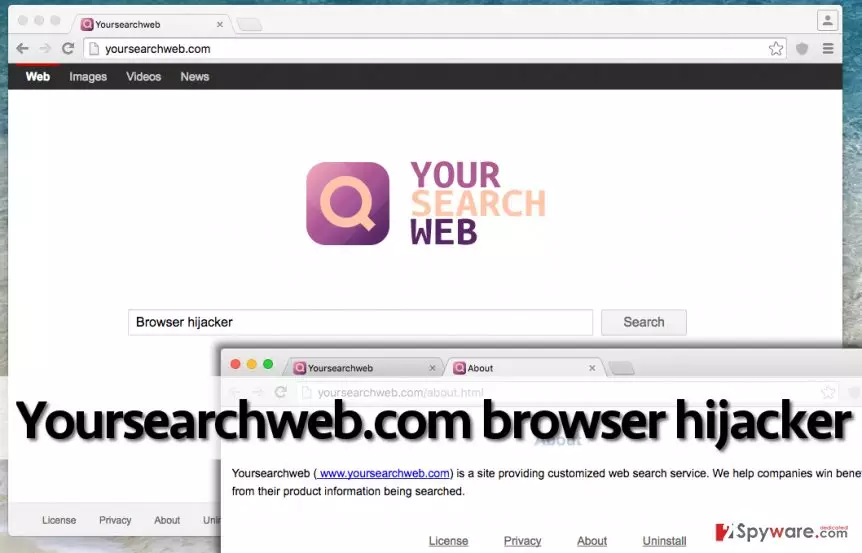
There is one more detail about this potentially unwanted program, which we believe might upset you. We have analyzed Privacy Policy document provided in the official website of this program, and it seems that by using this shady search engine, you continuously deliver very particular information about your browsing habits to the developers of this browser hijacker. It is programmed to track very particular information about the computer user, including user’s search queries, browsing history, browser type, geolocation of the computer, and IP address. If you do not feel like sharing such information with an unknown party, stop browsing the Internet until you delete this suspicious program from your computer.
When did this PUP hijack your personal computer?
Chances are, you did not install this PUP willingly. “So how could it have happened at all?” you might ask. You might have unwillingly accepted an offer to install it when setting up another free program. Such suspicious programs rarely enter users’ computers’ with their consent, so the developers of such PUPs distribute them by using bundling technique. They add them to other programs under label “recommended downloads” and hide them in the installer, hoping that the computer user will not notice these additions. Sadly, this plan works out really frequently, but only because the majority of computer users still believe that “Default” or “Standard” installation modes are trustworthy. They think these modes are safe because the installer itself suggests choosing one of them. That is not true – trustworthy settings are “Custom” or “Advanced” ones. They reveal all bonus components and allow the user to drop them by deselecting checkboxes next to them. It goes without saying that you should always give preference to Advanced/Custom option.
Yoursearchweb.com removal guide
If this is your first time removing a potentially unwanted application, you should read instructions provided below this article attentively. Study each step and do everything as instructed. If you have any questions and if our instructions seem confusing to you, do not be shy and contact our support team. Just fill out the form that can be found in “Ask Us” section.
If you do not feel experienced enough to deal with this computer threat manually, assign Yoursearchweb.com removal task to a professional malware removal tool, for example, FortectIntego. Install the program and then scan the system entirely to detect all components of the program that we have discussed, and then just remove them with a single click.
FAQ:
Question: I am worried about Yoursearchweb.com redirects. I have experienced them, and now I am worried about my computer’s safety. I am sure that I didn’t download anything from websites that this hijacker redirected me to, but I feel that there is something wrong with my computer. How can I know that there are no malicious viruses or Trojans on it?
Answer: Dear visitor, if you suspect that there is something wrong with your computer due to the redirects this browser hijacker caused, then we strongly recommend you to scan your computer system with a reputable anti-spyware program. Make sure you choose a good and reliable one. You can see a table of anti-spyware comparison here.
Question: Is Yoursearchweb.com browser hijacker malicious? It hijacked my Chrome browser yesterday, and I want to know whether my computer has been compromised or not.
Answer: Dear visitor, this browser hijacker is more annoying than it is dangerous; in fact, it is not malicious itself. However, it can cause redirects to questionable Internet websites, and these sites can be untrustworthy. Some of these websites might even pose a threat to your computer system, so we highly recommend you to inspect the reliability of an each website before you begin to explore its content. If you want to stop these redirects, use instructions provided below.
Uninstall from Windows
Uninstall from Windows 10/8:
- Type Control Panel into the Windows search box and open the result.
- Under Programs, select Uninstall a program.


Uninstall from Windows 7/XP:
- Click on Windows Start > Control Panel (Windows XP users should click on Add/Remove Programs).
- In Control Panel, select Programs > Uninstall a program.


Remove the unwanted program:
- In the Programs and Features window, look for any recently installed suspicious entries, select them, and click Uninstall.
- If User Account Control appears, click Yes to confirm, then complete the removal.


Delete from macOS
Remove the unwanted application:
- From the menu bar, select Go > Applications.
- In the Applications folder, look for any suspicious entries, then drag them to Trash (or right-click and pick Move to Trash).


Delete leftover files and folders:
- Select Go > Go to Folder.
- Enter /Library/Application Support and remove any suspicious folders related to the unwanted program.
- Repeat the same check in the /Library/LaunchAgents and /Library/LaunchDaemons folders, deleting any suspicious entries.

- Finally, empty the Trash to permanently remove the leftovers.

Remove from Microsoft Edge
Delete unwanted extensions from MS Edge:
- Select Menu (three horizontal dots at the top-right of the browser window) and pick Extensions.
- From the list, pick the extension and click on the Gear icon.
- Click Remove.


Clear cookies and other browser data:
- Click on the Menu (three horizontal dots at the top-right of the browser window) and select Settings > Privacy, search, and services..
- Under Clear browsing data, pick Choose what to clear.
- Select Cookies and other site data and Cached images and files. (apart from passwords, although you might want to include Media licenses as well, if applicable) and click on Clear.


Restore new tab and homepage settings:
- Click the menu icon and choose Settings.
- Then find On startup section.
- Click Remove next to any suspicious startup page.
Reset MS Edge if the above steps did not work:
- Press on Ctrl + Shift + Esc to open Task Manager.
- Click on More details arrow at the bottom of the window.
- Select Details tab.
- Now scroll down and locate every entry with Microsoft Edge name in it. Right-click on each of them and select End Task to stop MS Edge from running.


Instructions for Chromium-based Edge
Delete extensions from MS Edge (Chromium):
- Open Edge and click select Settings > Extensions.
- Delete unwanted extensions by clicking Remove.


Clear cache and site data:
- Click on Menu and go to Settings.
- Select Privacy, search and services.
- Under Clear browsing data, pick Choose what to clear.
- Under Time range, pick All time.
- Select Clear now.


Reset Chromium-based MS Edge:
- Click on Menu and select Settings.
- On the left side, pick Reset settings.
- Select Restore settings to their default values.
- Confirm with Reset.
- This will disable extensions and reset startup pages but will not delete bookmarks, saved passwords, or browsing history.


Remove from Mozilla Firefox (FF)
Remove dangerous extensions:
- Open Mozilla Firefox browser and click on the Menu (three horizontal lines at the top-right of the window).
- Select Add-ons.
- In here, select the unwanted extension and click Remove.


Reset the homepage:
- Click three horizontal lines at the top right corner to open the menu.
- Choose Settings.
- Under Home, set your preferred homepage and new tab settings.
Clear cookies and site data:
- Click Menu and pick Settings.
- Go to Privacy & Security section.
- Scroll down to locate Cookies and Site Data.
- Click on Clear Data...
- Select Cookies and Site Data and Temporary cached files and pages, then click Clear.


Reset Mozilla Firefox
If clearing the browser as explained above did not help, reset Mozilla Firefox:
- Open Mozilla Firefox browser and click the Menu.
- Go to Help and then choose Troubleshooting Information.

- Under Give Firefox a tune up section, click on Refresh Firefox...
- Once the pop-up shows up, confirm the action by pressing on Refresh Firefox.



Remove from Google Chrome
Delete malicious extensions from Google Chrome:
- Open Google Chrome, click on the Menu (three vertical dots at the top-right corner) and select More tools > Extensions.
- In the newly opened window, you will see all the installed extensions. Uninstall all suspicious extensions related to the unwanted program by clicking Remove.


Clear cache and web data from Chrome:
- Click on Menu and pick Settings.
- Under Privacy and security, select Clear browsing data.
- Select Browsing history, Cookies and other site data, as well as Cached images and files.
- Click Clear data.


Change your homepage:
- Click menu and choose Settings.
- Look for a suspicious site in the On startup section.
- Click on Open a specific or set of pages and click on three dots to find the Remove option.
Reset Google Chrome:
If the previous methods did not help you, reset Google Chrome to eliminate all the unwanted components:
- Click on Menu and select Settings.
- In the Settings, scroll down and click Advanced.
- Scroll down and locate Reset and clean up section.
- Now click Restore settings to their original defaults.
- Confirm with Reset settings.


Delete from Safari
Remove dangerous extensions:
- Open Safari, click Safari in the menu at the top-left of the screen, and select Preferences.
- Go to the Extensions tab, look for any suspicious entries, and click Uninstall to remove them.


Clear history and website data:
- Click Safari in the menu and pick Clear History.
- Set Clear to all history and confirm with Clear History.


Reset Safari:
- Click Safari in the menu and select Preferences > Advanced.
- Enable Show Develop menu in menu bar.
- From the menu bar, click Develop and select Empty Caches.


Did this guide help?
4 comments
Roger
My experience: I have installed Offers4u from one website that I reached via Yourwebsearch.
Marlena
Thank you, great instructions.
t0nit4
what...is... this dubious virus doing on my computer?? it hijacked me? what! I hope its not hard to remove it, imma start deleting it right now, im in shock...
henry
I just want to say that I am glad that there are people who write such articles. I have learned a lot and I have also learned how to uninstall browser hijackers! I have just deleted Yoursearchweb without using anti-spyware. Thank you for your help, 2spyware :)