

What is known about Search.searchdoco.com virus?
Search.searchdoco.com is a typical browser hijacker, which belongs to a group of potentially unwanted programs (PUPs) related to Safer Browser redirect virus. Once this browser hijacker slithers into victim’s computer, it modifies home and new tab page and changes primary search engine settings as well. It wants to convince the PC user use Search.searchdoco.com search engine, which looks safe and reliable at the first sight. However, first impressions often are wrong, and the same can be said about the reliability of this search engine. If you have noticed that it was set as a homepage in your browser, you should remove it without a hesitation. For that, you can use a computer security software like Reimage, or uninstall it manually.
Now, let’s discuss why it is not worth trusting the search engine that Search.searchdoco.com browser hijacker wants you to use. First of all, it seems that it does not generate relevant or accurate search outcomes because the majority of its search results are sponsored by third-party companies. In other words, if you do not enjoy receiving advertisements with search results, it is likely that Search.searchdoco.com ads will annoy you. Another drawback is that you can never know if these sponsored search outcomes are trustworthy. Clicking on them might trigger Search.searchdoco.com redirects leading to suspicious third-party websites, which might offer you free software or ask you to provide personal details in order to register on some suspicious sites or to participate in a bogus online lottery. In general, if you want to keep your PC safe and sound, downloading and installing third-party software from questionable websites is not a good idea. It goes without saying that you should not reveal your personal information on the Internet as well. For example, untrustworthy sites use information like user’s email to send annoying promotional content. In the worst scenario, victim’s personal data can be used for illegal purposes.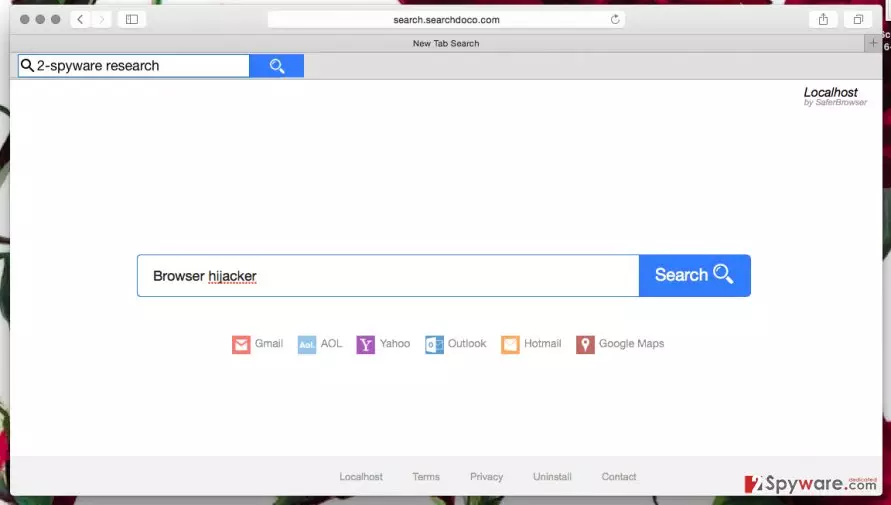
If you do not want to accidentally end up on such sites, better avoid using the aforementioned search engine. You should not let this browser hijacker bother you and cause Search.searchdoco.com redirect issue each time you want to browse the Internet. Although some sites related to this PUP might be safe, others might be not, and in our opinion, it is quite a fair reason to stay clear of Search.searchdoco.com.
How does this program spread?
Although we called this program a virus, it does not spread or act like one. Computer users tend to call it like that because they think that it somehow managed to infiltrate their computers without their permission. In fact, that is not true, because it can be installed only with user’s approval. The thing is, it spreads alongside other free programs, usually popular and well-known ones, for example, download managers, games, media players, file format converters, and so on. When the user downloads a software that includes Search.searchdoco.com, he or she can install it without even realizing it. For this reason, we advise you to install programs with caution and never rush. It is very important to adjust installation settings, as this can help you to see what optional programs are added to your downloaded program. To see them, you have to choose Advanced or Custom settings and deselect all items that raise your suspicion. Bear in mind that Default or Standard installation option does not allow you to see these additional components or adjust them.
How to remove Search.searchdoco.com?
Although Search.searchdoco.com virus is not a fearsome computer infection, it deserves to be deleted since it is not trustworthy or useful at any point. We cannot find a single reason why you should use the search engine that delivers altered search results instead of a reliable search engine like Google or Yahoo. Of course, you can use another search engine as well, just make sure that it is trustworthy. To uninstall Search.searchdoco.com, use an automatic tool like SpyHunter and scan your PC with it. It is also possible and rather easy to remove this PUP without using an anti-spyware program, so we have prepared Search.searchdoco.com removal instructions for those who want to delete it manually. Instructions are provided below.
Uninstall from Windows
Uninstall from Windows 10/8:
- Type Control Panel into the Windows search box and open the result.
- Under Programs, select Uninstall a program.


Uninstall from Windows 7/XP:
- Click on Windows Start > Control Panel (Windows XP users should click on Add/Remove Programs).
- In Control Panel, select Programs > Uninstall a program.


Remove the unwanted program:
- In the Programs and Features window, look for any recently installed suspicious entries, select them, and click Uninstall.
- If User Account Control appears, click Yes to confirm, then complete the removal.


Delete from macOS
Remove the unwanted application:
- From the menu bar, select Go > Applications.
- In the Applications folder, look for any suspicious entries, then drag them to Trash (or right-click and pick Move to Trash).


Delete leftover files and folders:
- Select Go > Go to Folder.
- Enter /Library/Application Support and remove any suspicious folders related to the unwanted program.
- Repeat the same check in the /Library/LaunchAgents and /Library/LaunchDaemons folders, deleting any suspicious entries.

- Finally, empty the Trash to permanently remove the leftovers.

Remove from Microsoft Edge
Delete unwanted extensions from MS Edge:
- Select Menu (three horizontal dots at the top-right of the browser window) and pick Extensions.
- From the list, pick the extension and click on the Gear icon.
- Click Remove.


Clear cookies and other browser data:
- Click on the Menu (three horizontal dots at the top-right of the browser window) and select Settings > Privacy, search, and services..
- Under Clear browsing data, pick Choose what to clear.
- Select Cookies and other site data and Cached images and files. (apart from passwords, although you might want to include Media licenses as well, if applicable) and click on Clear.


Restore new tab and homepage settings:
- Click the menu icon and choose Settings.
- Then find On startup section.
- Click Remove next to any suspicious startup page.
Reset MS Edge if the above steps did not work:
- Press on Ctrl + Shift + Esc to open Task Manager.
- Click on More details arrow at the bottom of the window.
- Select Details tab.
- Now scroll down and locate every entry with Microsoft Edge name in it. Right-click on each of them and select End Task to stop MS Edge from running.


Instructions for Chromium-based Edge
Delete extensions from MS Edge (Chromium):
- Open Edge and click select Settings > Extensions.
- Delete unwanted extensions by clicking Remove.


Clear cache and site data:
- Click on Menu and go to Settings.
- Select Privacy, search and services.
- Under Clear browsing data, pick Choose what to clear.
- Under Time range, pick All time.
- Select Clear now.


Reset Chromium-based MS Edge:
- Click on Menu and select Settings.
- On the left side, pick Reset settings.
- Select Restore settings to their default values.
- Confirm with Reset.
- This will disable extensions and reset startup pages but will not delete bookmarks, saved passwords, or browsing history.


Remove from Mozilla Firefox (FF)
Remove dangerous extensions:
- Open Mozilla Firefox browser and click on the Menu (three horizontal lines at the top-right of the window).
- Select Add-ons.
- In here, select the unwanted extension and click Remove.


Reset the homepage:
- Click three horizontal lines at the top right corner to open the menu.
- Choose Settings.
- Under Home, set your preferred homepage and new tab settings.
Clear cookies and site data:
- Click Menu and pick Settings.
- Go to Privacy & Security section.
- Scroll down to locate Cookies and Site Data.
- Click on Clear Data...
- Select Cookies and Site Data and Temporary cached files and pages, then click Clear.


Reset Mozilla Firefox
If clearing the browser as explained above did not help, reset Mozilla Firefox:
- Open Mozilla Firefox browser and click the Menu.
- Go to Help and then choose Troubleshooting Information.

- Under Give Firefox a tune up section, click on Refresh Firefox...
- Once the pop-up shows up, confirm the action by pressing on Refresh Firefox.



Remove from Google Chrome
Delete malicious extensions from Google Chrome:
- Open Google Chrome, click on the Menu (three vertical dots at the top-right corner) and select More tools > Extensions.
- In the newly opened window, you will see all the installed extensions. Uninstall all suspicious extensions related to the unwanted program by clicking Remove.


Clear cache and web data from Chrome:
- Click on Menu and pick Settings.
- Under Privacy and security, select Clear browsing data.
- Select Browsing history, Cookies and other site data, as well as Cached images and files.
- Click Clear data.


Change your homepage:
- Click menu and choose Settings.
- Look for a suspicious site in the On startup section.
- Click on Open a specific or set of pages and click on three dots to find the Remove option.
Reset Google Chrome:
If the previous methods did not help you, reset Google Chrome to eliminate all the unwanted components:
- Click on Menu and select Settings.
- In the Settings, scroll down and click Advanced.
- Scroll down and locate Reset and clean up section.
- Now click Restore settings to their original defaults.
- Confirm with Reset settings.


Delete from Safari
Remove dangerous extensions:
- Open Safari, click Safari in the menu at the top-left of the screen, and select Preferences.
- Go to the Extensions tab, look for any suspicious entries, and click Uninstall to remove them.


Clear history and website data:
- Click Safari in the menu and pick Clear History.
- Set Clear to all history and confirm with Clear History.


Reset Safari:
- Click Safari in the menu and select Preferences > Advanced.
- Enable Show Develop menu in menu bar.
- From the menu bar, click Develop and select Empty Caches.


Did this guide help?
5 comments
how
malware, expect lack of browser control! It just sits in your browser and refuses to go away!
Spoky
But it can be removed easily. have you tried to follow these instructions?
Mohhamad
Thanks for the help, I thought Im gonna be stuck with this virus in my browser forever...
helphelp
I DIDNT ASK FOR SEARCHDOCO HOW DID IT GET INTO MY BROWSER?? WHICH PROGRAM SPREADS IT??
Tonio91
it travels with various apps I think