

Is Call Box a reliable program?
If you work in a marketing sphere and own or a company, you might need additional digital tools which help you to track your purchases and ensure that the customers are always satisfied. Thus, Call Box application provides the abilities to track the callings of your dealers. It also provides the assistance of their experts to consult you on the best online advertising techniques which multiple the purchases. However, despite all these supposed benefits, you should not trust this application too much because it is classified as adware. Likewise, it will not only help you to improve your Services by enabling you to track your offers, but it will also track you as well by spying on your online activities. In addition, your browsing might highly deteriorate as it is diminished by regularly pops up. Thus, we do not recommend keeping this adware program too long and remove Call Box virus as soon as possible. Employ FortectIntego to quicken the elimination.
The team of Call Box does not only offer specific software to boost up your business purchases, but it also tempts companies by providing selling tips for your staff. The website says that the employees of Call Box can even manage the calls on your behalf. However, you should not forget that this website and the application are adware. Therefore, the “side-effects” are inevitable. Your browser might be flooded with Call Box ads and annoying offers to obtain new software. It is likely that their promoted programs might be significantly less useful in reality.
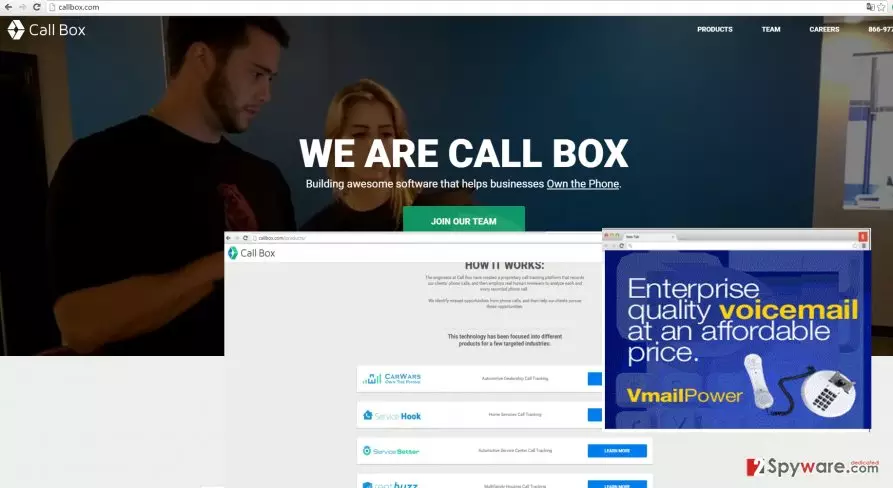
In relation to this, there is another highly negative aspect of this adware — Call Box redirect problem. We have already mentioned that you might sooner or later lose your temper from the excessive advertising. Nevertheless, these commercial offers do not only emerge and cover your online screen but they might constantly redirect you to other web pages. There is still a significant probability that the redirect domains, which you unwillingly find yourself in, may be harbored by viruses. Thus, it is better to start Call Box removal right away.
The transmission of the potentially unwanted program
The adware might have used the chance to attack your computer when you installed a new movie streaming application. Since similar free programs are often used as baits, for adware to sneak into the computer, your case is no exception as well. Luckily, there is a way to escape Call Box hijack in the future. We suggest opting for “Advanced” settings. Afterward, go through each stage carefully and then look for any programs which might look suspicious. After detecting one or a few of them, unmark them so that the add-ons would not be installed with the primary program.
Call Box removal options
There are two elimination solutions – automatic and manual. Our IT specialists have already delivered manual guidelines below for your convenience. You should be very vigilant while going through each stage not to miss any important detail. Otherwise, some files might remain which result in an increased possibility of Call Box virus attacking your PC again. Therefore, if you dislike thorough work, or you are not good at spotting tiny details, install an anti-spyware program to remove Call Box for you. It will get rid of it quickly and efficiently.
Uninstall from Windows
Uninstall from Windows 10/8:
- Type Control Panel into the Windows search box and open the result.
- Under Programs, select Uninstall a program.


Uninstall from Windows 7/XP:
- Click on Windows Start > Control Panel (Windows XP users should click on Add/Remove Programs).
- In Control Panel, select Programs > Uninstall a program.


Remove the unwanted program:
- In the Programs and Features window, look for any recently installed suspicious entries, select them, and click Uninstall.
- If User Account Control appears, click Yes to confirm, then complete the removal.


Delete from macOS
Remove the unwanted application:
- From the menu bar, select Go > Applications.
- In the Applications folder, look for any suspicious entries, then drag them to Trash (or right-click and pick Move to Trash).


Delete leftover files and folders:
- Select Go > Go to Folder.
- Enter /Library/Application Support and remove any suspicious folders related to the unwanted program.
- Repeat the same check in the /Library/LaunchAgents and /Library/LaunchDaemons folders, deleting any suspicious entries.

- Finally, empty the Trash to permanently remove the leftovers.

Remove from Microsoft Edge
Delete unwanted extensions from MS Edge:
- Select Menu (three horizontal dots at the top-right of the browser window) and pick Extensions.
- From the list, pick the extension and click on the Gear icon.
- Click Remove.


Clear cookies and other browser data:
- Click on the Menu (three horizontal dots at the top-right of the browser window) and select Settings > Privacy, search, and services..
- Under Clear browsing data, pick Choose what to clear.
- Select Cookies and other site data and Cached images and files. (apart from passwords, although you might want to include Media licenses as well, if applicable) and click on Clear.


Restore new tab and homepage settings:
- Click the menu icon and choose Settings.
- Then find On startup section.
- Click Remove next to any suspicious startup page.
Reset MS Edge if the above steps did not work:
- Press on Ctrl + Shift + Esc to open Task Manager.
- Click on More details arrow at the bottom of the window.
- Select Details tab.
- Now scroll down and locate every entry with Microsoft Edge name in it. Right-click on each of them and select End Task to stop MS Edge from running.


Instructions for Chromium-based Edge
Delete extensions from MS Edge (Chromium):
- Open Edge and click select Settings > Extensions.
- Delete unwanted extensions by clicking Remove.


Clear cache and site data:
- Click on Menu and go to Settings.
- Select Privacy, search and services.
- Under Clear browsing data, pick Choose what to clear.
- Under Time range, pick All time.
- Select Clear now.


Reset Chromium-based MS Edge:
- Click on Menu and select Settings.
- On the left side, pick Reset settings.
- Select Restore settings to their default values.
- Confirm with Reset.
- This will disable extensions and reset startup pages but will not delete bookmarks, saved passwords, or browsing history.


Remove from Mozilla Firefox (FF)
Remove dangerous extensions:
- Open Mozilla Firefox browser and click on the Menu (three horizontal lines at the top-right of the window).
- Select Add-ons.
- In here, select the unwanted extension and click Remove.


Reset the homepage:
- Click three horizontal lines at the top right corner to open the menu.
- Choose Settings.
- Under Home, set your preferred homepage and new tab settings.
Clear cookies and site data:
- Click Menu and pick Settings.
- Go to Privacy & Security section.
- Scroll down to locate Cookies and Site Data.
- Click on Clear Data...
- Select Cookies and Site Data and Temporary cached files and pages, then click Clear.


Reset Mozilla Firefox
If clearing the browser as explained above did not help, reset Mozilla Firefox:
- Open Mozilla Firefox browser and click the Menu.
- Go to Help and then choose Troubleshooting Information.

- Under Give Firefox a tune up section, click on Refresh Firefox...
- Once the pop-up shows up, confirm the action by pressing on Refresh Firefox.



Remove from Google Chrome
Delete malicious extensions from Google Chrome:
- Open Google Chrome, click on the Menu (three vertical dots at the top-right corner) and select More tools > Extensions.
- In the newly opened window, you will see all the installed extensions. Uninstall all suspicious extensions related to the unwanted program by clicking Remove.


Clear cache and web data from Chrome:
- Click on Menu and pick Settings.
- Under Privacy and security, select Clear browsing data.
- Select Browsing history, Cookies and other site data, as well as Cached images and files.
- Click Clear data.


Change your homepage:
- Click menu and choose Settings.
- Look for a suspicious site in the On startup section.
- Click on Open a specific or set of pages and click on three dots to find the Remove option.
Reset Google Chrome:
If the previous methods did not help you, reset Google Chrome to eliminate all the unwanted components:
- Click on Menu and select Settings.
- In the Settings, scroll down and click Advanced.
- Scroll down and locate Reset and clean up section.
- Now click Restore settings to their original defaults.
- Confirm with Reset settings.


Delete from Safari
Remove dangerous extensions:
- Open Safari, click Safari in the menu at the top-left of the screen, and select Preferences.
- Go to the Extensions tab, look for any suspicious entries, and click Uninstall to remove them.


Clear history and website data:
- Click Safari in the menu and pick Clear History.
- Set Clear to all history and confirm with Clear History.


Reset Safari:
- Click Safari in the menu and select Preferences > Advanced.
- Enable Show Develop menu in menu bar.
- From the menu bar, click Develop and select Empty Caches.


Did this guide help?
3 comments
George
They track you, you track others. Spies everywhere.
Paul
At least, its removal does not take much time.
Stacey
I guess only business companies might find it useful.