

Can attirerPage.com virus cause a lot of damage?
Though attirerPage.com virus does not look so destructive, you should not ignore it once this browsing tool appears on the system. It might not look like it, but this search engine is categorized as a browser hijacker. All search engines of this kind are set to infiltrate browsers and make a few important modifications. Consequently, you might struggle to delete AttirerPage.com virus from the first attempt. This is because the hijacker tends to use additional files which help it settle on your computer. In addition, occasional redirects to unknown domains become too irritating. The longer you keep this unwanted search engine on the computer the more ads you are likely to see on the browser. They do not only cover the screen but diminish the overall browsing performance. These are only a few irritating “side-effects” caused by the hijacker. Therefore, remove AttirerPage.com as soon as possible. In this article, you will find out how you can do it quickly and effectively.
Perhaps the owners of this hijacker seem to be the French or bear sympathy towards the French culture since the name – attirer page – means to “attract” a page. Thus, it reflects the idea that this browsing tool should be an effective website for acquiring necessary information in short time. Indeed, this website is more reliable than the rest of its sort. It delivers relatively few advertising web pages among the search results. However, you still cannot escape the tendency of AttirerPage.com browser hijacker to direct you to other domains other than your desired destination. These redirects do not only take up your time since you have to make several attempts to exit the pages, but they may also harbor more or less disturbing malware. If you care for your operating system, it is high time you initiated attirerPage.com removal. FortectIntego is one the solutions leading to complete elimination of this browsing tool.
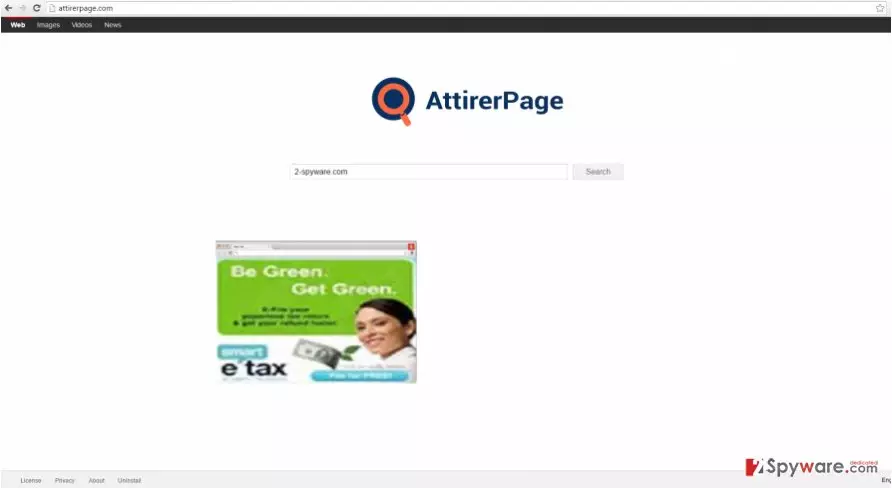
Another negative aspect of the browser hijacker is that it may share the compiled information about your visited websites and frequent search entries with interested third-parties and other anonymous users for marketing purposes. The primary result of such exchange is the increased amount of intrusive advertisements. While these pay-per-clicks ads earn income for their owners, they do not bring any benefit to you – only irritation and bewilderment. As stated in the Privacy Policy, Attirer Page hijacker may also provide you access to certain forums. They disclaim any liability if you were providing any personal information and its possible misuse. All in all, we do not advise keeping AttirerPage.com on the computer.
When did I come across this PUP?
It disperses through free programs which are in daily demand among the majority of users. It is a well-known common sense not to read the installation instructions not to mention “Terms of Use.” Scammers exploit this vice and attach, in this case, AttirerPage hijacker under “Recommended” settings to free media player of Java software. As a result of inattentiveness, AttirerPage.com hijack takes place. Luckily, there is a way how you can prevent a hijacker or any other malware before it attempts to occupy your computer. Opt for “Custom” settings and then carefully watch for unwanted programs.
Remove AttirerPage.com from the PC
There are two ways how you can get rid of the PUP – manual and automatic elimination. Of you opt for the first one, pay utmost attention and do not miss any details. Otherwise, the left files might trigger re-hijack by the PUP again. Thus, accurate work may not look attractive for some users. That is why we offer you to remove AttirerPage.com automatically. Run a system scan with a trustworthy anti-spyware program. Lastly, we would like to remind you to remain vigilant when installing a new program. Taking a look at the Privacy Policy provisions might be of use as well.
Uninstall from Windows
Uninstall from Windows 10/8:
- Type Control Panel into the Windows search box and open the result.
- Under Programs, select Uninstall a program.


Uninstall from Windows 7/XP:
- Click on Windows Start > Control Panel (Windows XP users should click on Add/Remove Programs).
- In Control Panel, select Programs > Uninstall a program.


Remove the unwanted program:
- In the Programs and Features window, look for any recently installed suspicious entries, select them, and click Uninstall.
- If User Account Control appears, click Yes to confirm, then complete the removal.


Delete from macOS
Remove the unwanted application:
- From the menu bar, select Go > Applications.
- In the Applications folder, look for any suspicious entries, then drag them to Trash (or right-click and pick Move to Trash).


Delete leftover files and folders:
- Select Go > Go to Folder.
- Enter /Library/Application Support and remove any suspicious folders related to the unwanted program.
- Repeat the same check in the /Library/LaunchAgents and /Library/LaunchDaemons folders, deleting any suspicious entries.

- Finally, empty the Trash to permanently remove the leftovers.

Remove from Microsoft Edge
Delete unwanted extensions from MS Edge:
- Select Menu (three horizontal dots at the top-right of the browser window) and pick Extensions.
- From the list, pick the extension and click on the Gear icon.
- Click Remove.


Clear cookies and other browser data:
- Click on the Menu (three horizontal dots at the top-right of the browser window) and select Settings > Privacy, search, and services..
- Under Clear browsing data, pick Choose what to clear.
- Select Cookies and other site data and Cached images and files. (apart from passwords, although you might want to include Media licenses as well, if applicable) and click on Clear.


Restore new tab and homepage settings:
- Click the menu icon and choose Settings.
- Then find On startup section.
- Click Remove next to any suspicious startup page.
Reset MS Edge if the above steps did not work:
- Press on Ctrl + Shift + Esc to open Task Manager.
- Click on More details arrow at the bottom of the window.
- Select Details tab.
- Now scroll down and locate every entry with Microsoft Edge name in it. Right-click on each of them and select End Task to stop MS Edge from running.


Instructions for Chromium-based Edge
Delete extensions from MS Edge (Chromium):
- Open Edge and click select Settings > Extensions.
- Delete unwanted extensions by clicking Remove.


Clear cache and site data:
- Click on Menu and go to Settings.
- Select Privacy, search and services.
- Under Clear browsing data, pick Choose what to clear.
- Under Time range, pick All time.
- Select Clear now.


Reset Chromium-based MS Edge:
- Click on Menu and select Settings.
- On the left side, pick Reset settings.
- Select Restore settings to their default values.
- Confirm with Reset.
- This will disable extensions and reset startup pages but will not delete bookmarks, saved passwords, or browsing history.


Remove from Mozilla Firefox (FF)
Remove dangerous extensions:
- Open Mozilla Firefox browser and click on the Menu (three horizontal lines at the top-right of the window).
- Select Add-ons.
- In here, select the unwanted extension and click Remove.


Reset the homepage:
- Click three horizontal lines at the top right corner to open the menu.
- Choose Settings.
- Under Home, set your preferred homepage and new tab settings.
Clear cookies and site data:
- Click Menu and pick Settings.
- Go to Privacy & Security section.
- Scroll down to locate Cookies and Site Data.
- Click on Clear Data...
- Select Cookies and Site Data and Temporary cached files and pages, then click Clear.


Reset Mozilla Firefox
If clearing the browser as explained above did not help, reset Mozilla Firefox:
- Open Mozilla Firefox browser and click the Menu.
- Go to Help and then choose Troubleshooting Information.

- Under Give Firefox a tune up section, click on Refresh Firefox...
- Once the pop-up shows up, confirm the action by pressing on Refresh Firefox.



Remove from Google Chrome
Delete malicious extensions from Google Chrome:
- Open Google Chrome, click on the Menu (three vertical dots at the top-right corner) and select More tools > Extensions.
- In the newly opened window, you will see all the installed extensions. Uninstall all suspicious extensions related to the unwanted program by clicking Remove.


Clear cache and web data from Chrome:
- Click on Menu and pick Settings.
- Under Privacy and security, select Clear browsing data.
- Select Browsing history, Cookies and other site data, as well as Cached images and files.
- Click Clear data.


Change your homepage:
- Click menu and choose Settings.
- Look for a suspicious site in the On startup section.
- Click on Open a specific or set of pages and click on three dots to find the Remove option.
Reset Google Chrome:
If the previous methods did not help you, reset Google Chrome to eliminate all the unwanted components:
- Click on Menu and select Settings.
- In the Settings, scroll down and click Advanced.
- Scroll down and locate Reset and clean up section.
- Now click Restore settings to their original defaults.
- Confirm with Reset settings.


Delete from Safari
Remove dangerous extensions:
- Open Safari, click Safari in the menu at the top-left of the screen, and select Preferences.
- Go to the Extensions tab, look for any suspicious entries, and click Uninstall to remove them.


Clear history and website data:
- Click Safari in the menu and pick Clear History.
- Set Clear to all history and confirm with Clear History.


Reset Safari:
- Click Safari in the menu and select Preferences > Advanced.
- Enable Show Develop menu in menu bar.
- From the menu bar, click Develop and select Empty Caches.


Did this guide help?
3 comments
Bonnie
If not the occassional redirects, Id keep this search engine.
Jerry
This one really looks like a reliable search provider.
Dan
Those programs which supposedly are listed in "Programs and Features" arent on my computer nor are there any browser extensions in Firefox, yet somehow the starting page has been changed to AttirerPage (the homepage button gives me the right homepage though). Same with Microsoft Edge. Wtf?