

Everything you need to know BandwidthStat virus
Emerging intrusive pop-ups, coupons, banners might be a direct sign that your computer is infected with BandwidthStat virus. You might not have the slightest idea that this particular PUP slithered into the device until you notice the commercial offers labeled as “BandwidthStat ads”. This infection, which is regarded an adware-type program, generates the appearance of various advertisements. You might notice either coupons or hot deals offering to purchase the latest watch or offers suggesting to update the software. Rarely adware programs are regarding as highly dangerous. However, this does not mean that you should ignore the presence of this unnecessary program on your operating system. Therefore, the sooner you remove BandwidthStat virus the better.
Regarding from the title of this adware program, it is supposed to inform you of the amount of bandwidth your computer employs. Few users are in need of this information, while the majority do not regard this data necessary. Another peculiarity of this program is that it is “shape-shifting.” In other words, you might not find it on the desktop as independently functioning application. In fact, it prefers to hide its activity by generating multifarious offers and ads. The adware also generates the notifications of seemingly outdated software. Do not fall into the trap and avoid installing any program while the adware stays on the computer. You might accidentally install a fake malware removal tool, which instead of cleaning the system from potentially malignant files, might stuff it with them.
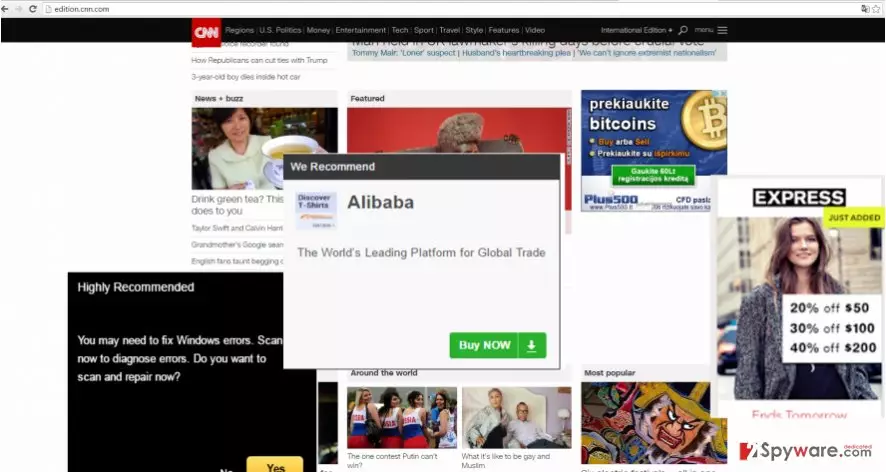
In relation to this, beware of BandwidthStat redirect as well. After the adware compiles enough information about your visited websites and other browsing peculiarities, it might redirect you to the websites of your interest. Nonetheless, do not recklessly enter to the popped up page or click on an intriguing headline. Since the adware is supported by unknown advertising companies and users. You never know whether the websites are secure. Scammers and hackers often use advertising or gambling sites as shelter to disguise their viruses. If you care for your operating system, start BandwidthStat removal right away. Employ FortectIntego for that purpose.
When did the adware hijack my computer?
You might admit to committing the same mistake as the majority of Internet users does – hopping through the installation wizard. Scammers, who are well aware of this tendency, attach their useless products to free programs knowing that they will be installed. Certainly, reading elaborate installation instructions seems like a boring activity, but it turns out to be a vital point deciding whether more or less malignant file sneaks into the computer. Thus, in order to escape BandwidthStat hijack, you need to change the usual order of actions. Upon installing new software, select “Advanced” settings. Do not ignore the possibility that some scammers might hide BandwidthStat or other adware under the mentioned settings. Only when you carefully go through each installation settings and untick the pre-marked add-ons, click the “Finish” button.
BandwidthStat removal options
There are two ways how you can put an end to BandwidthStat virus. We recommend using automatic elimination. The anti-spyware program is specifically designed for detecting adware, browser hijackers and even more serious threats, like ransomware. It will detect and remove BandwidthStat without leaving any files which might be scattered across the system registry. Alternatively, if you enjoy taking care of the computer in your own way, use manual removal guidelines. Do not forget to pay attention while installing a new application.
Uninstall from Windows
Uninstall from Windows 10/8:
- Type Control Panel into the Windows search box and open the result.
- Under Programs, select Uninstall a program.


Uninstall from Windows 7/XP:
- Click on Windows Start > Control Panel (Windows XP users should click on Add/Remove Programs).
- In Control Panel, select Programs > Uninstall a program.


Remove the unwanted program:
- In the Programs and Features window, look for any recently installed suspicious entries, select them, and click Uninstall.
- If User Account Control appears, click Yes to confirm, then complete the removal.


Delete from macOS
Remove the unwanted application:
- From the menu bar, select Go > Applications.
- In the Applications folder, look for any suspicious entries, then drag them to Trash (or right-click and pick Move to Trash).


Delete leftover files and folders:
- Select Go > Go to Folder.
- Enter /Library/Application Support and remove any suspicious folders related to the unwanted program.
- Repeat the same check in the /Library/LaunchAgents and /Library/LaunchDaemons folders, deleting any suspicious entries.

- Finally, empty the Trash to permanently remove the leftovers.

Remove from Microsoft Edge
Delete unwanted extensions from MS Edge:
- Select Menu (three horizontal dots at the top-right of the browser window) and pick Extensions.
- From the list, pick the extension and click on the Gear icon.
- Click Remove.


Clear cookies and other browser data:
- Click on the Menu (three horizontal dots at the top-right of the browser window) and select Settings > Privacy, search, and services..
- Under Clear browsing data, pick Choose what to clear.
- Select Cookies and other site data and Cached images and files. (apart from passwords, although you might want to include Media licenses as well, if applicable) and click on Clear.


Restore new tab and homepage settings:
- Click the menu icon and choose Settings.
- Then find On startup section.
- Click Remove next to any suspicious startup page.
Reset MS Edge if the above steps did not work:
- Press on Ctrl + Shift + Esc to open Task Manager.
- Click on More details arrow at the bottom of the window.
- Select Details tab.
- Now scroll down and locate every entry with Microsoft Edge name in it. Right-click on each of them and select End Task to stop MS Edge from running.


Instructions for Chromium-based Edge
Delete extensions from MS Edge (Chromium):
- Open Edge and click select Settings > Extensions.
- Delete unwanted extensions by clicking Remove.


Clear cache and site data:
- Click on Menu and go to Settings.
- Select Privacy, search and services.
- Under Clear browsing data, pick Choose what to clear.
- Under Time range, pick All time.
- Select Clear now.


Reset Chromium-based MS Edge:
- Click on Menu and select Settings.
- On the left side, pick Reset settings.
- Select Restore settings to their default values.
- Confirm with Reset.
- This will disable extensions and reset startup pages but will not delete bookmarks, saved passwords, or browsing history.


Remove from Mozilla Firefox (FF)
Remove dangerous extensions:
- Open Mozilla Firefox browser and click on the Menu (three horizontal lines at the top-right of the window).
- Select Add-ons.
- In here, select the unwanted extension and click Remove.


Reset the homepage:
- Click three horizontal lines at the top right corner to open the menu.
- Choose Settings.
- Under Home, set your preferred homepage and new tab settings.
Clear cookies and site data:
- Click Menu and pick Settings.
- Go to Privacy & Security section.
- Scroll down to locate Cookies and Site Data.
- Click on Clear Data...
- Select Cookies and Site Data and Temporary cached files and pages, then click Clear.


Reset Mozilla Firefox
If clearing the browser as explained above did not help, reset Mozilla Firefox:
- Open Mozilla Firefox browser and click the Menu.
- Go to Help and then choose Troubleshooting Information.

- Under Give Firefox a tune up section, click on Refresh Firefox...
- Once the pop-up shows up, confirm the action by pressing on Refresh Firefox.



Remove from Google Chrome
Delete malicious extensions from Google Chrome:
- Open Google Chrome, click on the Menu (three vertical dots at the top-right corner) and select More tools > Extensions.
- In the newly opened window, you will see all the installed extensions. Uninstall all suspicious extensions related to the unwanted program by clicking Remove.


Clear cache and web data from Chrome:
- Click on Menu and pick Settings.
- Under Privacy and security, select Clear browsing data.
- Select Browsing history, Cookies and other site data, as well as Cached images and files.
- Click Clear data.


Change your homepage:
- Click menu and choose Settings.
- Look for a suspicious site in the On startup section.
- Click on Open a specific or set of pages and click on three dots to find the Remove option.
Reset Google Chrome:
If the previous methods did not help you, reset Google Chrome to eliminate all the unwanted components:
- Click on Menu and select Settings.
- In the Settings, scroll down and click Advanced.
- Scroll down and locate Reset and clean up section.
- Now click Restore settings to their original defaults.
- Confirm with Reset settings.


Delete from Safari
Remove dangerous extensions:
- Open Safari, click Safari in the menu at the top-left of the screen, and select Preferences.
- Go to the Extensions tab, look for any suspicious entries, and click Uninstall to remove them.


Clear history and website data:
- Click Safari in the menu and pick Clear History.
- Set Clear to all history and confirm with Clear History.


Reset Safari:
- Click Safari in the menu and select Preferences > Advanced.
- Enable Show Develop menu in menu bar.
- From the menu bar, click Develop and select Empty Caches.


Did this guide help?
2 comments
Zelda
Thanks for the tutorial.
Larry12
I cant find the adware on the system...I guess Ill let the anti-malware app take care of this virus.