

Funsocialtabsearch.com – a PUP that ends up on devices out of the blue
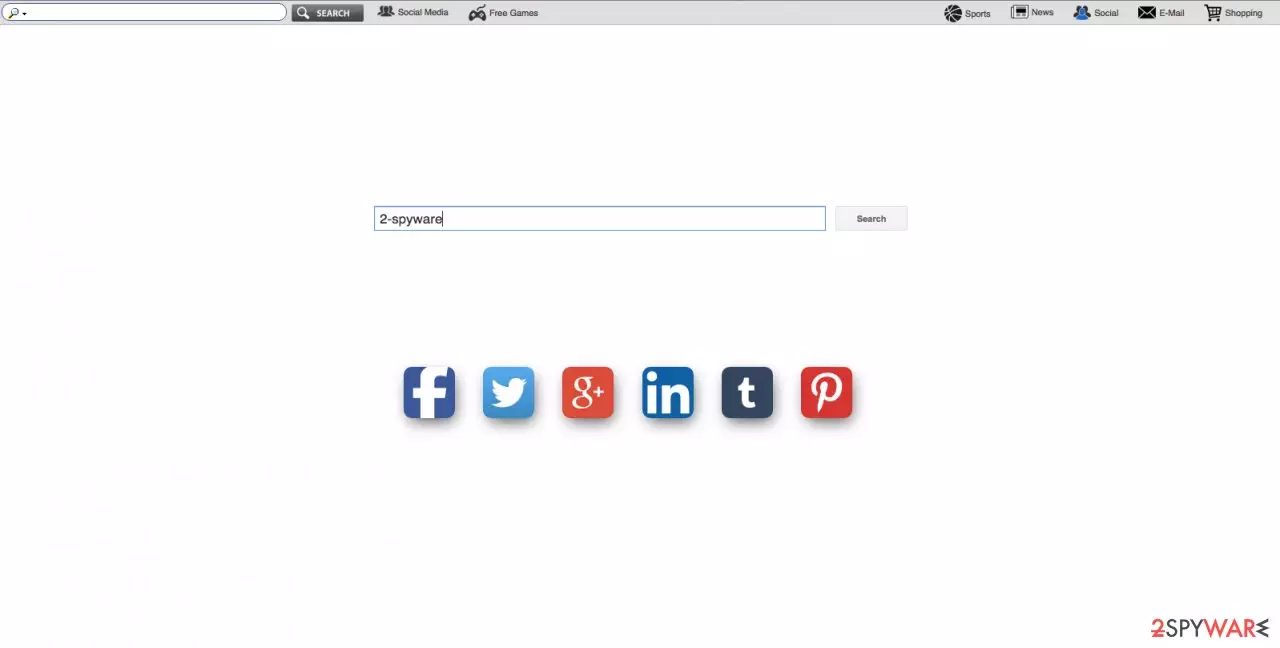
Funsocialtabsearch.com is a browser hijacker which can make your browser sluggish and redirect you to suspicious sites. In this case, you shouldn’t ignore these activities as they are the main signs showing that you are dealing with a potentially unwanted program.
Cybersecurity analysts have already prepared detailed instructions on how to remove it. Of course, you should also pay attention to typical tendencies used by them to infiltrate computers stealthily and alter their settings. Usually, the virus drops a predetermined URL as a default search engine and a homepage of the infected browser.
In addition, it can try to install additional software, the so-called “browser helper objects” to ensure it is not that easy to get rid of. Because of the additional use of the system’s resources, the computer’s performance might significantly diminish, resulting in browser crashes, non-responsive episodes, and similar errors.
| name | Funsocialtabsearch.com virus |
|---|---|
| Type | Browser hijacker, PUP |
| Symptoms | Search results are shown from a different provider and contain numerous ads; slower browsing speed; modified browser settings |
| Risks | Privacy issues, malware threats |
| Distribution | Software bundles, deceptive ads |
| Elimination | Remove the intruder by scanning your device with a reliable security tool |
| System health | Download and regularly use the FortectIntego tool to fix all system inconsistencies and delete tracking cookies |
The search service this hijacker provides is rather useless and it is not safe either, so you should not take long to delete it from your computer. You will find recommendations on how to remove Funsocialtabsearch.com from the infected device at the end of this article. In the meanwhile let’s discuss why exactly should you get rid of this application.
One of the major concerns of security-minded users should be the fact that the browser hijacker can try to redirect you to random sites without a warning. This hijacker is designed to advertise third-party content no matter its reliability or security, so you should not be surprised if you suddenly end up on some suspicious gambling site or never-heard-of software’s download page.
Besides, this virus may also track information about your browsing habits to be able to generate more inviting advertisements and lure you into visiting affiliate sites. There is no denying that such reckless advertising may also attract some very nasty malware on the computer.
So, even if the program is not malicious itself, its presence on the computer and activity on the infected browser is a real hazard to your and your PC system’s security. Therefore, Funsocialtabsearch.com removal should be your top priority if you notice this dubious search engine instead of your default one. You can use MalwarebytesMalwarebytes, SpyHunterCombo Cleaner, or any other trustworthy antivirus utility to carry out this process.
Unfortunately, anti-malware software can't solve system problems and eradicate infection traces from the system. For this task, we highly recommend using the FortectIntego system diagnostics tool. It will accomplish the abovementioned processes and delete tracking cookies stored by questionable sites.
Protecting yourself from this virus
Numerous reliable virus-fighting utilities might help you keep potentially unwanted programs at bay. Firewalls, anti-malware, anti-spyware, and other antivirus tools can be a strong basis for your system’s security. However, relying on automatic tools only can be risky. The software gets old; it needs constant updating, but new viruses are being released every day.
A key to keeping your computer safe is security-conscious behavior online. Do not click on suspicious links, ads, refrain from opening emails from unknown senders or update your software using random installers you may be offered online. You should also read more about how and where potentially unwanted programs are usually distributed.]
Search.funsocialtabsearch.com, for instance, often comes in software packages disguised by other freeware. This means that you can avoid its infiltration by choosing Advanced installation mode in the software’s setup or scanning the downloaded before the installation.
Remove Funsocialtabsearch.com from the system
The only way to stop all the inconveniences and risks this browser hijacker may trigger on your computer is to remove Funsocialtabsearch.com from your system. The quickest way to do it is, of course, automatic elimination by using trustworthy anti-malware software.
Can you imagine the virus being decontaminated in just a few minutes? Well, this is more than possible with contemporary antivirus utilities. A full system scan with one of these tools is also beneficial if there is more malware hiding on your device that you may not know about.
Nevertheless, if you are a manual virus elimination enthusiast, you may try to take a more technical approach to the search.funsocialtabsearch.com removal. After analyzing this virus, our team of experts has prepared a step-by-step guide that you can freely use to delete the virus from your device manually.
Uninstall from Windows
Uninstall from Windows 10/8:
- Type Control Panel into the Windows search box and open the result.
- Under Programs, select Uninstall a program.


Uninstall from Windows 7/XP:
- Click on Windows Start > Control Panel (Windows XP users should click on Add/Remove Programs).
- In Control Panel, select Programs > Uninstall a program.


Remove the unwanted program:
- In the Programs and Features window, look for any recently installed suspicious entries, select them, and click Uninstall.
- If User Account Control appears, click Yes to confirm, then complete the removal.


Delete from macOS
Remove the unwanted application:
- From the menu bar, select Go > Applications.
- In the Applications folder, look for any suspicious entries, then drag them to Trash (or right-click and pick Move to Trash).


Delete leftover files and folders:
- Select Go > Go to Folder.
- Enter /Library/Application Support and remove any suspicious folders related to the unwanted program.
- Repeat the same check in the /Library/LaunchAgents and /Library/LaunchDaemons folders, deleting any suspicious entries.

- Finally, empty the Trash to permanently remove the leftovers.

Remove from Microsoft Edge
Delete unwanted extensions from MS Edge:
- Select Menu (three horizontal dots at the top-right of the browser window) and pick Extensions.
- From the list, pick the extension and click on the Gear icon.
- Click Remove.


Clear cookies and other browser data:
- Click on the Menu (three horizontal dots at the top-right of the browser window) and select Settings > Privacy, search, and services..
- Under Clear browsing data, pick Choose what to clear.
- Select Cookies and other site data and Cached images and files. (apart from passwords, although you might want to include Media licenses as well, if applicable) and click on Clear.


Restore new tab and homepage settings:
- Click the menu icon and choose Settings.
- Then find On startup section.
- Click Remove next to any suspicious startup page.
Reset MS Edge if the above steps did not work:
- Press on Ctrl + Shift + Esc to open Task Manager.
- Click on More details arrow at the bottom of the window.
- Select Details tab.
- Now scroll down and locate every entry with Microsoft Edge name in it. Right-click on each of them and select End Task to stop MS Edge from running.


Instructions for Chromium-based Edge
Delete extensions from MS Edge (Chromium):
- Open Edge and click select Settings > Extensions.
- Delete unwanted extensions by clicking Remove.


Clear cache and site data:
- Click on Menu and go to Settings.
- Select Privacy, search and services.
- Under Clear browsing data, pick Choose what to clear.
- Under Time range, pick All time.
- Select Clear now.


Reset Chromium-based MS Edge:
- Click on Menu and select Settings.
- On the left side, pick Reset settings.
- Select Restore settings to their default values.
- Confirm with Reset.
- This will disable extensions and reset startup pages but will not delete bookmarks, saved passwords, or browsing history.


Remove from Mozilla Firefox (FF)
Remove dangerous extensions:
- Open Mozilla Firefox browser and click on the Menu (three horizontal lines at the top-right of the window).
- Select Add-ons.
- In here, select the unwanted extension and click Remove.


Reset the homepage:
- Click three horizontal lines at the top right corner to open the menu.
- Choose Settings.
- Under Home, set your preferred homepage and new tab settings.
Clear cookies and site data:
- Click Menu and pick Settings.
- Go to Privacy & Security section.
- Scroll down to locate Cookies and Site Data.
- Click on Clear Data...
- Select Cookies and Site Data and Temporary cached files and pages, then click Clear.


Reset Mozilla Firefox
If clearing the browser as explained above did not help, reset Mozilla Firefox:
- Open Mozilla Firefox browser and click the Menu.
- Go to Help and then choose Troubleshooting Information.

- Under Give Firefox a tune up section, click on Refresh Firefox...
- Once the pop-up shows up, confirm the action by pressing on Refresh Firefox.



Remove from Google Chrome
Delete malicious extensions from Google Chrome:
- Open Google Chrome, click on the Menu (three vertical dots at the top-right corner) and select More tools > Extensions.
- In the newly opened window, you will see all the installed extensions. Uninstall all suspicious extensions related to the unwanted program by clicking Remove.


Clear cache and web data from Chrome:
- Click on Menu and pick Settings.
- Under Privacy and security, select Clear browsing data.
- Select Browsing history, Cookies and other site data, as well as Cached images and files.
- Click Clear data.


Change your homepage:
- Click menu and choose Settings.
- Look for a suspicious site in the On startup section.
- Click on Open a specific or set of pages and click on three dots to find the Remove option.
Reset Google Chrome:
If the previous methods did not help you, reset Google Chrome to eliminate all the unwanted components:
- Click on Menu and select Settings.
- In the Settings, scroll down and click Advanced.
- Scroll down and locate Reset and clean up section.
- Now click Restore settings to their original defaults.
- Confirm with Reset settings.


Delete from Safari
Remove dangerous extensions:
- Open Safari, click Safari in the menu at the top-left of the screen, and select Preferences.
- Go to the Extensions tab, look for any suspicious entries, and click Uninstall to remove them.


Clear history and website data:
- Click Safari in the menu and pick Clear History.
- Set Clear to all history and confirm with Clear History.


Reset Safari:
- Click Safari in the menu and select Preferences > Advanced.
- Enable Show Develop menu in menu bar.
- From the menu bar, click Develop and select Empty Caches.


Did this guide help?
1 comment
higgins0909
In my practice, this program brought nothing more but annoying ads and redirects