

Review of search.yourmovietimenow.com virus
There is plenty of search engines to choose from, but only a few of them might be regarded as legitimate and trustful. If you come across search.yourmovietimenow.com virus, brush away any impressions that it is as reliable as Google. It is a properly of the same company which published a series of questionable search engines under the title of Safer Browser. Though this search engine offers you the access to movie streaming domains, restrain from using it. With this seemingly beneficial feature, a vivid bunch of highly annoying disadvantages will drag along. Instead, start search.yourmovietimenow.com removal right away. Install FortectIntego to help you with the elimination process.
Since this browsing tool uses Yahoo as the main source for delivering search results, you will notice that the search results differ from the ones provided by legitimate search provider. In other words, advertising domains are forwarded while non-advertising websites occupy lower positions. Therefore, it doesn’t take long since you encounter search.yourmovietimenow.com redirect. You may not succeed in reaching your destination from the first attempt.
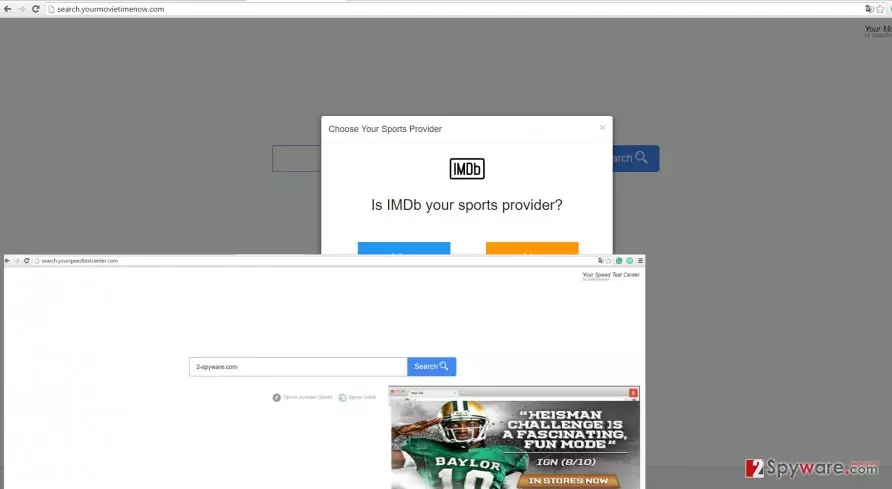
In fact, it is likely that you will end up in a page supported by one of Safer Browser sponsors. Specifically, after clicking the button which is supposed to direct you to Youtube, you find yourself in a suspicious site rottentomatoes.com. This domain seems to update you of the movie release dates. Moreover, it uses cookies to track your presence. Do not brush away the idea that such domain might be secretly enhanced with malignant files and programs. After you pay a visit to this web page, you might get infected with one or two viruses. Before it happens, remove search.yourmovietimenow.com from the PC.
Like other PUPs of this sort, this search engine also tracks your online activity. Your Movie Time Now hijacker employs cookies and other spying techniques to collect information about your frequent search entries, browsing history and IP address. In contrast to legitimate search engine, search.yourmovietimenow.com browser hijacker might share this non-personally identifiable information with the mentioned anonymous online companies. As a result, your browser might be loaded with customized advertisements.
The transmission of the hijacker
Most likely, search.yourmovietimenow.com browser hijacker might have slipped into your computer whe you recklessly installed a free media player or movie streaming application. Since the creators of unwnated programs try to disguise their programs, you might have overlooked the tiny attachemnt which hid the hijacker. Thus, within few minutes search.yourmovietimenow.com hijack occurred. If you are interested in how you can prevent any PUP from entering your computer, keep in mind these recommendations. First of all, choose “Custom” settings. After that, watch for any add-ons which are of any suspicion. Only after you unmark them, finish the installation wizard.
How should I remove search.yourmovietimenow.com properly?
It is not difficult to delete the hijacker if you employ an anti-spyware program. Download and install the newest version of the security application. You can be sure that it will perform search.yourmovietimenow.com removal completely and quickly. You can also get rid of the hijacker manually. Be careful and attentive not miss any vital detail. It is of high importance to eliminate Search.yourmovietimenow.com virus properly. If you do not feel confident enough, use the automatic removal option.
Uninstall from Windows
Uninstall from Windows 10/8:
- Type Control Panel into the Windows search box and open the result.
- Under Programs, select Uninstall a program.


Uninstall from Windows 7/XP:
- Click on Windows Start > Control Panel (Windows XP users should click on Add/Remove Programs).
- In Control Panel, select Programs > Uninstall a program.


Remove the unwanted program:
- In the Programs and Features window, look for any recently installed suspicious entries, select them, and click Uninstall.
- If User Account Control appears, click Yes to confirm, then complete the removal.


Delete from macOS
Remove the unwanted application:
- From the menu bar, select Go > Applications.
- In the Applications folder, look for any suspicious entries, then drag them to Trash (or right-click and pick Move to Trash).


Delete leftover files and folders:
- Select Go > Go to Folder.
- Enter /Library/Application Support and remove any suspicious folders related to the unwanted program.
- Repeat the same check in the /Library/LaunchAgents and /Library/LaunchDaemons folders, deleting any suspicious entries.

- Finally, empty the Trash to permanently remove the leftovers.

Remove from Microsoft Edge
Delete unwanted extensions from MS Edge:
- Select Menu (three horizontal dots at the top-right of the browser window) and pick Extensions.
- From the list, pick the extension and click on the Gear icon.
- Click Remove.


Clear cookies and other browser data:
- Click on the Menu (three horizontal dots at the top-right of the browser window) and select Settings > Privacy, search, and services..
- Under Clear browsing data, pick Choose what to clear.
- Select Cookies and other site data and Cached images and files. (apart from passwords, although you might want to include Media licenses as well, if applicable) and click on Clear.


Restore new tab and homepage settings:
- Click the menu icon and choose Settings.
- Then find On startup section.
- Click Remove next to any suspicious startup page.
Reset MS Edge if the above steps did not work:
- Press on Ctrl + Shift + Esc to open Task Manager.
- Click on More details arrow at the bottom of the window.
- Select Details tab.
- Now scroll down and locate every entry with Microsoft Edge name in it. Right-click on each of them and select End Task to stop MS Edge from running.


Instructions for Chromium-based Edge
Delete extensions from MS Edge (Chromium):
- Open Edge and click select Settings > Extensions.
- Delete unwanted extensions by clicking Remove.


Clear cache and site data:
- Click on Menu and go to Settings.
- Select Privacy, search and services.
- Under Clear browsing data, pick Choose what to clear.
- Under Time range, pick All time.
- Select Clear now.


Reset Chromium-based MS Edge:
- Click on Menu and select Settings.
- On the left side, pick Reset settings.
- Select Restore settings to their default values.
- Confirm with Reset.
- This will disable extensions and reset startup pages but will not delete bookmarks, saved passwords, or browsing history.


Remove from Mozilla Firefox (FF)
Remove dangerous extensions:
- Open Mozilla Firefox browser and click on the Menu (three horizontal lines at the top-right of the window).
- Select Add-ons.
- In here, select the unwanted extension and click Remove.


Reset the homepage:
- Click three horizontal lines at the top right corner to open the menu.
- Choose Settings.
- Under Home, set your preferred homepage and new tab settings.
Clear cookies and site data:
- Click Menu and pick Settings.
- Go to Privacy & Security section.
- Scroll down to locate Cookies and Site Data.
- Click on Clear Data...
- Select Cookies and Site Data and Temporary cached files and pages, then click Clear.


Reset Mozilla Firefox
If clearing the browser as explained above did not help, reset Mozilla Firefox:
- Open Mozilla Firefox browser and click the Menu.
- Go to Help and then choose Troubleshooting Information.

- Under Give Firefox a tune up section, click on Refresh Firefox...
- Once the pop-up shows up, confirm the action by pressing on Refresh Firefox.



Remove from Google Chrome
Delete malicious extensions from Google Chrome:
- Open Google Chrome, click on the Menu (three vertical dots at the top-right corner) and select More tools > Extensions.
- In the newly opened window, you will see all the installed extensions. Uninstall all suspicious extensions related to the unwanted program by clicking Remove.


Clear cache and web data from Chrome:
- Click on Menu and pick Settings.
- Under Privacy and security, select Clear browsing data.
- Select Browsing history, Cookies and other site data, as well as Cached images and files.
- Click Clear data.


Change your homepage:
- Click menu and choose Settings.
- Look for a suspicious site in the On startup section.
- Click on Open a specific or set of pages and click on three dots to find the Remove option.
Reset Google Chrome:
If the previous methods did not help you, reset Google Chrome to eliminate all the unwanted components:
- Click on Menu and select Settings.
- In the Settings, scroll down and click Advanced.
- Scroll down and locate Reset and clean up section.
- Now click Restore settings to their original defaults.
- Confirm with Reset settings.


Delete from Safari
Remove dangerous extensions:
- Open Safari, click Safari in the menu at the top-left of the screen, and select Preferences.
- Go to the Extensions tab, look for any suspicious entries, and click Uninstall to remove them.


Clear history and website data:
- Click Safari in the menu and pick Clear History.
- Set Clear to all history and confirm with Clear History.


Reset Safari:
- Click Safari in the menu and select Preferences > Advanced.
- Enable Show Develop menu in menu bar.
- From the menu bar, click Develop and select Empty Caches.


Did this guide help?
3 comments
Colin
This search provider is useless.
Faye
I’m getting back to my previous browsing tool.
Demi
What is this rootentomatoes.com website?