

Review of search.funcybertabsearch.com virus
There is a wide variety of search engines for those who want to liven up their browsing experiences. If you are thinking of setting search.funcybertabsearch.com virus as your main search engine, we would like to discourage from doing this. Though you may not suspect it from the first glance, this browsing tool is deemed as a browser hijacker. Search.funcybertabsearch.com may also act aggressively. It tends to occupy browsers and replace former homepages with its own. What is more, it intrusively redirects you to highly questionable domains. These outcomes should not be ignored since they may also cause more problems. Find out why this search engine should not inhabit your operating system and get acquainted with search.funcybertabsearch.com removal options.
Imali Ltd is the name of the company which you should keep your distance.This online legal entity has already made itself prominent for continuously publishing countless of suspicious and questionable search engines. In previous years, the distinctive feature of their browser hijacker was ridiculously long URL domain names. Secondly, the owners tried to appeal to users by enhancing their search providers with optional functions. Search.funcybertabsearch.com browser hijacker is no exception as well. It delivers the probability to access shopping sites, social networks and email accounts right from the front page.
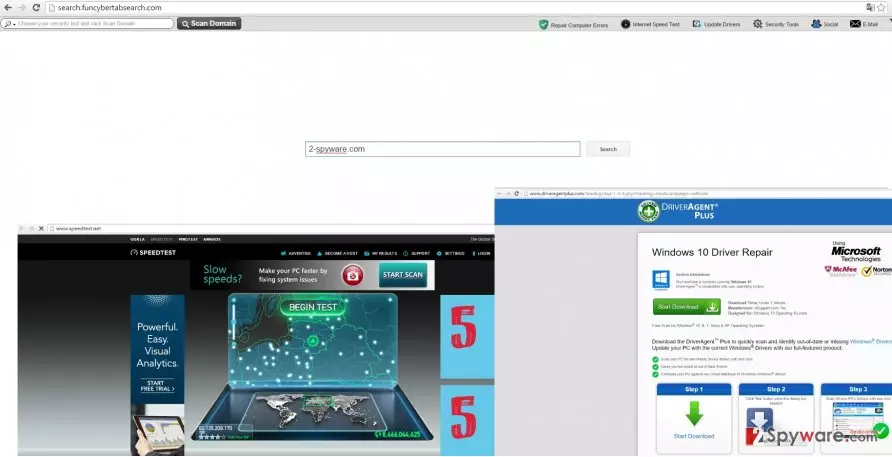
In addition, it offers to visit the web pages which suggest installing security programs and other various PC optimization tools. You should not forget the fact that this search engine is supported by third-parties. Regarding the content of these promoted third-parties, we discourage you from installing anything from Funcy Bertab Search partners. These security programs may be useless tools which act more like scareware by triggering constant system alerts and offering to purchase the full version. It is only a waste of money. What is more, you never know if these malware removal tools are not “enhanced” by malware themselves.
Furthermore, search.funcybertabsearch.com redirect becomes a bothersome problem within a while. The redirect pages may not be advertising or gambling sites but gaming or very pornographic domains as well. The latter often shelter highly aggressive malware and viruses. If they happen to get a liking of your operating system, there might be a series of significantly troublesome outcomes. The least of them is a system crash. Thus, do not waste time and remove search.funcybertabsearch.com. Install FortectIntego to speed up the elimination process.
The distribution techniques of the hijacker
It targets users’ computers through free programs. Few users read installation guides. Thus, scammers are aware of this and pin down the hijacker under “Recommended” settings to popular freeware. Once users select the latter settings and the hit the “Install” button, they unintentionally install the hijacker as well. If you want to escape search.funcybertabsearch.com hijack in the future, opt for “Advanced” settings. Only when you are sure that no unnecessary add-ons will be installed, start the installation of the primary program.
Search.funcybertabsearch.com removal guide
The most effective and reliable way to eliminate search.funcybertabsearch.com virus is to opt for automatic elimination. The anti-spyware program will take care of the hijacker within a moment. Moreover, while the software protects your operating system, you can safely surf the Web without any worries. In addition, you can also remove search.funcybertabsearch.com manually. Follow the guidelines with utmost precision and cautiousness. It is of vital importance not to miss any files which might create loopholes for future infections.
Uninstall from Windows
Uninstall from Windows 10/8:
- Type Control Panel into the Windows search box and open the result.
- Under Programs, select Uninstall a program.


Uninstall from Windows 7/XP:
- Click on Windows Start > Control Panel (Windows XP users should click on Add/Remove Programs).
- In Control Panel, select Programs > Uninstall a program.


Remove the unwanted program:
- In the Programs and Features window, look for any recently installed suspicious entries, select them, and click Uninstall.
- If User Account Control appears, click Yes to confirm, then complete the removal.


Delete from macOS
Remove the unwanted application:
- From the menu bar, select Go > Applications.
- In the Applications folder, look for any suspicious entries, then drag them to Trash (or right-click and pick Move to Trash).


Delete leftover files and folders:
- Select Go > Go to Folder.
- Enter /Library/Application Support and remove any suspicious folders related to the unwanted program.
- Repeat the same check in the /Library/LaunchAgents and /Library/LaunchDaemons folders, deleting any suspicious entries.

- Finally, empty the Trash to permanently remove the leftovers.

Remove from Microsoft Edge
Delete unwanted extensions from MS Edge:
- Select Menu (three horizontal dots at the top-right of the browser window) and pick Extensions.
- From the list, pick the extension and click on the Gear icon.
- Click Remove.


Clear cookies and other browser data:
- Click on the Menu (three horizontal dots at the top-right of the browser window) and select Settings > Privacy, search, and services..
- Under Clear browsing data, pick Choose what to clear.
- Select Cookies and other site data and Cached images and files. (apart from passwords, although you might want to include Media licenses as well, if applicable) and click on Clear.


Restore new tab and homepage settings:
- Click the menu icon and choose Settings.
- Then find On startup section.
- Click Remove next to any suspicious startup page.
Reset MS Edge if the above steps did not work:
- Press on Ctrl + Shift + Esc to open Task Manager.
- Click on More details arrow at the bottom of the window.
- Select Details tab.
- Now scroll down and locate every entry with Microsoft Edge name in it. Right-click on each of them and select End Task to stop MS Edge from running.


Instructions for Chromium-based Edge
Delete extensions from MS Edge (Chromium):
- Open Edge and click select Settings > Extensions.
- Delete unwanted extensions by clicking Remove.


Clear cache and site data:
- Click on Menu and go to Settings.
- Select Privacy, search and services.
- Under Clear browsing data, pick Choose what to clear.
- Under Time range, pick All time.
- Select Clear now.


Reset Chromium-based MS Edge:
- Click on Menu and select Settings.
- On the left side, pick Reset settings.
- Select Restore settings to their default values.
- Confirm with Reset.
- This will disable extensions and reset startup pages but will not delete bookmarks, saved passwords, or browsing history.


Remove from Mozilla Firefox (FF)
Remove dangerous extensions:
- Open Mozilla Firefox browser and click on the Menu (three horizontal lines at the top-right of the window).
- Select Add-ons.
- In here, select the unwanted extension and click Remove.


Reset the homepage:
- Click three horizontal lines at the top right corner to open the menu.
- Choose Settings.
- Under Home, set your preferred homepage and new tab settings.
Clear cookies and site data:
- Click Menu and pick Settings.
- Go to Privacy & Security section.
- Scroll down to locate Cookies and Site Data.
- Click on Clear Data...
- Select Cookies and Site Data and Temporary cached files and pages, then click Clear.


Reset Mozilla Firefox
If clearing the browser as explained above did not help, reset Mozilla Firefox:
- Open Mozilla Firefox browser and click the Menu.
- Go to Help and then choose Troubleshooting Information.

- Under Give Firefox a tune up section, click on Refresh Firefox...
- Once the pop-up shows up, confirm the action by pressing on Refresh Firefox.



Remove from Google Chrome
Delete malicious extensions from Google Chrome:
- Open Google Chrome, click on the Menu (three vertical dots at the top-right corner) and select More tools > Extensions.
- In the newly opened window, you will see all the installed extensions. Uninstall all suspicious extensions related to the unwanted program by clicking Remove.


Clear cache and web data from Chrome:
- Click on Menu and pick Settings.
- Under Privacy and security, select Clear browsing data.
- Select Browsing history, Cookies and other site data, as well as Cached images and files.
- Click Clear data.


Change your homepage:
- Click menu and choose Settings.
- Look for a suspicious site in the On startup section.
- Click on Open a specific or set of pages and click on three dots to find the Remove option.
Reset Google Chrome:
If the previous methods did not help you, reset Google Chrome to eliminate all the unwanted components:
- Click on Menu and select Settings.
- In the Settings, scroll down and click Advanced.
- Scroll down and locate Reset and clean up section.
- Now click Restore settings to their original defaults.
- Confirm with Reset settings.


Delete from Safari
Remove dangerous extensions:
- Open Safari, click Safari in the menu at the top-left of the screen, and select Preferences.
- Go to the Extensions tab, look for any suspicious entries, and click Uninstall to remove them.


Clear history and website data:
- Click Safari in the menu and pick Clear History.
- Set Clear to all history and confirm with Clear History.


Reset Safari:
- Click Safari in the menu and select Preferences > Advanced.
- Enable Show Develop menu in menu bar.
- From the menu bar, click Develop and select Empty Caches.


Did this guide help?
3 comments
Rick
I installed some fishy driver updater from the website recommended by this hijacker. It kept showing notification of outdated software!
Amanda
At least, it‘s not troublesome to get rid of it.
MandyS
It really invaded my PC! Didn‘t even notice when it hijacked my browser.