

What is Urban-Search.com virus?
Be careful if Urban-Search.com replaces your homepage, because it is a sign that Urban-Search.com browser hijacker (by Radical Lab) has entered your computer recently. Although many computer users who install it refer to it as a virus, it is better known as a potentially unwanted program (PUP) among computer security specialists. This PUP changes browser settings in its favor and sets the aforementioned URL as a startup page, and also as a default search engine.
If safety online is something that you care about, you should delete this browser hijacker from your computer immediately. We have discovered that this dubious application causes web redirects to suspicious Internet websites whenever the user clicks on the search results. It opens websites that ask to sign up for questionable memberships to receive big awards, or trigger scary messages saying that the user has to scan its computer for threats. Urban-Search ads can be misleading and deceptive, and you should NOT rely on them. Urban-Search.com redirects can make you visit various Internet websites, and some of them can be extremely dangerous. If you still want to use it, then we have to warn you that there are a few copies of this browser hijacker, which act the exact same way and cause suspicious redirects. The question is, why would someone create multiple programs that look and act the same? The answer is, the author of Urban-Search.com, MyBestVideoSearch.com, and Search-nowlive700.com browser hijackers wants to generate pay-per-click revenue, and that is why it creates identical programs with different names. Each of these PUPs is meant to alter browsers’ settings to replace new tab page, homepage and default search engine settings as well as to trigger redirects to affiliate websites and promote them.
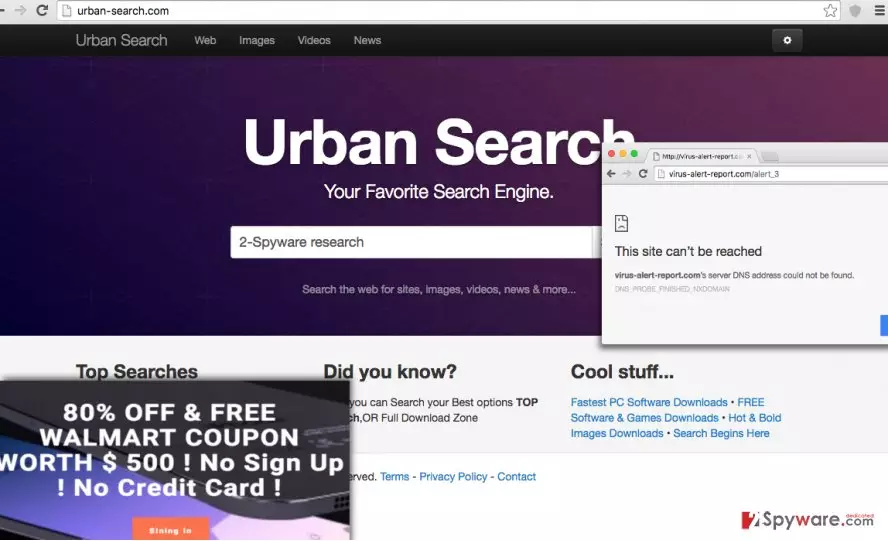
If you are still not convinced, then you should read Privacy Policy, which can be found on that questionable website. Turns out, this suspicious browser hijacker inserts tracking cookies to collect user’s search queries, watch how much time he/she spends on certain Internet websites, and what links does he/she click on. According to Radical Lab company, they need such information to deliver more relevant search results and ads. However, it seems that this company only wants to improve advertising revenue than to provide relevant search results or ads to the user. We believe that this search engine is highly untrustworthy; therefore, we advise you to remove Urban-Search.com from your computer.
How to prevent Urban-Search.com hijack?
This PUP spreads like any other browser hijacker or adware-type program, and it means that it travels alongside freeware and shareware. If you do not want to have it on your computer system, you have to install programs carefully. This is how you should do it:
- Download programs ONLY from secure websites. Avoid shady file sharing networks and download sites that provide millions of untrustworthy files;
- Once you have downloaded your selected program, check its reliability. Read its Privacy Policy and Terms of Use documents;
- Set proper settings for the installation. Avoid choosing Default or Standard settings, as these typically conceal all information about optional components. To see them and to refuse to install them, choose Custom or Advanced settings.
How to remove Urban-Search.com?
You will quickly remove Urban-Search.com virus if you have at least basic computer skills. We have prepared a comprehensive guide for those who do not know how to uninstall this program. You will find these Urban-Search.com removal instructions below. As we have mentioned before, you can also remove this low-level computer threat automatically, but for that, you will need to install an anti-spyware program.
Uninstall from Windows
Uninstall from Windows 10/8:
- Type Control Panel into the Windows search box and open the result.
- Under Programs, select Uninstall a program.


Uninstall from Windows 7/XP:
- Click on Windows Start > Control Panel (Windows XP users should click on Add/Remove Programs).
- In Control Panel, select Programs > Uninstall a program.


Remove the unwanted program:
- In the Programs and Features window, look for any recently installed suspicious entries, select them, and click Uninstall.
- If User Account Control appears, click Yes to confirm, then complete the removal.


Delete from macOS
Remove the unwanted application:
- From the menu bar, select Go > Applications.
- In the Applications folder, look for any suspicious entries, then drag them to Trash (or right-click and pick Move to Trash).


Delete leftover files and folders:
- Select Go > Go to Folder.
- Enter /Library/Application Support and remove any suspicious folders related to the unwanted program.
- Repeat the same check in the /Library/LaunchAgents and /Library/LaunchDaemons folders, deleting any suspicious entries.

- Finally, empty the Trash to permanently remove the leftovers.

Remove from Microsoft Edge
Delete unwanted extensions from MS Edge:
- Select Menu (three horizontal dots at the top-right of the browser window) and pick Extensions.
- From the list, pick the extension and click on the Gear icon.
- Click Remove.


Clear cookies and other browser data:
- Click on the Menu (three horizontal dots at the top-right of the browser window) and select Settings > Privacy, search, and services..
- Under Clear browsing data, pick Choose what to clear.
- Select Cookies and other site data and Cached images and files. (apart from passwords, although you might want to include Media licenses as well, if applicable) and click on Clear.


Restore new tab and homepage settings:
- Click the menu icon and choose Settings.
- Then find On startup section.
- Click Remove next to any suspicious startup page.
Reset MS Edge if the above steps did not work:
- Press on Ctrl + Shift + Esc to open Task Manager.
- Click on More details arrow at the bottom of the window.
- Select Details tab.
- Now scroll down and locate every entry with Microsoft Edge name in it. Right-click on each of them and select End Task to stop MS Edge from running.


Instructions for Chromium-based Edge
Delete extensions from MS Edge (Chromium):
- Open Edge and click select Settings > Extensions.
- Delete unwanted extensions by clicking Remove.


Clear cache and site data:
- Click on Menu and go to Settings.
- Select Privacy, search and services.
- Under Clear browsing data, pick Choose what to clear.
- Under Time range, pick All time.
- Select Clear now.


Reset Chromium-based MS Edge:
- Click on Menu and select Settings.
- On the left side, pick Reset settings.
- Select Restore settings to their default values.
- Confirm with Reset.
- This will disable extensions and reset startup pages but will not delete bookmarks, saved passwords, or browsing history.


Remove from Mozilla Firefox (FF)
Remove dangerous extensions:
- Open Mozilla Firefox browser and click on the Menu (three horizontal lines at the top-right of the window).
- Select Add-ons.
- In here, select the unwanted extension and click Remove.


Reset the homepage:
- Click three horizontal lines at the top right corner to open the menu.
- Choose Settings.
- Under Home, set your preferred homepage and new tab settings.
Clear cookies and site data:
- Click Menu and pick Settings.
- Go to Privacy & Security section.
- Scroll down to locate Cookies and Site Data.
- Click on Clear Data...
- Select Cookies and Site Data and Temporary cached files and pages, then click Clear.


Reset Mozilla Firefox
If clearing the browser as explained above did not help, reset Mozilla Firefox:
- Open Mozilla Firefox browser and click the Menu.
- Go to Help and then choose Troubleshooting Information.

- Under Give Firefox a tune up section, click on Refresh Firefox...
- Once the pop-up shows up, confirm the action by pressing on Refresh Firefox.



Remove from Google Chrome
Delete malicious extensions from Google Chrome:
- Open Google Chrome, click on the Menu (three vertical dots at the top-right corner) and select More tools > Extensions.
- In the newly opened window, you will see all the installed extensions. Uninstall all suspicious extensions related to the unwanted program by clicking Remove.


Clear cache and web data from Chrome:
- Click on Menu and pick Settings.
- Under Privacy and security, select Clear browsing data.
- Select Browsing history, Cookies and other site data, as well as Cached images and files.
- Click Clear data.


Change your homepage:
- Click menu and choose Settings.
- Look for a suspicious site in the On startup section.
- Click on Open a specific or set of pages and click on three dots to find the Remove option.
Reset Google Chrome:
If the previous methods did not help you, reset Google Chrome to eliminate all the unwanted components:
- Click on Menu and select Settings.
- In the Settings, scroll down and click Advanced.
- Scroll down and locate Reset and clean up section.
- Now click Restore settings to their original defaults.
- Confirm with Reset settings.


Delete from Safari
Remove dangerous extensions:
- Open Safari, click Safari in the menu at the top-left of the screen, and select Preferences.
- Go to the Extensions tab, look for any suspicious entries, and click Uninstall to remove them.


Clear history and website data:
- Click Safari in the menu and pick Clear History.
- Set Clear to all history and confirm with Clear History.


Reset Safari:
- Click Safari in the menu and select Preferences > Advanced.
- Enable Show Develop menu in menu bar.
- From the menu bar, click Develop and select Empty Caches.


Did this guide help?
4 comments
Zett
Really helpful - actually, I did uninstall Urban-Search.com hijacker with my own hands! I am feeling proud now!
Kate89
This virus keeps redirecting me to bestofferonlineusa.com/landing_link/. Why??
Amb3err
I have experienced redirects to that site too, but this browser hijacker also promotes virus-alert-report.com/alert_6h! These sites seem scammy to me
maracco
thanks god I have got rid of this...