

How can you avoid this annoying Sports Hero virus?
Despite how you much love sports, Sports Hero virus shortly becomes a real pain in the neck. For a while, you might not even suspect that the PUP has slipped into your operating system. This is due to the fact that this program is deemed as adware. Thus, a series of highly irritating consequences will surface. Since the title speaks for itself, your browser will be assaulted with a vivid load of sports-related and other commercial offers, banners, coupons, etc. These pop-ups not only distract your attention while you are browsing but due to their emergence, your PC and browser might become sluggish. Thirdly, you may only imagine what kind of programs Sports Hero covertly installs on the computer within its time of residence on the device. In general, no adware should be present on your computer. Remove Sports Hero virus with the help of FortectIntego.
Originally, this program might be located on its official website. It is offered as a browser plug-in, enabling you to access the hot news from the sports world. It helps the passionate sports watchers to access the football, baseball, basketball and other major sports websites right from the search engine. What is more, the adware is together promoted with search.mysearch.com. Despite its looks, the latter is promoted as a search engine. However, it is a creation of the same company which specializes in creating browser hijackers. If you install this plug-in or one of its browser hijackers, for example, MySearch DS-3, get prepared for a series of unpleasant outcomes. Getting back to the adware, do not get tempted to install it despite its promoted qualities to update you with the latest sensations from the football and baseball world. Along with the news, Sports Hero redirect will bother you to the point that you might lose your temper.
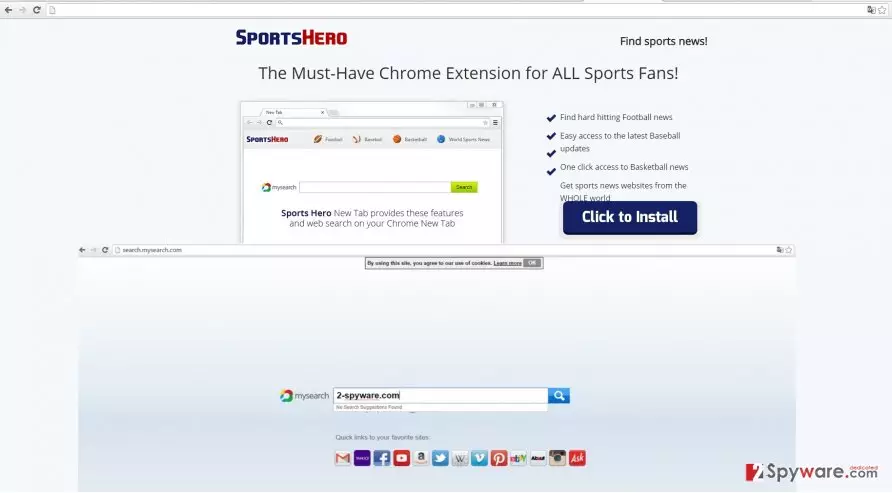
Once you install the program, you will notice that it significantly disturbs your browsing. Instead of reaching the wanted website quickly, you might need to cancel several redirects. Do not get carried away and avoid visiting the redirect domains since they might shelter viruses or other unknown malware. While the adware stays on the computer, you might notice that other suspicious adware-type programs start piling on the system. Rarely they are potentially malicious, but they greatly diminish the overall PC performance. Moreover, due to them, you might not only notice more Sports Hero ads but other intrusive commercial offers.
How did the adware appear PC?
The adware travels similarly like other PUPs of this kind. It clings to free applications. The majority of users tend to overlook small attachments which come along with the main application. Thus, it does not take much time for Sports Hero hijack to happen. Likewise, the PUP invades thousands of computers, and users are left with the puzzle of how the program got into their computers in the first place. If you do not intend to repeat the same mistake again, change your habits of installing new applications. Choose “Advanced” settings. After that, make sure you unmark all add-ons which are about to be installed along with the primary software.
Sports Hero removal steps
Just for saving time, install an anti-spyware program to do all the work for you. You can be sure that your will be able to browse safely again after the software eliminates Sports Hero virus completely. In addition, you can get rid of the PUP on your own. Go through each stage of the manual instructions carefully not to miss any important detail. Precision and attention are vital if you want to remove Sports Hero without leaving any traces. Finally, install new applications only from their official websites and take an attentive look at the installation wizard to spot any unwanted programs.
Uninstall from Windows
Uninstall from Windows 10/8:
- Type Control Panel into the Windows search box and open the result.
- Under Programs, select Uninstall a program.


Uninstall from Windows 7/XP:
- Click on Windows Start > Control Panel (Windows XP users should click on Add/Remove Programs).
- In Control Panel, select Programs > Uninstall a program.


Remove the unwanted program:
- In the Programs and Features window, look for any recently installed suspicious entries, select them, and click Uninstall.
- If User Account Control appears, click Yes to confirm, then complete the removal.


Delete from macOS
Remove the unwanted application:
- From the menu bar, select Go > Applications.
- In the Applications folder, look for any suspicious entries, then drag them to Trash (or right-click and pick Move to Trash).


Delete leftover files and folders:
- Select Go > Go to Folder.
- Enter /Library/Application Support and remove any suspicious folders related to the unwanted program.
- Repeat the same check in the /Library/LaunchAgents and /Library/LaunchDaemons folders, deleting any suspicious entries.

- Finally, empty the Trash to permanently remove the leftovers.

Remove from Microsoft Edge
Delete unwanted extensions from MS Edge:
- Select Menu (three horizontal dots at the top-right of the browser window) and pick Extensions.
- From the list, pick the extension and click on the Gear icon.
- Click Remove.


Clear cookies and other browser data:
- Click on the Menu (three horizontal dots at the top-right of the browser window) and select Settings > Privacy, search, and services..
- Under Clear browsing data, pick Choose what to clear.
- Select Cookies and other site data and Cached images and files. (apart from passwords, although you might want to include Media licenses as well, if applicable) and click on Clear.


Restore new tab and homepage settings:
- Click the menu icon and choose Settings.
- Then find On startup section.
- Click Remove next to any suspicious startup page.
Reset MS Edge if the above steps did not work:
- Press on Ctrl + Shift + Esc to open Task Manager.
- Click on More details arrow at the bottom of the window.
- Select Details tab.
- Now scroll down and locate every entry with Microsoft Edge name in it. Right-click on each of them and select End Task to stop MS Edge from running.


Instructions for Chromium-based Edge
Delete extensions from MS Edge (Chromium):
- Open Edge and click select Settings > Extensions.
- Delete unwanted extensions by clicking Remove.


Clear cache and site data:
- Click on Menu and go to Settings.
- Select Privacy, search and services.
- Under Clear browsing data, pick Choose what to clear.
- Under Time range, pick All time.
- Select Clear now.


Reset Chromium-based MS Edge:
- Click on Menu and select Settings.
- On the left side, pick Reset settings.
- Select Restore settings to their default values.
- Confirm with Reset.
- This will disable extensions and reset startup pages but will not delete bookmarks, saved passwords, or browsing history.


Remove from Mozilla Firefox (FF)
Remove dangerous extensions:
- Open Mozilla Firefox browser and click on the Menu (three horizontal lines at the top-right of the window).
- Select Add-ons.
- In here, select the unwanted extension and click Remove.


Reset the homepage:
- Click three horizontal lines at the top right corner to open the menu.
- Choose Settings.
- Under Home, set your preferred homepage and new tab settings.
Clear cookies and site data:
- Click Menu and pick Settings.
- Go to Privacy & Security section.
- Scroll down to locate Cookies and Site Data.
- Click on Clear Data...
- Select Cookies and Site Data and Temporary cached files and pages, then click Clear.


Reset Mozilla Firefox
If clearing the browser as explained above did not help, reset Mozilla Firefox:
- Open Mozilla Firefox browser and click the Menu.
- Go to Help and then choose Troubleshooting Information.

- Under Give Firefox a tune up section, click on Refresh Firefox...
- Once the pop-up shows up, confirm the action by pressing on Refresh Firefox.



Remove from Google Chrome
Delete malicious extensions from Google Chrome:
- Open Google Chrome, click on the Menu (three vertical dots at the top-right corner) and select More tools > Extensions.
- In the newly opened window, you will see all the installed extensions. Uninstall all suspicious extensions related to the unwanted program by clicking Remove.


Clear cache and web data from Chrome:
- Click on Menu and pick Settings.
- Under Privacy and security, select Clear browsing data.
- Select Browsing history, Cookies and other site data, as well as Cached images and files.
- Click Clear data.


Change your homepage:
- Click menu and choose Settings.
- Look for a suspicious site in the On startup section.
- Click on Open a specific or set of pages and click on three dots to find the Remove option.
Reset Google Chrome:
If the previous methods did not help you, reset Google Chrome to eliminate all the unwanted components:
- Click on Menu and select Settings.
- In the Settings, scroll down and click Advanced.
- Scroll down and locate Reset and clean up section.
- Now click Restore settings to their original defaults.
- Confirm with Reset settings.


Delete from Safari
Remove dangerous extensions:
- Open Safari, click Safari in the menu at the top-left of the screen, and select Preferences.
- Go to the Extensions tab, look for any suspicious entries, and click Uninstall to remove them.


Clear history and website data:
- Click Safari in the menu and pick Clear History.
- Set Clear to all history and confirm with Clear History.


Reset Safari:
- Click Safari in the menu and select Preferences > Advanced.
- Enable Show Develop menu in menu bar.
- From the menu bar, click Develop and select Empty Caches.


Did this guide help?
3 comments
Jensen
Just strike it into the trash bin.
Maggie
Once, my PC was infected with that search.mysearch...hijacker...what a nasty virus!
Kelly
I need to remove those pop-ups at once....