

The review of youfind.online virus
Youfind.online virus should not be treated lightly. Few users find it pleasant when their browsers unexpectedly get occupied by an unknown search engine. This browsing tool falls into the category of browser hijackers. Their common features come in the form of redirects and the excessive advertising. In addition, the majority of them collects a significant amount of non-personal information which might be traded with unknown online companies. If you want to remove Youfind.online of it, keep reading the following sections.
In case you decided to refresh your browsing by shifting to a new search engine, it is not surprising if you have encountered this browser hijacker. At first glance, this browsing tool does not differ much from the legitimate ones, such as Google. Nonetheless, after some time, the cards are revealed. The increasing amount of emerging unknown redirect websites not only slow down the overall browsing process but might make you blow a fuse as well. Youfind.online redirect problem becomes too irritating when you try to reach the required destination but instead you are misled to another advertising or gambling web page. What is more, you are lucky if that domain is secure. In most cases, similar websites shelter minor malicious files and viruses which do their work by causing operating system malfunctions. Needless to say, canceling those redirect pop-ups might become a tiresome job as well.
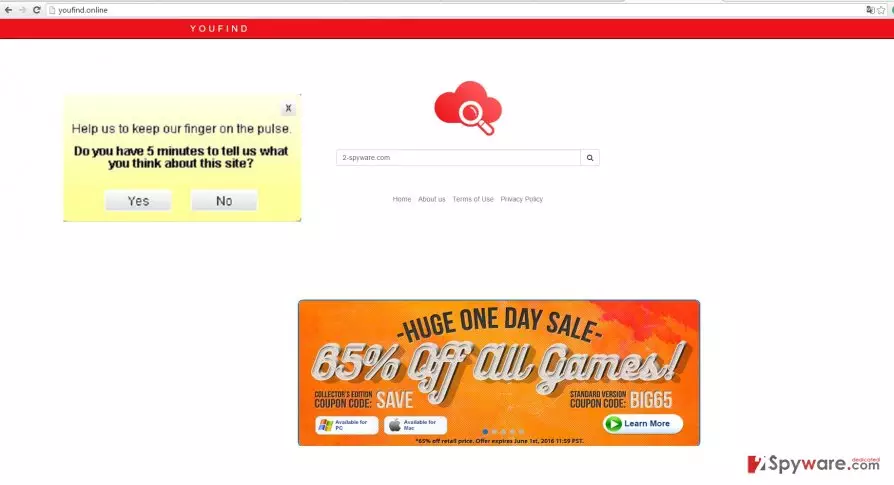
If you take a look at the privacy policy of youfind.online, you might find interesting and valuable information. This browser hijacker seems to be the property of Webcore1. It is mentioned that this online company might collect information about you from other websites monitored by this company. However, it is not known how many other browser hijackers or adware are roaming on the Web. Thus, you should remain vigilant. Another problem of this PUP is that it might collect both your personal and non-personal data which includes browsing history, search entries, etc. If the latter includes your name, surname, email address, get prepared for a load of spam emails in your inbox. Additionally, the website might bother you with occasional requests to fill various surveys. If you are not cautious and provide too much personal information, keep in mind that the consequences of such recklessness might turn out to be more than unpleasant. Thus, do not waste time and proceed to youfind.online removal. For that purpose, FortectIntego comes in handy.
The transmission of the hijacker
It is distributed through the same channels as other PUPs of the same kind. You might have accidentally installed yourself along with another recently installed program. Due to reckless installation, you overlooked the attachment which hid youfind.online. Thus, unintentionally you enabled the hijack. The next time you are about to download and install a new application, change the usual course of actions. Opt for “Custom” settings. Only after you are sure that no additional programs will be installed, start the installation of the primarily downloaded software.
Can I quickly remove youfind.online?
It is not troublesome to delete the hijacker if you opt for automatic elimination. The anti-spyware program will help you get rid of youfind.online virus within a few minutes. In addition, it will proof-check the device for other potential threats. If you want it to work flawlessly, update it regularly. There is also manual youfind.online removal options. Find the instructions provided below. Go through each stage carefully not to miss any essential detail. Lastly, next time you are about to install a new program or choose a new search engine, take a look at the privacy policy.
Uninstall from Windows
Uninstall from Windows 10/8:
- Type Control Panel into the Windows search box and open the result.
- Under Programs, select Uninstall a program.


Uninstall from Windows 7/XP:
- Click on Windows Start > Control Panel (Windows XP users should click on Add/Remove Programs).
- In Control Panel, select Programs > Uninstall a program.


Remove the unwanted program:
- In the Programs and Features window, look for any recently installed suspicious entries, select them, and click Uninstall.
- If User Account Control appears, click Yes to confirm, then complete the removal.


Delete from macOS
Remove the unwanted application:
- From the menu bar, select Go > Applications.
- In the Applications folder, look for any suspicious entries, then drag them to Trash (or right-click and pick Move to Trash).


Delete leftover files and folders:
- Select Go > Go to Folder.
- Enter /Library/Application Support and remove any suspicious folders related to the unwanted program.
- Repeat the same check in the /Library/LaunchAgents and /Library/LaunchDaemons folders, deleting any suspicious entries.

- Finally, empty the Trash to permanently remove the leftovers.

Remove from Microsoft Edge
Delete unwanted extensions from MS Edge:
- Select Menu (three horizontal dots at the top-right of the browser window) and pick Extensions.
- From the list, pick the extension and click on the Gear icon.
- Click Remove.


Clear cookies and other browser data:
- Click on the Menu (three horizontal dots at the top-right of the browser window) and select Settings > Privacy, search, and services..
- Under Clear browsing data, pick Choose what to clear.
- Select Cookies and other site data and Cached images and files. (apart from passwords, although you might want to include Media licenses as well, if applicable) and click on Clear.


Restore new tab and homepage settings:
- Click the menu icon and choose Settings.
- Then find On startup section.
- Click Remove next to any suspicious startup page.
Reset MS Edge if the above steps did not work:
- Press on Ctrl + Shift + Esc to open Task Manager.
- Click on More details arrow at the bottom of the window.
- Select Details tab.
- Now scroll down and locate every entry with Microsoft Edge name in it. Right-click on each of them and select End Task to stop MS Edge from running.


Instructions for Chromium-based Edge
Delete extensions from MS Edge (Chromium):
- Open Edge and click select Settings > Extensions.
- Delete unwanted extensions by clicking Remove.


Clear cache and site data:
- Click on Menu and go to Settings.
- Select Privacy, search and services.
- Under Clear browsing data, pick Choose what to clear.
- Under Time range, pick All time.
- Select Clear now.


Reset Chromium-based MS Edge:
- Click on Menu and select Settings.
- On the left side, pick Reset settings.
- Select Restore settings to their default values.
- Confirm with Reset.
- This will disable extensions and reset startup pages but will not delete bookmarks, saved passwords, or browsing history.


Remove from Mozilla Firefox (FF)
Remove dangerous extensions:
- Open Mozilla Firefox browser and click on the Menu (three horizontal lines at the top-right of the window).
- Select Add-ons.
- In here, select the unwanted extension and click Remove.


Reset the homepage:
- Click three horizontal lines at the top right corner to open the menu.
- Choose Settings.
- Under Home, set your preferred homepage and new tab settings.
Clear cookies and site data:
- Click Menu and pick Settings.
- Go to Privacy & Security section.
- Scroll down to locate Cookies and Site Data.
- Click on Clear Data...
- Select Cookies and Site Data and Temporary cached files and pages, then click Clear.


Reset Mozilla Firefox
If clearing the browser as explained above did not help, reset Mozilla Firefox:
- Open Mozilla Firefox browser and click the Menu.
- Go to Help and then choose Troubleshooting Information.

- Under Give Firefox a tune up section, click on Refresh Firefox...
- Once the pop-up shows up, confirm the action by pressing on Refresh Firefox.



Remove from Google Chrome
Delete malicious extensions from Google Chrome:
- Open Google Chrome, click on the Menu (three vertical dots at the top-right corner) and select More tools > Extensions.
- In the newly opened window, you will see all the installed extensions. Uninstall all suspicious extensions related to the unwanted program by clicking Remove.


Clear cache and web data from Chrome:
- Click on Menu and pick Settings.
- Under Privacy and security, select Clear browsing data.
- Select Browsing history, Cookies and other site data, as well as Cached images and files.
- Click Clear data.


Change your homepage:
- Click menu and choose Settings.
- Look for a suspicious site in the On startup section.
- Click on Open a specific or set of pages and click on three dots to find the Remove option.
Reset Google Chrome:
If the previous methods did not help you, reset Google Chrome to eliminate all the unwanted components:
- Click on Menu and select Settings.
- In the Settings, scroll down and click Advanced.
- Scroll down and locate Reset and clean up section.
- Now click Restore settings to their original defaults.
- Confirm with Reset settings.


Delete from Safari
Remove dangerous extensions:
- Open Safari, click Safari in the menu at the top-left of the screen, and select Preferences.
- Go to the Extensions tab, look for any suspicious entries, and click Uninstall to remove them.


Clear history and website data:
- Click Safari in the menu and pick Clear History.
- Set Clear to all history and confirm with Clear History.


Reset Safari:
- Click Safari in the menu and select Preferences > Advanced.
- Enable Show Develop menu in menu bar.
- From the menu bar, click Develop and select Empty Caches.


Did this guide help?
2 comments
Jerry45
It spies on me too much!
Dan.4.L
Why do those pop-ups keep appearing?