

What can you expect from gotosearchnow.com?
If you accidentally ran into Gotosearchnow.com virus, you should immediately exit this website. Simply because it is not a trustworthy nor a legitimate search provider, but a browser hijacker. It is capable of constantly tracking your online activities. What is more, the PUP might make you lose your temper by regularly redirecting you to highly insecure domains. Thus, these effects do not only disturb the ordinary PC processes but prevent you from finding required information quickly. This search engine belongs to the series of browser hijackers which are created by some company. All of them bear the same design but differ in name. A few of them are search123now.net, search-nowlive700.com, and searchonlineusa.com. Nothing good comes from these browsing tools. Therefore, it is high time you initiated gotosearchnow.com removal. FortectIntego will speed up the process.
Obviously, the owners of Go to Search Now try to attract users by offering to access various websites delivering tips on a health topic, suggesting music download domains and relaxing in gaming websites. However, this bait is poorly made since after clicking on them, you see only a few search results which might lead to gambling and other insecure domains. Keep in mind that if you get tempted to surf in one of those gotosearchnow.com redirect web pages, you might also unwillingly drag along the viruses lurking there. Thus, a series of highly bothersome outcomes will surface. Crashed programs in the middle of launching or occasional system error pop-ups are the examples if a virus takes over your computer.
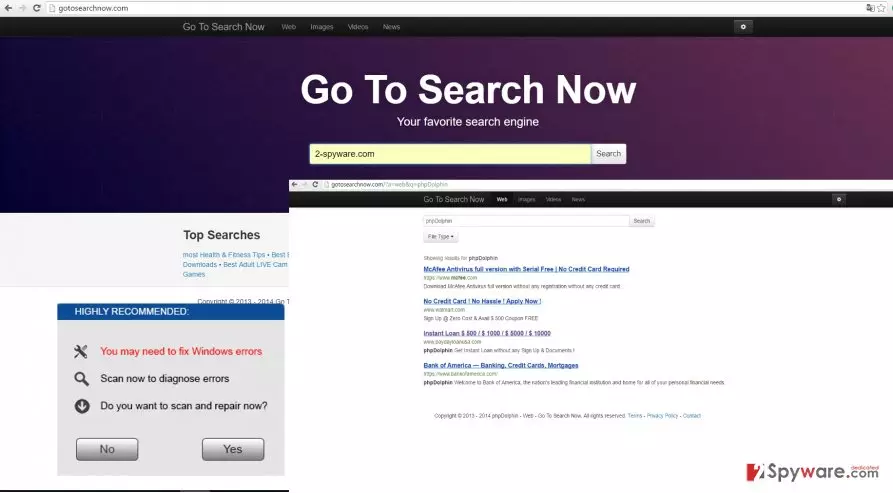
In addition, gotosearchnow.com collects non-personal information. It includes your browsing history, search entries, and IP address. This information can be shared with third-parties. Since they happen to be online advertising companies, after the receipt of your non-personal or alternatively known anonymous information, they might bombard you with a load of customized advertisements. These commercial offers have no value for those who prioritize shopping online but instead aim to attract as many views and clicks. Such activity earns income for the owners of ads. However, it bears no benefits for the recipients of these pop-ups – ordinary users. Moreover, the owners of gotosearchnow.com virus are not liable if your non-personal information includes the data which identifies you directly. After the information transfer, your Inbox might be bombarded with spam. In short, hurry up to remove gotosearchnow.com.
The transmission of the hijacker
If you regularly install new programs, this questionable search engine might slither into the PC via one of them. The PUP usually hides under “Recommended” settings. Since it is a common habit to select the latter and then hit the “Install” button, the PUP gets installed along with the primary program. By choosing “Advanced” installation mode, you will be able to spot the pre-marked checkboxes of additional programs and unwanted programs. Only after you unmark all add-ons, you can install the main program. We also recommend downloading freeware from its official websites. It will decrease the chances of installing unnecessary add-ons.
Gotosearchnow.com removal methods
There are two main options to eliminate Gotosearchnow.com virus. It is highly recommended to opt for automatic elimination. Since the program will detect and remove Gotosearchnow.com and all its files. Since the latter might have dispersed throughout the entire registry, manually locating them might be an arduous task. That is why automatic elimination turns out to be a smarter move. Alternatively, you can put an end to this malware by following manual guidelines. Find them below in this page. Lastly, bear in mind some precaution means: before installing new programs, check the installation settings. Taking a glance at the reviews is useful as well.
Uninstall from Windows
Uninstall from Windows 10/8:
- Type Control Panel into the Windows search box and open the result.
- Under Programs, select Uninstall a program.


Uninstall from Windows 7/XP:
- Click on Windows Start > Control Panel (Windows XP users should click on Add/Remove Programs).
- In Control Panel, select Programs > Uninstall a program.


Remove the unwanted program:
- In the Programs and Features window, look for any recently installed suspicious entries, select them, and click Uninstall.
- If User Account Control appears, click Yes to confirm, then complete the removal.


Delete from macOS
Remove the unwanted application:
- From the menu bar, select Go > Applications.
- In the Applications folder, look for any suspicious entries, then drag them to Trash (or right-click and pick Move to Trash).


Delete leftover files and folders:
- Select Go > Go to Folder.
- Enter /Library/Application Support and remove any suspicious folders related to the unwanted program.
- Repeat the same check in the /Library/LaunchAgents and /Library/LaunchDaemons folders, deleting any suspicious entries.

- Finally, empty the Trash to permanently remove the leftovers.

Remove from Microsoft Edge
Delete unwanted extensions from MS Edge:
- Select Menu (three horizontal dots at the top-right of the browser window) and pick Extensions.
- From the list, pick the extension and click on the Gear icon.
- Click Remove.


Clear cookies and other browser data:
- Click on the Menu (three horizontal dots at the top-right of the browser window) and select Settings > Privacy, search, and services..
- Under Clear browsing data, pick Choose what to clear.
- Select Cookies and other site data and Cached images and files. (apart from passwords, although you might want to include Media licenses as well, if applicable) and click on Clear.


Restore new tab and homepage settings:
- Click the menu icon and choose Settings.
- Then find On startup section.
- Click Remove next to any suspicious startup page.
Reset MS Edge if the above steps did not work:
- Press on Ctrl + Shift + Esc to open Task Manager.
- Click on More details arrow at the bottom of the window.
- Select Details tab.
- Now scroll down and locate every entry with Microsoft Edge name in it. Right-click on each of them and select End Task to stop MS Edge from running.


Instructions for Chromium-based Edge
Delete extensions from MS Edge (Chromium):
- Open Edge and click select Settings > Extensions.
- Delete unwanted extensions by clicking Remove.


Clear cache and site data:
- Click on Menu and go to Settings.
- Select Privacy, search and services.
- Under Clear browsing data, pick Choose what to clear.
- Under Time range, pick All time.
- Select Clear now.


Reset Chromium-based MS Edge:
- Click on Menu and select Settings.
- On the left side, pick Reset settings.
- Select Restore settings to their default values.
- Confirm with Reset.
- This will disable extensions and reset startup pages but will not delete bookmarks, saved passwords, or browsing history.


Remove from Mozilla Firefox (FF)
Remove dangerous extensions:
- Open Mozilla Firefox browser and click on the Menu (three horizontal lines at the top-right of the window).
- Select Add-ons.
- In here, select the unwanted extension and click Remove.


Reset the homepage:
- Click three horizontal lines at the top right corner to open the menu.
- Choose Settings.
- Under Home, set your preferred homepage and new tab settings.
Clear cookies and site data:
- Click Menu and pick Settings.
- Go to Privacy & Security section.
- Scroll down to locate Cookies and Site Data.
- Click on Clear Data...
- Select Cookies and Site Data and Temporary cached files and pages, then click Clear.


Reset Mozilla Firefox
If clearing the browser as explained above did not help, reset Mozilla Firefox:
- Open Mozilla Firefox browser and click the Menu.
- Go to Help and then choose Troubleshooting Information.

- Under Give Firefox a tune up section, click on Refresh Firefox...
- Once the pop-up shows up, confirm the action by pressing on Refresh Firefox.



Remove from Google Chrome
Delete malicious extensions from Google Chrome:
- Open Google Chrome, click on the Menu (three vertical dots at the top-right corner) and select More tools > Extensions.
- In the newly opened window, you will see all the installed extensions. Uninstall all suspicious extensions related to the unwanted program by clicking Remove.


Clear cache and web data from Chrome:
- Click on Menu and pick Settings.
- Under Privacy and security, select Clear browsing data.
- Select Browsing history, Cookies and other site data, as well as Cached images and files.
- Click Clear data.


Change your homepage:
- Click menu and choose Settings.
- Look for a suspicious site in the On startup section.
- Click on Open a specific or set of pages and click on three dots to find the Remove option.
Reset Google Chrome:
If the previous methods did not help you, reset Google Chrome to eliminate all the unwanted components:
- Click on Menu and select Settings.
- In the Settings, scroll down and click Advanced.
- Scroll down and locate Reset and clean up section.
- Now click Restore settings to their original defaults.
- Confirm with Reset settings.


Delete from Safari
Remove dangerous extensions:
- Open Safari, click Safari in the menu at the top-left of the screen, and select Preferences.
- Go to the Extensions tab, look for any suspicious entries, and click Uninstall to remove them.


Clear history and website data:
- Click Safari in the menu and pick Clear History.
- Set Clear to all history and confirm with Clear History.


Reset Safari:
- Click Safari in the menu and select Preferences > Advanced.
- Enable Show Develop menu in menu bar.
- From the menu bar, click Develop and select Empty Caches.


Did this guide help?
3 comments
Willy
Whats the point in making this useless search engine if it cant even show Wikipedia?
TylerMadison4578
oh..a browser hijacker again?...Nice try.
Miranda
It dragged along some questionable plug-ins too.