

Searchz.co is the website that aims to redirect users searches to commercial sites
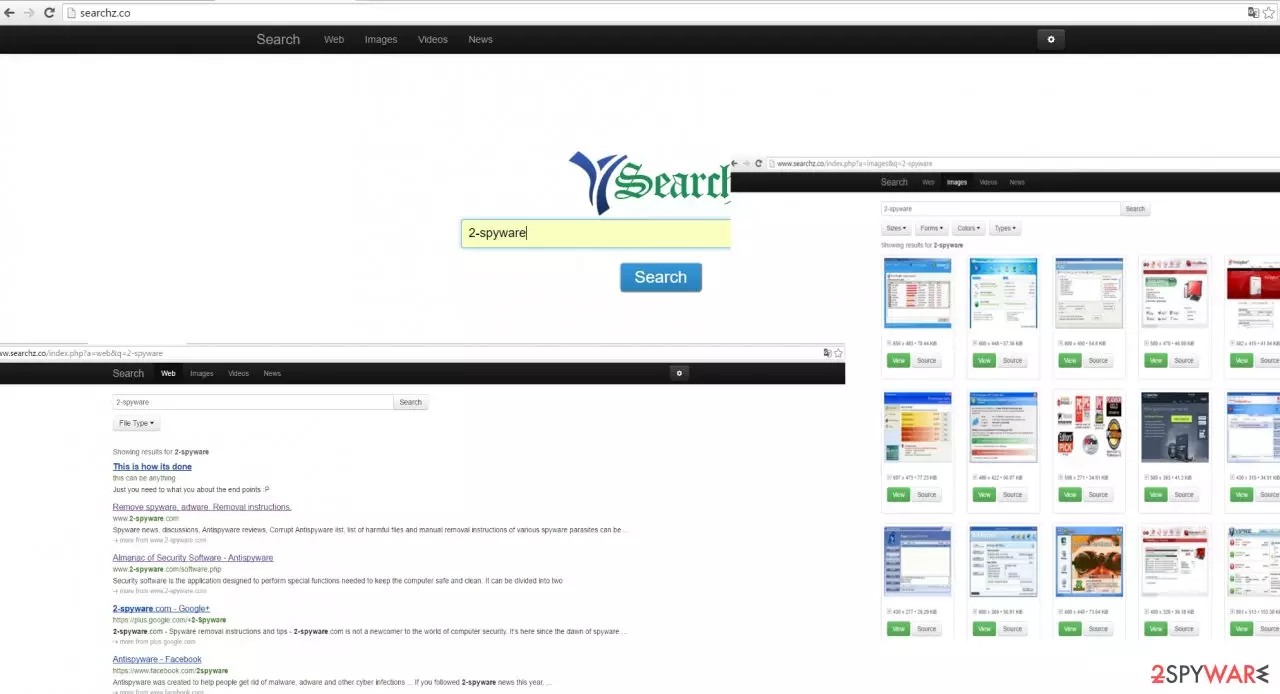
Searchz.co virus may have attracted your attention because it affects browsing activities. However, you might notice more irritating side effects. Since this search engine is a browser hijacker, a series of negative outcomes overshadow your browsing sessions [1]. Redirections to suspicious domains, altered search results, and excessive advertising significantly disturbs in acquiring necessary information quickly. In addition, you will notice an increasing number of various advertisements. If this behavior annoys you, then it is time to remove the potentially unwanted program right away.
| Name | Searchz.co |
|---|---|
| Type | Browser hijacker |
| Issues | The program triggers issues with the browser because it redirects to commercial sites, advertising platforms |
| Affects | Speed of the machine, various web browsers, can expose users to malicious content |
| Distribution | Freeware installations when software bundling is employed |
| Elimination | Removal can give the best results when anti-malware tools get used. Rely on tips and instructions below |
| Repair | Your system can be affected more due to background processes. FortectIntego can help you fic virus damage |
The main advantages of a legitimate search engine are comprehended as its ability to deliver the most relevant search results in the shortest period of time. If you have a sharp eye, you might notice that the search results provided by searchz.co differ from a usual and ordinary browsing tool, for example, Google.
What is more, if you tend to use an extension which informs you of the reliability of each website, be aware that SearchZ search engine disables it. You will not be able to identify which website is potentially dangerous [2]. Thus, the probability to enter the infected website with viruses significantly increases.
In addition, the hijacker is known for its searchz.co redirect tendency. When you attempt to visit a seemingly ordinary and legitimate search engine, you may get mislead to a completely different web page with advertising, gaming, or gambling content. Note that the latter domains are usually used as a shelter for a variety of viruses. If you tend to shop frequently, you should be especially careful when this hijacker is around [3].
Thus, for the sake of your operating system safety, try to cancel the redirect web pages immediately. Furthermore, it has been revealed that this questionable browsing tool is related to another browser hijacker – destructsrv.com. It shares the same design and properties. Thus, if you have come across either one of them, make sure not to install them or if you already did, uninstall them. Do not delay this virus removal. You can use SpyHunterCombo Cleaner or MalwarebytesMalwarebytes and remove the threat easily.
The distribution peculiarities
This sort of search engine tends to invade computers in a sly way. They exploit freeware as a disguise. In other words, they attach themselves to popular programs. Since users avoid reading the installation guide thoroughly, the tiny add-ons escape users‘ attention. Likewise, the hijack occurred. If you are willing not to repeat the same mistake again, review your actions before installing new programs.
Before clicking the “Install” button, opt for “Custom” settings. After that, look carefully through all the stages to spot any add-ons which seem irrelevant. Even if they offer you to install a well-known product do not fall for such a trick[4]. It is best to install the preferred programs from their domains directly. Only when you unmark their checkboxes, start installing the primary program.
Searchz.co elimination steps and tips
Deleting this PUP should not cause any bigger inconveniences. However, its elimination requires attention at certain points. You can remove Searchz.co both, manually and automatically. The latter method is an easier and faster way to get rid of the hijacker.
The anti-spyware program will get rid of the hijacker in a few minutes and ensure that no traces are left. If destructsrv.com hijacked your computer before, the security program will eliminate all its related files as well. In general, the malware removal utility should be an obligatory application in every computer since it strengthens the immunity of OS against diverse malware [5]. Lastly, you can check manual elimination instructions as well.
Uninstall from Windows
Uninstall from Windows 10/8:
- Type Control Panel into the Windows search box and open the result.
- Under Programs, select Uninstall a program.


Uninstall from Windows 7/XP:
- Click on Windows Start > Control Panel (Windows XP users should click on Add/Remove Programs).
- In Control Panel, select Programs > Uninstall a program.


Remove the unwanted program:
- In the Programs and Features window, look for any recently installed suspicious entries, select them, and click Uninstall.
- If User Account Control appears, click Yes to confirm, then complete the removal.


Delete from macOS
Remove the unwanted application:
- From the menu bar, select Go > Applications.
- In the Applications folder, look for any suspicious entries, then drag them to Trash (or right-click and pick Move to Trash).


Delete leftover files and folders:
- Select Go > Go to Folder.
- Enter /Library/Application Support and remove any suspicious folders related to the unwanted program.
- Repeat the same check in the /Library/LaunchAgents and /Library/LaunchDaemons folders, deleting any suspicious entries.

- Finally, empty the Trash to permanently remove the leftovers.

Remove from Microsoft Edge
Delete unwanted extensions from MS Edge:
- Select Menu (three horizontal dots at the top-right of the browser window) and pick Extensions.
- From the list, pick the extension and click on the Gear icon.
- Click Remove.


Clear cookies and other browser data:
- Click on the Menu (three horizontal dots at the top-right of the browser window) and select Settings > Privacy, search, and services..
- Under Clear browsing data, pick Choose what to clear.
- Select Cookies and other site data and Cached images and files. (apart from passwords, although you might want to include Media licenses as well, if applicable) and click on Clear.


Restore new tab and homepage settings:
- Click the menu icon and choose Settings.
- Then find On startup section.
- Click Remove next to any suspicious startup page.
Reset MS Edge if the above steps did not work:
- Press on Ctrl + Shift + Esc to open Task Manager.
- Click on More details arrow at the bottom of the window.
- Select Details tab.
- Now scroll down and locate every entry with Microsoft Edge name in it. Right-click on each of them and select End Task to stop MS Edge from running.


Instructions for Chromium-based Edge
Delete extensions from MS Edge (Chromium):
- Open Edge and click select Settings > Extensions.
- Delete unwanted extensions by clicking Remove.


Clear cache and site data:
- Click on Menu and go to Settings.
- Select Privacy, search and services.
- Under Clear browsing data, pick Choose what to clear.
- Under Time range, pick All time.
- Select Clear now.


Reset Chromium-based MS Edge:
- Click on Menu and select Settings.
- On the left side, pick Reset settings.
- Select Restore settings to their default values.
- Confirm with Reset.
- This will disable extensions and reset startup pages but will not delete bookmarks, saved passwords, or browsing history.


Remove from Mozilla Firefox (FF)
Remove dangerous extensions:
- Open Mozilla Firefox browser and click on the Menu (three horizontal lines at the top-right of the window).
- Select Add-ons.
- In here, select the unwanted extension and click Remove.


Reset the homepage:
- Click three horizontal lines at the top right corner to open the menu.
- Choose Settings.
- Under Home, set your preferred homepage and new tab settings.
Clear cookies and site data:
- Click Menu and pick Settings.
- Go to Privacy & Security section.
- Scroll down to locate Cookies and Site Data.
- Click on Clear Data...
- Select Cookies and Site Data and Temporary cached files and pages, then click Clear.


Reset Mozilla Firefox
If clearing the browser as explained above did not help, reset Mozilla Firefox:
- Open Mozilla Firefox browser and click the Menu.
- Go to Help and then choose Troubleshooting Information.

- Under Give Firefox a tune up section, click on Refresh Firefox...
- Once the pop-up shows up, confirm the action by pressing on Refresh Firefox.



Remove from Google Chrome
Delete malicious extensions from Google Chrome:
- Open Google Chrome, click on the Menu (three vertical dots at the top-right corner) and select More tools > Extensions.
- In the newly opened window, you will see all the installed extensions. Uninstall all suspicious extensions related to the unwanted program by clicking Remove.


Clear cache and web data from Chrome:
- Click on Menu and pick Settings.
- Under Privacy and security, select Clear browsing data.
- Select Browsing history, Cookies and other site data, as well as Cached images and files.
- Click Clear data.


Change your homepage:
- Click menu and choose Settings.
- Look for a suspicious site in the On startup section.
- Click on Open a specific or set of pages and click on three dots to find the Remove option.
Reset Google Chrome:
If the previous methods did not help you, reset Google Chrome to eliminate all the unwanted components:
- Click on Menu and select Settings.
- In the Settings, scroll down and click Advanced.
- Scroll down and locate Reset and clean up section.
- Now click Restore settings to their original defaults.
- Confirm with Reset settings.


Delete from Safari
Remove dangerous extensions:
- Open Safari, click Safari in the menu at the top-left of the screen, and select Preferences.
- Go to the Extensions tab, look for any suspicious entries, and click Uninstall to remove them.


Clear history and website data:
- Click Safari in the menu and pick Clear History.
- Set Clear to all history and confirm with Clear History.


Reset Safari:
- Click Safari in the menu and select Preferences > Advanced.
- Enable Show Develop menu in menu bar.
- From the menu bar, click Develop and select Empty Caches.


Did this guide help?
2 comments
Quincy
Those redirects are really bothersome!
Oprah489
Its so strange I cant get used to it.