

What is there to know about aguzar.com virus?
When choosing a new search engine, make sure you do not set aguzar.com virus as your main search engine. After analysis, IT experts have categorized this browsing tool to as a browser hijacker for its certain features. This PUP targets mainly Spanish-speaking users since the default language is Spanish. However, it does not mean that the hijacker will not settle on your computer. If it does, it will cause the appearance of annoying advertisements and redirects to unknown websites. What is more, you will constantly be surveyed by this PUP. If such phenomenon does not seem tolerable to you, then, make haste to remove aguzar.com from the computer. FortectIntego will help you to speed up the elimination.
In comparison with other PUPs (potentially unwanted program) of the same kind, this hijacker seems to be completely useless. Even if you enter a simple inquiry, the browsing tool fails to deliver the wanted results. Thus, some might speculate about its the main purpose. It is likely that its owners either intend to collect as many views and visits but are not interested in retaining the user, or the hijacker serves as a tracking tool to identify users’ needs and interests. Taking into account this probability, you should proceed to aguzar.com removal as soon as possible.
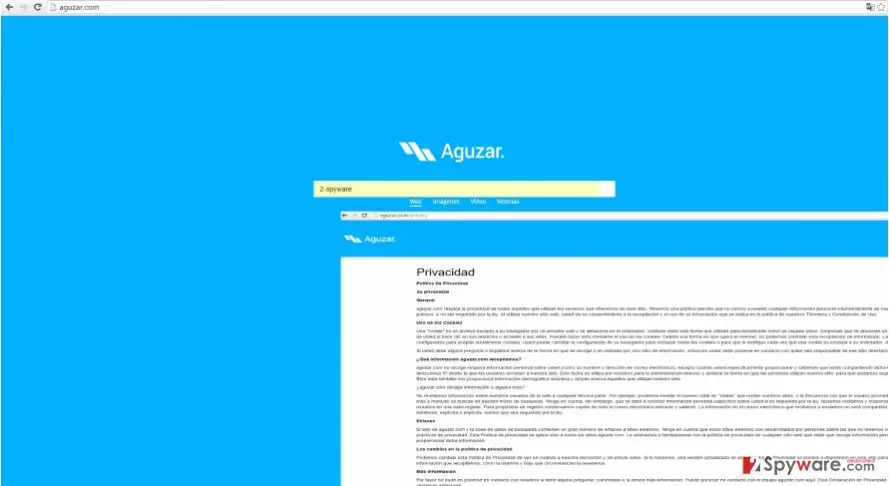
You should do it and for other reasons as well. For example, the hijacker tends to mislead you to the domains with suspicious and sometimes even malicious content. If you happen to get redirected in gaming, gambling or even pornographic domains, cancel the popping up websites since they might harbor a variety of more or less dangerous viruses. If they invade your computer, the consequences might be more than irritating. Lastly, like the majority of hackers, this PUP also tracks your online activity by collecting information about visited web pages and browsing frequency. The latter data might be traded with third-parties which misuse it for marketing purposes. Consequently, your browser might be loaded with customized annoying banners and commercial offers.
When did I come across this browser hijacker?
Do you recall installing a new program? Then, you might have unintentionally installed the hijacker as well. Browser hijacker developers are aware of the common vice to skip long and boring installation instructions, not to mention “Terms of Use” or “Privacy Policy.” As a result of recklessness, users rarely notice the pre-marked add-ons. When they start installing the downloaded application, the automatically pre-checked applications invade the system as well. Likewise, aguzar.com settled on your system. In order to spot the unwanted programs on time, choose “Custom” settings. This will enable you to see optional applications. If you spot any, unmark them carefully. Only then install the primary program.
How can I remove aguzar.com completely?
There are two methods to eliminate the hijacker – automatic and manual removal. The latter is recommended for those users who are confident that they will completely delete the PUP without leaving any of its files. Deleting all related elements is of utmost importance. Otherwise, the hijack risk increases. Therefore, installing an anti-spyware program to do all the elimination would be a wiser choice. The software will ensure complete aguzar.com removal. Moreover, it is highly valuable to keep such security program since it can ward off more serious viruses as well. The next time you are about to install a new search engine, check its privacy policy and try finding something using the browsing tool. The amount and the quality of search results may also help you realize whether the search engine can be trusted.
Uninstall from Windows
Uninstall from Windows 10/8:
- Type Control Panel into the Windows search box and open the result.
- Under Programs, select Uninstall a program.


Uninstall from Windows 7/XP:
- Click on Windows Start > Control Panel (Windows XP users should click on Add/Remove Programs).
- In Control Panel, select Programs > Uninstall a program.


Remove the unwanted program:
- In the Programs and Features window, look for any recently installed suspicious entries, select them, and click Uninstall.
- If User Account Control appears, click Yes to confirm, then complete the removal.


Delete from macOS
Remove the unwanted application:
- From the menu bar, select Go > Applications.
- In the Applications folder, look for any suspicious entries, then drag them to Trash (or right-click and pick Move to Trash).


Delete leftover files and folders:
- Select Go > Go to Folder.
- Enter /Library/Application Support and remove any suspicious folders related to the unwanted program.
- Repeat the same check in the /Library/LaunchAgents and /Library/LaunchDaemons folders, deleting any suspicious entries.

- Finally, empty the Trash to permanently remove the leftovers.

Remove from Microsoft Edge
Delete unwanted extensions from MS Edge:
- Select Menu (three horizontal dots at the top-right of the browser window) and pick Extensions.
- From the list, pick the extension and click on the Gear icon.
- Click Remove.


Clear cookies and other browser data:
- Click on the Menu (three horizontal dots at the top-right of the browser window) and select Settings > Privacy, search, and services..
- Under Clear browsing data, pick Choose what to clear.
- Select Cookies and other site data and Cached images and files. (apart from passwords, although you might want to include Media licenses as well, if applicable) and click on Clear.


Restore new tab and homepage settings:
- Click the menu icon and choose Settings.
- Then find On startup section.
- Click Remove next to any suspicious startup page.
Reset MS Edge if the above steps did not work:
- Press on Ctrl + Shift + Esc to open Task Manager.
- Click on More details arrow at the bottom of the window.
- Select Details tab.
- Now scroll down and locate every entry with Microsoft Edge name in it. Right-click on each of them and select End Task to stop MS Edge from running.


Instructions for Chromium-based Edge
Delete extensions from MS Edge (Chromium):
- Open Edge and click select Settings > Extensions.
- Delete unwanted extensions by clicking Remove.


Clear cache and site data:
- Click on Menu and go to Settings.
- Select Privacy, search and services.
- Under Clear browsing data, pick Choose what to clear.
- Under Time range, pick All time.
- Select Clear now.


Reset Chromium-based MS Edge:
- Click on Menu and select Settings.
- On the left side, pick Reset settings.
- Select Restore settings to their default values.
- Confirm with Reset.
- This will disable extensions and reset startup pages but will not delete bookmarks, saved passwords, or browsing history.


Remove from Mozilla Firefox (FF)
Remove dangerous extensions:
- Open Mozilla Firefox browser and click on the Menu (three horizontal lines at the top-right of the window).
- Select Add-ons.
- In here, select the unwanted extension and click Remove.


Reset the homepage:
- Click three horizontal lines at the top right corner to open the menu.
- Choose Settings.
- Under Home, set your preferred homepage and new tab settings.
Clear cookies and site data:
- Click Menu and pick Settings.
- Go to Privacy & Security section.
- Scroll down to locate Cookies and Site Data.
- Click on Clear Data...
- Select Cookies and Site Data and Temporary cached files and pages, then click Clear.


Reset Mozilla Firefox
If clearing the browser as explained above did not help, reset Mozilla Firefox:
- Open Mozilla Firefox browser and click the Menu.
- Go to Help and then choose Troubleshooting Information.

- Under Give Firefox a tune up section, click on Refresh Firefox...
- Once the pop-up shows up, confirm the action by pressing on Refresh Firefox.



Remove from Google Chrome
Delete malicious extensions from Google Chrome:
- Open Google Chrome, click on the Menu (three vertical dots at the top-right corner) and select More tools > Extensions.
- In the newly opened window, you will see all the installed extensions. Uninstall all suspicious extensions related to the unwanted program by clicking Remove.


Clear cache and web data from Chrome:
- Click on Menu and pick Settings.
- Under Privacy and security, select Clear browsing data.
- Select Browsing history, Cookies and other site data, as well as Cached images and files.
- Click Clear data.


Change your homepage:
- Click menu and choose Settings.
- Look for a suspicious site in the On startup section.
- Click on Open a specific or set of pages and click on three dots to find the Remove option.
Reset Google Chrome:
If the previous methods did not help you, reset Google Chrome to eliminate all the unwanted components:
- Click on Menu and select Settings.
- In the Settings, scroll down and click Advanced.
- Scroll down and locate Reset and clean up section.
- Now click Restore settings to their original defaults.
- Confirm with Reset settings.


Delete from Safari
Remove dangerous extensions:
- Open Safari, click Safari in the menu at the top-left of the screen, and select Preferences.
- Go to the Extensions tab, look for any suspicious entries, and click Uninstall to remove them.


Clear history and website data:
- Click Safari in the menu and pick Clear History.
- Set Clear to all history and confirm with Clear History.


Reset Safari:
- Click Safari in the menu and select Preferences > Advanced.
- Enable Show Develop menu in menu bar.
- From the menu bar, click Develop and select Empty Caches.


Did this guide help?
3 comments
Hugh
Watch out, Spanish users!
Sophie
It’s a small fry.
Ned
At least, it does not cause trouble to uninstall it.