

Review of social-avenue.com virus
The intricate design of social-avenue.com virus may attract many users. Nonetheless, you should not give in to its veneer because it is considered to be a browser hijacker. Thus, what you can expect from it is most likely redirects to questionable web pages and the display of irritating advertisements. In addition, you might notice other programs and plug-ins added to the browser without your primary consent. In short, this search engine is not a reliable alternative. Thus, make haste to remove social-avenue.com from the device. For that purpose, FortectIntego comes in handy.
Users, who have not dealt with a hijacker before, may not see this search engine to be somewhat odd. At first glance, the distinctive properties of social-avenue.com may seem highly practical. The hijacker presents some results from Bing, Facebook, tweets on the particular topic from Twitter and Reddit. Though the creators of this particular browsing tool aimed to meet as many users’ expectations as possible, they still failed to make this search engine as a reliable tool delivering the vivid quantity of most relevant search results. If you enter the News tab or Videos, no results are delivered while a legitimate search engine provides results despite the topic.
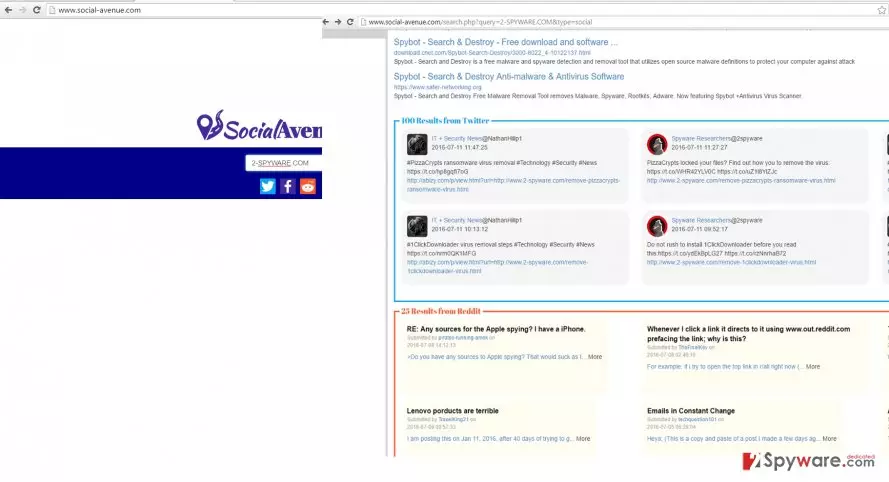
Though this hijacker is less dangerous, because it does not specifically collect your personal information, it still tends to track your visited websites and search queries. After processing this data for “service maintaining purposes,” you might notice an increasing number of personalized advertisements which redirect you to the websites of your interest. After a while, such social-avenue.com redirect problem might become highly bothersome since it disturbs fast browsing speed. Lastly, this browser hijacker, which belongs to XDisc Corp Ltd, might install a variety of plug-ins which fall short of their promoted benefits. The only thing that they do properly is to diminish the browsing quality. These main disadvantages should be enough arguments to run social-avenue.com removal.
The transmission of the browser hijacker
Most likely, you installed this browser hijacker along with another free program. Do you recall installing a new media player or a file converter? Due to the common mistake to rush through the installation wizard, you overlooked the tiny add-on which was already pre-checked. As a result, when the installation ended, the hijacker successfully infiltrated the system as well. If you want to prevent similar hijack in the future, keep in mind these tips we are about to give you. Firstly, develop a habit choosing “Advanced” mode. Afterward, make sure you unmark all optional checkboxes of the programs which look unreliable and unnecessary.
Social-avenue.com removal
Luckily, it is not difficult to eliminate the hijacker. You can do it quickly with the help of an anti-spyware program. You can be sure that the software will root out the PUP completely. In addition, you can remove social-avenue.com the usual way. Find the guidelines provided below. It is useful to remember that before downloading and installing a new application, you should check users reviews. Sometimes the bitter experience of other users might warn you of potential dangers installing one or another software or using specific service.
Uninstall from Windows
Uninstall from Windows 10/8:
- Type Control Panel into the Windows search box and open the result.
- Under Programs, select Uninstall a program.


Uninstall from Windows 7/XP:
- Click on Windows Start > Control Panel (Windows XP users should click on Add/Remove Programs).
- In Control Panel, select Programs > Uninstall a program.


Remove the unwanted program:
- In the Programs and Features window, look for any recently installed suspicious entries, select them, and click Uninstall.
- If User Account Control appears, click Yes to confirm, then complete the removal.


Delete from macOS
Remove the unwanted application:
- From the menu bar, select Go > Applications.
- In the Applications folder, look for any suspicious entries, then drag them to Trash (or right-click and pick Move to Trash).


Delete leftover files and folders:
- Select Go > Go to Folder.
- Enter /Library/Application Support and remove any suspicious folders related to the unwanted program.
- Repeat the same check in the /Library/LaunchAgents and /Library/LaunchDaemons folders, deleting any suspicious entries.

- Finally, empty the Trash to permanently remove the leftovers.

Remove from Microsoft Edge
Delete unwanted extensions from MS Edge:
- Select Menu (three horizontal dots at the top-right of the browser window) and pick Extensions.
- From the list, pick the extension and click on the Gear icon.
- Click Remove.


Clear cookies and other browser data:
- Click on the Menu (three horizontal dots at the top-right of the browser window) and select Settings > Privacy, search, and services..
- Under Clear browsing data, pick Choose what to clear.
- Select Cookies and other site data and Cached images and files. (apart from passwords, although you might want to include Media licenses as well, if applicable) and click on Clear.


Restore new tab and homepage settings:
- Click the menu icon and choose Settings.
- Then find On startup section.
- Click Remove next to any suspicious startup page.
Reset MS Edge if the above steps did not work:
- Press on Ctrl + Shift + Esc to open Task Manager.
- Click on More details arrow at the bottom of the window.
- Select Details tab.
- Now scroll down and locate every entry with Microsoft Edge name in it. Right-click on each of them and select End Task to stop MS Edge from running.


Instructions for Chromium-based Edge
Delete extensions from MS Edge (Chromium):
- Open Edge and click select Settings > Extensions.
- Delete unwanted extensions by clicking Remove.


Clear cache and site data:
- Click on Menu and go to Settings.
- Select Privacy, search and services.
- Under Clear browsing data, pick Choose what to clear.
- Under Time range, pick All time.
- Select Clear now.


Reset Chromium-based MS Edge:
- Click on Menu and select Settings.
- On the left side, pick Reset settings.
- Select Restore settings to their default values.
- Confirm with Reset.
- This will disable extensions and reset startup pages but will not delete bookmarks, saved passwords, or browsing history.


Remove from Mozilla Firefox (FF)
Remove dangerous extensions:
- Open Mozilla Firefox browser and click on the Menu (three horizontal lines at the top-right of the window).
- Select Add-ons.
- In here, select the unwanted extension and click Remove.


Reset the homepage:
- Click three horizontal lines at the top right corner to open the menu.
- Choose Settings.
- Under Home, set your preferred homepage and new tab settings.
Clear cookies and site data:
- Click Menu and pick Settings.
- Go to Privacy & Security section.
- Scroll down to locate Cookies and Site Data.
- Click on Clear Data...
- Select Cookies and Site Data and Temporary cached files and pages, then click Clear.


Reset Mozilla Firefox
If clearing the browser as explained above did not help, reset Mozilla Firefox:
- Open Mozilla Firefox browser and click the Menu.
- Go to Help and then choose Troubleshooting Information.

- Under Give Firefox a tune up section, click on Refresh Firefox...
- Once the pop-up shows up, confirm the action by pressing on Refresh Firefox.



Remove from Google Chrome
Delete malicious extensions from Google Chrome:
- Open Google Chrome, click on the Menu (three vertical dots at the top-right corner) and select More tools > Extensions.
- In the newly opened window, you will see all the installed extensions. Uninstall all suspicious extensions related to the unwanted program by clicking Remove.


Clear cache and web data from Chrome:
- Click on Menu and pick Settings.
- Under Privacy and security, select Clear browsing data.
- Select Browsing history, Cookies and other site data, as well as Cached images and files.
- Click Clear data.


Change your homepage:
- Click menu and choose Settings.
- Look for a suspicious site in the On startup section.
- Click on Open a specific or set of pages and click on three dots to find the Remove option.
Reset Google Chrome:
If the previous methods did not help you, reset Google Chrome to eliminate all the unwanted components:
- Click on Menu and select Settings.
- In the Settings, scroll down and click Advanced.
- Scroll down and locate Reset and clean up section.
- Now click Restore settings to their original defaults.
- Confirm with Reset settings.


Delete from Safari
Remove dangerous extensions:
- Open Safari, click Safari in the menu at the top-left of the screen, and select Preferences.
- Go to the Extensions tab, look for any suspicious entries, and click Uninstall to remove them.


Clear history and website data:
- Click Safari in the menu and pick Clear History.
- Set Clear to all history and confirm with Clear History.


Reset Safari:
- Click Safari in the menu and select Preferences > Advanced.
- Enable Show Develop menu in menu bar.
- From the menu bar, click Develop and select Empty Caches.


Did this guide help?
2 comments
Timothy
Quite an interesting one.
Sammy
Such strange design...guess its time to return to Google