

The essential facts about search.funkytvtab.com virus
Search.funkytvtab.com virus belongs to the series of questionable browsing tools which have been created by the same anonymous online company. However, looking back at the previous releases of similar search engines, there are striking resemblances to the products of Imali Ltd. Thus, you should not take this search engine for a reliable one because it falls into the category of browser hijackers as well. While surfing, you might be redirected to the domains with suspicious and potentially malignant origin. In addition, the hijacker will fail to deliver objective search results. Before this PUP causes more unpleasant outcomes, remove search.funkytvtab.com right away.
No specific knowledge is required to notice that there is something wrong with this search engine. When you enter a search entry, in the tab of URL address, you might notice several instantly changing redirects. Vigilant users might spot “Safe Finder” in one of the changing redirect names. The latter has obtained the title of an aggressive browser hijacker which causes highly bothersome effects. However, this occurrence might be overlooked by the majority since they are concentrated on the search results.
Furthermore, the hijacker employs modified Yahoo database, so the search results differ from the ones shown by an ordinary search provider. Furthermore, when you enter one of the web page provided in the list, you might get there only after canceling several other popping websites. In general, Search.funkytvtab.com redirect problem should not be neglected because it increases the vulnerability of your operating system to the malware lurking in those redirect domains.
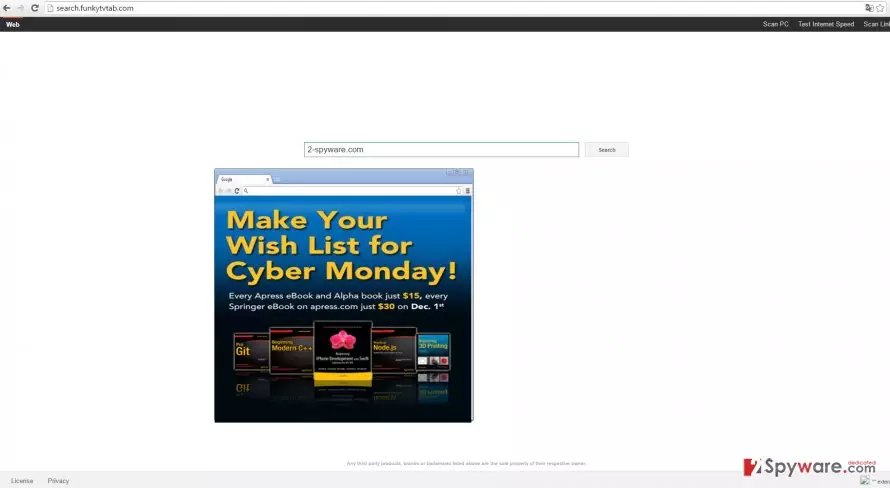
In addition, this and other browser hijackers of the same series have two common properties: the design and the toolbar. The latter offers users PC scanning services. When you enter the sponsored web pages, you see offers to purchase specific software for improving security. We would like to warn you not to download and install anything while Funky TV Tab resides on the computer. Regarding the fact that this search engine is a potentially unwanted application (PUP), instead of reliable security software, you might install a bunch of futile programs which might carry malignant files as well. Thus, start search.funkytvtab.com removal without delay. FortectIntego will speed up the process.
How did the hijacker appear on the PC?
This browser hijacker used the opportunity to slither into the device when you were installing a new design modeling tool or Skype update. It is a common mistake to ignore the fact that legitimate and official programs might carry hidden “packages” along with them. Scammers are aware of users inattentiveness. Thus, they attach the hijacker to the mentioned freeware knowing that it will be installed. Likewise, search.funkytvtab.com settled on the computer. Now you might be wondering whether there is a way to prevent such hijack. Luckily, there is. Before rushing to click “the Install” button, choose “Advanced” option. However, do not think that this action will exclude you from unintentionally installing unwanted programs. Carefully go through each stage. After spotting questionable attachments, unmark their checkboxes.
Remove search.funkytvtab.com from the PC
There are two methods to complete the elimination. We highly suggest opting for the automatic because the security software will delete the hijacker with all its related elements. You can be sure that the PUP will not infect the system again when the security program does its duty. For it to work properly, it is a necessity to update it daily. In addition, it is possible to perform search.funkytvtab.com removal the usual way as well. Feel free to employ our instructions. Lastly, we would like to note that precision and attention are necessary to complete the elimination properly.
Uninstall from Windows
Uninstall from Windows 10/8:
- Type Control Panel into the Windows search box and open the result.
- Under Programs, select Uninstall a program.


Uninstall from Windows 7/XP:
- Click on Windows Start > Control Panel (Windows XP users should click on Add/Remove Programs).
- In Control Panel, select Programs > Uninstall a program.


Remove the unwanted program:
- In the Programs and Features window, look for any recently installed suspicious entries, select them, and click Uninstall.
- If User Account Control appears, click Yes to confirm, then complete the removal.


Delete from macOS
Remove the unwanted application:
- From the menu bar, select Go > Applications.
- In the Applications folder, look for any suspicious entries, then drag them to Trash (or right-click and pick Move to Trash).


Delete leftover files and folders:
- Select Go > Go to Folder.
- Enter /Library/Application Support and remove any suspicious folders related to the unwanted program.
- Repeat the same check in the /Library/LaunchAgents and /Library/LaunchDaemons folders, deleting any suspicious entries.

- Finally, empty the Trash to permanently remove the leftovers.

Remove from Microsoft Edge
Delete unwanted extensions from MS Edge:
- Select Menu (three horizontal dots at the top-right of the browser window) and pick Extensions.
- From the list, pick the extension and click on the Gear icon.
- Click Remove.


Clear cookies and other browser data:
- Click on the Menu (three horizontal dots at the top-right of the browser window) and select Settings > Privacy, search, and services..
- Under Clear browsing data, pick Choose what to clear.
- Select Cookies and other site data and Cached images and files. (apart from passwords, although you might want to include Media licenses as well, if applicable) and click on Clear.


Restore new tab and homepage settings:
- Click the menu icon and choose Settings.
- Then find On startup section.
- Click Remove next to any suspicious startup page.
Reset MS Edge if the above steps did not work:
- Press on Ctrl + Shift + Esc to open Task Manager.
- Click on More details arrow at the bottom of the window.
- Select Details tab.
- Now scroll down and locate every entry with Microsoft Edge name in it. Right-click on each of them and select End Task to stop MS Edge from running.


Instructions for Chromium-based Edge
Delete extensions from MS Edge (Chromium):
- Open Edge and click select Settings > Extensions.
- Delete unwanted extensions by clicking Remove.


Clear cache and site data:
- Click on Menu and go to Settings.
- Select Privacy, search and services.
- Under Clear browsing data, pick Choose what to clear.
- Under Time range, pick All time.
- Select Clear now.


Reset Chromium-based MS Edge:
- Click on Menu and select Settings.
- On the left side, pick Reset settings.
- Select Restore settings to their default values.
- Confirm with Reset.
- This will disable extensions and reset startup pages but will not delete bookmarks, saved passwords, or browsing history.


Remove from Mozilla Firefox (FF)
Remove dangerous extensions:
- Open Mozilla Firefox browser and click on the Menu (three horizontal lines at the top-right of the window).
- Select Add-ons.
- In here, select the unwanted extension and click Remove.


Reset the homepage:
- Click three horizontal lines at the top right corner to open the menu.
- Choose Settings.
- Under Home, set your preferred homepage and new tab settings.
Clear cookies and site data:
- Click Menu and pick Settings.
- Go to Privacy & Security section.
- Scroll down to locate Cookies and Site Data.
- Click on Clear Data...
- Select Cookies and Site Data and Temporary cached files and pages, then click Clear.


Reset Mozilla Firefox
If clearing the browser as explained above did not help, reset Mozilla Firefox:
- Open Mozilla Firefox browser and click the Menu.
- Go to Help and then choose Troubleshooting Information.

- Under Give Firefox a tune up section, click on Refresh Firefox...
- Once the pop-up shows up, confirm the action by pressing on Refresh Firefox.



Remove from Google Chrome
Delete malicious extensions from Google Chrome:
- Open Google Chrome, click on the Menu (three vertical dots at the top-right corner) and select More tools > Extensions.
- In the newly opened window, you will see all the installed extensions. Uninstall all suspicious extensions related to the unwanted program by clicking Remove.


Clear cache and web data from Chrome:
- Click on Menu and pick Settings.
- Under Privacy and security, select Clear browsing data.
- Select Browsing history, Cookies and other site data, as well as Cached images and files.
- Click Clear data.


Change your homepage:
- Click menu and choose Settings.
- Look for a suspicious site in the On startup section.
- Click on Open a specific or set of pages and click on three dots to find the Remove option.
Reset Google Chrome:
If the previous methods did not help you, reset Google Chrome to eliminate all the unwanted components:
- Click on Menu and select Settings.
- In the Settings, scroll down and click Advanced.
- Scroll down and locate Reset and clean up section.
- Now click Restore settings to their original defaults.
- Confirm with Reset settings.


Delete from Safari
Remove dangerous extensions:
- Open Safari, click Safari in the menu at the top-left of the screen, and select Preferences.
- Go to the Extensions tab, look for any suspicious entries, and click Uninstall to remove them.


Clear history and website data:
- Click Safari in the menu and pick Clear History.
- Set Clear to all history and confirm with Clear History.


Reset Safari:
- Click Safari in the menu and select Preferences > Advanced.
- Enable Show Develop menu in menu bar.
- From the menu bar, click Develop and select Empty Caches.


Did this guide help?
3 comments
Rebecca
Thats it. Im coming back to my previous search engine.
Jess
It redirected me to a safe finder website.
Claud533
I downloaded their recommended application but it still says that my PC is full of malware.