

The important facts about Window Range Manager virus
The enormous amount of advertisements, coupons and other sorts of unwanted stuff signal that your computer has been victimized by Window Range Manager virus. Luckily, this PUP happens to be adware, so it is not a real virus or a highly destructive malware. Nonetheless, this fact does not mean that this program should reside on the PC. The longer you keep it on the computer, the more intrusive advertisements will cover your screen. In addition, you might find Window Range Manager redirect as a highly bothersome phenomenon. While the adware stays on the computer, it is likely that additional questionable applications might be installed as well. Before that happens, remove Window Range Manager immediately. For that purpose, FortectIntego comes in handy.
This adware belongs to the group of those PUPs which roam across the Internet as rogue files. In other words, it isn’t an independent program which offers you services. In fact, the shapeless form enables the adware to sneak into computers more easily. When it does so, you might not suspect that the adware slipped into your computer. Furthermore, the excessive advertising should not be tolerated. The problem is that due to the redirect tendency, you might be misled to another advertising web page which is stuffed with a variety of distracting commercial offers or fake download buttons.
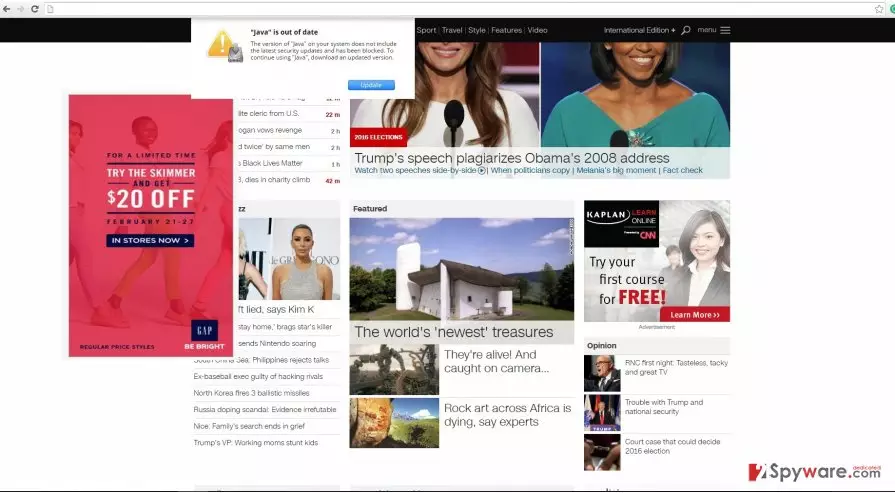
Keep in mind that such domain does not have any value and might be quite destructive to your operating system, instead. Thus, if you care for the safety of the PC, initiate Window Range Manager removal. Furthermore, another negative aspect of this PUP is that it might secretly install other programs, plug-ins and browser extensions. In fact, they are created for tracking or redirect purposes. Thus, your browsing sessions might be completely ruined by continuous pop-ups and redirects. What is more, due to them, not only the browser itself becomes sluggish, but the PC cannot maintain high-speed processes as well.
When did the adware hijack the computer?
Do you recall installing a new application? It might have been the disguise exploited by the PUP to invade your operating system. If you wonder how it happened, keep reading. There is common tendency to rush through the installation process. As a result, optional programs, which travel along with free pdf viewers or audio converters, remain unnoticed. It becomes a matter of time when adware, browser hijacker or other unwanted applications settle on the device. Likewise, Window Range Manager used the opportunity to infiltrate your computer. If you do want to make the same mistake again, change the sequence of your actions. Upon installing a new application, select “Custom” settings. Later on, make sure that no irrelevant add-ons are pre-marked.
Window Range Manager removal methods
There are two main options to choose from. If you are used to deleting malware on your own, find the guidelines below on this page. We would like to remind you to remain vigilant and perform each step carefully. It is crucial to eliminate the primary and secondary files of this PUP so that it would not invade the computer again. Since this adware employs hidden scripts and codes, detecting them might become tiresome. You can effectively remove Window Range Manager with the help of malware removal application.
Uninstall from Windows
Uninstall from Windows 10/8:
- Type Control Panel into the Windows search box and open the result.
- Under Programs, select Uninstall a program.


Uninstall from Windows 7/XP:
- Click on Windows Start > Control Panel (Windows XP users should click on Add/Remove Programs).
- In Control Panel, select Programs > Uninstall a program.


Remove the unwanted program:
- In the Programs and Features window, look for any recently installed suspicious entries, select them, and click Uninstall.
- If User Account Control appears, click Yes to confirm, then complete the removal.


Delete from macOS
Remove the unwanted application:
- From the menu bar, select Go > Applications.
- In the Applications folder, look for any suspicious entries, then drag them to Trash (or right-click and pick Move to Trash).


Delete leftover files and folders:
- Select Go > Go to Folder.
- Enter /Library/Application Support and remove any suspicious folders related to the unwanted program.
- Repeat the same check in the /Library/LaunchAgents and /Library/LaunchDaemons folders, deleting any suspicious entries.

- Finally, empty the Trash to permanently remove the leftovers.

Remove from Microsoft Edge
Delete unwanted extensions from MS Edge:
- Select Menu (three horizontal dots at the top-right of the browser window) and pick Extensions.
- From the list, pick the extension and click on the Gear icon.
- Click Remove.


Clear cookies and other browser data:
- Click on the Menu (three horizontal dots at the top-right of the browser window) and select Settings > Privacy, search, and services..
- Under Clear browsing data, pick Choose what to clear.
- Select Cookies and other site data and Cached images and files. (apart from passwords, although you might want to include Media licenses as well, if applicable) and click on Clear.


Restore new tab and homepage settings:
- Click the menu icon and choose Settings.
- Then find On startup section.
- Click Remove next to any suspicious startup page.
Reset MS Edge if the above steps did not work:
- Press on Ctrl + Shift + Esc to open Task Manager.
- Click on More details arrow at the bottom of the window.
- Select Details tab.
- Now scroll down and locate every entry with Microsoft Edge name in it. Right-click on each of them and select End Task to stop MS Edge from running.


Instructions for Chromium-based Edge
Delete extensions from MS Edge (Chromium):
- Open Edge and click select Settings > Extensions.
- Delete unwanted extensions by clicking Remove.


Clear cache and site data:
- Click on Menu and go to Settings.
- Select Privacy, search and services.
- Under Clear browsing data, pick Choose what to clear.
- Under Time range, pick All time.
- Select Clear now.


Reset Chromium-based MS Edge:
- Click on Menu and select Settings.
- On the left side, pick Reset settings.
- Select Restore settings to their default values.
- Confirm with Reset.
- This will disable extensions and reset startup pages but will not delete bookmarks, saved passwords, or browsing history.


Remove from Mozilla Firefox (FF)
Remove dangerous extensions:
- Open Mozilla Firefox browser and click on the Menu (three horizontal lines at the top-right of the window).
- Select Add-ons.
- In here, select the unwanted extension and click Remove.


Reset the homepage:
- Click three horizontal lines at the top right corner to open the menu.
- Choose Settings.
- Under Home, set your preferred homepage and new tab settings.
Clear cookies and site data:
- Click Menu and pick Settings.
- Go to Privacy & Security section.
- Scroll down to locate Cookies and Site Data.
- Click on Clear Data...
- Select Cookies and Site Data and Temporary cached files and pages, then click Clear.


Reset Mozilla Firefox
If clearing the browser as explained above did not help, reset Mozilla Firefox:
- Open Mozilla Firefox browser and click the Menu.
- Go to Help and then choose Troubleshooting Information.

- Under Give Firefox a tune up section, click on Refresh Firefox...
- Once the pop-up shows up, confirm the action by pressing on Refresh Firefox.



Remove from Google Chrome
Delete malicious extensions from Google Chrome:
- Open Google Chrome, click on the Menu (three vertical dots at the top-right corner) and select More tools > Extensions.
- In the newly opened window, you will see all the installed extensions. Uninstall all suspicious extensions related to the unwanted program by clicking Remove.


Clear cache and web data from Chrome:
- Click on Menu and pick Settings.
- Under Privacy and security, select Clear browsing data.
- Select Browsing history, Cookies and other site data, as well as Cached images and files.
- Click Clear data.


Change your homepage:
- Click menu and choose Settings.
- Look for a suspicious site in the On startup section.
- Click on Open a specific or set of pages and click on three dots to find the Remove option.
Reset Google Chrome:
If the previous methods did not help you, reset Google Chrome to eliminate all the unwanted components:
- Click on Menu and select Settings.
- In the Settings, scroll down and click Advanced.
- Scroll down and locate Reset and clean up section.
- Now click Restore settings to their original defaults.
- Confirm with Reset settings.


Delete from Safari
Remove dangerous extensions:
- Open Safari, click Safari in the menu at the top-left of the screen, and select Preferences.
- Go to the Extensions tab, look for any suspicious entries, and click Uninstall to remove them.


Clear history and website data:
- Click Safari in the menu and pick Clear History.
- Set Clear to all history and confirm with Clear History.


Reset Safari:
- Click Safari in the menu and select Preferences > Advanced.
- Enable Show Develop menu in menu bar.
- From the menu bar, click Develop and select Empty Caches.


Did this guide help?
2 comments
Roy
And I thought why there have been so many pop-ups lately...
Jack
The security application really worked.