

Fasttoaccess.com virus and its main features:
If you are unfamiliar with browser hijackers, Fasttoaccess.com virus is a good way to begin your introduction. Typically to thousand of similar programs that currently roam the Web, this browser hijacker deceptively infiltrates computers and alters the settings of all the browsers installed on the PC. Once installed, this potentially unwanted program will make sure that the next time you open your browser, you will be greeted by the Fasttoaccess homepage and default search engine. Moreover, your browser will redirect you to this site whenever you enter something in the address bar, open a new window or tab. Typically, the virus makes these alterations to gain more control over your traffic, so it could easily send you to affiliate websites it promotes and gain advertising revenue. Needless to say, involving unsuspecting users in such shady businesses is not a sign of a respectable software and should not be ignored. If you have become a victim of a hijack, hurry with the Fasttoaccess.com removal because you can never know what to expect from this program. If you are not familiar with malware removal process, FortectIntego or numerous other anti-malware utilities will help you to do that quickly and automatically.
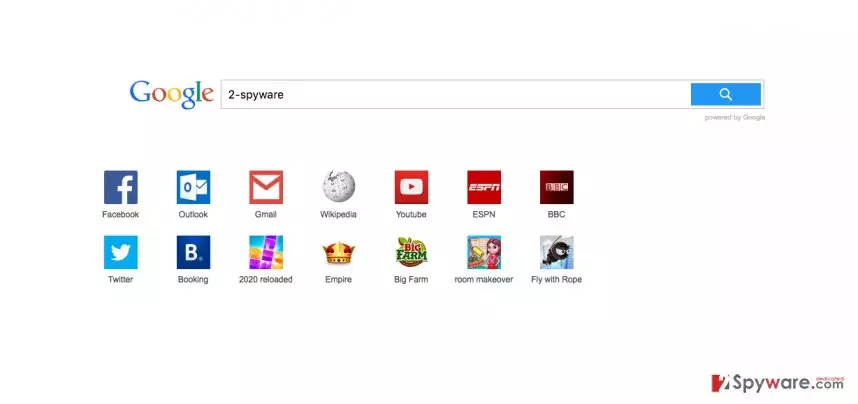
Another feature that is worrying the computer security experts is that Fasttoaccess.com is capable of downloading and installing various software without the user’s permission. That is why after this strange search engine appears on your computer, it is typical to find new add-ons, browser extensions or toolbars popping up once in a while. Unfortunately, this additional software will not improve your browsing experience but simply help the virus to take root in your system and spy on your online activity. A combination of these programs working at the same time may diminish your browser’s speed and result in a variety of other errors. As you already got acquainted with the questionable ways this virus operates in your system, it is understandable if you want to get rid of it as soon as possible. Keep reading the article to learn the quickest and the most effective methods you can use to remove Fasttoaccess.com from your computer system.
What measures can prevent this hijack?
It is typical for malware creators to spread their products alongside other, often popular software which guarantees a larger number of downloads. Infected software bundles can be obtained from some questionable software sharing sites, peer-to-peer networks or downloaded through corrupted software update notifications. This is a reminder that downloading any online content always involves some level of risk and can result in Fasttoaccess.com hijacking your system. That is why checking terms and conditions and other attached documents before installing an application is crucial. These documents may hide some essential information about other programs that might be included in the software package and can save you from installing undesirable programs.
Strategies of Fasttoaccess.com removal:
Regardless of how the virus managed to sneak into the your system, the elimination steps are the same in all of the cases. You can remove Fasttoaccess.com manually or automatically. When choosing between the two, keep in mind that the virus may install additional software, so you have to delete all of the toolbars and add-ons as well, to ensure a thorough system cleanup. Manually digging for infectious files may be quite bothersome, but if you apply automatic utilities, the virus should be banished from your device much faster. If you still prefer manual Fasttoaccess.com removal, scroll below where you will find detailed instructions to use as a reference.
Uninstall from Windows
Uninstall from Windows 10/8:
- Type Control Panel into the Windows search box and open the result.
- Under Programs, select Uninstall a program.


Uninstall from Windows 7/XP:
- Click on Windows Start > Control Panel (Windows XP users should click on Add/Remove Programs).
- In Control Panel, select Programs > Uninstall a program.


Remove the unwanted program:
- In the Programs and Features window, look for any recently installed suspicious entries, select them, and click Uninstall.
- If User Account Control appears, click Yes to confirm, then complete the removal.


Delete from macOS
Remove the unwanted application:
- From the menu bar, select Go > Applications.
- In the Applications folder, look for any suspicious entries, then drag them to Trash (or right-click and pick Move to Trash).


Delete leftover files and folders:
- Select Go > Go to Folder.
- Enter /Library/Application Support and remove any suspicious folders related to the unwanted program.
- Repeat the same check in the /Library/LaunchAgents and /Library/LaunchDaemons folders, deleting any suspicious entries.

- Finally, empty the Trash to permanently remove the leftovers.

Remove from Microsoft Edge
Delete unwanted extensions from MS Edge:
- Select Menu (three horizontal dots at the top-right of the browser window) and pick Extensions.
- From the list, pick the extension and click on the Gear icon.
- Click Remove.


Clear cookies and other browser data:
- Click on the Menu (three horizontal dots at the top-right of the browser window) and select Settings > Privacy, search, and services..
- Under Clear browsing data, pick Choose what to clear.
- Select Cookies and other site data and Cached images and files. (apart from passwords, although you might want to include Media licenses as well, if applicable) and click on Clear.


Restore new tab and homepage settings:
- Click the menu icon and choose Settings.
- Then find On startup section.
- Click Remove next to any suspicious startup page.
Reset MS Edge if the above steps did not work:
- Press on Ctrl + Shift + Esc to open Task Manager.
- Click on More details arrow at the bottom of the window.
- Select Details tab.
- Now scroll down and locate every entry with Microsoft Edge name in it. Right-click on each of them and select End Task to stop MS Edge from running.


Instructions for Chromium-based Edge
Delete extensions from MS Edge (Chromium):
- Open Edge and click select Settings > Extensions.
- Delete unwanted extensions by clicking Remove.


Clear cache and site data:
- Click on Menu and go to Settings.
- Select Privacy, search and services.
- Under Clear browsing data, pick Choose what to clear.
- Under Time range, pick All time.
- Select Clear now.


Reset Chromium-based MS Edge:
- Click on Menu and select Settings.
- On the left side, pick Reset settings.
- Select Restore settings to their default values.
- Confirm with Reset.
- This will disable extensions and reset startup pages but will not delete bookmarks, saved passwords, or browsing history.


Remove from Mozilla Firefox (FF)
Remove dangerous extensions:
- Open Mozilla Firefox browser and click on the Menu (three horizontal lines at the top-right of the window).
- Select Add-ons.
- In here, select the unwanted extension and click Remove.


Reset the homepage:
- Click three horizontal lines at the top right corner to open the menu.
- Choose Settings.
- Under Home, set your preferred homepage and new tab settings.
Clear cookies and site data:
- Click Menu and pick Settings.
- Go to Privacy & Security section.
- Scroll down to locate Cookies and Site Data.
- Click on Clear Data...
- Select Cookies and Site Data and Temporary cached files and pages, then click Clear.


Reset Mozilla Firefox
If clearing the browser as explained above did not help, reset Mozilla Firefox:
- Open Mozilla Firefox browser and click the Menu.
- Go to Help and then choose Troubleshooting Information.

- Under Give Firefox a tune up section, click on Refresh Firefox...
- Once the pop-up shows up, confirm the action by pressing on Refresh Firefox.



Remove from Google Chrome
Delete malicious extensions from Google Chrome:
- Open Google Chrome, click on the Menu (three vertical dots at the top-right corner) and select More tools > Extensions.
- In the newly opened window, you will see all the installed extensions. Uninstall all suspicious extensions related to the unwanted program by clicking Remove.


Clear cache and web data from Chrome:
- Click on Menu and pick Settings.
- Under Privacy and security, select Clear browsing data.
- Select Browsing history, Cookies and other site data, as well as Cached images and files.
- Click Clear data.


Change your homepage:
- Click menu and choose Settings.
- Look for a suspicious site in the On startup section.
- Click on Open a specific or set of pages and click on three dots to find the Remove option.
Reset Google Chrome:
If the previous methods did not help you, reset Google Chrome to eliminate all the unwanted components:
- Click on Menu and select Settings.
- In the Settings, scroll down and click Advanced.
- Scroll down and locate Reset and clean up section.
- Now click Restore settings to their original defaults.
- Confirm with Reset settings.


Delete from Safari
Remove dangerous extensions:
- Open Safari, click Safari in the menu at the top-left of the screen, and select Preferences.
- Go to the Extensions tab, look for any suspicious entries, and click Uninstall to remove them.


Clear history and website data:
- Click Safari in the menu and pick Clear History.
- Set Clear to all history and confirm with Clear History.


Reset Safari:
- Click Safari in the menu and select Preferences > Advanced.
- Enable Show Develop menu in menu bar.
- From the menu bar, click Develop and select Empty Caches.


Did this guide help?
2 comments
Leah
The scary thing is these sites looks legitimate... You would never know whether the site is really safe or not...
Patricia Noles
Pathetic attempt to imitate google! This search engine is completely useless