

The essential information about search.wolfnknite.com virus
While searching for a new search engine, Mac OS users might have run into search.wolfnknite.com virus. However, we would like you to warn not to set this hijacker as the main search engine because this browsing tool has been categorized as a browser hijacker. It is programmed for the sole mission to infect a browser, replace a homepage and direct you to the specific domains. Search.wolfnknite.com redirect might turn especially annoying when you are in a rush finding a necessary piece of information. Consequently, you might blow a fuse. To avoid that, remove search.wolfnknite.com.
Speaking of this hijacker, Windows OS users might sigh with relief because this PUP mainly attacks Mac operating systems. However, the cause of such preference remains unknown. The way this hijacker works does not differ. Once it manages to take control of the browser, it applies its filters and scripts. As a result, only specific search results will be provided in comparison with the objective ones shown by an ordinary search engine. Moreover, this hijacker is supported by third-parties. Likewise, the owners expect you to see more content from their partners. However, such intention comes by force. Your browser might be overcrowded with advertisements and commercial offers. We would like to warn you not to purchase anything from the affiliated websites, especially software. It is often the case that the programs, promoted by a hijacker’s sponsors, happen to be useless and sometimes even malicious. Therefore, they might also create more system vulnerabilities.
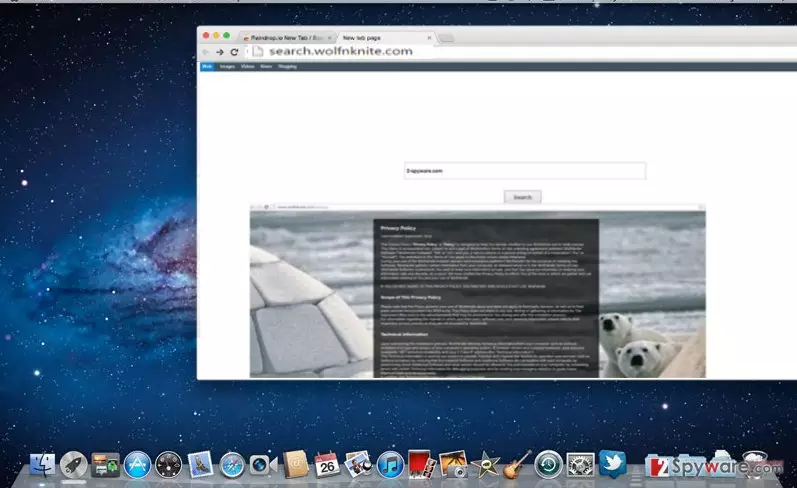
Another highly annoying aspect of this hijacker is that it collects your non-personal information. The majority of legitimate websites also gather such information, however, Wolfnknite Web Search might transfer this data to its partners. After processing it, online advertising companies are able to create catchy personalized ads. They do not possess any value but only generate revenue for their owners since they are created as pay-per-view advertisements. In short, they receive income, while you end up irritated sitting in front of your computer which is overfilled with pop-ups. If this scenario does not seem attractive, perform search.wolfnknite.com removal. FortectIntego will ensure that no traces of this hijacker remain.
How does the PUP hijack computers?
It does so quite easily with the help of “bundling” technique. In other words, hackers pin down their products to freeware, for example, Flash Players, Adobe Readers or audio converters. These attachments happen to hide under “Basic” settings. Furthermore, few users carefully go through installation wizards and spot unwanted programs. Unfortunately, the majority fails to do that. If you are interested how you can prevent the hijack of search.wolfnknite.com, remember these tips. First of all, select “Custom” mode. Only when you are no unnecessary add-ons will be installed, start installing the primary software.
Quick search.wolfnknite.com removal
Luckily, the elimination of this hijacker does not require any specific or complex preparations. You can do it manually or use malware removal application. The latter might be a more efficient solution since the program is created in a way to locate any files of suspicious and potentially malicious origin. Moreover, it is the trustful guardian of your operating system. You might also successfully remove search.wolfnknite.com with the help of the manual guide. Feel free to use the one provided below. Lastly, do not forget that your cautiousness plays a significant role in the entire protection of your computer.
Delete from macOS
Remove the unwanted application:
- From the menu bar, select Go > Applications.
- In the Applications folder, look for any suspicious entries, then drag them to Trash (or right-click and pick Move to Trash).


Delete leftover files and folders:
- Select Go > Go to Folder.
- Enter /Library/Application Support and remove any suspicious folders related to the unwanted program.
- Repeat the same check in the /Library/LaunchAgents and /Library/LaunchDaemons folders, deleting any suspicious entries.

- Finally, empty the Trash to permanently remove the leftovers.

Delete from Safari
Remove dangerous extensions:
- Open Safari, click Safari in the menu at the top-left of the screen, and select Preferences.
- Go to the Extensions tab, look for any suspicious entries, and click Uninstall to remove them.


Clear history and website data:
- Click Safari in the menu and pick Clear History.
- Set Clear to all history and confirm with Clear History.


Reset Safari:
- Click Safari in the menu and select Preferences > Advanced.
- Enable Show Develop menu in menu bar.
- From the menu bar, click Develop and select Empty Caches.


Did this guide help?
2 comments
Amanda
Just as always, another ordinary browser hijacker...
Diana
Deleting this hijacker is a piece of cake.