

Should you remove Search.ourmediatabsearch.com?
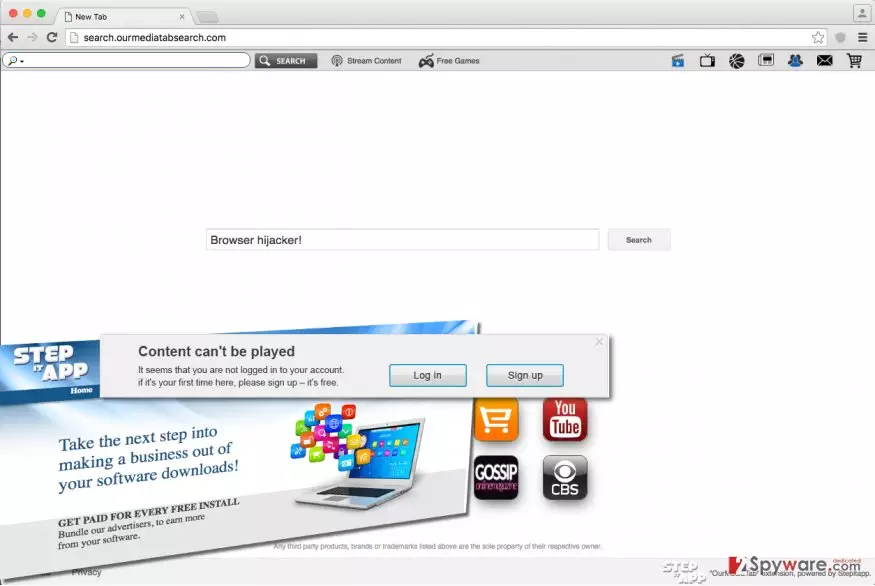
If you are planning to try the search engine on Search.ourmediatabsearch.com website, which has appeared in your Google Chrome or Mozilla Firefox browser after launching it, we highly advise you not to do that. This web page can be set as your homepage in your browser due to Search.ourmediatabsearch.com virus existence, which can hijack your PC without your knowledge. Of course, you can install this potentially unwanted program (PUP) by your choice, but in the majority of cases, victims claim that they didn’t go and download this browser hijacker from its official website nor other places on the Internet. If you are looking for a quick removal solution, remove this hijacker using FortectIntego software.
In fact, this browser hijacker does not differ from any other PUPs developed by Imali Media. These PUPs are advertised as tools that can provide the user with free access to favorite shows and live sports and enhance the browsing experience by changing browser’s settings and adding new default search engine, homepage, plus new tab page. Its bogus search engines typically have “media” in their URL. Examples include Search.topmediatabsearch.com, Search.supermediatabsearch.com, and Search.bestmediatabsearch.com. Be aware that these search engines are untrustworthy and that their advertised “benefits” may not seem so beneficial to you. For example, Search.ourmediatabsearch.com site looks safe at the first sight; besides, it suggests ten shortcuts to various popular Internet sites including Facebook, Gmail, Instagram, YouTube, and so on. Although these sites are safe, the search box that is provided above these shortcuts is not.
How did it enter your computer without your permission?
In fact, this program did get your authorization to be installed. The fact is, this program spreads together with other applications, so you have to watch what you install on your computer. The majority of free applications suggest installing bonus apps alongside them, but unfortunately, not all computer users successfully notice these offers. They are typically hidden under trustworthy-looking Default or Standard installation settings. To avoid installing unknown additions unintentionally, follow these steps:
- Choose Custom or Advanced installation option.
- Look for such or similar lines and remove the ticks next to them:
- “Make [URL] my start page;”
- “Make [URL] my default search engine;”
How to remove Search.ourmediatabsearch.com browser hijacker?
If you wish to delete Search.ourmediatabsearch.com redirect virus from your browser and use your preferred search engine again, you shouldn’t go to browser’s settings to change homepage and default search engine settings. You have to initiate Search.ourmediatabsearch.com removal by finding this browser hijacker on your PC and deleting all of its components. Otherwise, it will keep changing your browser settings each time you close your browser and re-open it. To entirely get rid of this problem, follow instructions given below or just use an anti-spyware software for that.
Uninstall from Windows
Uninstall from Windows 10/8:
- Type Control Panel into the Windows search box and open the result.
- Under Programs, select Uninstall a program.


Uninstall from Windows 7/XP:
- Click on Windows Start > Control Panel (Windows XP users should click on Add/Remove Programs).
- In Control Panel, select Programs > Uninstall a program.


Remove the unwanted program:
- In the Programs and Features window, look for any recently installed suspicious entries, select them, and click Uninstall.
- If User Account Control appears, click Yes to confirm, then complete the removal.


Delete from macOS
Remove the unwanted application:
- From the menu bar, select Go > Applications.
- In the Applications folder, look for any suspicious entries, then drag them to Trash (or right-click and pick Move to Trash).


Delete leftover files and folders:
- Select Go > Go to Folder.
- Enter /Library/Application Support and remove any suspicious folders related to the unwanted program.
- Repeat the same check in the /Library/LaunchAgents and /Library/LaunchDaemons folders, deleting any suspicious entries.

- Finally, empty the Trash to permanently remove the leftovers.

Remove from Mozilla Firefox (FF)
Remove dangerous extensions:
- Open Mozilla Firefox browser and click on the Menu (three horizontal lines at the top-right of the window).
- Select Add-ons.
- In here, select the unwanted extension and click Remove.


Reset the homepage:
- Click three horizontal lines at the top right corner to open the menu.
- Choose Settings.
- Under Home, set your preferred homepage and new tab settings.
Clear cookies and site data:
- Click Menu and pick Settings.
- Go to Privacy & Security section.
- Scroll down to locate Cookies and Site Data.
- Click on Clear Data...
- Select Cookies and Site Data and Temporary cached files and pages, then click Clear.


Reset Mozilla Firefox
If clearing the browser as explained above did not help, reset Mozilla Firefox:
- Open Mozilla Firefox browser and click the Menu.
- Go to Help and then choose Troubleshooting Information.

- Under Give Firefox a tune up section, click on Refresh Firefox...
- Once the pop-up shows up, confirm the action by pressing on Refresh Firefox.



Remove from Google Chrome
Delete malicious extensions from Google Chrome:
- Open Google Chrome, click on the Menu (three vertical dots at the top-right corner) and select More tools > Extensions.
- In the newly opened window, you will see all the installed extensions. Uninstall all suspicious extensions related to the unwanted program by clicking Remove.


Clear cache and web data from Chrome:
- Click on Menu and pick Settings.
- Under Privacy and security, select Clear browsing data.
- Select Browsing history, Cookies and other site data, as well as Cached images and files.
- Click Clear data.


Change your homepage:
- Click menu and choose Settings.
- Look for a suspicious site in the On startup section.
- Click on Open a specific or set of pages and click on three dots to find the Remove option.
Reset Google Chrome:
If the previous methods did not help you, reset Google Chrome to eliminate all the unwanted components:
- Click on Menu and select Settings.
- In the Settings, scroll down and click Advanced.
- Scroll down and locate Reset and clean up section.
- Now click Restore settings to their original defaults.
- Confirm with Reset settings.


Did this guide help?
4 comments
Francesco
aboslutely disappointed with this extension, I didnt want it, it took over my browser and controlled it! Dont install Ourmediatab, its a trap
script
I dislike this new search engine very much, and I cannot remove it, I am so annoyed!
Cindy
There are millions of better search engines, dont use Search.ourmediatabsearch.com. I warned u
Marthin
This hijacker messed up my chrome browser helpppppp