

Review of TribalAd PPC Ad Network virus
Once TribalAd PPC Ad Network virus sneaks into your computer, you need to get prepared for the series of unpleasant outcomes. It is necessary to point the fact that this PUP belongs to the category of adware. On one hand, you may sigh with relief since it is not considered a very malicious virtual threat. On the other hand, you should not let this adware program reside on your computer because it might increase system vulnerabilities due to its tendency to mislead users to potentially malevolent domains. Therefore, it is crucial to know how this virus spreads and how to remove TribalAd PPC Ad Network from the computer.
According to the general features of this PUP, it might be more disturbing and, perhaps, more dangerous because it works as a rogue file. You might not detect its application on the system or it might be disguised under a different title. Moreover, it generates various sorts of commercial offers and sometimes even browsing errors. Likewise, some users might struggle to identify the cause of such behavior. If you prefer shopping online and you get intrigued by one of the Ads by TribalAd PPC Ad Network, do not purchase any product, especially computer software. This adware promotes the products of its partners. Since similar PUPs are supported by unknown users or companies, do not expect any reliable and efficient services nor programs from them. It is often the case that they might misinform and persuade you into purchasing more applications which fall short of their promoted qualities.
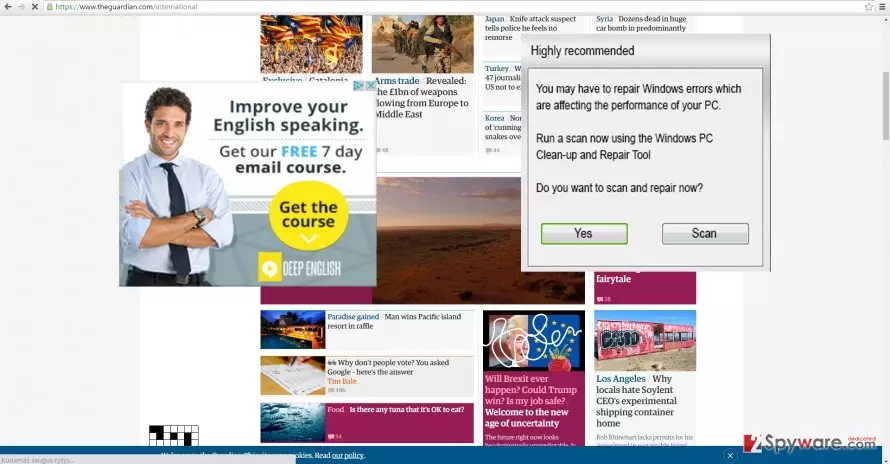
Therefore, as long as this adware resides on the system, you might keep encountering the negative consequences of TribalAd PPC Ad Network redirect. Due to the support of third-parties and specific scripts and filters injected in your browser, you might be redirected to sponsored web pages instead of your initial search entry. We would like to warn you not to get carried away in them even if they attracted your attention with piquant headlines. The latter websites are often targeted by hackers since they happen to be a perfect place for dropping their viruses and minor malware. It is high time you opted for TribalAd PPC Ad Network removal. One of the methods to do that is to run the scan using FortectIntego.
The transmission techniques of the PUP
The adware alike tends to travel along freeware. When users install download managers or driver updaters, they often ignore the possibility that these applications travel with small “packages.” The latter often turn out to be irrelevant toolbars, browser plug-ins or, in this case, adware disguising Ads by TribalAd PPC Ad Network. Fortunately, there is a way to spot it before it settles on the system. Before hitting the “Install” button, choose “Advanced” installation mode. After you unmark all unnecessary add-ons, you can initiate the installation of the primary software. Such order of actions will decrease the risk of potentially malicious programs infecting the operating system.
How can I get rid of Ads by TribalAd PPC Ad Network?
There are two ways to perform TribalAd PPC Ad Network removal. The first option includes manual elimination. Be very careful and attentive while going through each step of the instructions. Any missed detail might result in the re-hijack of the adware. Moreover, taking into account the peculiarities of this sneaky adware, it is likely that it dispersed its files across the entire registry. Therefore, detecting them might be a time-consuming activity. In this case, it would be better to opt for the automatic elimination since the anti-spyware application is more apt in detecting PUP files. The software will remove TribalAd PPC Ad Network quickly and you will be able to browse the Web without any disturbances.
Uninstall from Windows
Uninstall from Windows 10/8:
- Type Control Panel into the Windows search box and open the result.
- Under Programs, select Uninstall a program.


Uninstall from Windows 7/XP:
- Click on Windows Start > Control Panel (Windows XP users should click on Add/Remove Programs).
- In Control Panel, select Programs > Uninstall a program.


Remove the unwanted program:
- In the Programs and Features window, look for any recently installed suspicious entries, select them, and click Uninstall.
- If User Account Control appears, click Yes to confirm, then complete the removal.


Delete from macOS
Remove the unwanted application:
- From the menu bar, select Go > Applications.
- In the Applications folder, look for any suspicious entries, then drag them to Trash (or right-click and pick Move to Trash).


Delete leftover files and folders:
- Select Go > Go to Folder.
- Enter /Library/Application Support and remove any suspicious folders related to the unwanted program.
- Repeat the same check in the /Library/LaunchAgents and /Library/LaunchDaemons folders, deleting any suspicious entries.

- Finally, empty the Trash to permanently remove the leftovers.

Remove from Microsoft Edge
Delete unwanted extensions from MS Edge:
- Select Menu (three horizontal dots at the top-right of the browser window) and pick Extensions.
- From the list, pick the extension and click on the Gear icon.
- Click Remove.


Clear cookies and other browser data:
- Click on the Menu (three horizontal dots at the top-right of the browser window) and select Settings > Privacy, search, and services..
- Under Clear browsing data, pick Choose what to clear.
- Select Cookies and other site data and Cached images and files. (apart from passwords, although you might want to include Media licenses as well, if applicable) and click on Clear.


Restore new tab and homepage settings:
- Click the menu icon and choose Settings.
- Then find On startup section.
- Click Remove next to any suspicious startup page.
Reset MS Edge if the above steps did not work:
- Press on Ctrl + Shift + Esc to open Task Manager.
- Click on More details arrow at the bottom of the window.
- Select Details tab.
- Now scroll down and locate every entry with Microsoft Edge name in it. Right-click on each of them and select End Task to stop MS Edge from running.


Instructions for Chromium-based Edge
Delete extensions from MS Edge (Chromium):
- Open Edge and click select Settings > Extensions.
- Delete unwanted extensions by clicking Remove.


Clear cache and site data:
- Click on Menu and go to Settings.
- Select Privacy, search and services.
- Under Clear browsing data, pick Choose what to clear.
- Under Time range, pick All time.
- Select Clear now.


Reset Chromium-based MS Edge:
- Click on Menu and select Settings.
- On the left side, pick Reset settings.
- Select Restore settings to their default values.
- Confirm with Reset.
- This will disable extensions and reset startup pages but will not delete bookmarks, saved passwords, or browsing history.


Remove from Mozilla Firefox (FF)
Remove dangerous extensions:
- Open Mozilla Firefox browser and click on the Menu (three horizontal lines at the top-right of the window).
- Select Add-ons.
- In here, select the unwanted extension and click Remove.


Reset the homepage:
- Click three horizontal lines at the top right corner to open the menu.
- Choose Settings.
- Under Home, set your preferred homepage and new tab settings.
Clear cookies and site data:
- Click Menu and pick Settings.
- Go to Privacy & Security section.
- Scroll down to locate Cookies and Site Data.
- Click on Clear Data...
- Select Cookies and Site Data and Temporary cached files and pages, then click Clear.


Reset Mozilla Firefox
If clearing the browser as explained above did not help, reset Mozilla Firefox:
- Open Mozilla Firefox browser and click the Menu.
- Go to Help and then choose Troubleshooting Information.

- Under Give Firefox a tune up section, click on Refresh Firefox...
- Once the pop-up shows up, confirm the action by pressing on Refresh Firefox.



Remove from Google Chrome
Delete malicious extensions from Google Chrome:
- Open Google Chrome, click on the Menu (three vertical dots at the top-right corner) and select More tools > Extensions.
- In the newly opened window, you will see all the installed extensions. Uninstall all suspicious extensions related to the unwanted program by clicking Remove.


Clear cache and web data from Chrome:
- Click on Menu and pick Settings.
- Under Privacy and security, select Clear browsing data.
- Select Browsing history, Cookies and other site data, as well as Cached images and files.
- Click Clear data.


Change your homepage:
- Click menu and choose Settings.
- Look for a suspicious site in the On startup section.
- Click on Open a specific or set of pages and click on three dots to find the Remove option.
Reset Google Chrome:
If the previous methods did not help you, reset Google Chrome to eliminate all the unwanted components:
- Click on Menu and select Settings.
- In the Settings, scroll down and click Advanced.
- Scroll down and locate Reset and clean up section.
- Now click Restore settings to their original defaults.
- Confirm with Reset settings.


Delete from Safari
Remove dangerous extensions:
- Open Safari, click Safari in the menu at the top-left of the screen, and select Preferences.
- Go to the Extensions tab, look for any suspicious entries, and click Uninstall to remove them.


Clear history and website data:
- Click Safari in the menu and pick Clear History.
- Set Clear to all history and confirm with Clear History.


Reset Safari:
- Click Safari in the menu and select Preferences > Advanced.
- Enable Show Develop menu in menu bar.
- From the menu bar, click Develop and select Empty Caches.


Did this guide help?
2 comments
Timothy
Whats with this random title?
Becky
This virus got me as well though Im so cautious while downloading anything...