

ReadingFanatic Toolbar. What do you need to know about this program?
ReadingFanatic Toolbar might seem like a useful application to book lovers. It is a browser add-on, which is compatible with Google Chrome, Safari, Mozilla Firefox, and Internet Explorer. However, it seems that users who have encountered this toolbar tend to hastily call it ReadingFanatic Toolbar virus. That is not true because this program is safe and legitimate. The only thing that annoys computer users is that they do not know what is the proper way to remove ReadingFanatic Toolbar from their browsers. If you are interested to find out how to delete it from your computer system, continue reading the information provided below.
When you add this toolbar to your browser, you permit it to read and change all data on the web pages you visit, read and change your browsing history, manage your apps, themes, extensions, and also downloads. Please note that this can affect the quality of your browsing experience, and not necessarily in a positive way. This extension will change your homepage, new tab and search engine settings and input Hp.MyWay.com instead of the previous value. It is going to be a modified version of this search, because it provides a menu bar filled with shortcuts to such sites: “Free eBooks,” “Free Paperbacks,” “Book Recommenders,” “Book Search,” “Book News,” “Assorted Book links” and “Book retailers.” The new home and new tab page provide a search tool, which seems to offer quite a lot of sponsored third-party links within the search results. 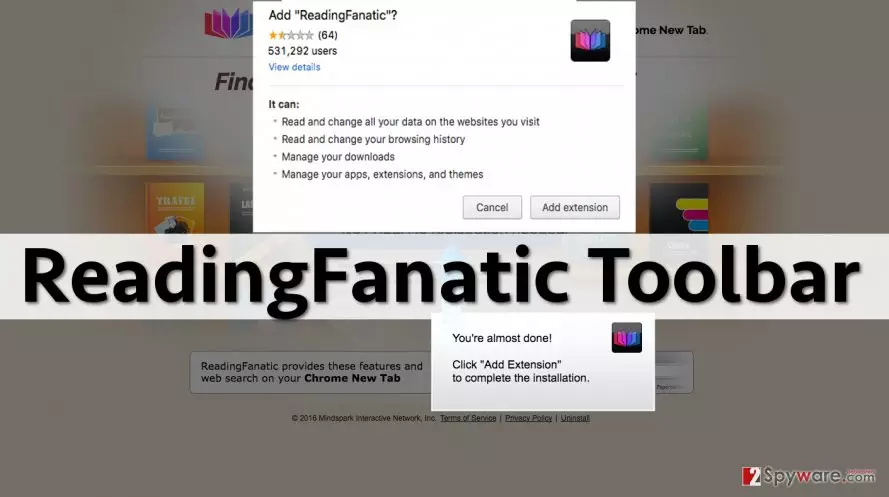
Please remember that all these third-party sites have their own Terms of Use and Privacy Policies and that they have nothing in common with this toolbar. These sites might be insecure, but ReadingFanatic is not liable for any damage you might experience by visiting these sites. According to the developers of this toolbar, the product may “may provide access to search results or other links to Third Party Partner sites or resources […] [the developer] […] does not endorse nor is responsible or liable for any content, advertising, products, or other materials on or available from such sites or resources.” If you do not want to continue using this toolbar, implement ReadingFanatic Toolbar removal using instructions presented at the end of this article.
How is this program distributed?
You can get a free download link to add ReadingFanatic Toolbar extension to your browser from the official developer’s website, but you might also add it while installing another program. This ad-supported application can be bundled with other programs as a suggested download, which you can opt out easily. To decompose a software pack, you have to pick Advanced or Custom settings to install your download and then look for statements claiming that you agree to install new apps, change your browser settings, search engine, and so on. Just deselect such statements and continue to install your download.
Recently, the developer of this program contacted us asking us to remove this post from 2-spyware.com website. We believe that we shouldn’t do that as long as programs that we offer for the removal of ReadingFanatic Toolbar can detect it and help users to remove it from the system. As it is mentioned under each of download buttons, we ARE affiliated with these anti-malware programs, and while some of them are free, others can remove a virus only after purchasing them. These mentions fully fulfill each of the requirements of FTC.
Nevertheless, we have recently decided to make a revision of this and other posts that are related to this developer. We claim that all of them are described properly.
ReadingFanatic Toolbar removal
If you are ready to remove ReadingFanatic Toolbar, read the instructions provided below and carry them out carefully:
Uninstall from Windows
Uninstall from Windows 10/8:
- Type Control Panel into the Windows search box and open the result.
- Under Programs, select Uninstall a program.


Uninstall from Windows 7/XP:
- Click on Windows Start > Control Panel (Windows XP users should click on Add/Remove Programs).
- In Control Panel, select Programs > Uninstall a program.


Remove the unwanted program:
- In the Programs and Features window, look for any recently installed suspicious entries, select them, and click Uninstall.
- If User Account Control appears, click Yes to confirm, then complete the removal.


Delete from macOS
Remove the unwanted application:
- From the menu bar, select Go > Applications.
- In the Applications folder, look for any suspicious entries, then drag them to Trash (or right-click and pick Move to Trash).


Delete leftover files and folders:
- Select Go > Go to Folder.
- Enter /Library/Application Support and remove any suspicious folders related to the unwanted program.
- Repeat the same check in the /Library/LaunchAgents and /Library/LaunchDaemons folders, deleting any suspicious entries.

- Finally, empty the Trash to permanently remove the leftovers.

Reset Internet Explorer
Remove dangerous add-ons:
- Open Internet Explorer, click on the Gear icon (IE menu) on the top-right corner of the browser
- Pick Manage Add-ons.
- You will see a Manage Add-ons window. Here, look for suspicious plugins. Click on these entries and select Disable.


Change your homepage if it was altered:
- Open IE and click on the Gear icon.
- Select Internet Options.
- In the General tab, delete the Home page address and replace it by your preferred one (for example, Google.com).
- Click Apply and then select OK.


Delete temporary files:
- Press on the Gear icon and select Internet Options.
- Under Browsing history, click Delete...
- Select relevant fields and press Delete.


Reset Internet Explorer:
- Click on Gear icon > Internet options and select Advanced tab.
- Select Reset.
- In the new window, check Delete personal settings and select Reset.


Remove from Mozilla Firefox (FF)
Remove dangerous extensions:
- Open Mozilla Firefox browser and click on the Menu (three horizontal lines at the top-right of the window).
- Select Add-ons.
- In here, select the unwanted extension and click Remove.


Reset the homepage:
- Click three horizontal lines at the top right corner to open the menu.
- Choose Settings.
- Under Home, set your preferred homepage and new tab settings.
Clear cookies and site data:
- Click Menu and pick Settings.
- Go to Privacy & Security section.
- Scroll down to locate Cookies and Site Data.
- Click on Clear Data...
- Select Cookies and Site Data and Temporary cached files and pages, then click Clear.


Reset Mozilla Firefox
If clearing the browser as explained above did not help, reset Mozilla Firefox:
- Open Mozilla Firefox browser and click the Menu.
- Go to Help and then choose Troubleshooting Information.

- Under Give Firefox a tune up section, click on Refresh Firefox...
- Once the pop-up shows up, confirm the action by pressing on Refresh Firefox.



Remove from Google Chrome
Delete malicious extensions from Google Chrome:
- Open Google Chrome, click on the Menu (three vertical dots at the top-right corner) and select More tools > Extensions.
- In the newly opened window, you will see all the installed extensions. Uninstall all suspicious extensions related to the unwanted program by clicking Remove.


Clear cache and web data from Chrome:
- Click on Menu and pick Settings.
- Under Privacy and security, select Clear browsing data.
- Select Browsing history, Cookies and other site data, as well as Cached images and files.
- Click Clear data.


Change your homepage:
- Click menu and choose Settings.
- Look for a suspicious site in the On startup section.
- Click on Open a specific or set of pages and click on three dots to find the Remove option.
Reset Google Chrome:
If the previous methods did not help you, reset Google Chrome to eliminate all the unwanted components:
- Click on Menu and select Settings.
- In the Settings, scroll down and click Advanced.
- Scroll down and locate Reset and clean up section.
- Now click Restore settings to their original defaults.
- Confirm with Reset settings.


Delete from Safari
Remove dangerous extensions:
- Open Safari, click Safari in the menu at the top-left of the screen, and select Preferences.
- Go to the Extensions tab, look for any suspicious entries, and click Uninstall to remove them.


Clear history and website data:
- Click Safari in the menu and pick Clear History.
- Set Clear to all history and confirm with Clear History.


Reset Safari:
- Click Safari in the menu and select Preferences > Advanced.
- Enable Show Develop menu in menu bar.
- From the menu bar, click Develop and select Empty Caches.


Did this guide help?
4 comments
ian
Thanks - Ive been looking for a readingfanatic removal guide.
Steve
ReadingFanatic did not meet my expectations. I would like to say something positive, but this program is just not that good. I didnt like it at all...
Rhonda
I cannot understand how did this toolbar get inside my computer...
sims
I am glad that I have removed it. I didnt find this toolbar useful at any point.