

What can you expect from My WebEnhancer application?
An excessive amount of advertisements, commercial offers, and banners might suggest that My WebEnhancer virus infected your computer. It has been observed that the PUP mainly attacks Mac OS users. This potentially unwanted program works as an adware-type application. Its primary mission is to show advertising content: daily deals, commercial offers, and in-text ads. Regularly popping advertising messages and offers might make even the most patient user lose his temper. Thus, it is a good reason to remove My WebEnhancer app. Moreover, the adware might also convince you into downloading unlikely useful applications. They only take up space on a hard drive disk and might affect the performance of the device. My WebEnhancer removal should be your current priority. Install FortectIntego to help you with the process.
Regarding its qualities, this adware application is identical to LiveShoppers, another adware targeting Apple owners. The creators of both programs did not waste their energy by creating a different design for this particular app. If you visit the website of LiveShoppers, you will realize that both websites are the same only with differing program titles. Speaking of the current adware, it does not pose a great threat. It does not inflict significant damage on the computer except that recurring My WebEnhancer ads decrease browser’s and PC’s processing.
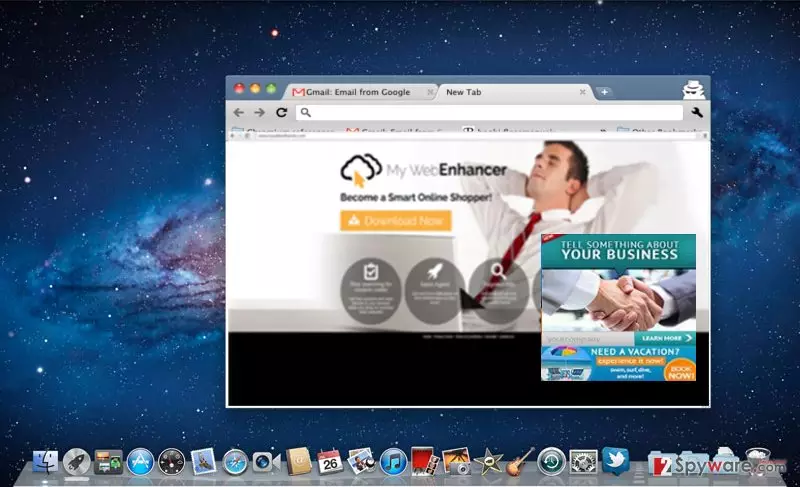
The adware promotes itself as a utility which delivers you discount codes and shows relevant advertisements. As a result, your shopping experience is boosted to a new level. However, these constantly appearing ads do not only distract you from quickly accessing wanted information, but they might direct you to the websites of questionable security. Thus, due to My WebEnhancer redirect tendency, you might find yourself in gaming or other advertising websites which might disguise bothersome malware. Try not to peek in them but exit such redirect web pages.
The transmission techniques of the adware
The PUP exploits other programs to sneak into computers. The adware clings to free media players, file converters or image editors and disguises itself as the add-on. When you are about to install the downloaded program, rarely you spot attachments. Unfortunately, they often contain futile applications. Leaving them pre-marked and then hitting “Install” button causes My WebEnhancer hijack or helps another adware to infiltrate your computer. We would like you to recommend some tips which would help you detect unwanted programs on time. Before initiating the installation process, choose “Advanced” mode. Later on, carefully unmark all optional add-ons.
My WebEnhancer elimination steps
There are mainly two options to fully terminate this app. It is not difficult to eliminate the adware manually. Bear in mind that this method will require more of your time. Precisely follow each step of the guidelines to remove My WebEnhancer virus. If this method is inconvenient or you simply do not want to waste time on such activity, install an anti-spyware application. It will complete My WebEnhancer removal within a moment. On the final note, you can decrease the risk of adware infiltrating your computer if you pay more attention to the installation wizards. Cautiousness is the first step to escaping similar PUPs.
Delete from macOS
Remove the unwanted application:
- From the menu bar, select Go > Applications.
- In the Applications folder, look for any suspicious entries, then drag them to Trash (or right-click and pick Move to Trash).


Delete leftover files and folders:
- Select Go > Go to Folder.
- Enter /Library/Application Support and remove any suspicious folders related to the unwanted program.
- Repeat the same check in the /Library/LaunchAgents and /Library/LaunchDaemons folders, deleting any suspicious entries.

- Finally, empty the Trash to permanently remove the leftovers.

Reset Internet Explorer
Remove dangerous add-ons:
- Open Internet Explorer, click on the Gear icon (IE menu) on the top-right corner of the browser
- Pick Manage Add-ons.
- You will see a Manage Add-ons window. Here, look for suspicious plugins. Click on these entries and select Disable.


Change your homepage if it was altered:
- Open IE and click on the Gear icon.
- Select Internet Options.
- In the General tab, delete the Home page address and replace it by your preferred one (for example, Google.com).
- Click Apply and then select OK.


Delete temporary files:
- Press on the Gear icon and select Internet Options.
- Under Browsing history, click Delete...
- Select relevant fields and press Delete.


Reset Internet Explorer:
- Click on Gear icon > Internet options and select Advanced tab.
- Select Reset.
- In the new window, check Delete personal settings and select Reset.


Remove from Mozilla Firefox (FF)
Remove dangerous extensions:
- Open Mozilla Firefox browser and click on the Menu (three horizontal lines at the top-right of the window).
- Select Add-ons.
- In here, select the unwanted extension and click Remove.


Reset the homepage:
- Click three horizontal lines at the top right corner to open the menu.
- Choose Settings.
- Under Home, set your preferred homepage and new tab settings.
Clear cookies and site data:
- Click Menu and pick Settings.
- Go to Privacy & Security section.
- Scroll down to locate Cookies and Site Data.
- Click on Clear Data...
- Select Cookies and Site Data and Temporary cached files and pages, then click Clear.


Reset Mozilla Firefox
If clearing the browser as explained above did not help, reset Mozilla Firefox:
- Open Mozilla Firefox browser and click the Menu.
- Go to Help and then choose Troubleshooting Information.

- Under Give Firefox a tune up section, click on Refresh Firefox...
- Once the pop-up shows up, confirm the action by pressing on Refresh Firefox.



Remove from Google Chrome
Delete malicious extensions from Google Chrome:
- Open Google Chrome, click on the Menu (three vertical dots at the top-right corner) and select More tools > Extensions.
- In the newly opened window, you will see all the installed extensions. Uninstall all suspicious extensions related to the unwanted program by clicking Remove.


Clear cache and web data from Chrome:
- Click on Menu and pick Settings.
- Under Privacy and security, select Clear browsing data.
- Select Browsing history, Cookies and other site data, as well as Cached images and files.
- Click Clear data.


Change your homepage:
- Click menu and choose Settings.
- Look for a suspicious site in the On startup section.
- Click on Open a specific or set of pages and click on three dots to find the Remove option.
Reset Google Chrome:
If the previous methods did not help you, reset Google Chrome to eliminate all the unwanted components:
- Click on Menu and select Settings.
- In the Settings, scroll down and click Advanced.
- Scroll down and locate Reset and clean up section.
- Now click Restore settings to their original defaults.
- Confirm with Reset settings.


Delete from Safari
Remove dangerous extensions:
- Open Safari, click Safari in the menu at the top-left of the screen, and select Preferences.
- Go to the Extensions tab, look for any suspicious entries, and click Uninstall to remove them.


Clear history and website data:
- Click Safari in the menu and pick Clear History.
- Set Clear to all history and confirm with Clear History.


Reset Safari:
- Click Safari in the menu and select Preferences > Advanced.
- Enable Show Develop menu in menu bar.
- From the menu bar, click Develop and select Empty Caches.


Did this guide help?
3 comments
daisy888
Perhaps they ran out of imagination?...
Jimmy
Now mac users will have to take some time battling such pests.
Ted
yeah, right...the app is only capable of enhancing the browser with annoying pop-ups?