

Description of Search-select.co app
Search-select.co virus is advertised as a browser add-on that is compatible with Chrome browser. According to the description provided by authors of this potentially unwanted program (PUP), this tool simplifies the search routine by allowing the user to choose which search engine to use from a drop-down menu. However, we must warn you that this program can significantly decrease the quality of your browsing sessions, as it is an ad-supported program. The first thing it does is that it inserts Search-select.co value into homepage and new tab page settings in Chrome, and makes this site as a default search provider. You should know that results powered by this site can be slightly modified and filled with third-party links. If you are a security-minded computer user, then you probably know that clicking on random links and visiting vague websites can lead to serious problems.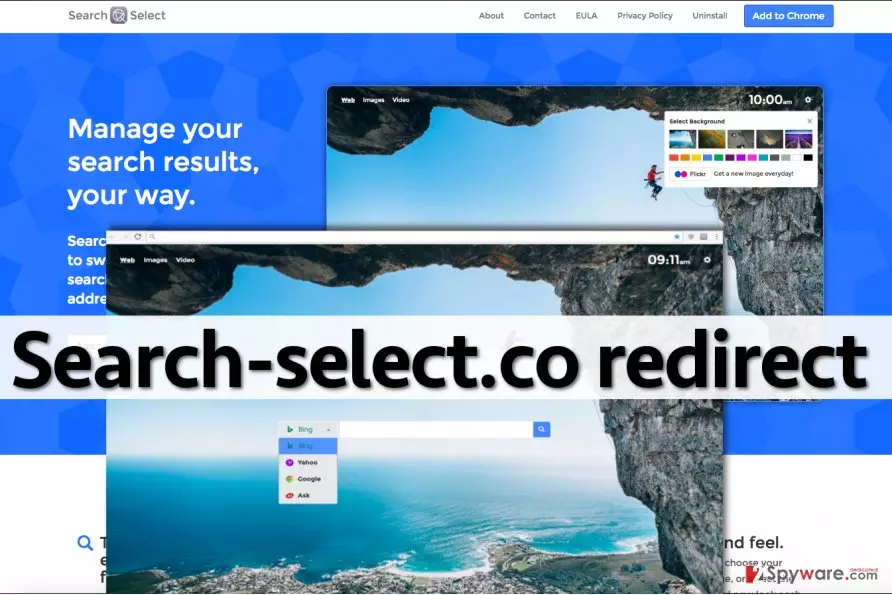
This program is assigned to “browser hijackers” category due to stealthy infiltration method that it uses to get inside the victim’s computer. However, it is not hard to delete this threat from the system – it is harder to identify that it is a browser hijacker, since the page that it sets as the homepage looks completely normal. Beware that by using the search engine it provides and clicking on the search results you risk being redirected to questionable web pages, where you can encounter suggestions to install free programs, update the ones that you already have, or participate in online lotteries. Remember that such offers are likely to be untrustworthy and may lead you to serious problems such as data leakage or computer infection. We do not say that every link that is provided via that site is dangerous and poses a threat, but you should stay alert and keep in mind that it is better not to trust them. If you want to remove Search-select.co from your browser, do not bother going to browser settings and trying to adjust your homepage manually. To gain the access to do it, you must complete Search-select.co removal first. This can be done with a help of FortectIntego program.
How does this program spread?
You can download Search-select.co redirect virus directly from its developer’s site or find it on Google Chrome store. You can also install it alongside other free programs, but many computer users do not know that. They cannot understand what was the cause of Search-select.co hijack, and they think that it is a malicious program. That is not true. When you download a program and launch its installer, check the installation settings. Select Advanced or Custom parameter and deselect all checkboxes next to suggestions to change your homepage, add new programs, toolbars, and similar content. Then finish the installation.
How to remove Search-select.co?
Search-select.co virus can drive people insane because there are no worrying signs of a computer infection once it hijacks the computer. The user might even start thinking that changes in browser settings were made by the browser itself and that there is nothing to worry about. However, if the homepage changes without your intervention, it can mean only one thing – a browser hijacker has been installed, and it has altered browser settings the way it wanted to. To undo these changes, you have to delete it from your computer. You can remove Search-select.co redirect virus using the anti-malware program, or delete it manually. If you want to opt for the second Search-select.co removal option, follow the guidelines that are provided below:
Uninstall from Windows
Uninstall from Windows 10/8:
- Type Control Panel into the Windows search box and open the result.
- Under Programs, select Uninstall a program.


Uninstall from Windows 7/XP:
- Click on Windows Start > Control Panel (Windows XP users should click on Add/Remove Programs).
- In Control Panel, select Programs > Uninstall a program.


Remove the unwanted program:
- In the Programs and Features window, look for any recently installed suspicious entries, select them, and click Uninstall.
- If User Account Control appears, click Yes to confirm, then complete the removal.


Delete from macOS
Remove the unwanted application:
- From the menu bar, select Go > Applications.
- In the Applications folder, look for any suspicious entries, then drag them to Trash (or right-click and pick Move to Trash).


Delete leftover files and folders:
- Select Go > Go to Folder.
- Enter /Library/Application Support and remove any suspicious folders related to the unwanted program.
- Repeat the same check in the /Library/LaunchAgents and /Library/LaunchDaemons folders, deleting any suspicious entries.

- Finally, empty the Trash to permanently remove the leftovers.

Remove from Google Chrome
Delete malicious extensions from Google Chrome:
- Open Google Chrome, click on the Menu (three vertical dots at the top-right corner) and select More tools > Extensions.
- In the newly opened window, you will see all the installed extensions. Uninstall all suspicious extensions related to the unwanted program by clicking Remove.


Clear cache and web data from Chrome:
- Click on Menu and pick Settings.
- Under Privacy and security, select Clear browsing data.
- Select Browsing history, Cookies and other site data, as well as Cached images and files.
- Click Clear data.


Change your homepage:
- Click menu and choose Settings.
- Look for a suspicious site in the On startup section.
- Click on Open a specific or set of pages and click on three dots to find the Remove option.
Reset Google Chrome:
If the previous methods did not help you, reset Google Chrome to eliminate all the unwanted components:
- Click on Menu and select Settings.
- In the Settings, scroll down and click Advanced.
- Scroll down and locate Reset and clean up section.
- Now click Restore settings to their original defaults.
- Confirm with Reset settings.


Did this guide help?
5 comments
limo
search select virus is a horrible program!
Vivienne
This search engine is definitely untrustworthy and causes redirects, dont use it! just a friendly advise - i warned you guys!
Lorra
Thanks, just eliminated it.
Andre
cant delete, stuck in my browser, should I reinstall windows???
NightWish
No, you shouldnt. Try to reset your browser. Instructions are given above, dude!