

Is Search.searchfdm.com site dangerous?
Some PC users rush to claim that Search.searchfdm.com virus has affected their computers right after noticing this site in their browsers. However, this bogus search engine is not itself a virus, nor is it promoted by one. In fact, it relates to a potentially unwanted program (PUP), which is known to be browser hijacker type application. We have discovered that this hijacker changes browser’s settings and sets a particular site as homepage and default search engine. It seems that this hijacker can be downloaded from the Internet as a FreeDriverMaps extension, which has been developed by SaferBrowser. Anyone who is at least a bit familiar with spyware knows that Safer Browser is a never-ending source of various browser hijackers and adware programs. Unfortunately, we cannot say anything optimistic or positive about this company, because many computer users complain about their products and seek to remove them. If you also wish to remove Search.searchfdm.com, use FortectIntego software or follow instructions that are given at the end of this post. 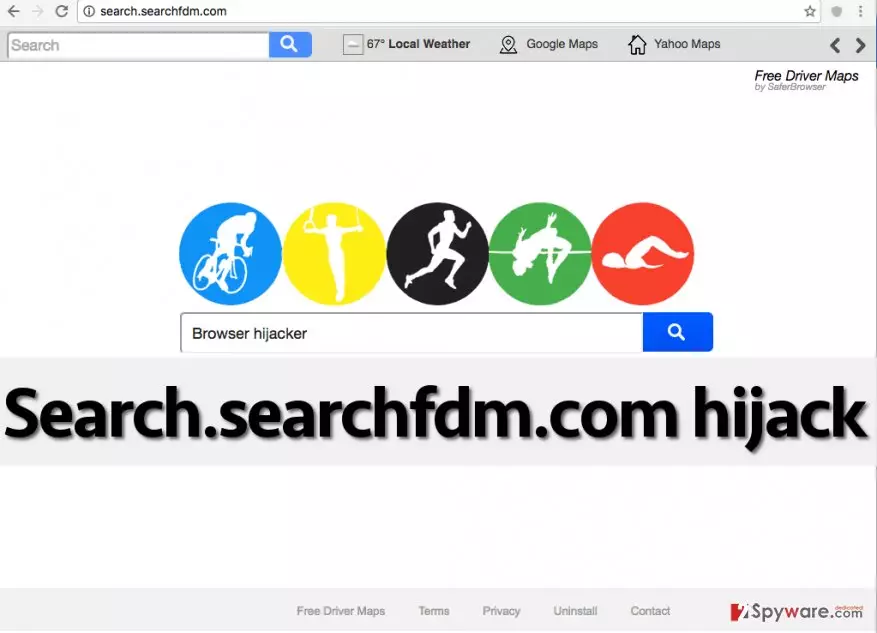
Even though the discussed site looks secure and resembles a typical search engine, it would be naive to rely on its search results. It appears that part of them are sponsored and hold links that can quickly connect the user with third-party web pages, which might be vague or even insecure to visit. In other words, by searching via this search engine, you might have to experience Search.searchfdm.com redirect issue. Not only these redirects are annoying and prevent you from accessing relevant search results quickly, but they can also be dangerous. You can never know what these third-party websites aim for and why do they collaborate with companies like SaferBrowser and push victims into visiting their shady-looking Internet sites. Remember that untrustworthy third-party sites can be used to distribute potentially unwanted programs (PUPs) and also malware, so do not try to download any type of content from unknown sites, no matter how “useful” and interesting it looks. If you do not want to risk and end up installing malicious pieces of software or visiting rogue sites that urge to provide your personal information, better initiate Search.searchfdm.com removal immediately. As long as this application is on your computer, the system becomes more vulnerable to other computer threats and infections.
How does this program spread?
This potentially unwanted app can be downloaded from its official website and affect all your browsers. However, its is also distributed via freeware and shareware to make more computer users install in unwillingly and gather more monetary gain. It is so because each click on a sponsored link can generate profits for the developer of this PUP. If you cannot remember when did Search.searchfdm.com hijack happen, try to remember what programs you have recently installed on your computer. Think of free programs in general – have you installed any media players, file format converters, download managers, games, and similar pieces of software? If you did install a few programs lately, one of them could have offered you to install FreeDriverMaps. These suggestions typically hide under Standard/Default installation settings. If you install your preferred program using these settings, all additions get installed as well. That is why you have to adjust settings and set them to Advanced/Custom option. After that, the user just needs to refuse to install additional components by managing them manually.
Search.searchfdm.com removal instructions
If you are tired of Search.searchfdm.com virus, do not let it bother you ever again. Install a trustworthy anti-malware software and scan your PC with it. This way, you would identify and remove the hijacker automatically, as well as all other vague programs from your PC. If you do not want to choose this Search.searchfdm.com removal option, then opt for the manual removal option. To remove Search.searchfdm.com manually, carefully read and carry out our prepared instructions:
Uninstall from Windows
Uninstall from Windows 10/8:
- Type Control Panel into the Windows search box and open the result.
- Under Programs, select Uninstall a program.


Uninstall from Windows 7/XP:
- Click on Windows Start > Control Panel (Windows XP users should click on Add/Remove Programs).
- In Control Panel, select Programs > Uninstall a program.


Remove the unwanted program:
- In the Programs and Features window, look for any recently installed suspicious entries, select them, and click Uninstall.
- If User Account Control appears, click Yes to confirm, then complete the removal.


Delete from macOS
Remove the unwanted application:
- From the menu bar, select Go > Applications.
- In the Applications folder, look for any suspicious entries, then drag them to Trash (or right-click and pick Move to Trash).


Delete leftover files and folders:
- Select Go > Go to Folder.
- Enter /Library/Application Support and remove any suspicious folders related to the unwanted program.
- Repeat the same check in the /Library/LaunchAgents and /Library/LaunchDaemons folders, deleting any suspicious entries.

- Finally, empty the Trash to permanently remove the leftovers.

Reset Internet Explorer
Remove dangerous add-ons:
- Open Internet Explorer, click on the Gear icon (IE menu) on the top-right corner of the browser
- Pick Manage Add-ons.
- You will see a Manage Add-ons window. Here, look for suspicious plugins. Click on these entries and select Disable.


Change your homepage if it was altered:
- Open IE and click on the Gear icon.
- Select Internet Options.
- In the General tab, delete the Home page address and replace it by your preferred one (for example, Google.com).
- Click Apply and then select OK.


Delete temporary files:
- Press on the Gear icon and select Internet Options.
- Under Browsing history, click Delete...
- Select relevant fields and press Delete.


Reset Internet Explorer:
- Click on Gear icon > Internet options and select Advanced tab.
- Select Reset.
- In the new window, check Delete personal settings and select Reset.


Remove from Mozilla Firefox (FF)
Remove dangerous extensions:
- Open Mozilla Firefox browser and click on the Menu (three horizontal lines at the top-right of the window).
- Select Add-ons.
- In here, select the unwanted extension and click Remove.


Reset the homepage:
- Click three horizontal lines at the top right corner to open the menu.
- Choose Settings.
- Under Home, set your preferred homepage and new tab settings.
Clear cookies and site data:
- Click Menu and pick Settings.
- Go to Privacy & Security section.
- Scroll down to locate Cookies and Site Data.
- Click on Clear Data...
- Select Cookies and Site Data and Temporary cached files and pages, then click Clear.


Reset Mozilla Firefox
If clearing the browser as explained above did not help, reset Mozilla Firefox:
- Open Mozilla Firefox browser and click the Menu.
- Go to Help and then choose Troubleshooting Information.

- Under Give Firefox a tune up section, click on Refresh Firefox...
- Once the pop-up shows up, confirm the action by pressing on Refresh Firefox.



Remove from Google Chrome
Delete malicious extensions from Google Chrome:
- Open Google Chrome, click on the Menu (three vertical dots at the top-right corner) and select More tools > Extensions.
- In the newly opened window, you will see all the installed extensions. Uninstall all suspicious extensions related to the unwanted program by clicking Remove.


Clear cache and web data from Chrome:
- Click on Menu and pick Settings.
- Under Privacy and security, select Clear browsing data.
- Select Browsing history, Cookies and other site data, as well as Cached images and files.
- Click Clear data.


Change your homepage:
- Click menu and choose Settings.
- Look for a suspicious site in the On startup section.
- Click on Open a specific or set of pages and click on three dots to find the Remove option.
Reset Google Chrome:
If the previous methods did not help you, reset Google Chrome to eliminate all the unwanted components:
- Click on Menu and select Settings.
- In the Settings, scroll down and click Advanced.
- Scroll down and locate Reset and clean up section.
- Now click Restore settings to their original defaults.
- Confirm with Reset settings.


Delete from Safari
Remove dangerous extensions:
- Open Safari, click Safari in the menu at the top-left of the screen, and select Preferences.
- Go to the Extensions tab, look for any suspicious entries, and click Uninstall to remove them.


Clear history and website data:
- Click Safari in the menu and pick Clear History.
- Set Clear to all history and confirm with Clear History.


Reset Safari:
- Click Safari in the menu and select Preferences > Advanced.
- Enable Show Develop menu in menu bar.
- From the menu bar, click Develop and select Empty Caches.


Did this guide help?
4 comments
mars
I wouldnt recommend this search engine to anyone. Its useless!
Hopi
Really nasty search engine. When you use it, you FEEL that something is wrong.
Counteral
virus! dont install this add-on, it will cause you many probz
tricks
I did not install this virus, and I am so angry now! this search engine sucks!