

Uportal: a typical browser-hijacking application that alters your browsing experience
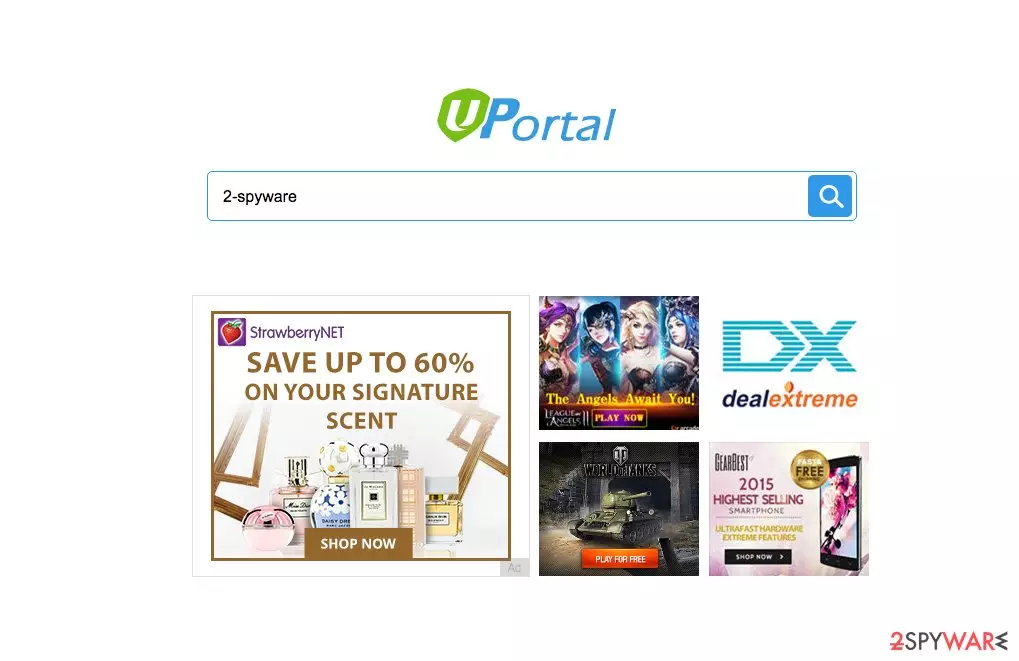
There is one new browser hijacker that you need to look out for, and that’s the Uportal virus. The program is initially promoted as a search quality enhancing tool, so there is no wonder that users often fall for this false advertising. In reality, this program does not improve the computer’s performance, nor does it help you search the Internet faster.
The main problem is that it is a potentially unwanted program and a browser hijacker that targets the most important Window to the world – your Internet browser. When it does take over the control, it assigns the predetermined Greenet.xyz site to the homepage and the default search engine of the affected browser. Moreover, your browser’s settings will be altered so that you cannot switch back to your regular search provider that easily.
| Name | Uportal |
| Type | Browser hijacker |
| Distribution | Software bundling |
| Operation | Changes the homepage and new tab address of the browser to Greenet.xyz; tracks user data; redirects all searches to alternative provider and inserts ads into search results |
| Removal | Uninstall PUPs by following our manual guide or employ antivirus program |
| Browser fix | If you want to make sure that your browser is clean and no tracking technologies remain, use FortectIntego to clean it quickly |
This might soon become a problem since Uportal is an insecure site to use. Apart from providing the users with a search box to type in their search queries, this site greets them with ads to various online gaming sites or completely unnecessary products, making the site look even more suspicious.
Needless to say, such ads are quite risky to interact with since there is no way of knowing where they are going to redirect you. Unfortunately, these ads will continue to pop up on random pages and websites as long as this browser hijacker sits on your computer. It is recommended to remove the hijacker without wasting much time, to lessen the chances of ending up on random web pages and contaminating your computer with some nasty infection. We suggest using FortectIntego for a quick fix.
Besides the suspicious redirects and generating of suspicious ads, this browser hijacker is said to provide a poor search service as well. When looking for some information using this bogus search engine, you will notice that the provided results differ from those you are used to receiving via your default search service.
This issue mainly stems from the fact that this program is ad-based, so the search results it provides can also be filled with sponsored links. These links may also be cleverly disguised and look like regular search results, so, basically, you can expect to be redirected to random domains at any given moment.
Also, after gaining full administrative privileges of your browser, the virus can then install additional software, such as toolbars, extensions, and add-ons, making the Uportal removal even more difficult. In case the hijacker has been residing on your computer for a while now, we suggest sticking to the automatic PUP elimination, though there is a manual removal option as well.
Ways browser hijackers propagate
Over the years, the potentially unwanted program creators have polished their techniques of getting adware, hijackers, and other malware on the computers without being noticed. That is why infections with these viruses are so common – they hijack browsers without much trouble as well.
They enter the system undetected so they can immediately start messing with your settings and generating advertising content. Surprisingly, in all of the hijack cases, the computer users always let the app enter their computers themselves. They can do that while installing bundled software, downloading corrupt software updates, or clicking on random ads.
The users have not been attentive or insightful enough to notice the suspicious nature of the ad, software package, or download. Of course, not having a reliable antivirus system installed may also have added to the PUP infection. If you do not want to deal with the virus yourself, try to keep our recommendations in mind.
Dealing with the Uportal removal
If you are ready to remove the PUP from your computer, get your antivirus gear set up because you will need to run a full system scan and eliminate the hijacker from your computer. Obtain a new professional antivirus utility if you do not have one, or update the existing one to the latest version and hit the “scan” button.
For those who have more experience in eliminating viruses themselves, we also offer to test their skills with manual Uportal removal. Just be careful and follow the instruction guide below very carefully, not to delete some important system files by accident.
Uninstall from Windows
Uninstall from Windows 10/8:
- Type Control Panel into the Windows search box and open the result.
- Under Programs, select Uninstall a program.


Uninstall from Windows 7/XP:
- Click on Windows Start > Control Panel (Windows XP users should click on Add/Remove Programs).
- In Control Panel, select Programs > Uninstall a program.


Remove the unwanted program:
- In the Programs and Features window, look for any recently installed suspicious entries, select them, and click Uninstall.
- If User Account Control appears, click Yes to confirm, then complete the removal.


Delete from macOS
Remove the unwanted application:
- From the menu bar, select Go > Applications.
- In the Applications folder, look for any suspicious entries, then drag them to Trash (or right-click and pick Move to Trash).


Delete leftover files and folders:
- Select Go > Go to Folder.
- Enter /Library/Application Support and remove any suspicious folders related to the unwanted program.
- Repeat the same check in the /Library/LaunchAgents and /Library/LaunchDaemons folders, deleting any suspicious entries.

- Finally, empty the Trash to permanently remove the leftovers.

Remove from Microsoft Edge
Delete unwanted extensions from MS Edge:
- Select Menu (three horizontal dots at the top-right of the browser window) and pick Extensions.
- From the list, pick the extension and click on the Gear icon.
- Click Remove.


Clear cookies and other browser data:
- Click on the Menu (three horizontal dots at the top-right of the browser window) and select Settings > Privacy, search, and services..
- Under Clear browsing data, pick Choose what to clear.
- Select Cookies and other site data and Cached images and files. (apart from passwords, although you might want to include Media licenses as well, if applicable) and click on Clear.


Restore new tab and homepage settings:
- Click the menu icon and choose Settings.
- Then find On startup section.
- Click Remove next to any suspicious startup page.
Reset MS Edge if the above steps did not work:
- Press on Ctrl + Shift + Esc to open Task Manager.
- Click on More details arrow at the bottom of the window.
- Select Details tab.
- Now scroll down and locate every entry with Microsoft Edge name in it. Right-click on each of them and select End Task to stop MS Edge from running.


Instructions for Chromium-based Edge
Delete extensions from MS Edge (Chromium):
- Open Edge and click select Settings > Extensions.
- Delete unwanted extensions by clicking Remove.


Clear cache and site data:
- Click on Menu and go to Settings.
- Select Privacy, search and services.
- Under Clear browsing data, pick Choose what to clear.
- Under Time range, pick All time.
- Select Clear now.


Reset Chromium-based MS Edge:
- Click on Menu and select Settings.
- On the left side, pick Reset settings.
- Select Restore settings to their default values.
- Confirm with Reset.
- This will disable extensions and reset startup pages but will not delete bookmarks, saved passwords, or browsing history.


Remove from Mozilla Firefox (FF)
Remove dangerous extensions:
- Open Mozilla Firefox browser and click on the Menu (three horizontal lines at the top-right of the window).
- Select Add-ons.
- In here, select the unwanted extension and click Remove.


Reset the homepage:
- Click three horizontal lines at the top right corner to open the menu.
- Choose Settings.
- Under Home, set your preferred homepage and new tab settings.
Clear cookies and site data:
- Click Menu and pick Settings.
- Go to Privacy & Security section.
- Scroll down to locate Cookies and Site Data.
- Click on Clear Data...
- Select Cookies and Site Data and Temporary cached files and pages, then click Clear.


Reset Mozilla Firefox
If clearing the browser as explained above did not help, reset Mozilla Firefox:
- Open Mozilla Firefox browser and click the Menu.
- Go to Help and then choose Troubleshooting Information.

- Under Give Firefox a tune up section, click on Refresh Firefox...
- Once the pop-up shows up, confirm the action by pressing on Refresh Firefox.



Remove from Google Chrome
Delete malicious extensions from Google Chrome:
- Open Google Chrome, click on the Menu (three vertical dots at the top-right corner) and select More tools > Extensions.
- In the newly opened window, you will see all the installed extensions. Uninstall all suspicious extensions related to the unwanted program by clicking Remove.


Clear cache and web data from Chrome:
- Click on Menu and pick Settings.
- Under Privacy and security, select Clear browsing data.
- Select Browsing history, Cookies and other site data, as well as Cached images and files.
- Click Clear data.


Change your homepage:
- Click menu and choose Settings.
- Look for a suspicious site in the On startup section.
- Click on Open a specific or set of pages and click on three dots to find the Remove option.
Reset Google Chrome:
If the previous methods did not help you, reset Google Chrome to eliminate all the unwanted components:
- Click on Menu and select Settings.
- In the Settings, scroll down and click Advanced.
- Scroll down and locate Reset and clean up section.
- Now click Restore settings to their original defaults.
- Confirm with Reset settings.


Delete from Safari
Remove dangerous extensions:
- Open Safari, click Safari in the menu at the top-left of the screen, and select Preferences.
- Go to the Extensions tab, look for any suspicious entries, and click Uninstall to remove them.


Clear history and website data:
- Click Safari in the menu and pick Clear History.
- Set Clear to all history and confirm with Clear History.


Reset Safari:
- Click Safari in the menu and select Preferences > Advanced.
- Enable Show Develop menu in menu bar.
- From the menu bar, click Develop and select Empty Caches.


Did this guide help?
3 comments
Sally
You can tell immediately that this site is suspicious... they did not even bother to conceal the ads.
Calvin Rotcher
Another hijacker? What else is new?
Zola5
Thanks, your instructions helped me get rid of the virus !